Add or change a staff member
For: HR
Whole guide as PDF (723 KB)- Open Staff in the menu.
- Press New staff at the top right, or Edit at the end of a person's row.
- Fill in the details. Employee number, Name and Workplace type must be filled in.
- Workplace type: Outlet for someone based in a shop, HQ for head office.
- Outlet: where the person is based. Leave it empty for head office staff.
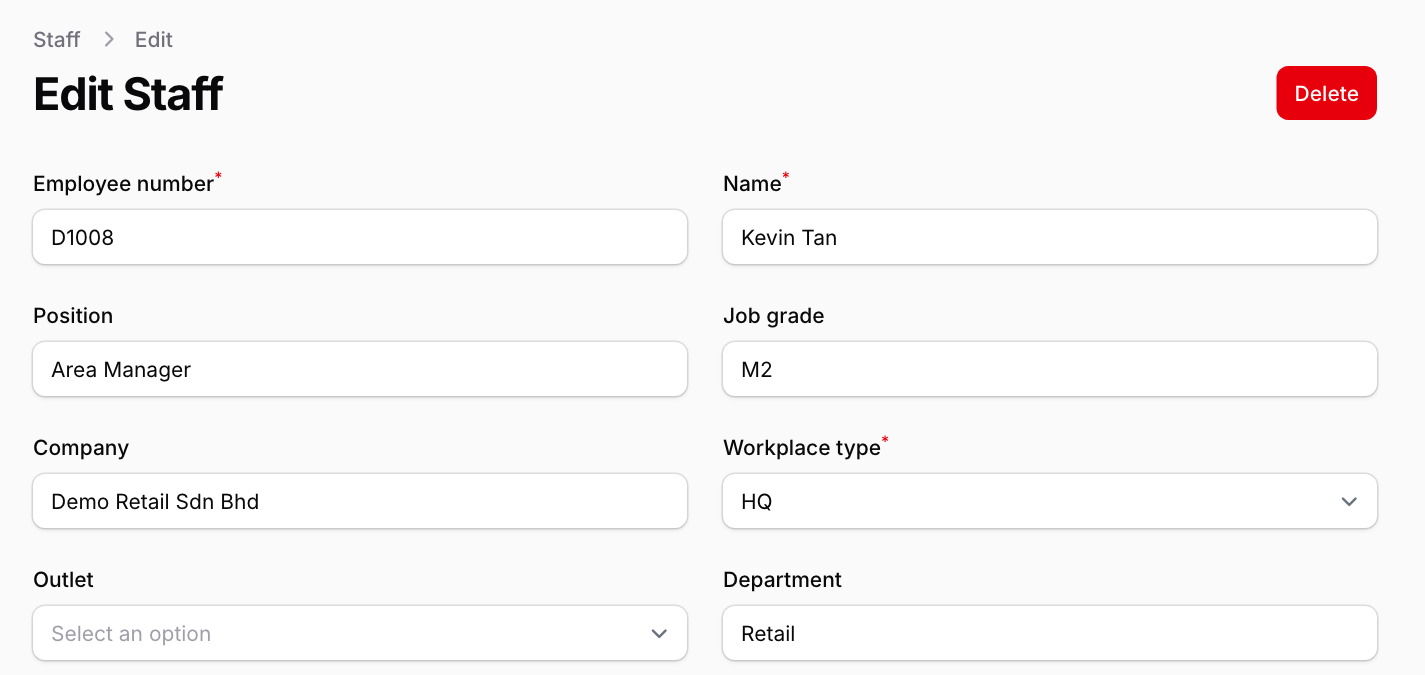
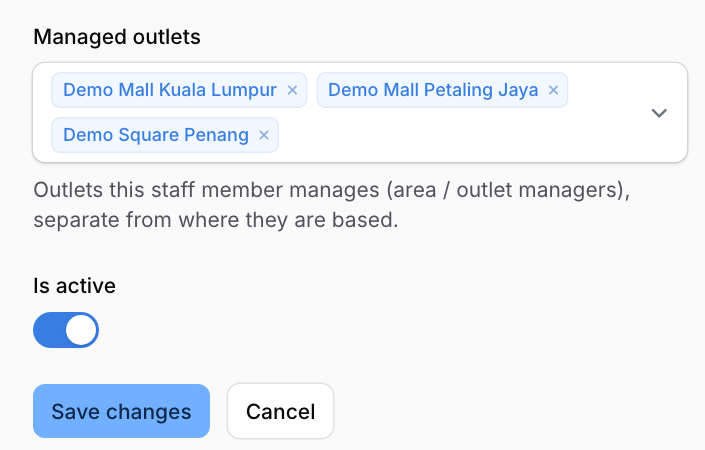
- Managed outlets: for an outlet manager or area manager, pick every outlet they look after. This is separate from where they are based. Other modules use it to know which outlets a manager looks after.
- Phone no: the mobile number the person signs in with, written in full with the country code, for example +60123456789. This is how the other modules match a signed-in person to their staff record. If it is wrong or missing, the person signs in but the modules do not know who they are.
- Press Create (new person) or Save changes.
When someone leaves
Switch off Is active and save. Avoid Delete: it removes the person for good, and a module that already copied them can keep its old copy until its next full refresh. Switching off keeps the record that they worked here, and the other modules see them as inactive.
Changes reach the other modules on their next copy. A module may show the old details until then.