Watch your outlets and plan audits
For: Area Managers
Whole guide as PDF (510 KB)You do everything an Internal Auditor does, for the outlets in your own areas. Your screens show only those outlets. If your screens are empty, nobody has linked you to your outlets yet. Ask a System Administrator.
See where to look
Under Analytics in the menu on the left:
- Portfolio heatmap: every outlet coloured by its latest result. Green is passing, amber is passing but close to the line, red is failing, and grey with a dash means never audited. Press an outlet to open its scorecard.
- Repeat offenders: what keeps failing, not what failed once.
- Auditor workload: who is carrying how many audits.
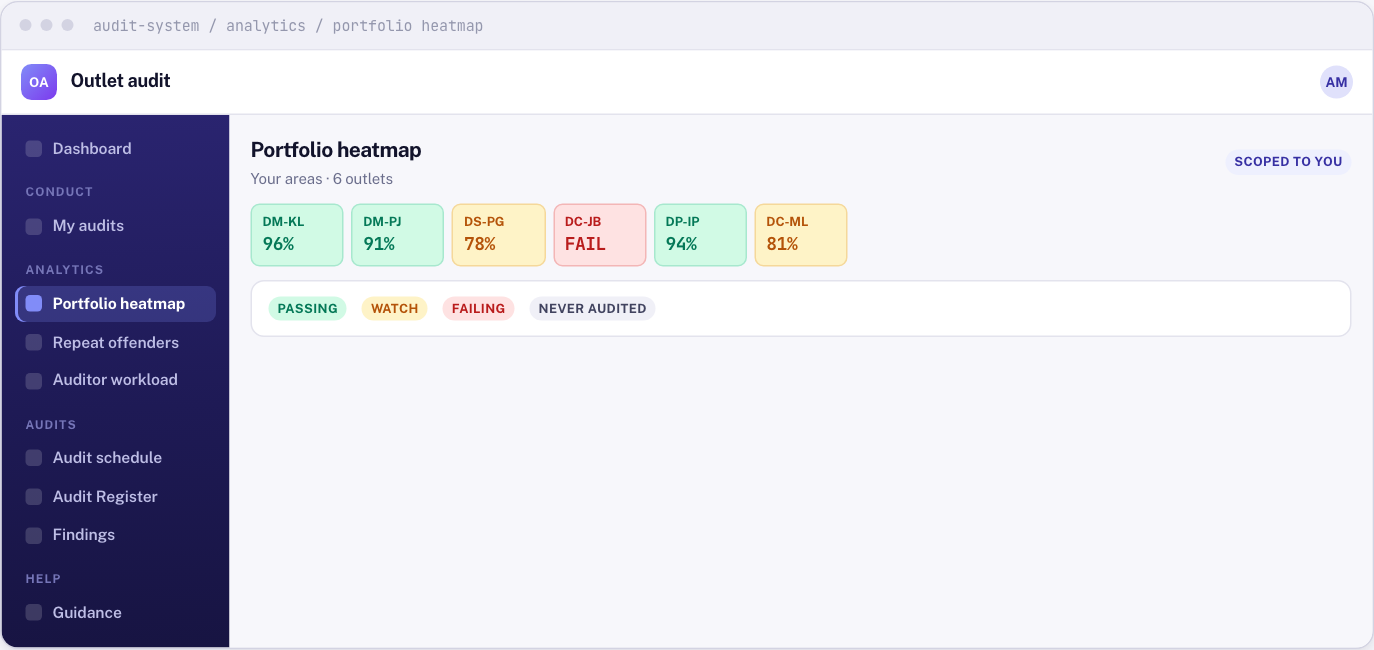
A red FAIL can sit over a high percentage. That means a critical question failed.
Plan audits
- Open Audit schedule under Audits.
- Press New audit schedule.
- Choose the Scope: A single outlet or An area (every outlet in it). Then pick the outlet or area and the Standard.
- Choose the Frequency, the Next due date, and who it is Conducted by. Leave Named auditor empty to let the first free person take it.
- Add a Reason if the auditor should know why, then press Create.
Requests raised in Customer service appear in the same list, with the customer's complaint as the reason.
Settle an audit sent twice
If two devices submit the same audit, the first one counts. The second is kept, not lost, and shows CONFLICT in Audit Register. Open it, press Resolve conflict, and decide what happens to the second copy.
You cannot swap the two, so the second copy becomes the one that counts. Only a System Administrator can do that.
Audits nobody answered
If an Outlet Manager does not respond within 72 hours, the audit comes to you, marked as not acknowledged. The score and findings still stand. Only the outlet's response is missing.