Add questions to the question bank
For: Examiner
Whole guide as PDF (2 MB)Every test is built from the question bank. Write each question once; you can use it in many tests.
To reach the examiner screens, open Competency test and sign in. If you have a role, tap Go to dashboard. The menu is on the left.
Set up categories first
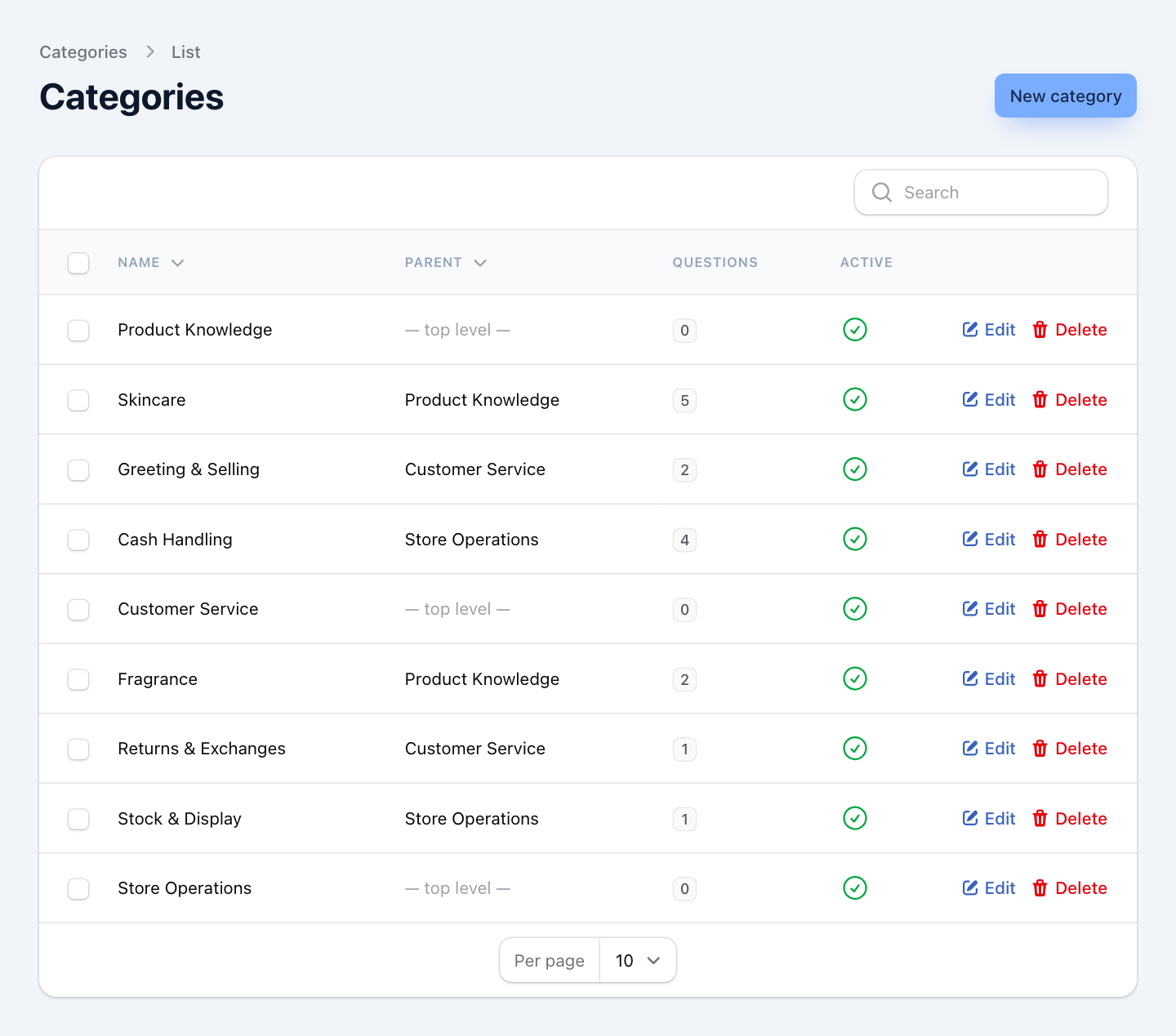
Categories group your questions, for example Product Knowledge, with sub-categories such as Skincare and Fragrance under it. A test can draw questions at random from a category, so file each question in the most specific one.
- Open Categories under QUESTION BANK in the menu.
- Press New category.
- Type the Name. To make a sub-category, choose its Parent category. Leave it empty for a top-level category.
- Press Create.
Categories go two levels deep: a category and its sub-categories.
Write a question
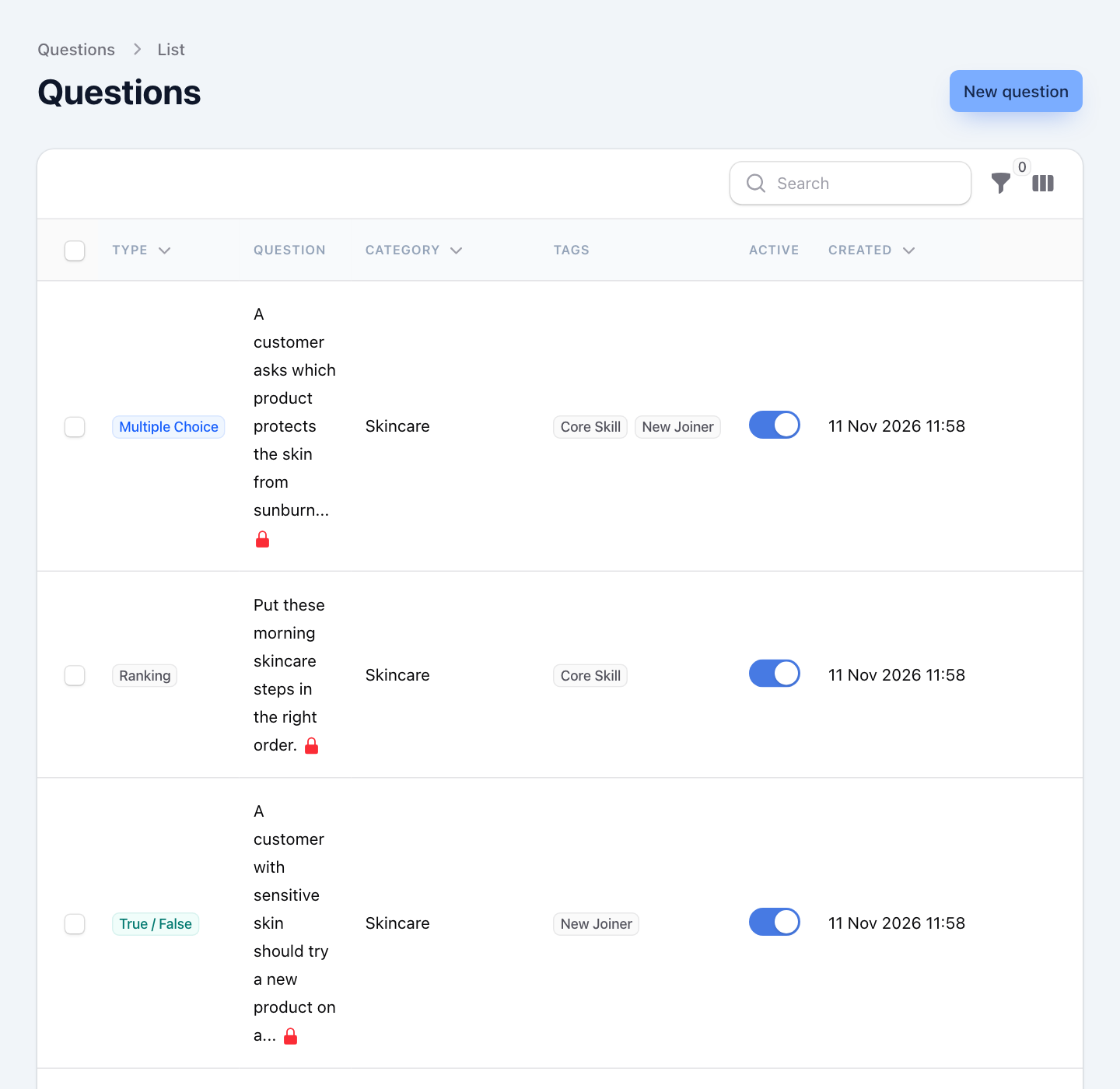
- Open Questions under QUESTION BANK.
- Press New question at the top right.
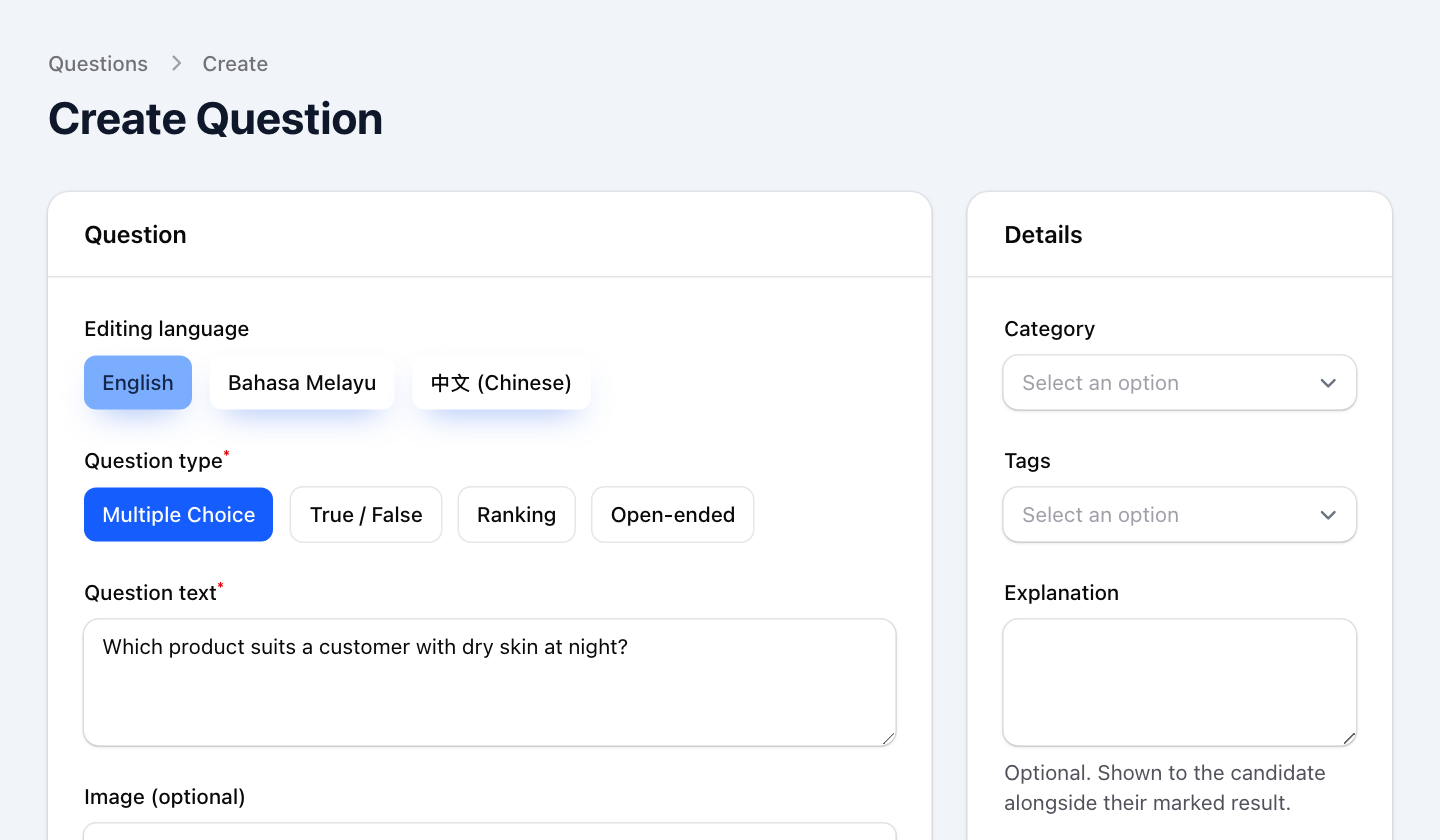
- Choose the Question type: Multiple Choice, True / False, Ranking or Open-ended.
- Type the Question text. You can add a picture under Image (optional).
- On the right, choose the Category and, if you use them, the Tags (labels such as "New Joiner" that cut across categories).
- Fill in the answer part, which changes with the type:
- Multiple Choice: type each choice under Answer choices and switch on the one correct answer. Press Add choice for more.
- True / False: under Correct answer, choose TRUE or FALSE.
- Ranking: type each item under Answer choices and set its Correct position (1 = first). Staff see the items mixed up.
- Open-ended: write a Model answer and Marking notes (for examiners). These help whoever marks the answers; staff never see them.
- Press Create, or Create & create another to start the next question straight away.
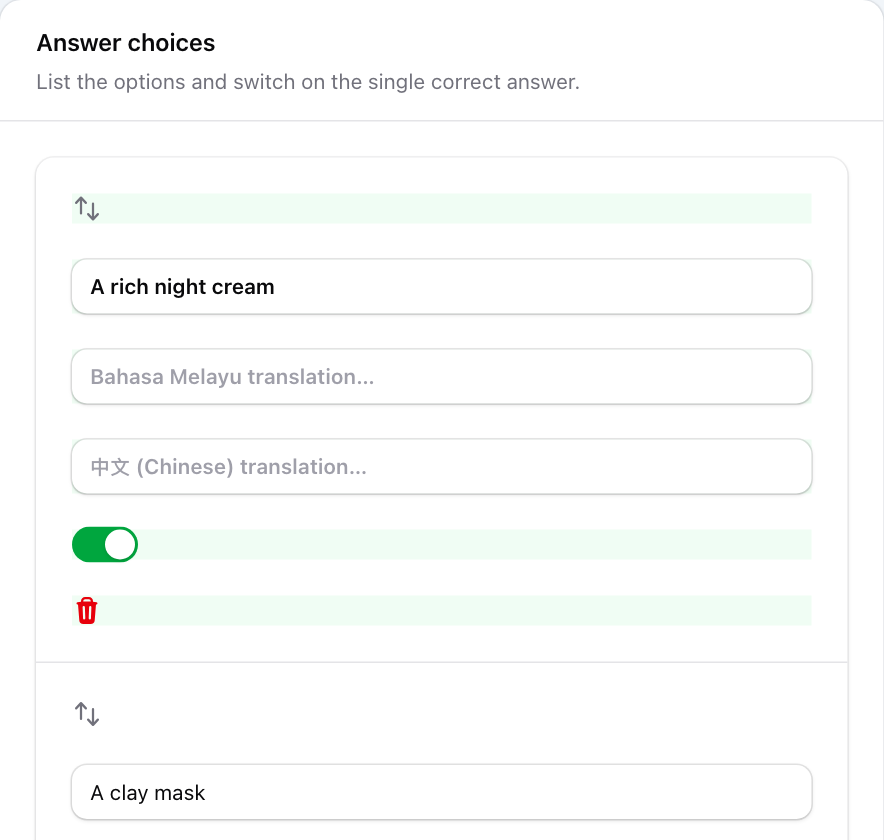
Each choice also has boxes for a Bahasa Melayu and a Chinese translation. Leave them empty if you only test in English. To translate the question text, tap Bahasa Melayu or 中文 (Chinese) under Editing language. A translated question is only used when every part of it is translated; otherwise staff see it in English.
Things to know
- The Explanation box says it is shown to the candidate with their result. It is not shown today: the result page staff see has no explanations.
- Switch off Active to stop a question being added to new tests without deleting it.
- A red padlock next to a question means staff have already answered it. Its wording and answers can no longer be changed, so old scores stay correct. Write a new question instead.