Mark answers and release results
For: Examiner
Whole guide as PDF (2 MB)Multiple choice, True / False and ranking answers are scored by the system the moment a person submits. Open-ended (written) answers wait for you to mark them. Nobody sees a score until you release it.
Mark written answers
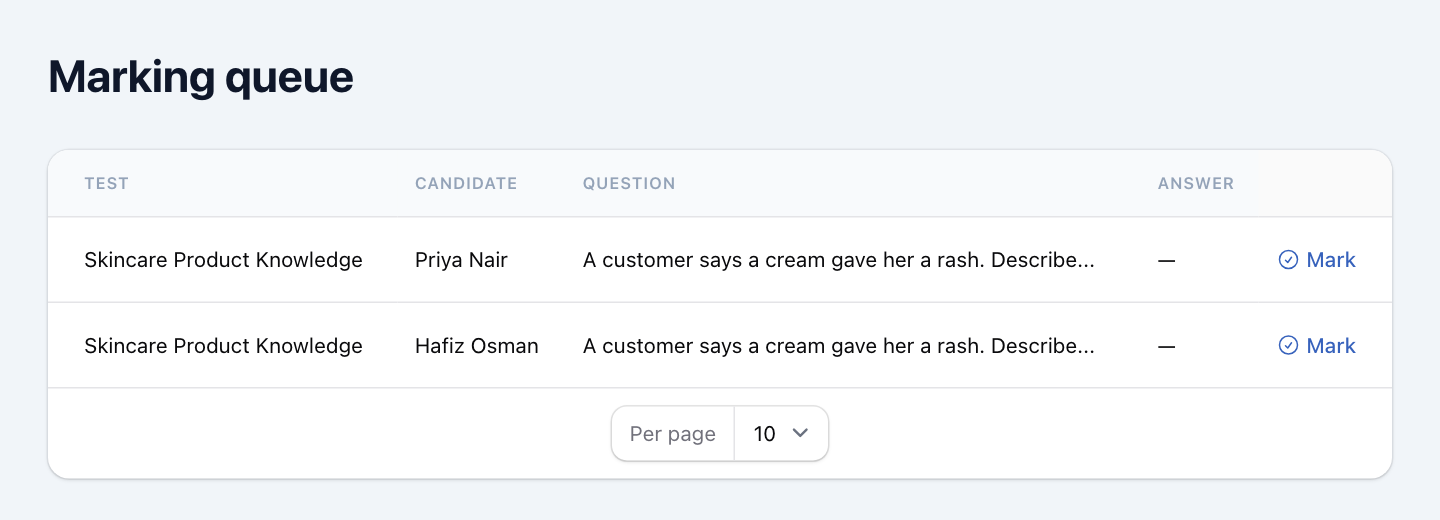
- Open Marking queue under EXAMS. The number next to it is how many answers are waiting.
- Find the answer and press Mark on its row. The Answer column in the list shows "—" today, even when the person wrote something; the answer itself shows once you press Mark.
- Read the Candidate's answer next to the Model answer and Marking notes you wrote with the question.
- Under Award score, choose Full marks (1.0), Half marks (0.5) or No marks (0).
- Press Save mark.
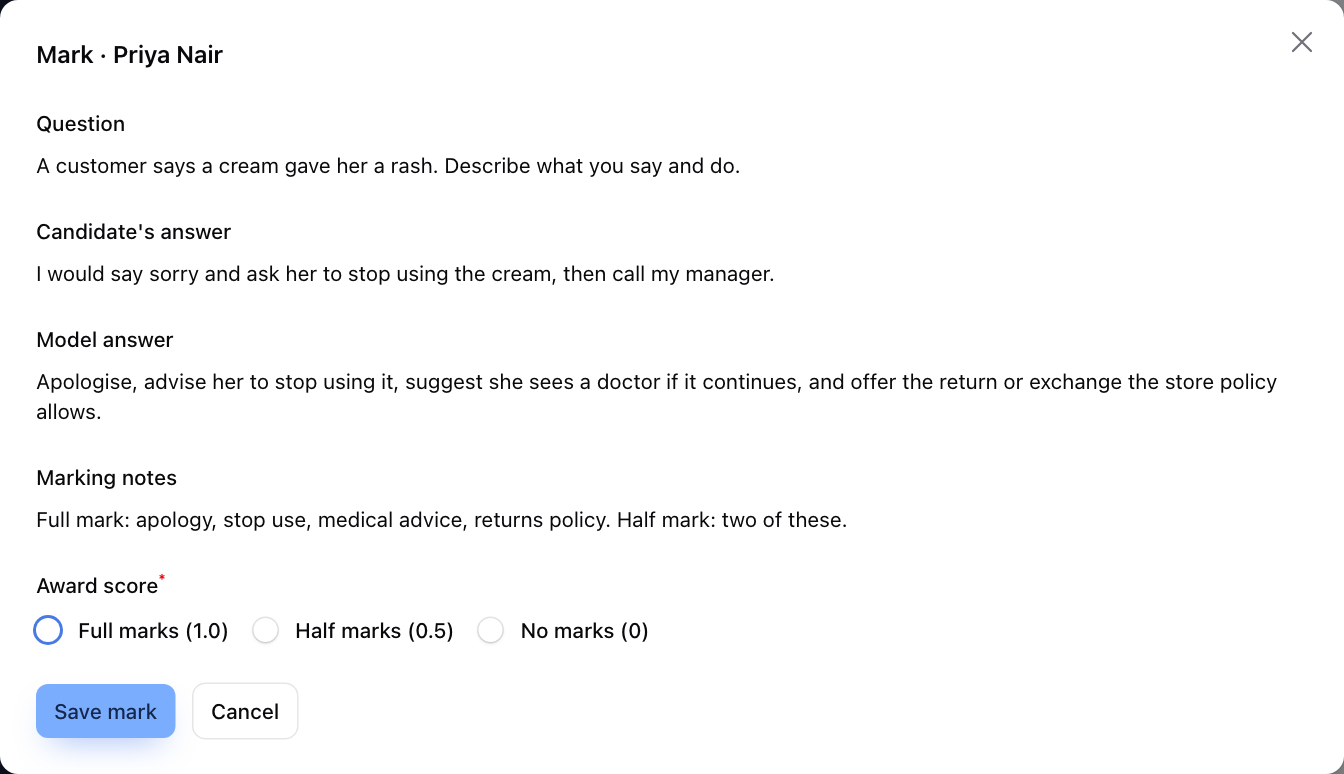
When every written answer in a person's test is marked, their score is final and the answer leaves the queue.
Release results
- Open Tests under EXAMS.
- On the test's row, press Release results. You may need to scroll the row to the right.
- The window tells you if some people's answers still need marking; their results are held back. Press Confirm.
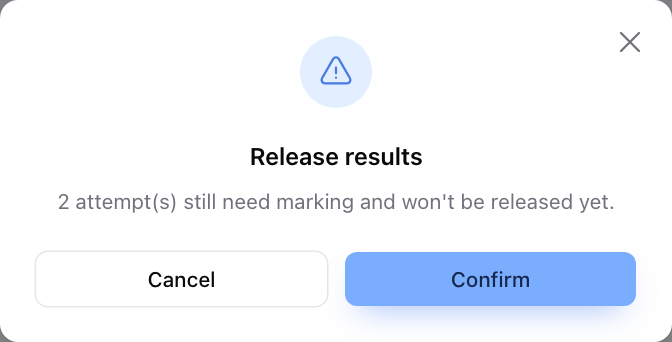
Every fully marked result for that test is now visible to the person on their test link. Press Release results again later to release results that were marked after this. Staff get no message; tell them their results are out.
If you need to look at someone's full answer sheet before releasing, see the next page.