Take a test
For: Staff
Whole guide as PDF (2 MB)Each test has its own link. Your examiner sends it to you, for example in a chat message. There is no list of tests to choose from: if you open Competency test from the Portal without a link, you see a "You're signed in" page and nothing else.
Open the test
- Tap the test link your examiner sent you.
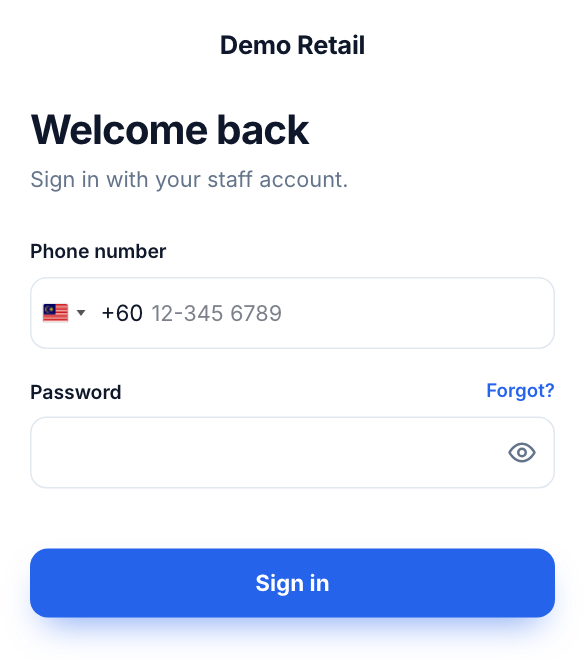
- If the sign-in page appears, type your Phone number and Password (the same ones you use for the Portal) and tap Sign in. You land on the test after signing in.
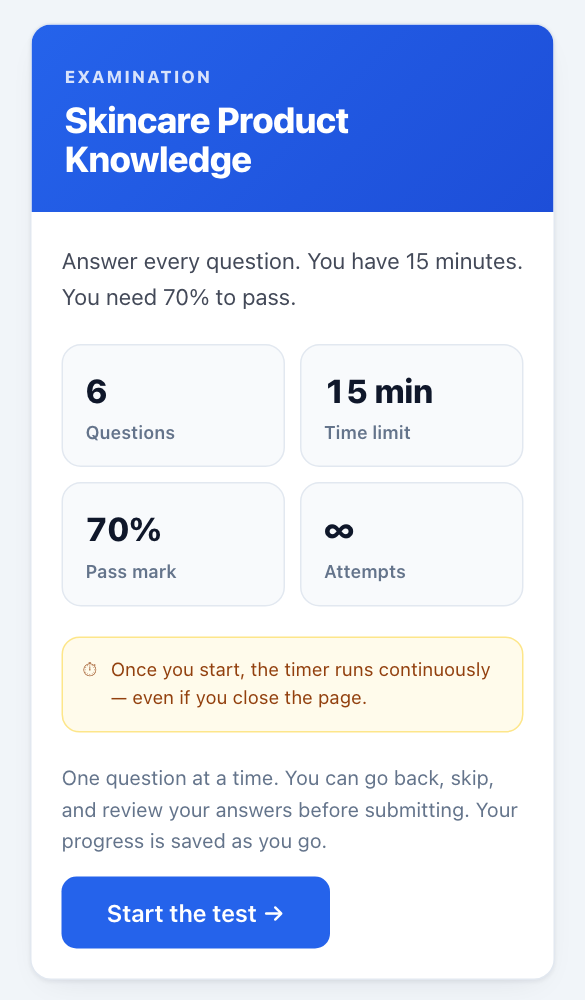
- Read the start screen. It shows the number of Questions, the Time limit, the Pass mark and the number of Attempts you are allowed. On a test that allows one try only, the Attempts box still shows ∞ today. Trust what your examiner told you: you get one try.
- Tap Start the test → when you are ready. If the test has a time limit, the clock starts now and keeps running even if you close the page.
If the test is offered in more than one language, you choose your language on this screen first. You cannot change it after you start.
Answer the questions
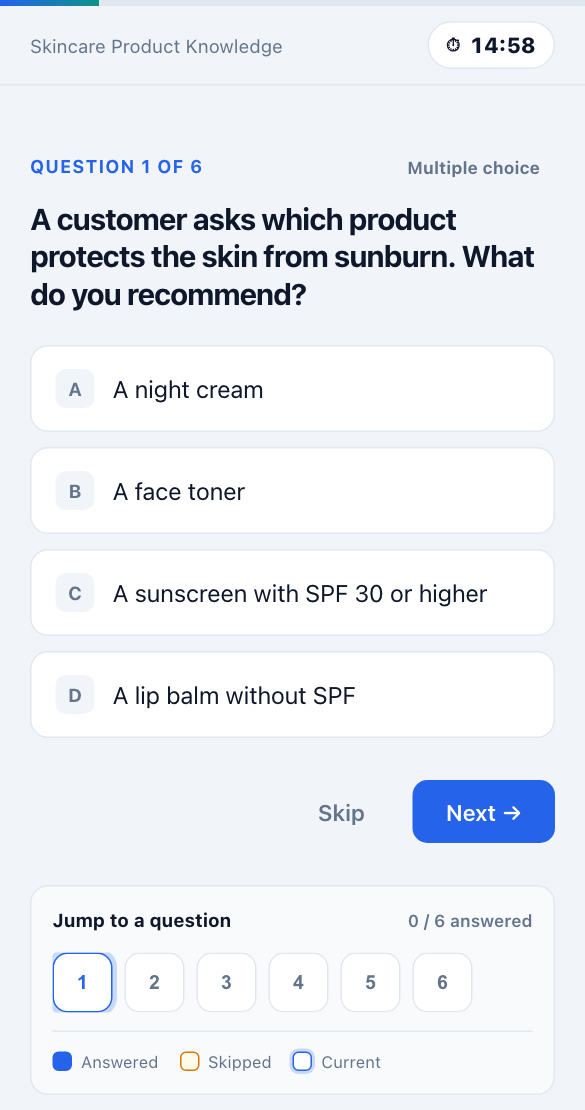
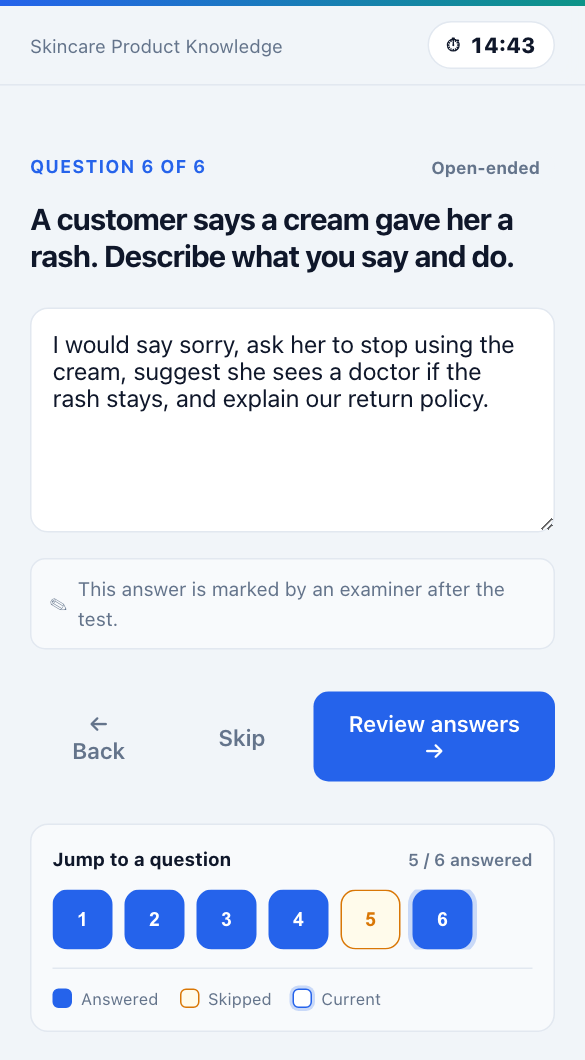
You see one question at a time. The clock at the top right counts down when there is a time limit.
- Multiple choice: tap one answer. The next question opens by itself.
- True / False: tap TRUE or FALSE. The next question opens by itself.
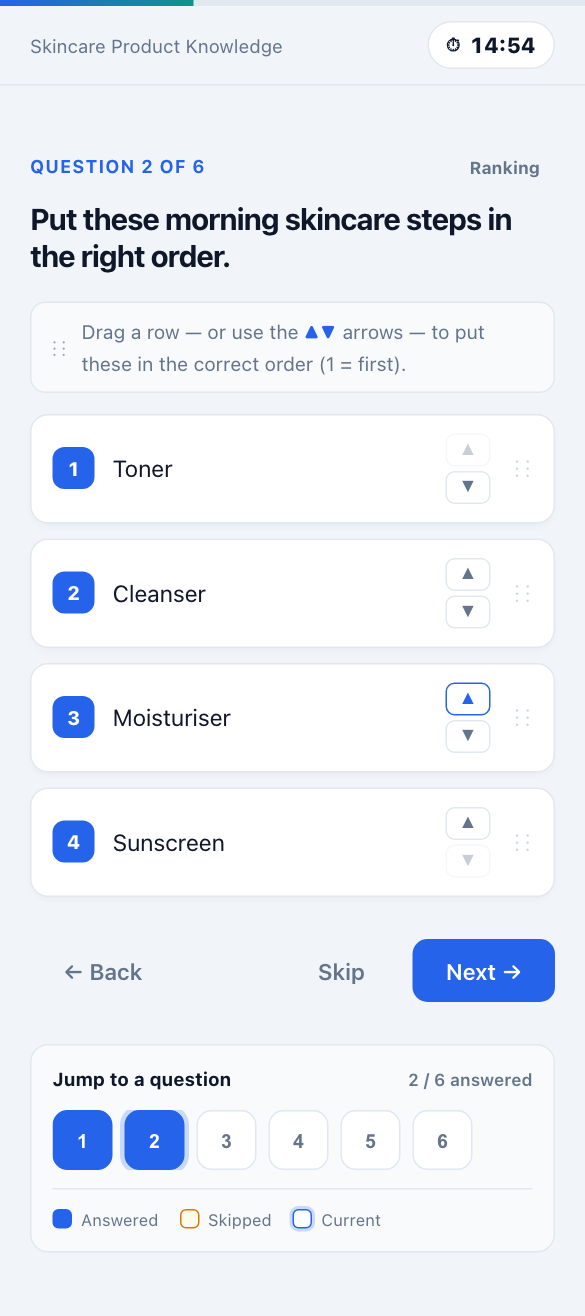
- Ranking: put the rows in the right order, 1 first. Drag a row, or tap the ▲ and ▼ arrows on the right of each row. Then tap Next →.
- Open-ended: type your answer in the box, then tap Next →. An examiner marks this answer after the test.
Other buttons under each question:
- ← Back goes to the previous question.
- Skip leaves a question for later. It only shows when the examiner allows skipping.
- Jump to a question shows a numbered box for every question. Blue means answered, amber means skipped. Tap a number to go to that question.
Your answers are saved as you go. If your phone dies or you close the page, open the test link again: you continue where you stopped.
Submit
- On the last question, tap Review answers →.
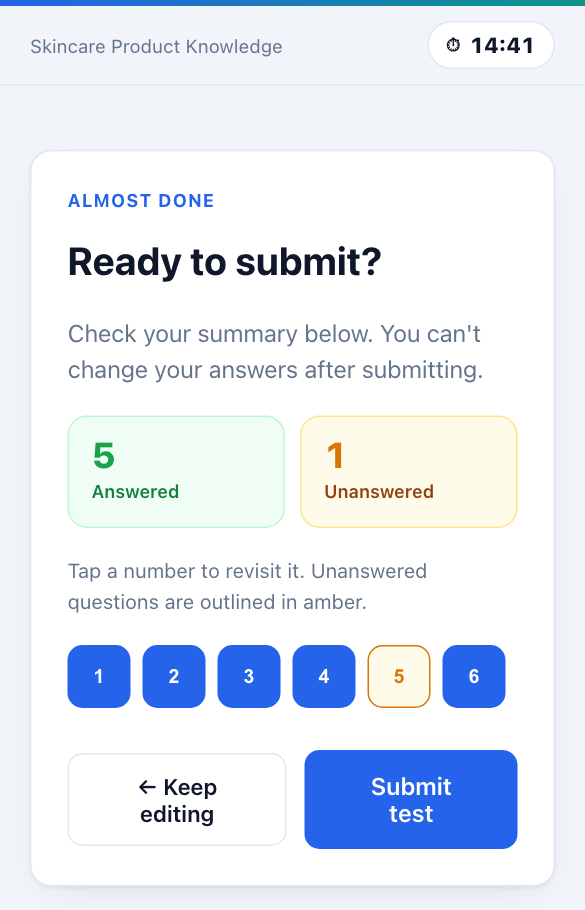
- Check the summary: how many questions are Answered and Unanswered. Unanswered questions are outlined in amber. Tap a number to go back to it, or tap ← Keep editing.
- Tap Submit test, then confirm. You cannot change your answers after this.
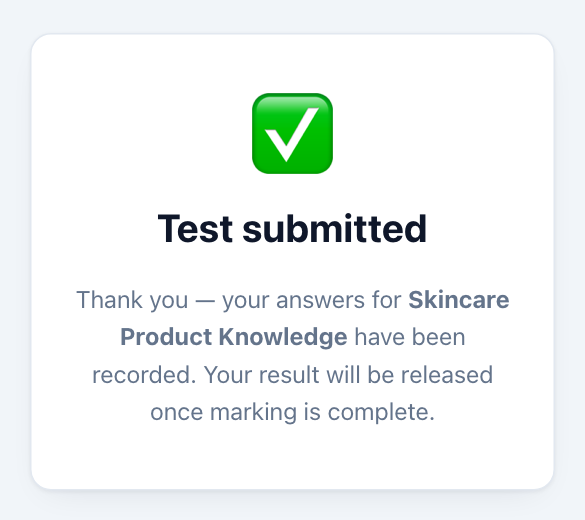
You see Test submitted. Your score does not show yet. It appears once the examiner has marked any written answers and released the results.
If time runs out before you submit, the test is submitted for you with the answers you gave.