Build and publish a test
For: Examiner
Whole guide as PDF (2 MB)A test goes through three states: Draft while you build it, Published while staff can take it, and Closed when it is over.
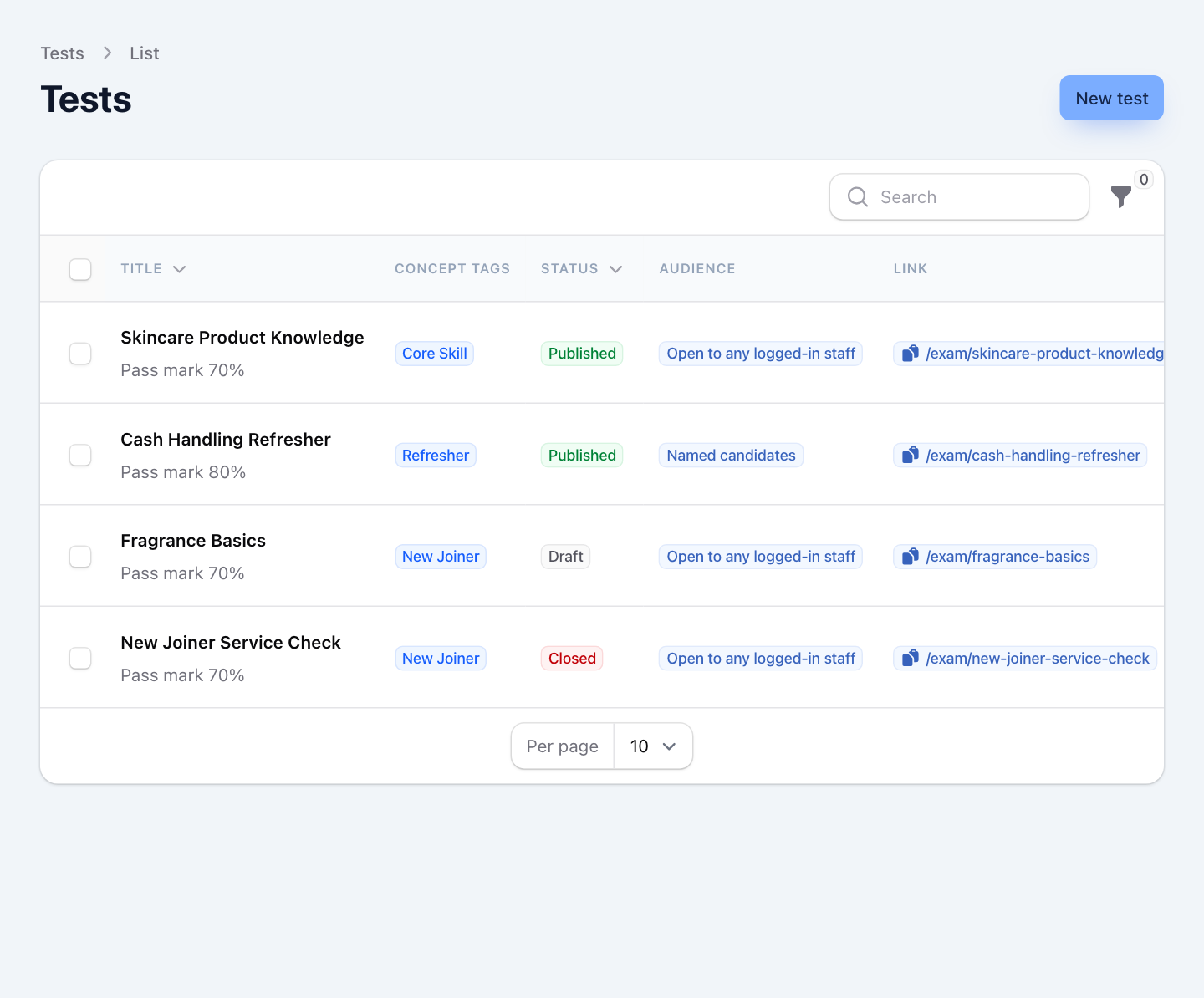
- Open Tests under EXAMS in the menu.
- Press New test at the top right.
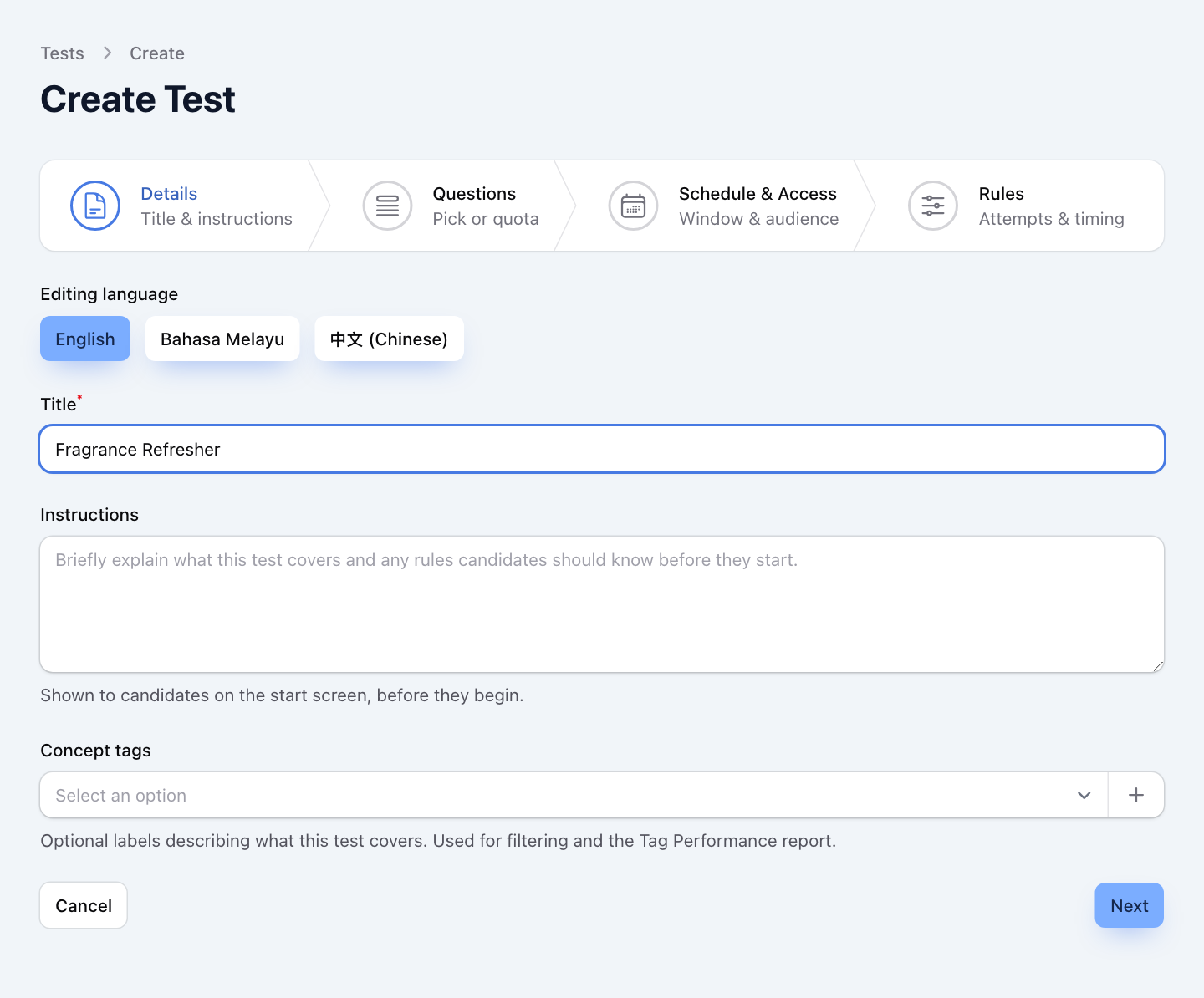
The form has four steps along the top: Details, Questions, Schedule & Access and Rules. Press Next to move on, or tap a step to go back to it.
Step 1: Details
Type the Title. Under Instructions, write what staff should know before they begin; they see it on the start screen. Concept tags are optional labels for the Tag Performance report.
Step 2: Questions
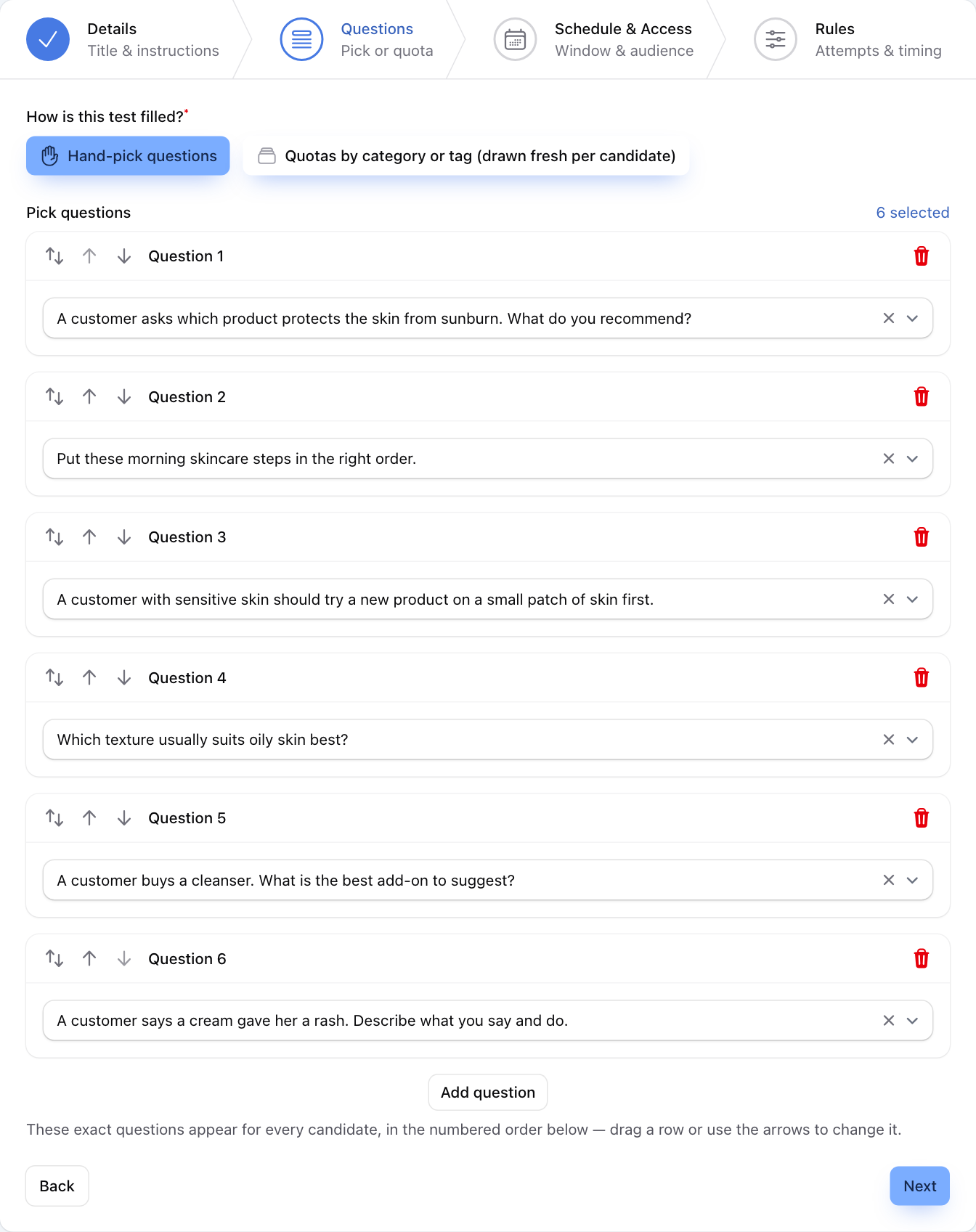
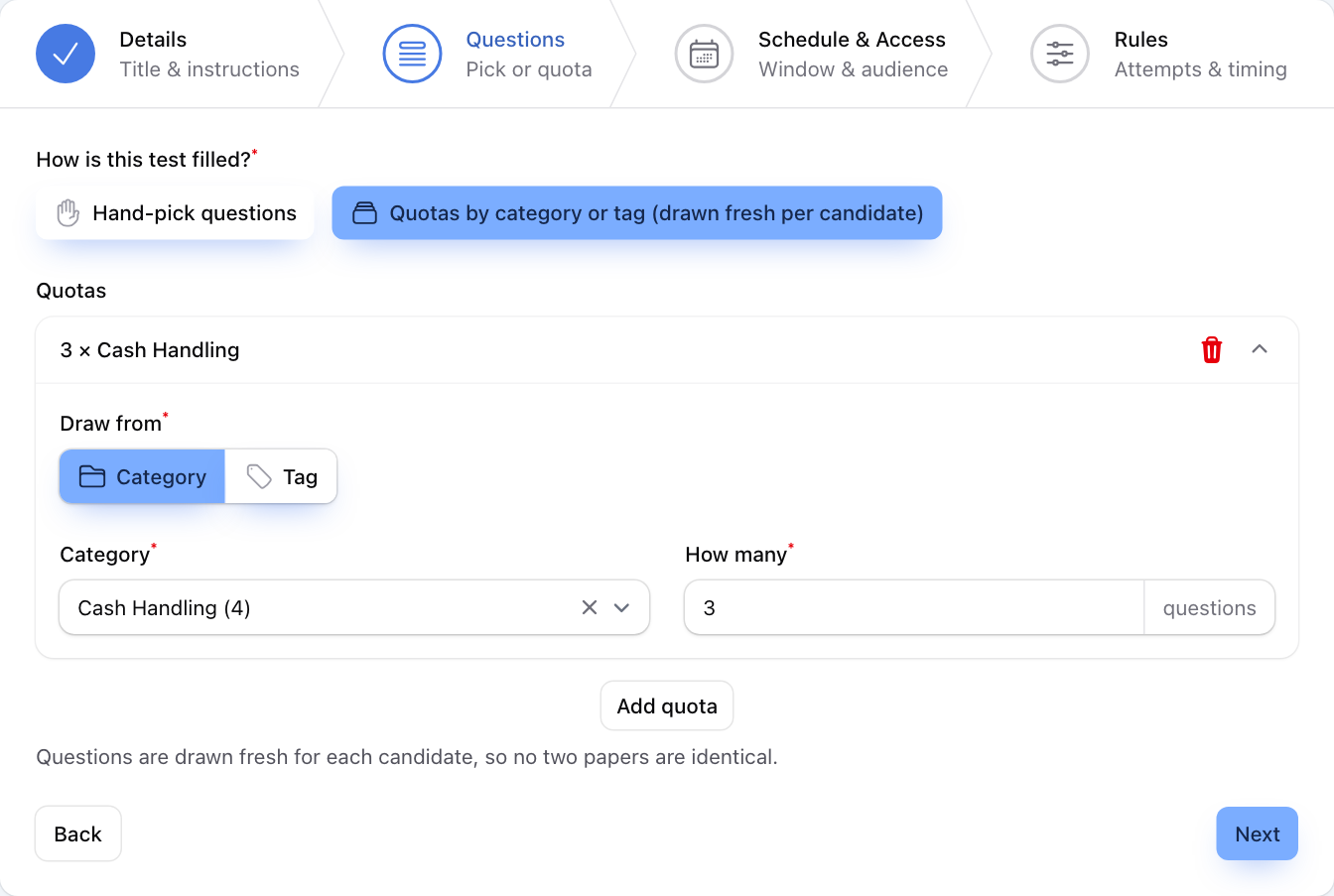
Under How is this test filled? choose one:
- Hand-pick questions: every person gets the same questions in the same order. Press Add question and choose each one. Use the arrows to change the order.
- Quotas by category or tag (drawn fresh per candidate): the system picks questions at random for each person. Press Add quota, choose Draw from Category or Tag, pick which one, and type How many questions to take from it. The number in brackets after a category is how many questions it holds.
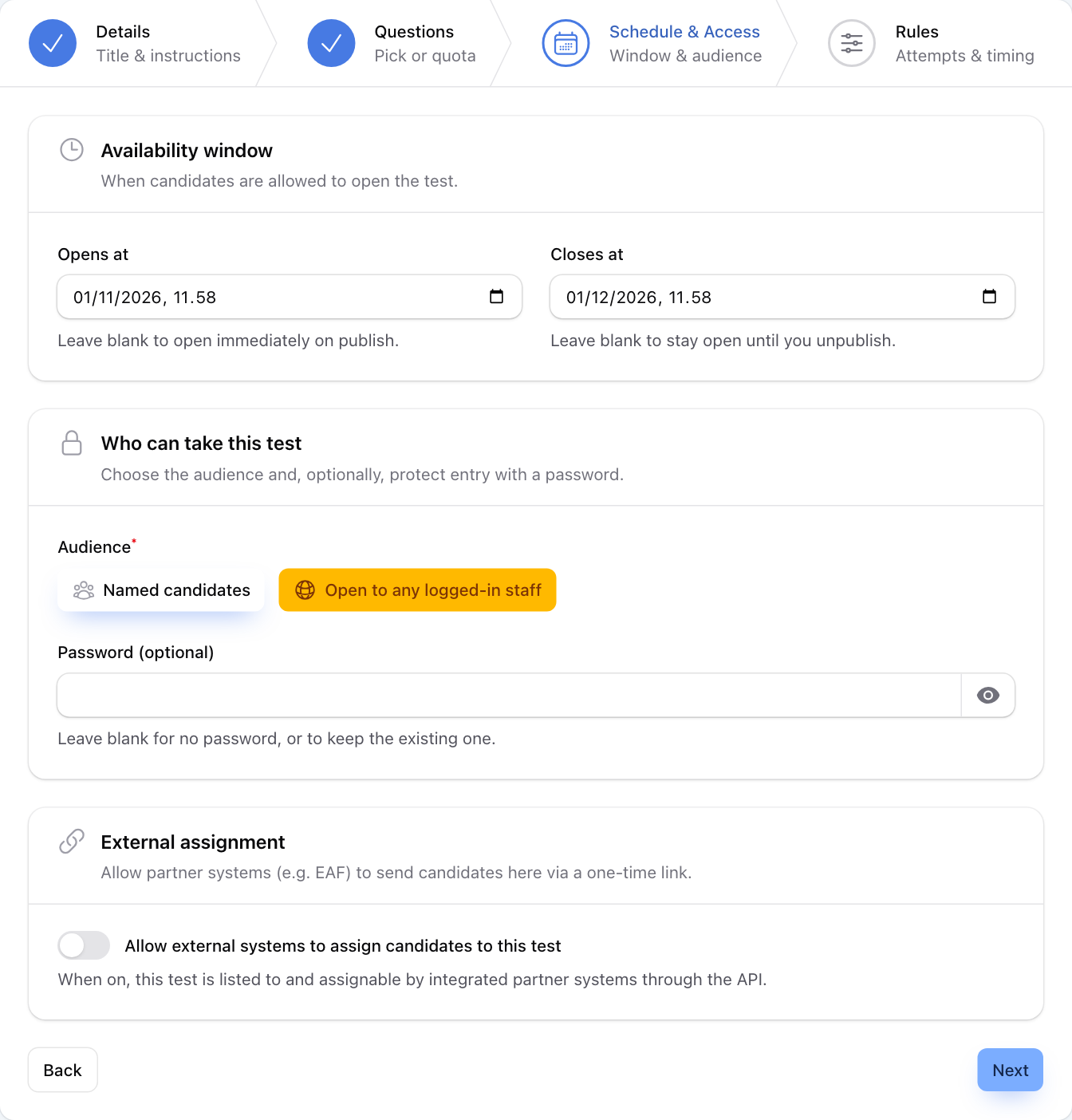
Step 3: Schedule & Access
- Opens at and Closes at: when staff can open the test. Leave Opens at empty to open it as soon as you publish. Leave Closes at empty to keep it open until you close it.
- Audience: Open to any logged-in staff lets anyone with the link take it. Named candidates shows a Candidates box: only the people you pick there can take it. Anyone else who opens the link sees You're not a candidate. You can search by name or phone number. A person is only in this list after they have signed in to Competency test once, or after someone has added them under Users.
- Password (optional): staff must type this password before they start. Give it to them yourself.
- External assignment: leave this off unless your IT team has connected another system that sends people to tests.
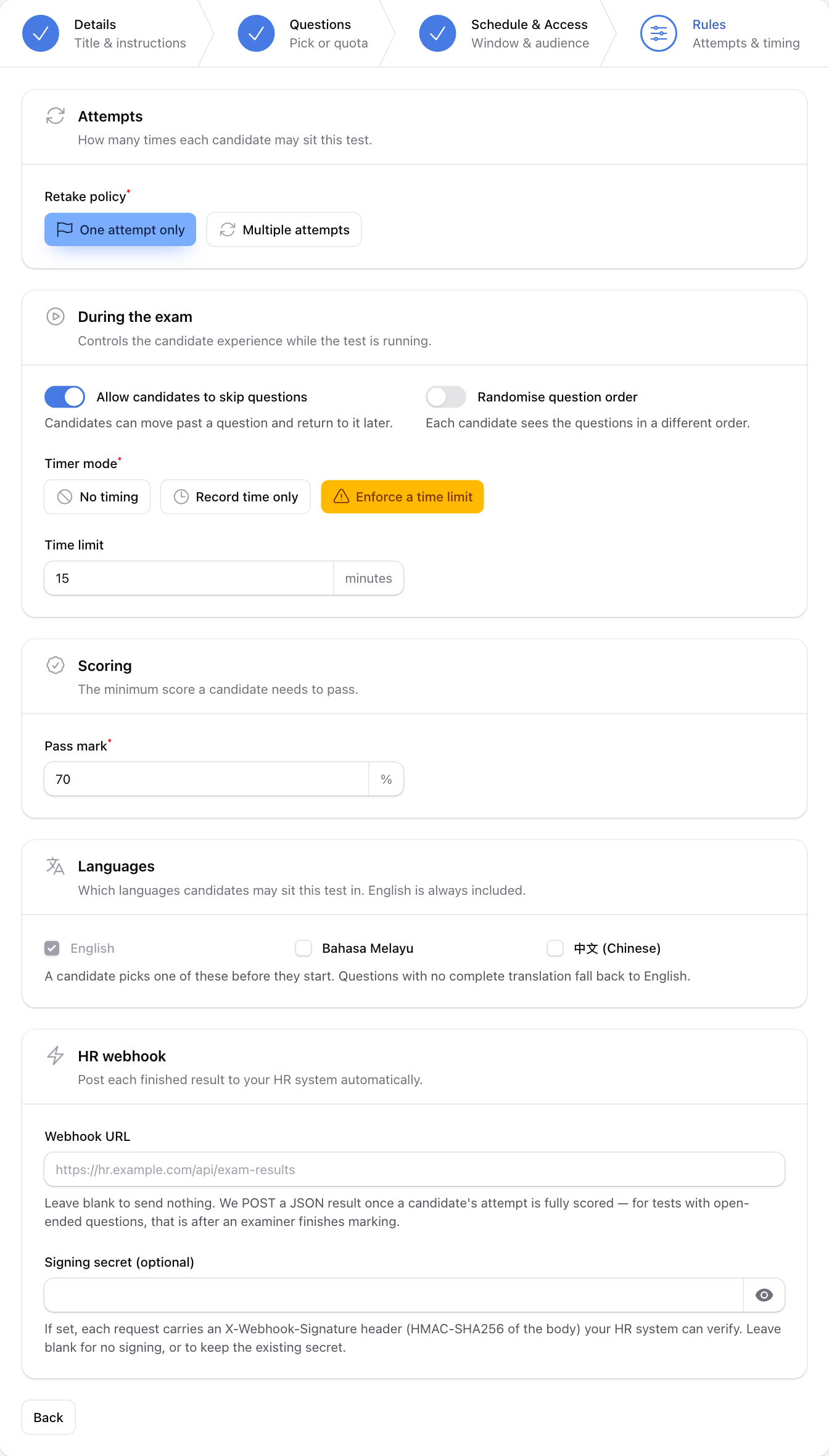
Step 4: Rules
- Retake policy: One attempt only or Multiple attempts. With multiple attempts, set Maximum attempts or leave it empty for no limit. The best try counts.
- Allow candidates to skip questions and Randomise question order.
- Timer mode: No timing, Record time only (time is kept for the reports, no limit), or Enforce a time limit with a Time limit in minutes. When the time runs out, the test is submitted with the answers given so far.
- Pass mark: the score in % needed to pass. Every question is worth one point.
- Supported languages: English is always on. Tick Bahasa Melayu or 中文 (Chinese) to let staff choose that language.
- HR webhook: leave it empty unless your IT team gives you an address. It sends each finished result to another system.
Press Create on the last step. The test is saved as a Draft. Staff cannot open it yet.
Publish and share the link
- In the Tests list, scroll the row to the right and press Publish. If something is missing, a message says what, for example that a category does not hold enough questions for its quota.
- Tap the address under Link to copy it. It also opens the test in a new tab so you can check it.
- Send the link to your staff. The system does not send it for you.
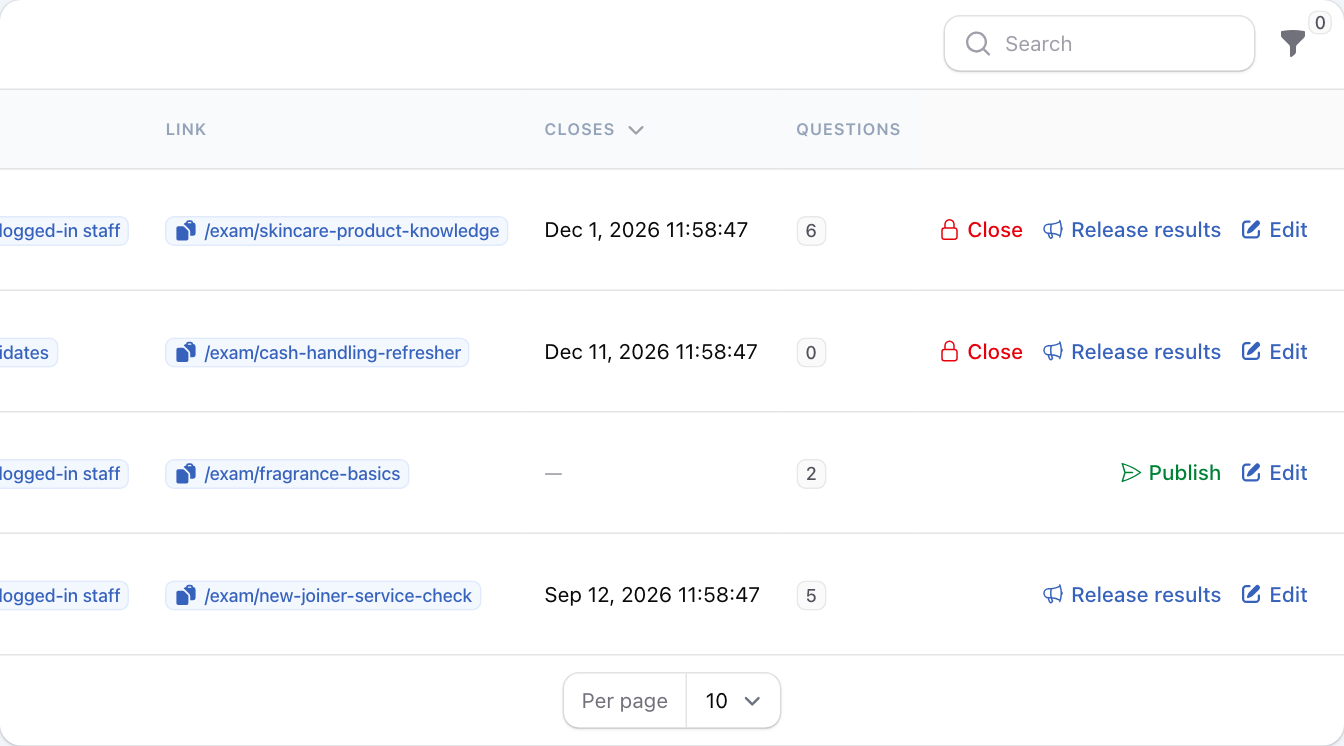
When the test is over, press Close on its row. Staff who open the link then see This test has closed. A test also stops accepting people after its Closes at time, even if you do not press Close.
For a test filled by quotas, the Questions column in the list shows 0. That is normal: the questions are picked when each person starts.