Give someone examiner or viewer access
For: Administrators
Whole guide as PDF (2 MB)People who only take tests need no role. Give a role to the people who run tests or read results. People with the Examiner role can do this.
Give a role
- Ask the person to open Competency test and sign in once. That adds them to the list.
- Open Users under USER & PERMISSION in the menu.
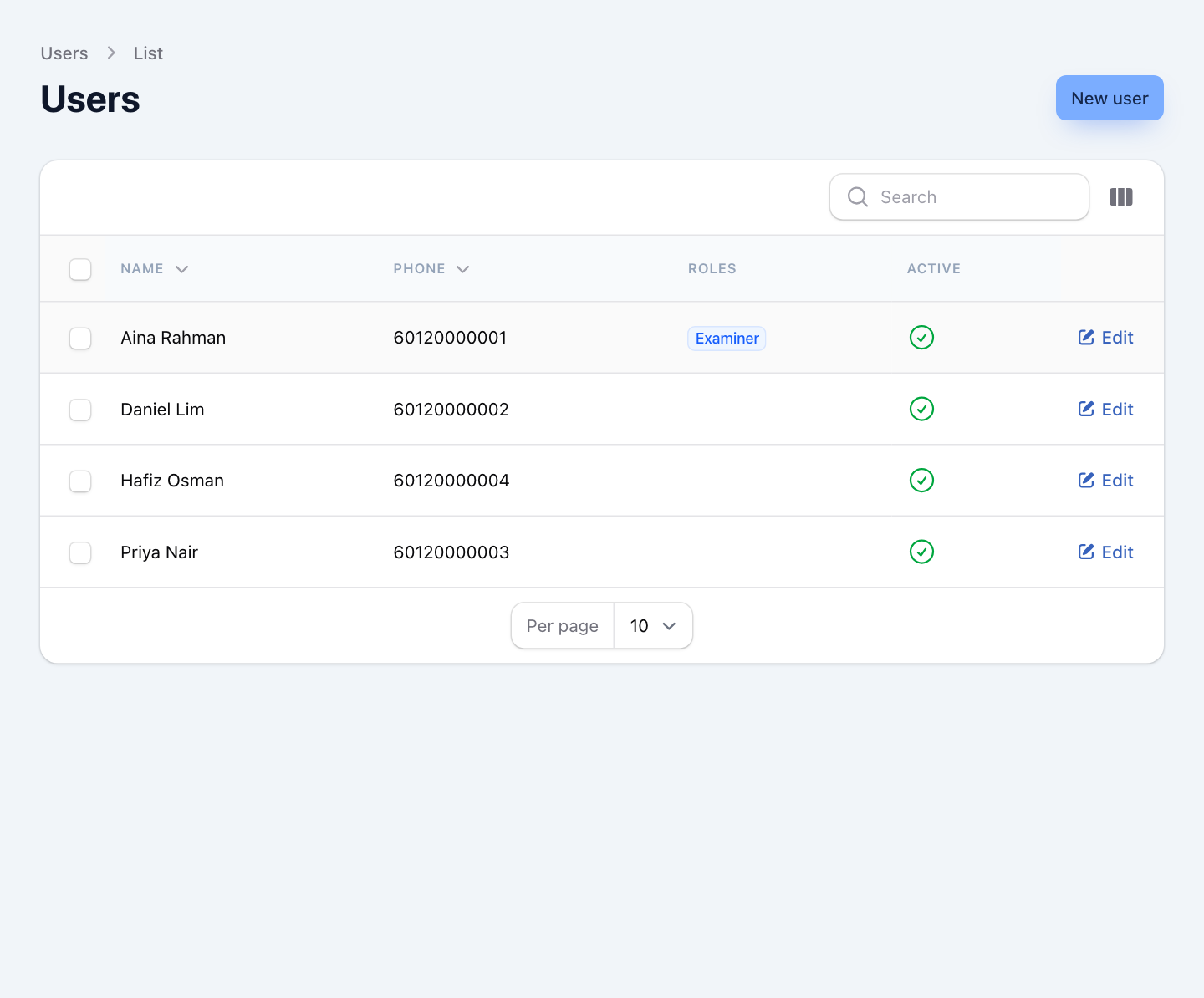
- Press Edit on their row.
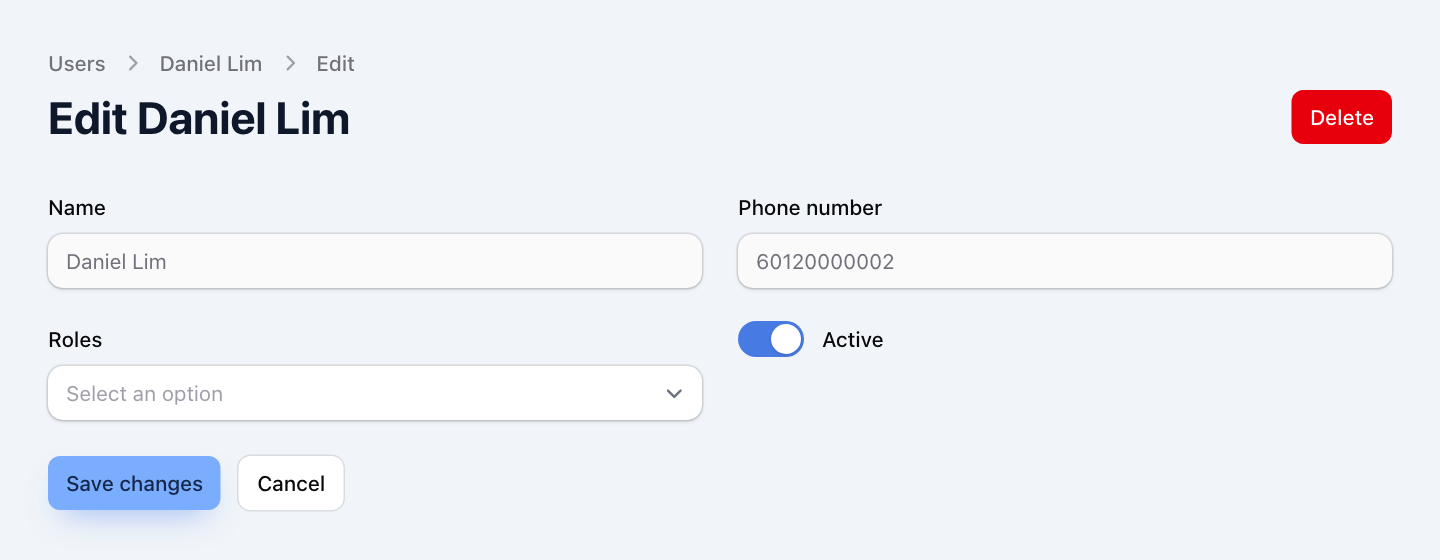
- Under Roles, choose Examiner or Viewer.
- Press Save changes.
Next time they open Competency test they see Go to dashboard.
- Examiner: write questions, build and publish tests, mark answers, release results, read reports, and give roles.
- Viewer: read the reports and lists. Cannot change anything and cannot mark answers.
You can also add someone yourself with New user: type their Name and Phone number. Use the same phone number they sign in with.
To take someone's access away, remove their role. Switching off Active blocks the person from the examiner screens and from taking tests.
The full-access role
The full-access role cannot be given from this screen; your IT team gives it. People with it also see Roles, to change what each role may do, and Branding.
Change the name shown on the screens
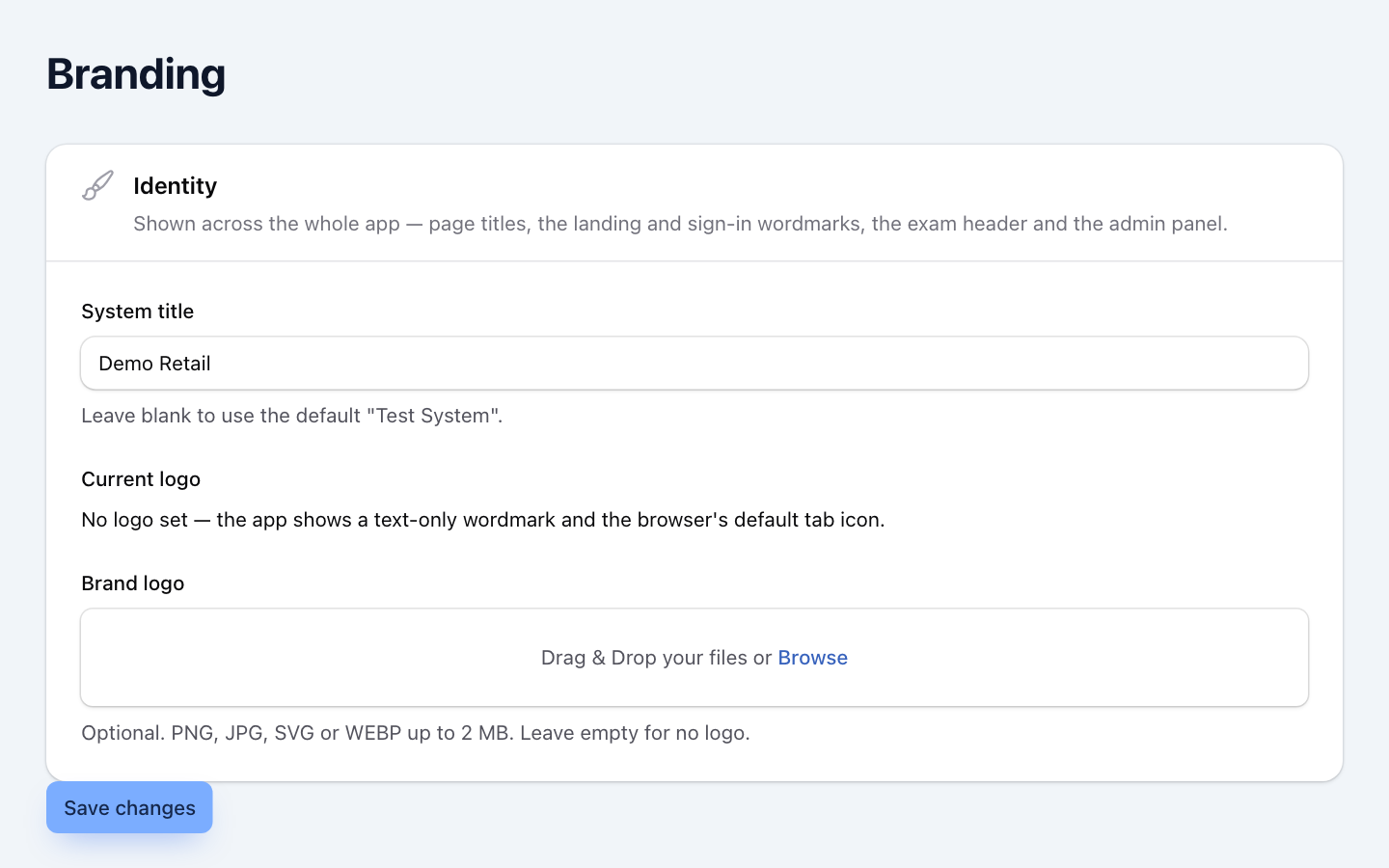
People with full access can open Branding under SETTINGS. System title is the name shown on the sign-in page, the test screens and the examiner screens. Brand logo is optional. Press Save changes.