Send a blast
For: Managers
Whole guide as PDF (1 MB)Before you start, prepare your customer list as a CSV file (a spreadsheet saved as CSV). Put the column names in the first row, one customer per row, with a column for the phone number and one for each blank in the template. Press Download sample CSV on step 2 for an example. One blast takes up to 10,000 customers.
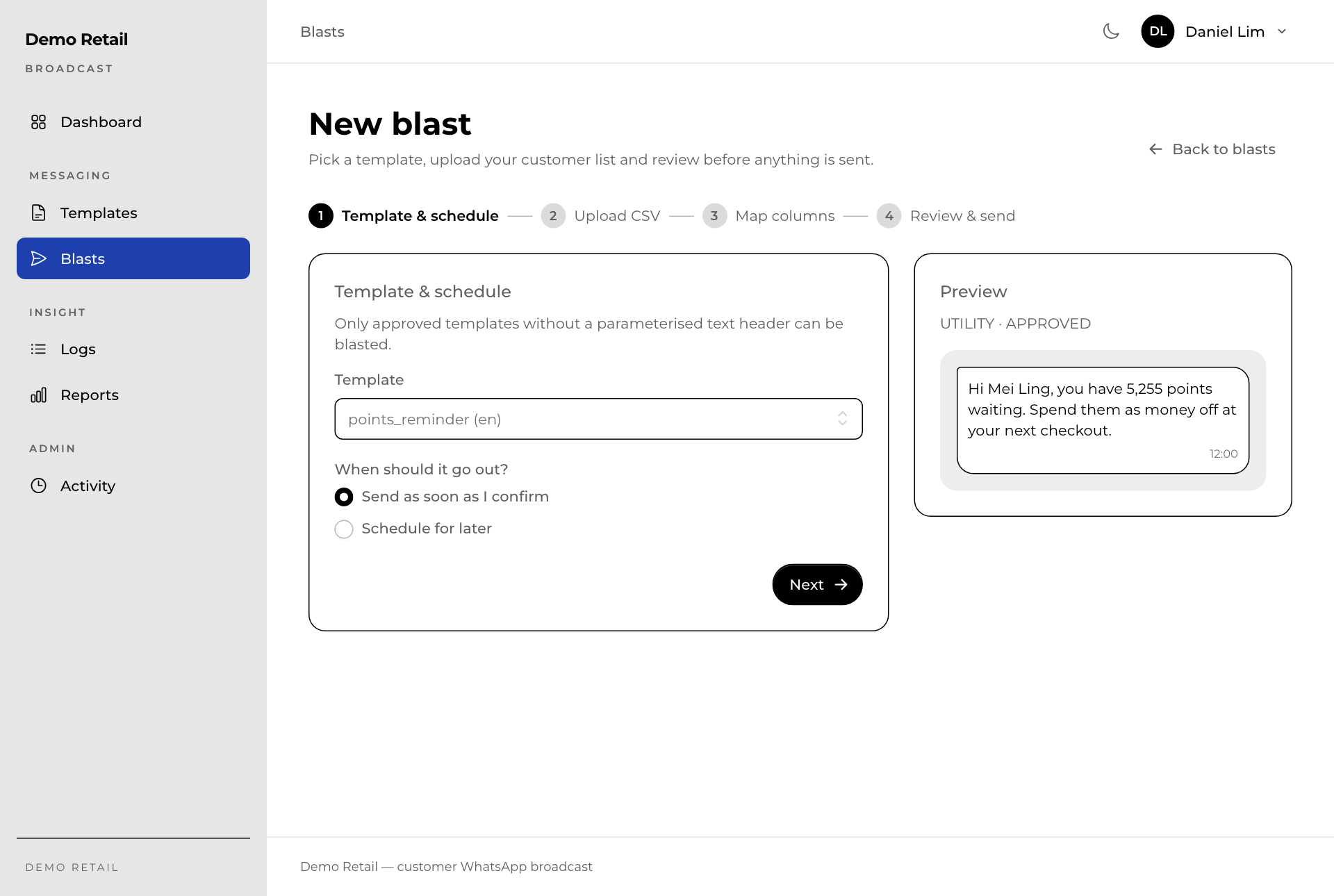
1. Template & schedule
- Open Blasts and press New blast.
- Pick the Template. Only approved templates are listed. The Preview shows the message.
- Under When should it go out?, choose Send as soon as I confirm, or Schedule for later and pick the Date and Time.
- Press Next.
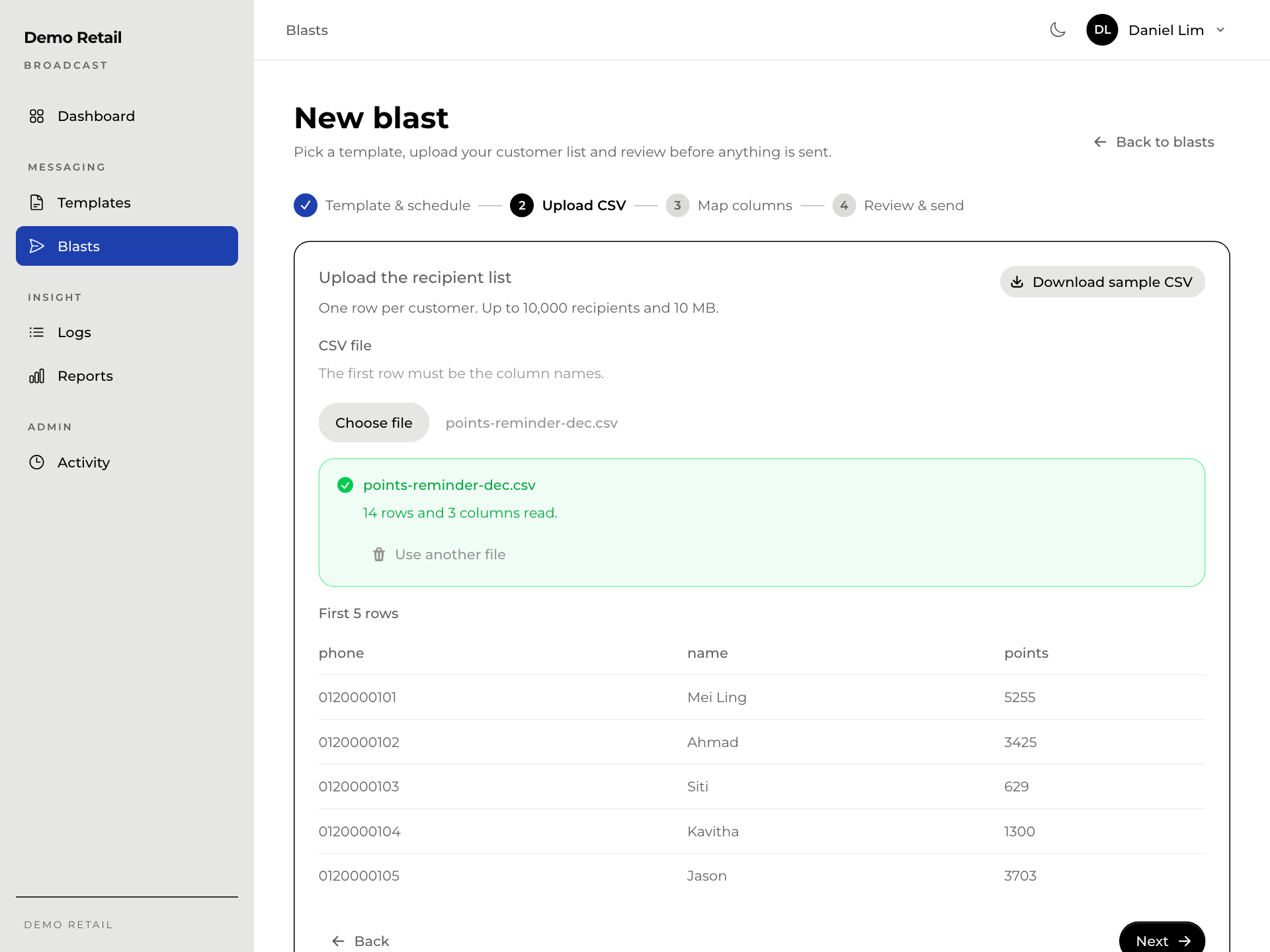
2. Upload CSV
Press Choose file and pick your CSV. Broadcast reads it and shows the first 5 rows. Check they look right, then press Next. To pick a different file, press Use another file.
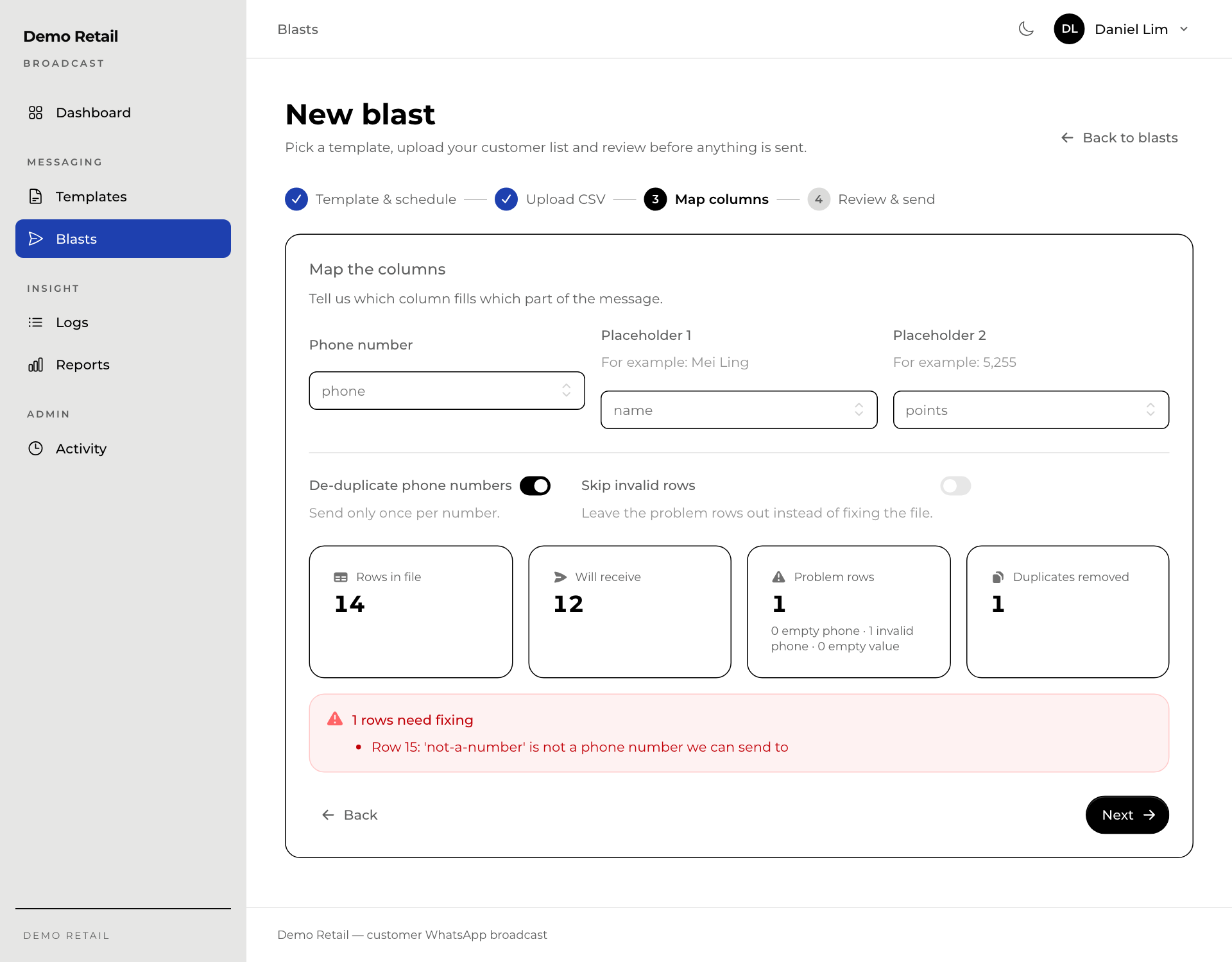
3. Map columns
Tell Broadcast which column holds the Phone number and which column fills each blank (Placeholder 1, Placeholder 2). The boxes show how many rows were found, how many customers Will receive the message, and any Problem rows.
- De-duplicate phone numbers sends only one message per number. Leave it on.
- If some rows have a problem (for example a phone number that is not a number), either fix the file and upload it again, or switch on Skip invalid rows to leave them out.
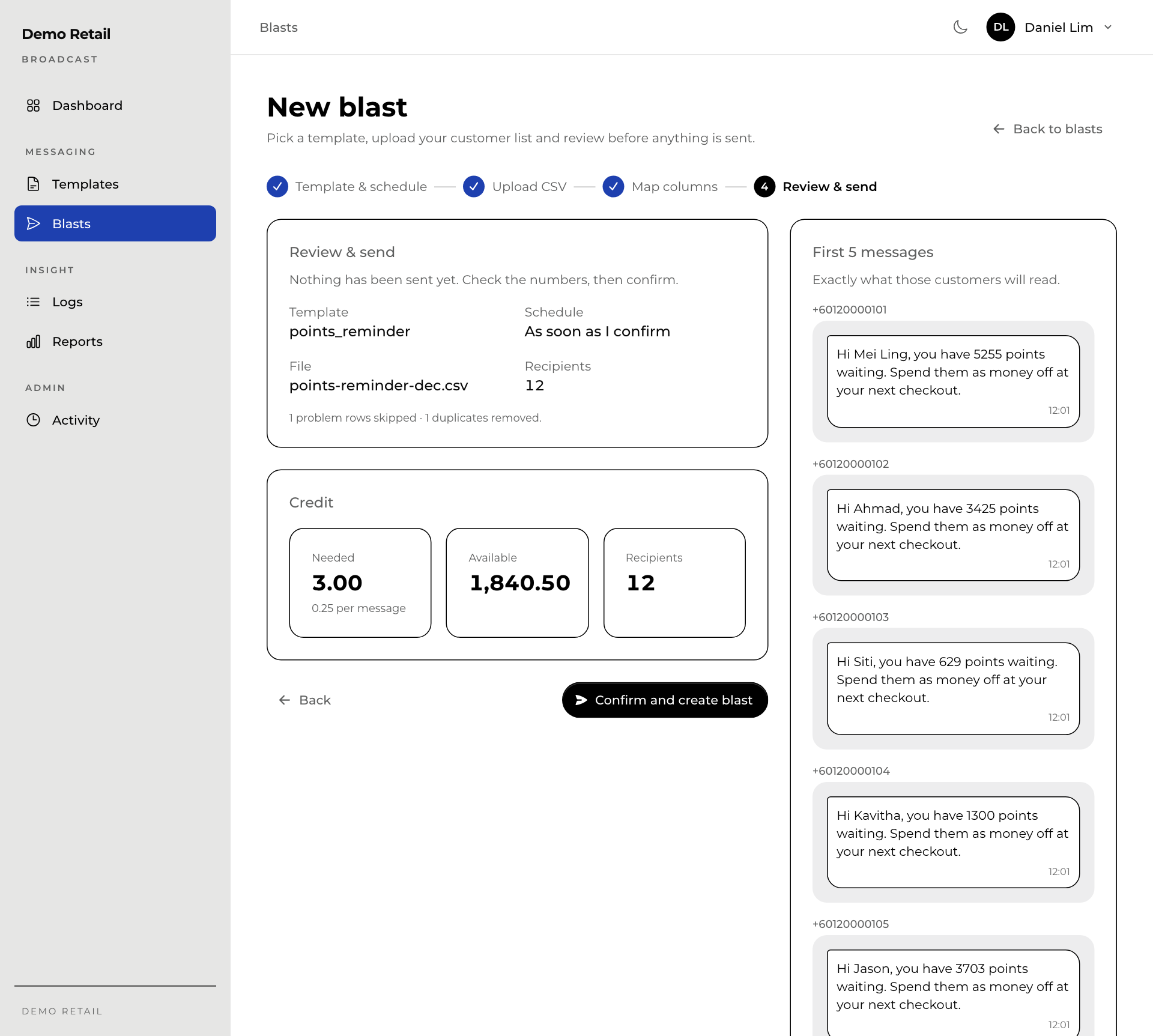
4. Review & send
Nothing has been sent yet. Check the template, the schedule, the number of customers, and the Credit the blast Needed against what is Available. On the right, First 5 messages shows exactly what those customers will read.
When it is right, press Confirm and create blast.
If the credit is not enough for the whole list, the screen says Not enough credit for the whole list: messages stop once the balance runs out. Top up first, or send to a shorter list.
After you confirm, the page says This list has already been sent. Press Open blast #… to follow it. Do not confirm again.