Write or change a template
For: Managers
Whole guide as PDF (1 MB)- On Templates, press New template.
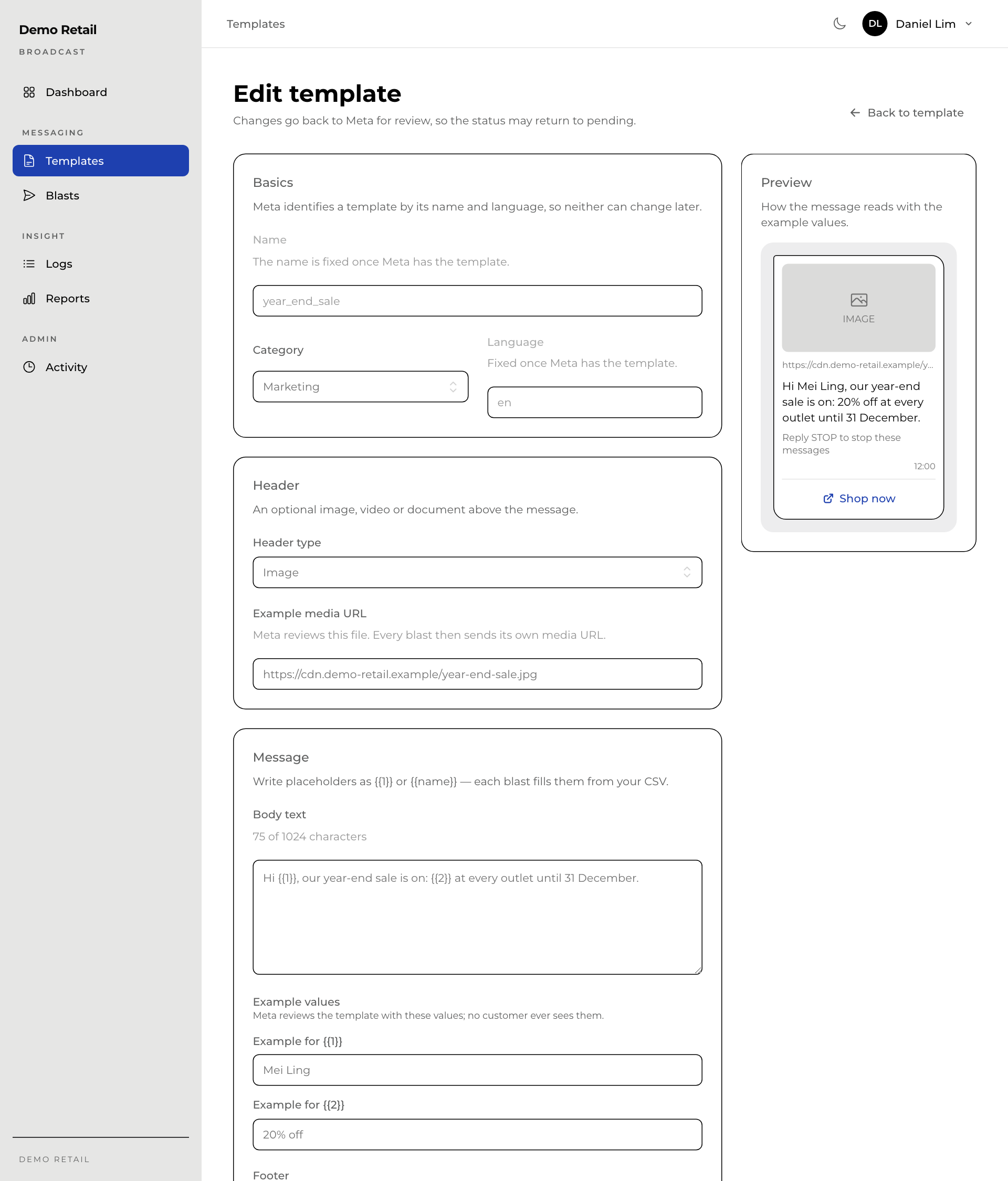
- Under Basics, give it a Name: lowercase letters, numbers and underscores only (for example year_end_sale). Pick a Category: Marketing for promotions, Utility for information the customer expects, such as a points reminder. The name and language cannot be changed later.
- Under Header, you can add a picture, video or document above the message. Give an Example media URL (a web link to a sample file) for Meta to review. Each blast then sends its own file.
- Under Message, write the Body text. Put {{1}}, {{2}} and so on where each customer's own value goes, and fill in an Example for each one. Only Meta sees the examples.
- Add a Footer if you want one (up to 60 characters, no blanks).
- Under Buttons, add up to three: a quick reply or a link.
- Check the Preview on the right, then press Send to Meta.
Meta reviews the template. It shows PENDING until Meta answers, usually within minutes but sometimes longer. You can only send it in a blast once it is APPROVED.
Change or delete a template
Open the template and press Edit, change it, then press Save changes. The change goes back to Meta, so the template may show PENDING again for a while.
Press Delete to remove a template. You cannot delete a template while a blast that uses it is still waiting or sending.