Sign off an appraisal
For: HR
Whole guide as PDF (2 MB)You can sign off once the appraiser has submitted (the status shows Appraiser Locked). It is better to wait until the staff member has answered whether they agree: their answer shows in the Agreement column of Submissions. Signing off also closes the appraisal to the appraiser.
-
Press Appraisals in the menu, then Edit next to the round.
-
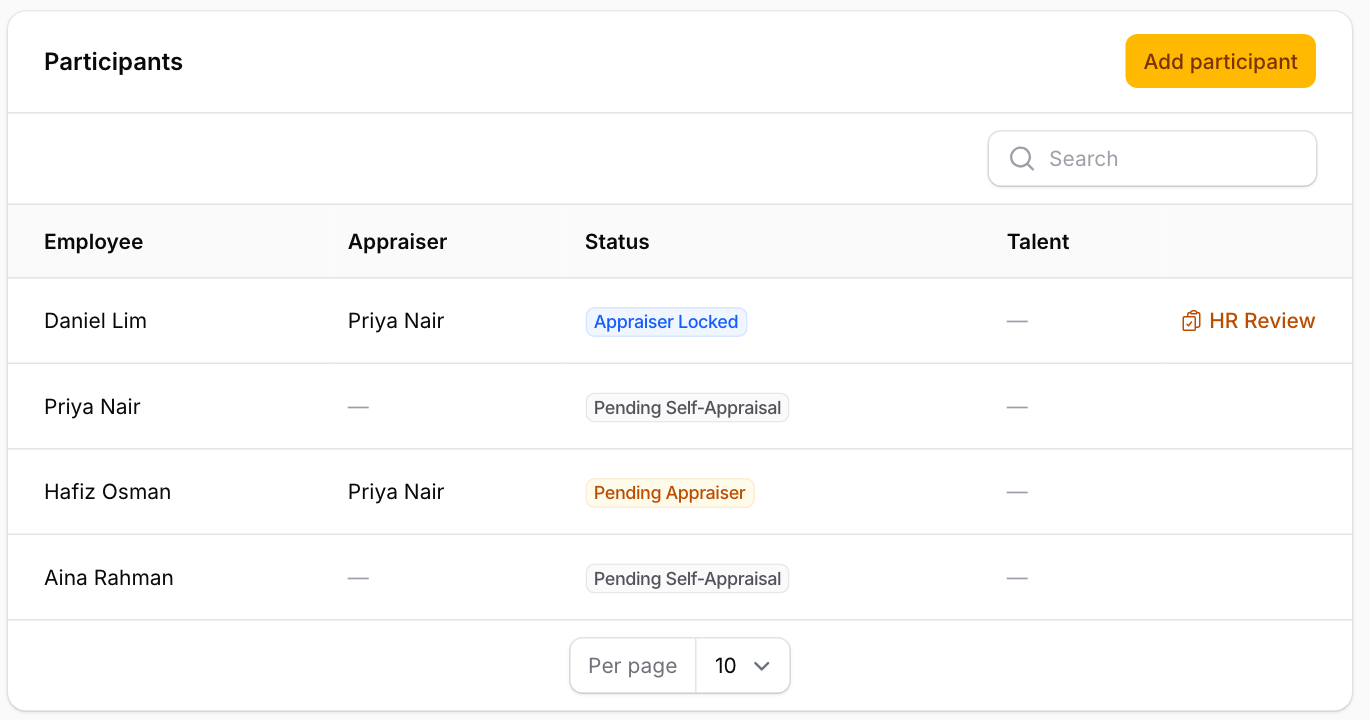
Scroll down to Participants. Press HR Review on the person's row.
-
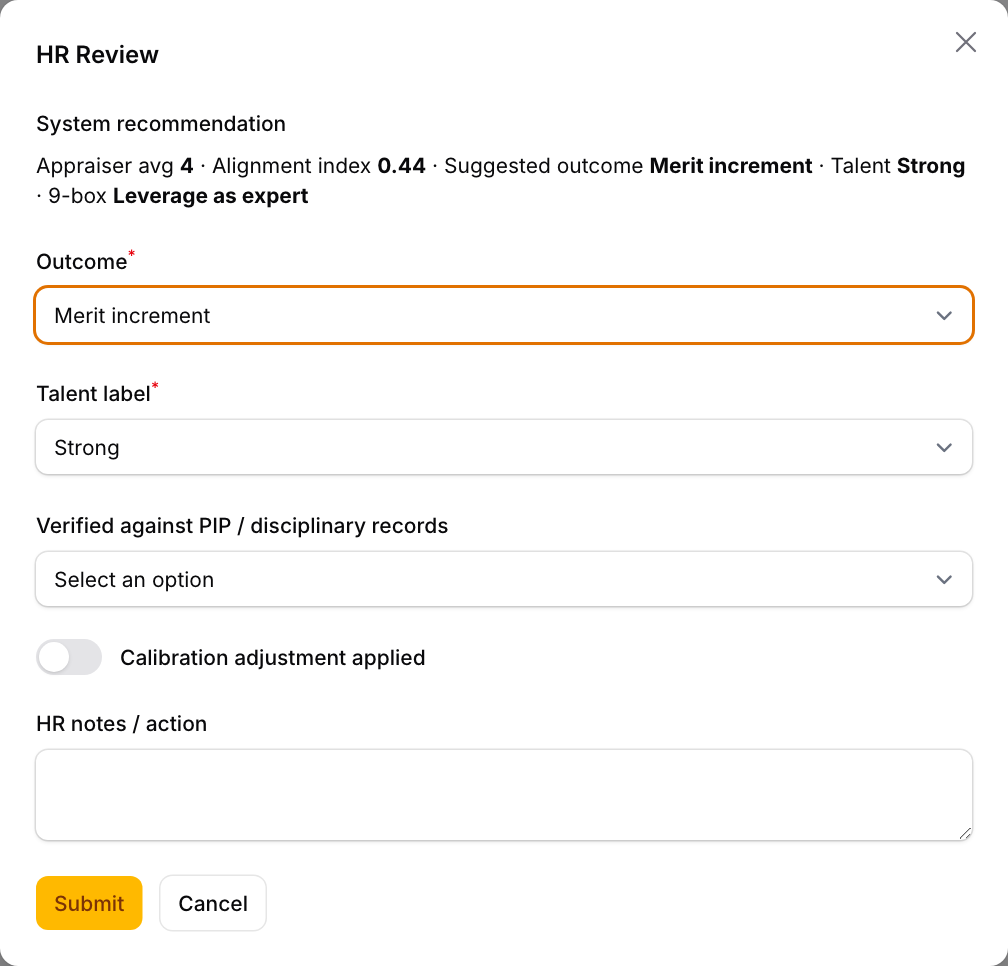
System recommendation at the top suggests an outcome, a talent label and a 9-box action, worked out from the appraiser's average score and how far the two sets of scores differ. The fields below are filled in with these suggestions. Change any you disagree with:
- Outcome: for example Merit increment, Bonus eligible, Promotion recommended, or Performance Improvement Plan (PIP).
- Talent label: Star, Strong, Solid, Watch or At Risk.
- Verified against PIP / disciplinary records: N/A, Checked, no conflict, or Conflict — escalated.
- Calibration adjustment applied: switch it on only if you change the rating after comparing across teams, then give the Adjusted rating and the reason.
- HR notes / action: anything to follow up.
-
Press Submit. The appraisal is marked Completed, with your name and the date.
Print the summary
After sign-off, a Summary button appears on the person's row. It opens a one-page summary in a new tab: details, both sets of scores and the gaps, the staff member's response, the HR outcome and the dates of each step. Press Print / Save PDF to print it or save it as a PDF.
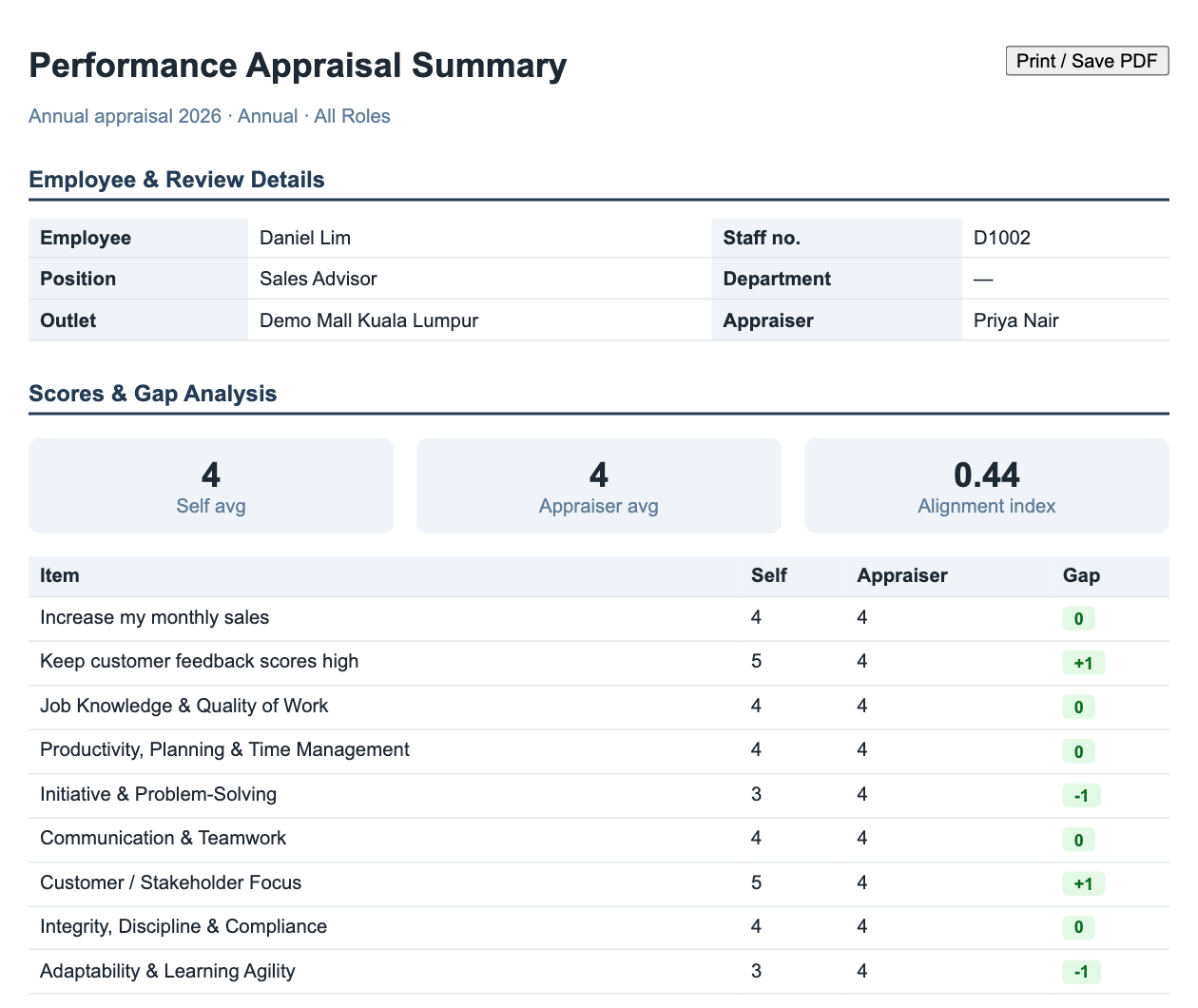
The alignment index is the average distance between the two sets of scores. 0 means they match on every item.