Connect another system
For: Administrators
Whole guide as PDF (1 MB)Each system that takes payments, such as the web shop or the membership app, needs its own terminal. The terminal gives that system a login, and decides what it is allowed to do.
- Open Terminals under Merchants and Terminals in the menu.
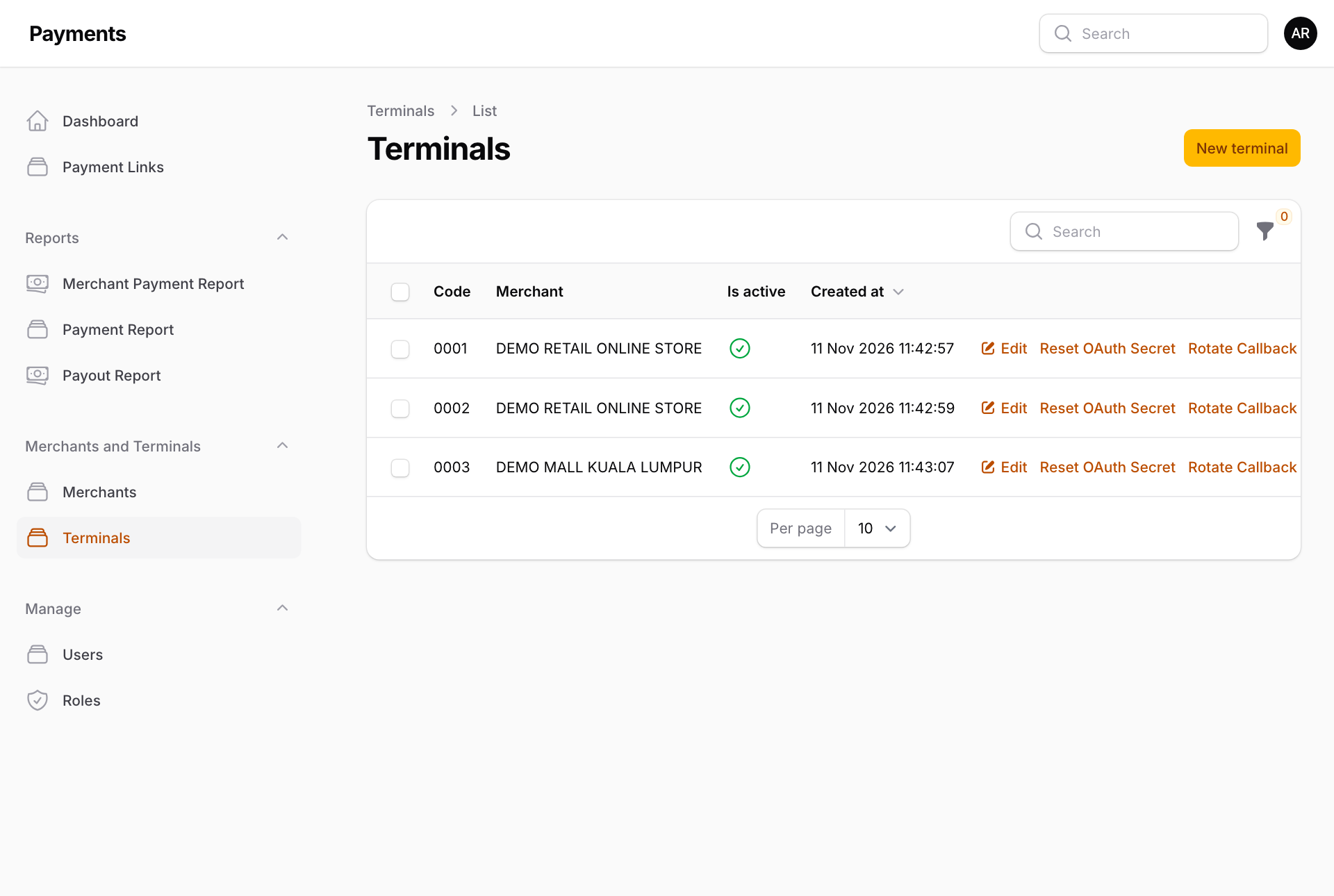
- Press New terminal.
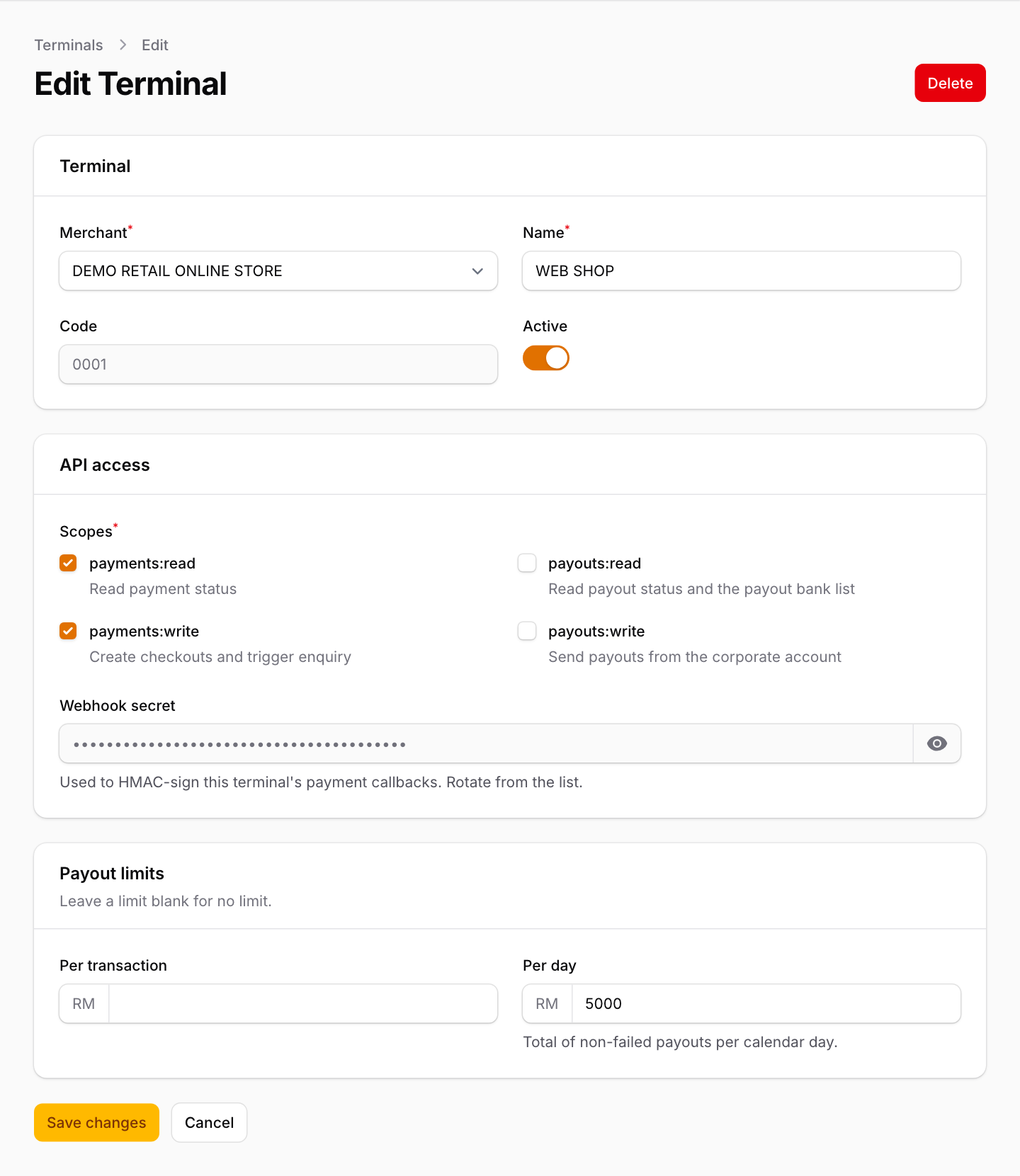
- Pick the Merchant that receives the money, and type a Name, for example WEB SHOP. The four-digit Code is given automatically after saving.
- Under API access, tick what the system may do:
- payments:read and payments:write to take payments and check them.
- payouts:read and payouts:write only for a system that sends money out, for example refunds.
- Under Payout limits, you can set the most it may pay out at once (Per transaction) and in one day (Per day). Leave a box empty for no limit.
- Press Create.
After saving, a message shows the terminal's Client ID and secret. The secret is shown only once. Copy it straight away and give it to the person setting up the other system.
If a secret is lost or leaked
- Reset OAuth Secret makes a new login secret. The other system stops working until it is given the new one.
- Rotate Callback makes a new secret for the messages the Payment system sends back to that system.
Switching off Active stops the terminal taking payments.