Give someone access
For: Administrators
Whole guide as PDF (1 MB)People sign in with the company's shared sign-in. They appear in Users after their first sign-in, so there is no button to add someone.
- Open Users under Manage in the menu.
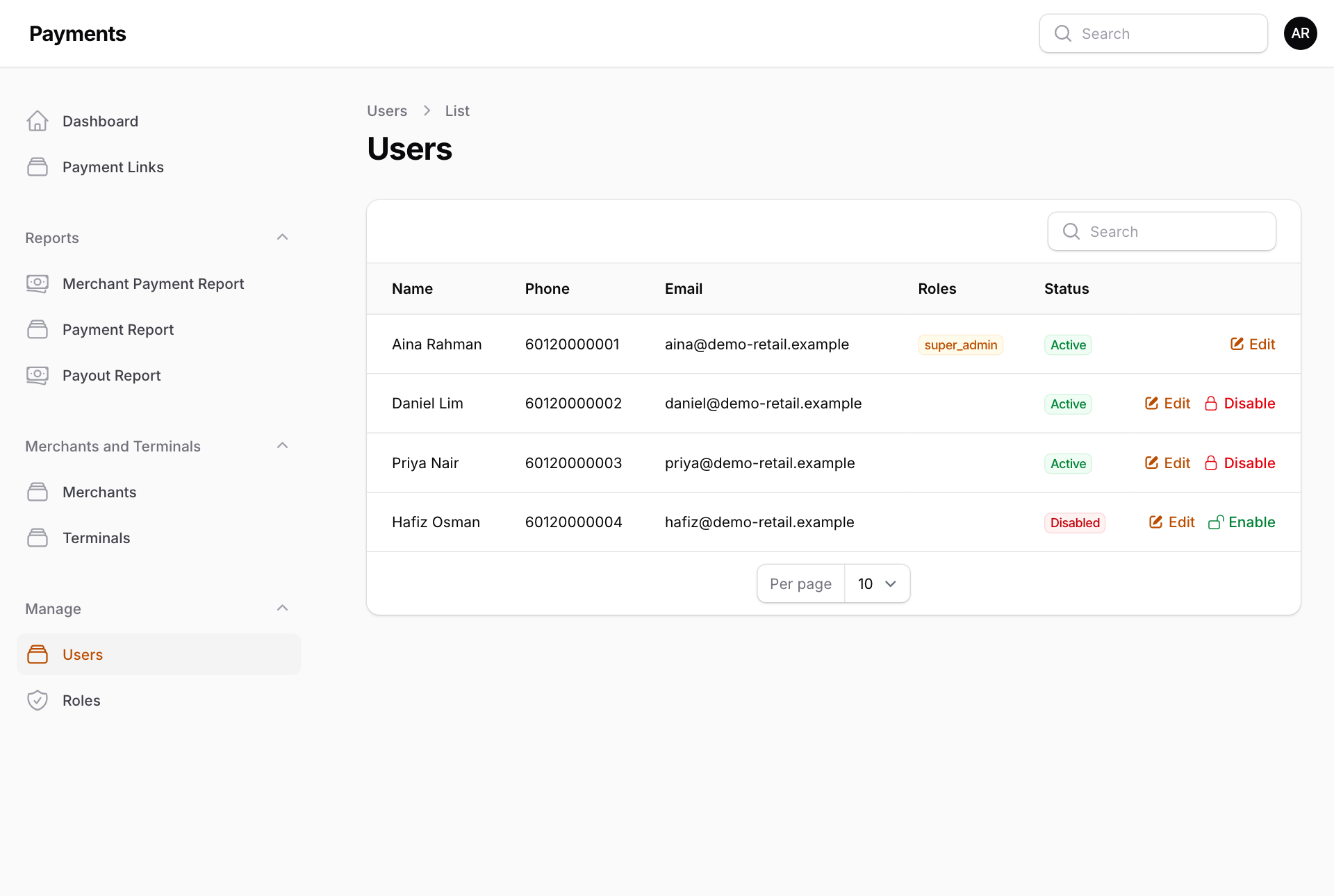
- Press Edit next to the person.
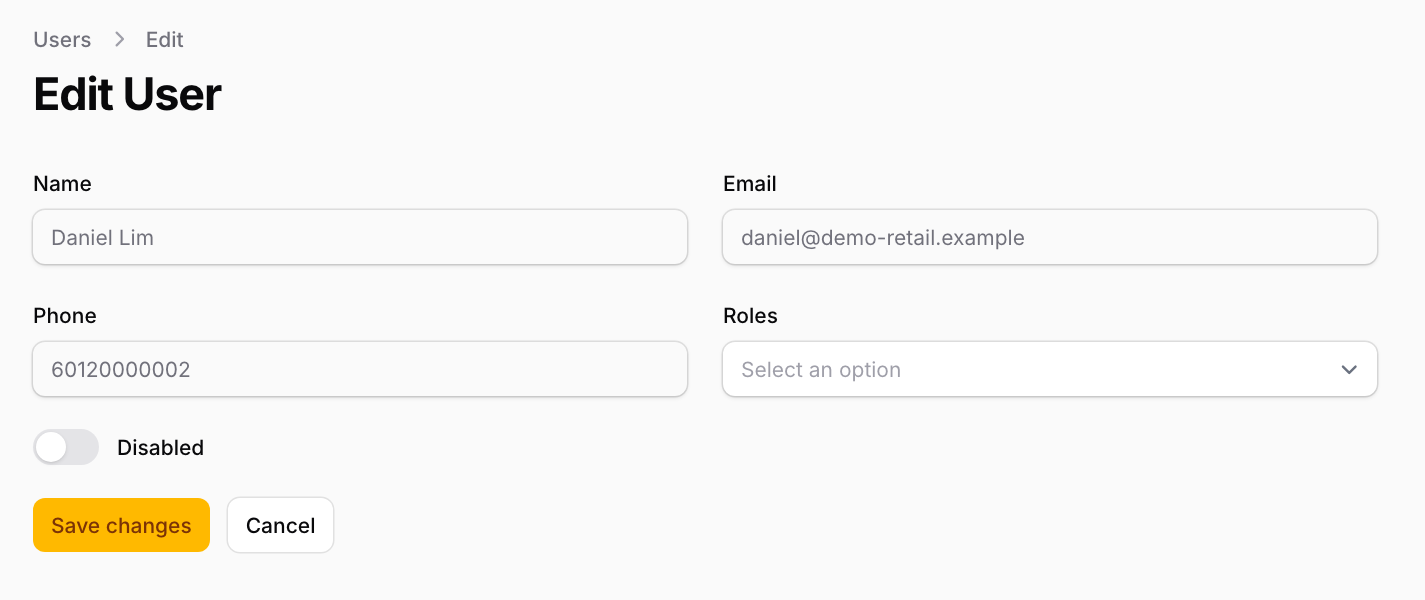
- Pick one or more Roles. A role decides which menus and buttons the person sees.
- Press Save changes.
Stop someone using it
Press Disable in the list, or switch on Disabled on their page. They cannot open the Payment system until you press Enable. A person marked inactive in the shared sign-in is also kept out.
Make a new role
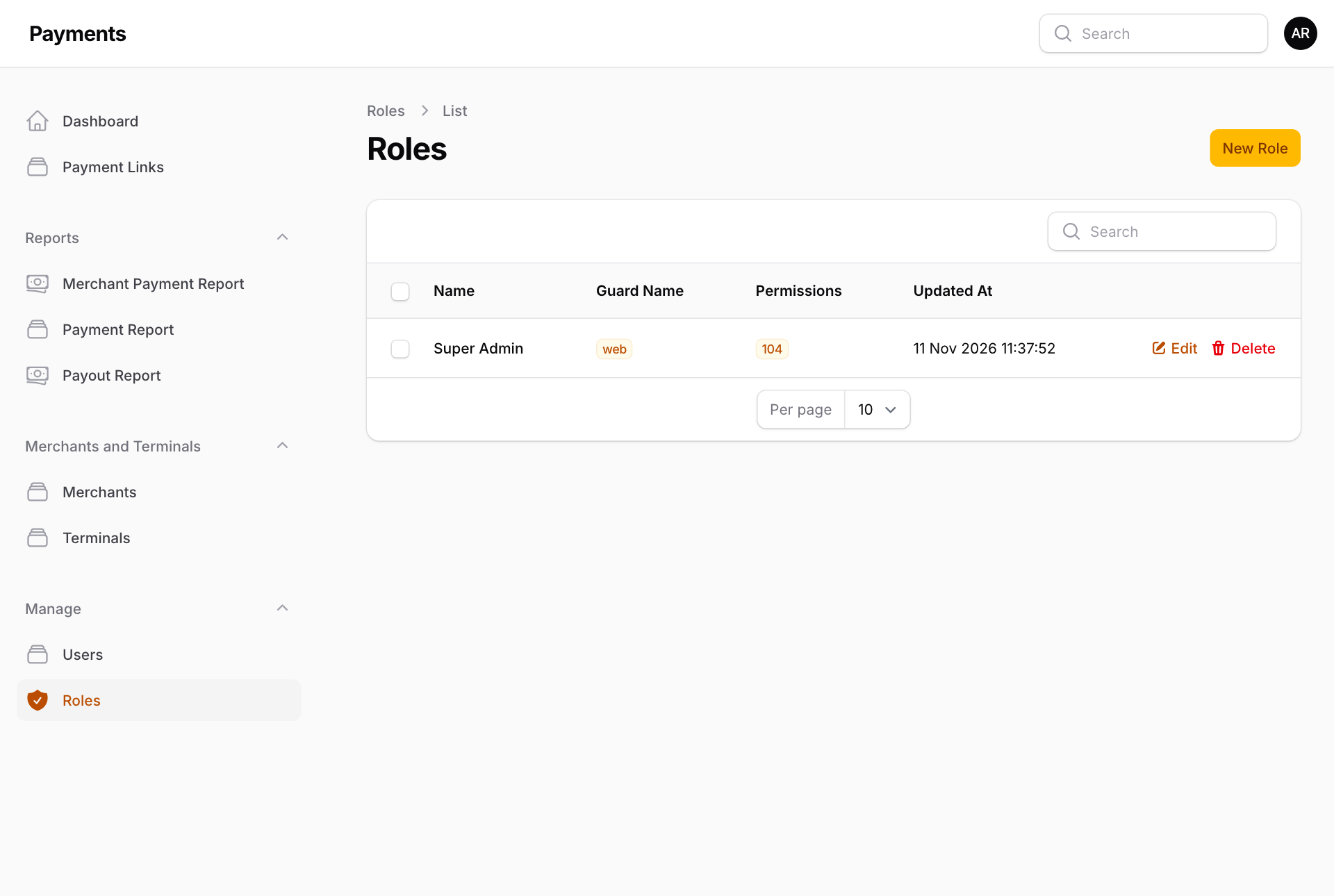
- Open Roles under Manage. Only Super Admin exists at first, and it can do everything.
- Press New Role and give it a Name, for example "Finance".
- Under Resources, each screen has its own group of tick boxes. View Any lets the person open the list, View opens one record, Create and Update let them add and change. Select all ticks a whole group.
- Press Create, then give the role to people as above.
Not on this screen yet: the buttons that move money or talk to the bank (Submit Payout, Regenerate Payout, Enquire now, Re-send Callback, Cancel link, Mark Paid, Mark Failed, Reset OAuth Secret and Rotate Callback) have no tick box here. Today only Super Admin can use them. Ask your system supplier if a finance role needs them.