Send a payment link
For: Finance and customer service
Whole guide as PDF (1 MB)A payment link lets a customer pay an invoice from an email, without going through the web shop.
Needs the live bank account. The link is made by the bank, so Create only works when the Payment system is connected to it. You can fill in the form without it, but saving will show an error.
- Open Payment Links in the menu on the left. The list shows every link with its Invoice No., status and amount.
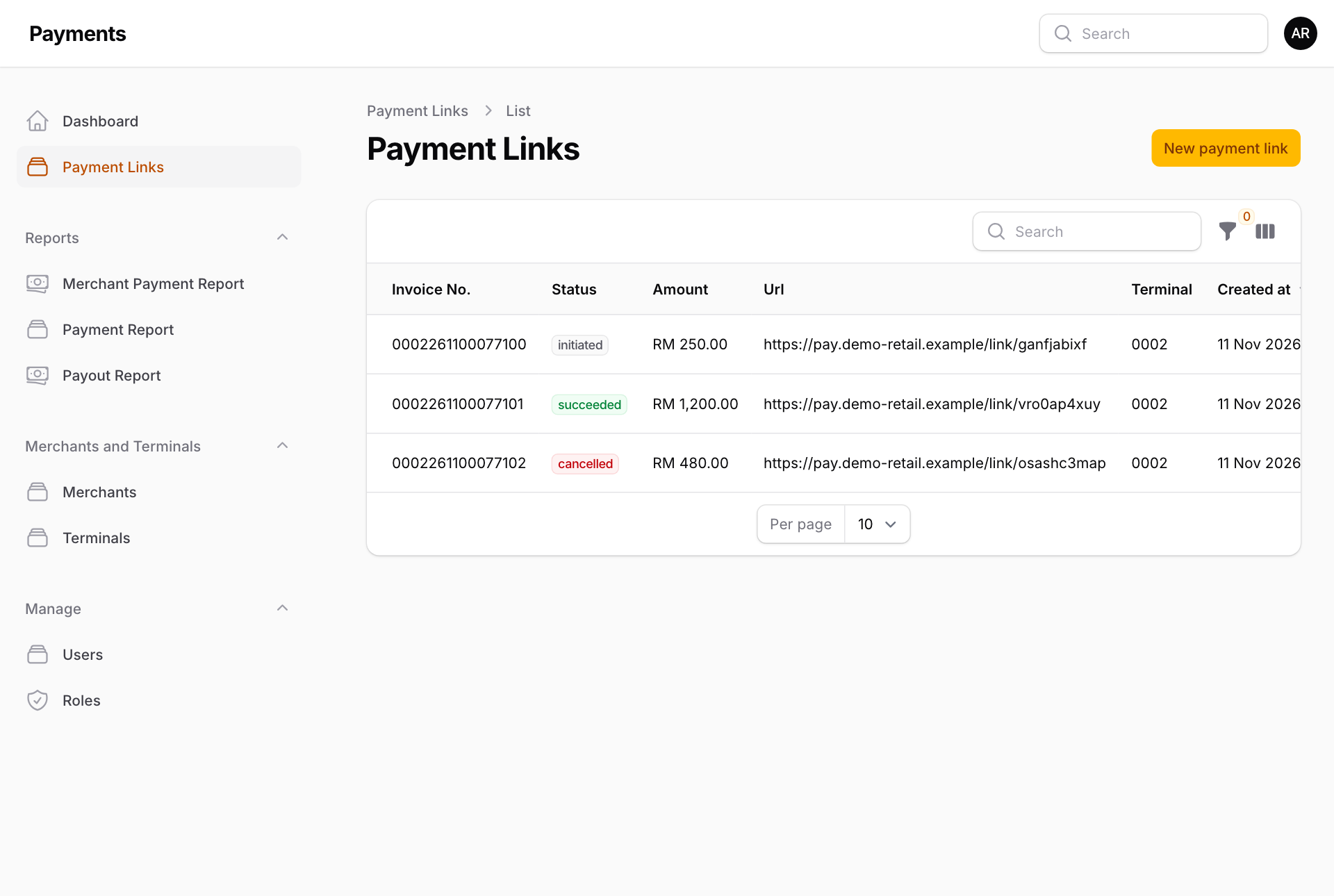
- Press New payment link at the top right.
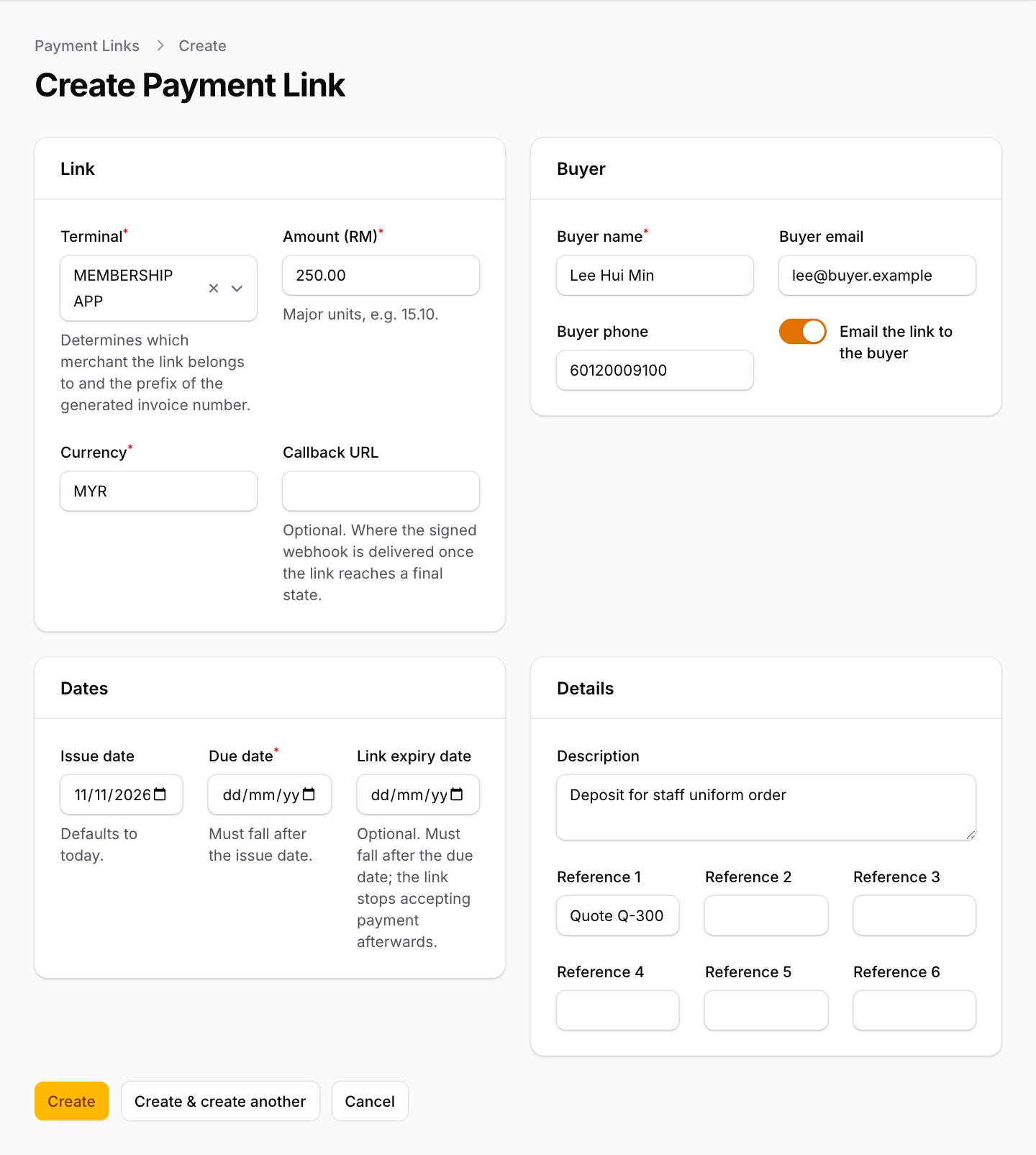
- Under Link, pick the Terminal. It decides which merchant receives the money and the first four digits of the invoice number.
- Type the Amount (RM) in ringgit and sen, for example 15.10. Leave Currency as MYR.
- Under Buyer, type the customer's name, email and phone. Leave Email the link to the buyer switched on to have the bank email it.
- Under Dates, pick a Due date after the Issue date. A Link expiry date is optional: after that day the link cannot be paid.
- Under Details, add a Description the customer will see, and up to six references for your own records, for example a quote number.
- Press Create.
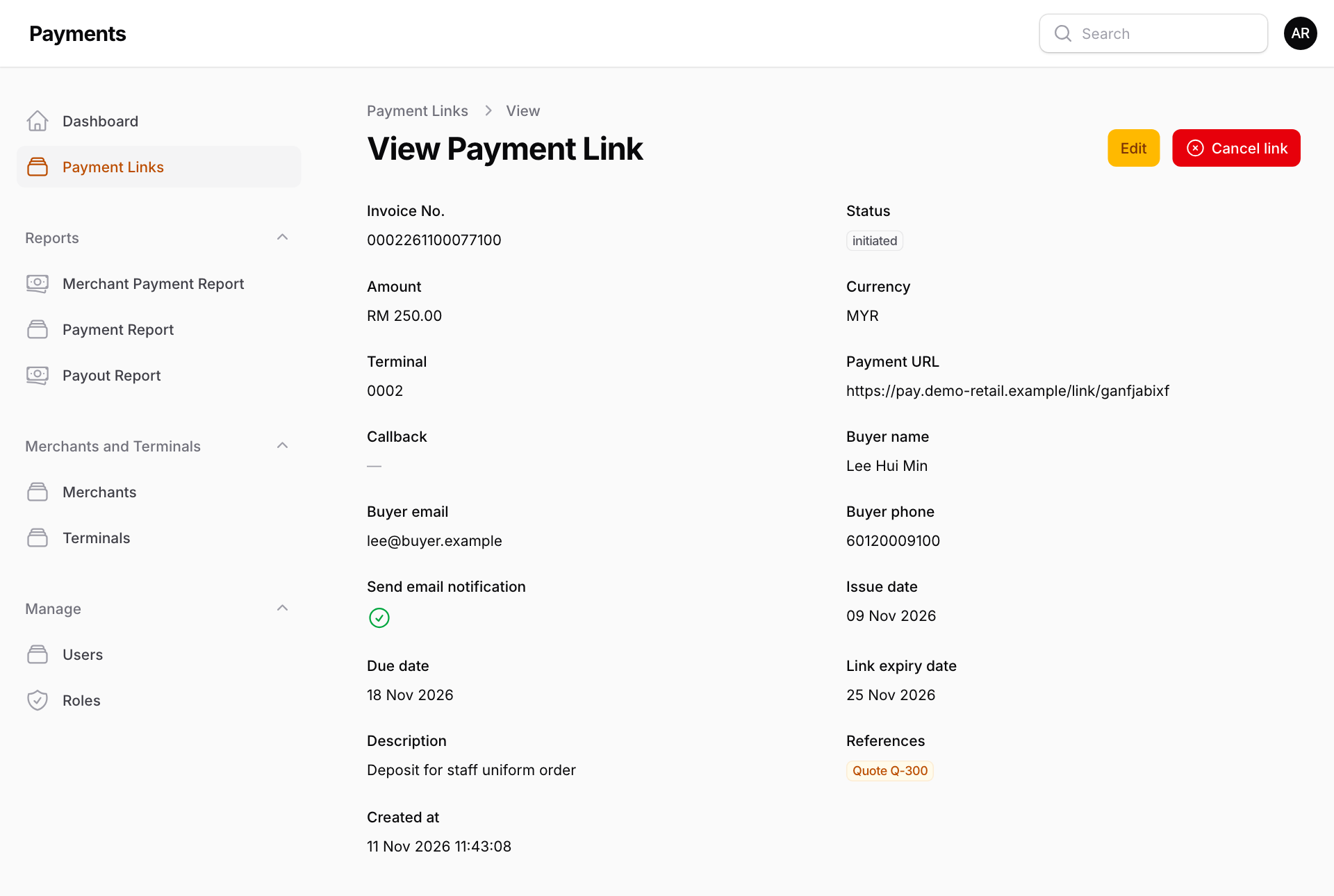
After saving, the link's page shows the Payment URL. You can copy it and send it yourself.
Change or withdraw a link
- Edit changes the amount, buyer details or dates while the link is still unpaid.
- Cancel link withdraws it at the bank so it can no longer be paid. This cannot be undone.
- Links cannot be deleted, because a deleted link could still be paid at the bank.
Both buttons need the live bank account.