Pay out a merchant's daily sales
For: Finance
Whole guide as PDF (1 MB)Every night at 1 am the Payment system makes one report per merchant for the day before. Each report adds up the merchant's paid sales that are not in an earlier report.
- Open Merchant Payment Report under Reports in the menu.
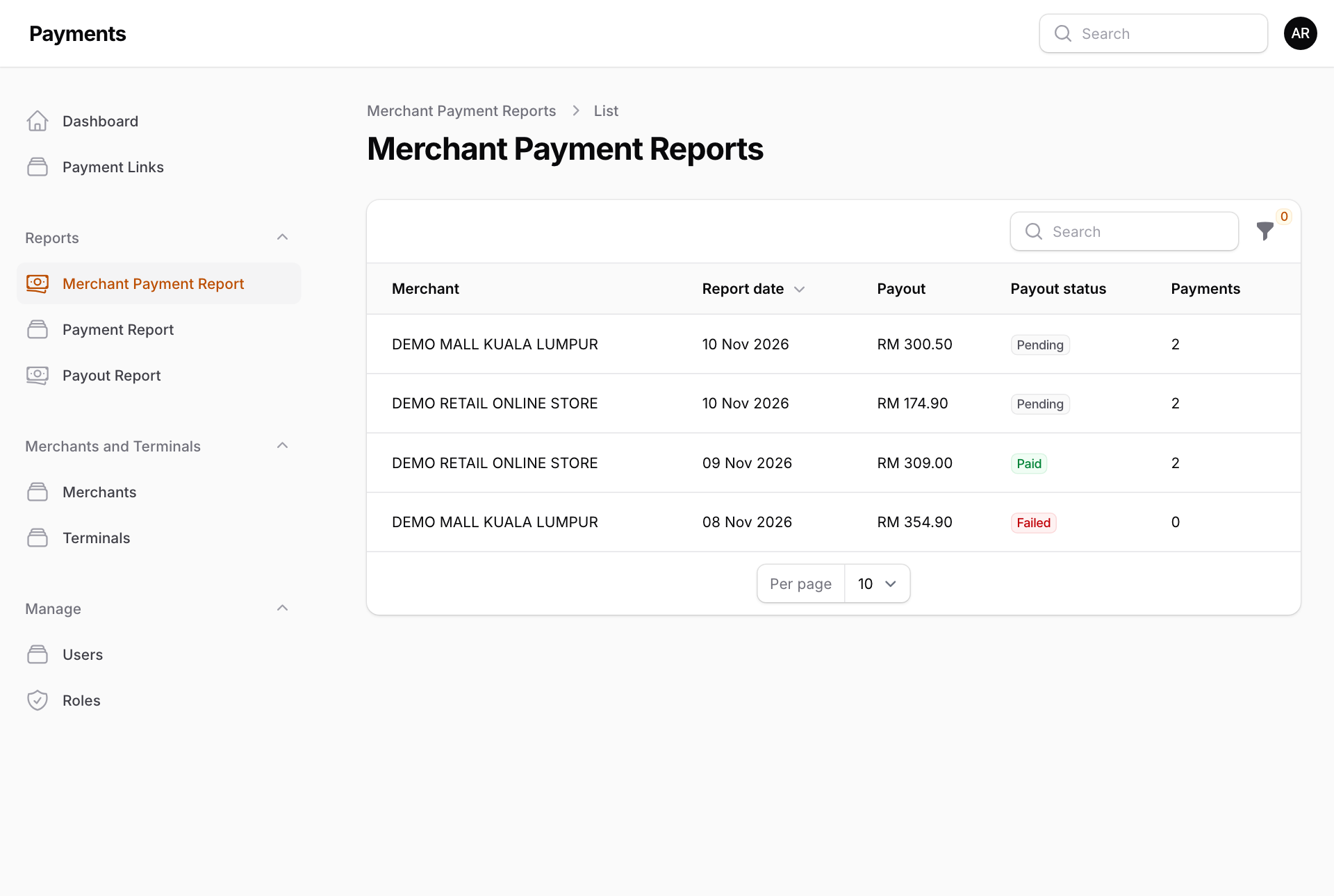
- Press a row. The report opens in a new tab.
- Check the Payout amount against the Payments listed underneath.
- Press Submit Payout at the top right, read the amount and bank account in the box that opens, and confirm.
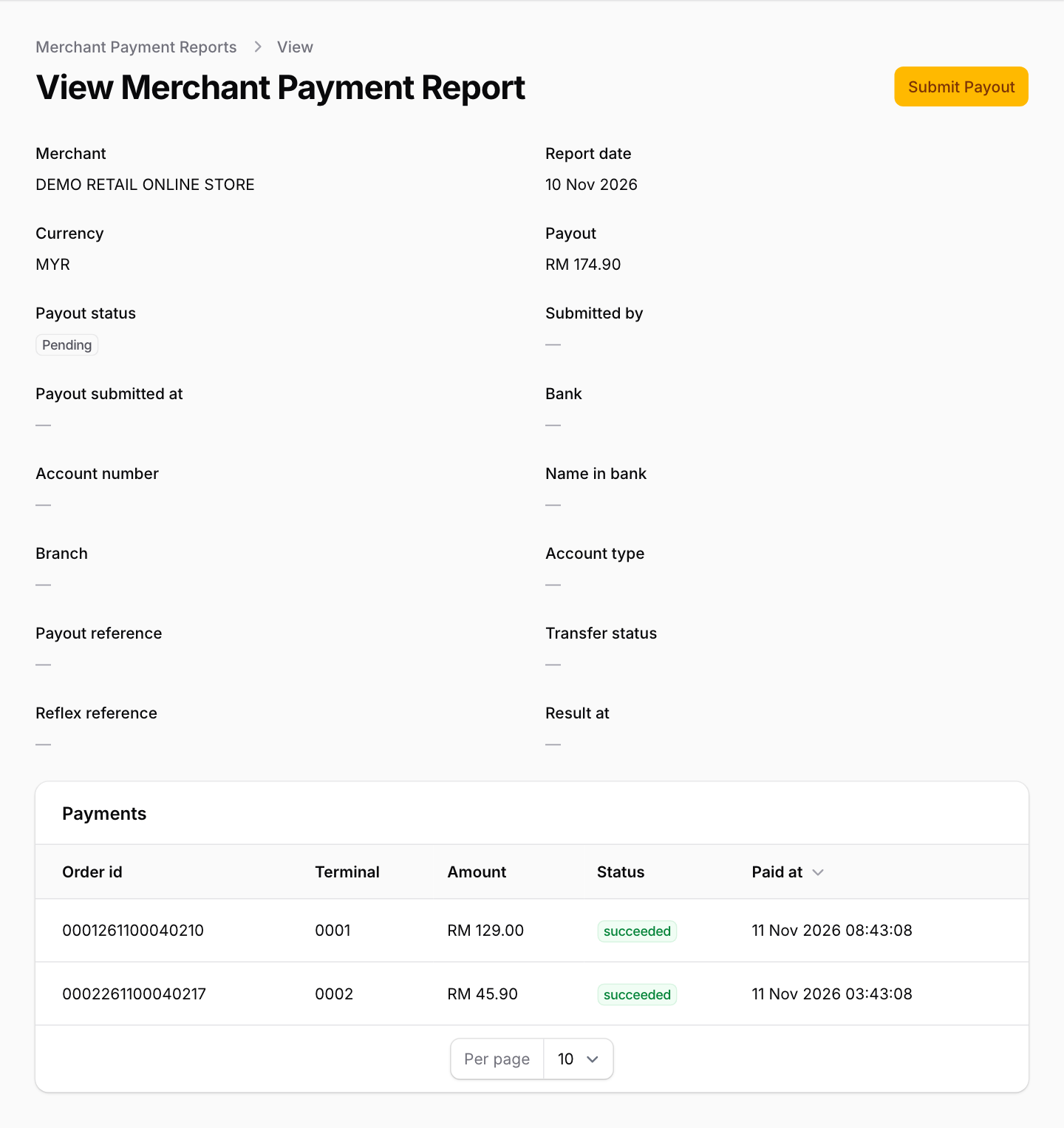
Needs the live payout account. Sending money uses the bank's payout service. Without it, Submit Payout cannot send anything.
When Submit Payout is greyed out
Point at the button to see why:
- The merchant has no active bank account. Add one on the merchant's page (see Set up a merchant).
- There is nothing to pay out.
- The bank account is missing the account type or the contact number.
Payout status
| Status | Meaning |
|---|---|
| Pending | Not sent yet. |
| Submitted | Sent to the bank. |
| Pending Result | The bank has not confirmed the result. |
| Paid | The money arrived. |
| Failed | The bank refused it. |
If a payout Failed, fix the merchant's bank details, open the report again and press Regenerate Payout. This makes a new report with the same payments, ready to send again.