Find a payment
For: Finance and customer service
Whole guide as PDF (1 MB)Use this when a customer says they paid, or a system shows an order as unpaid.
- Open Payment Report under Reports in the menu on the left. The newest payments are at the top.
- Type the order number into Search above the list. Each order number starts with the four-digit code of the terminal that made it.
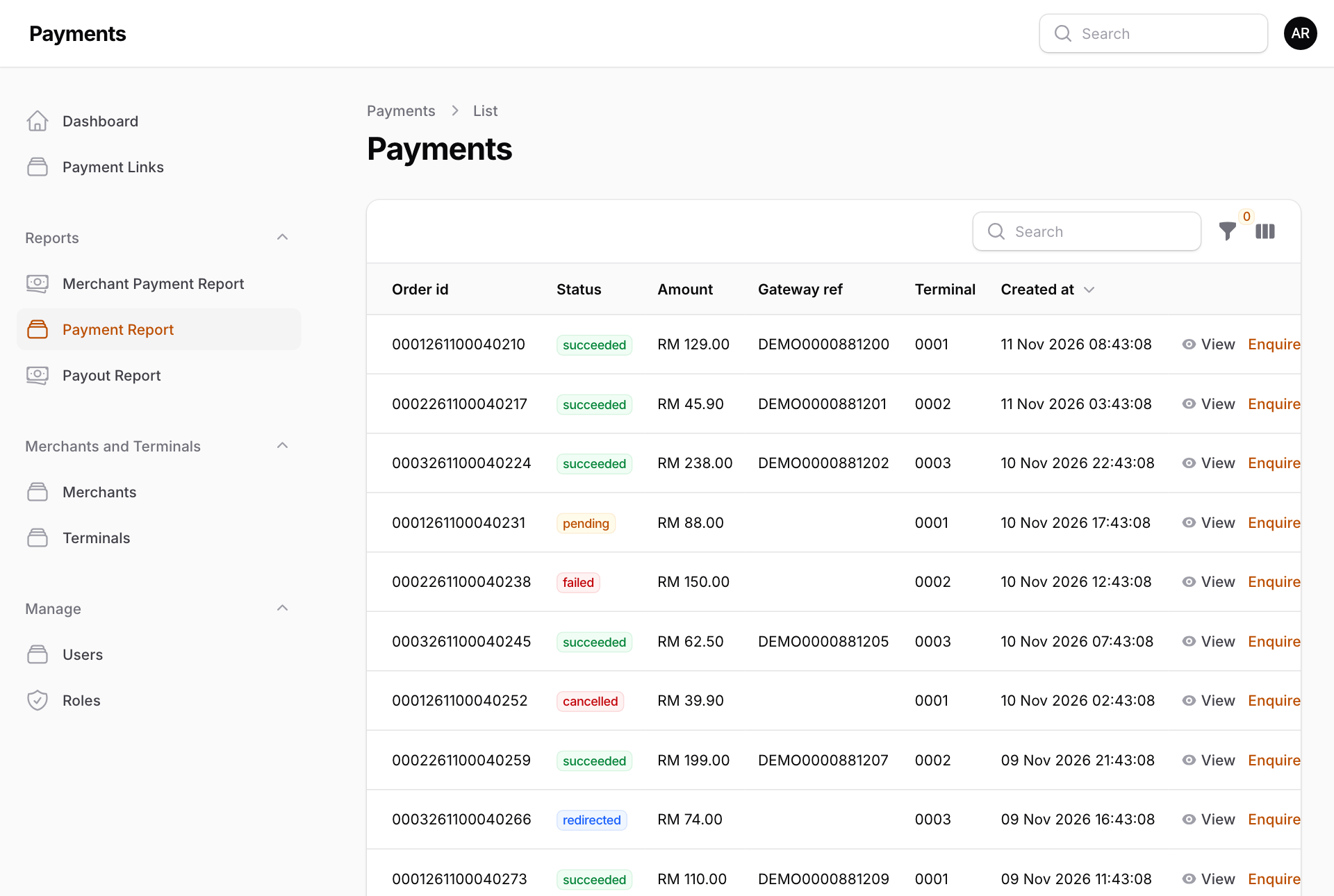
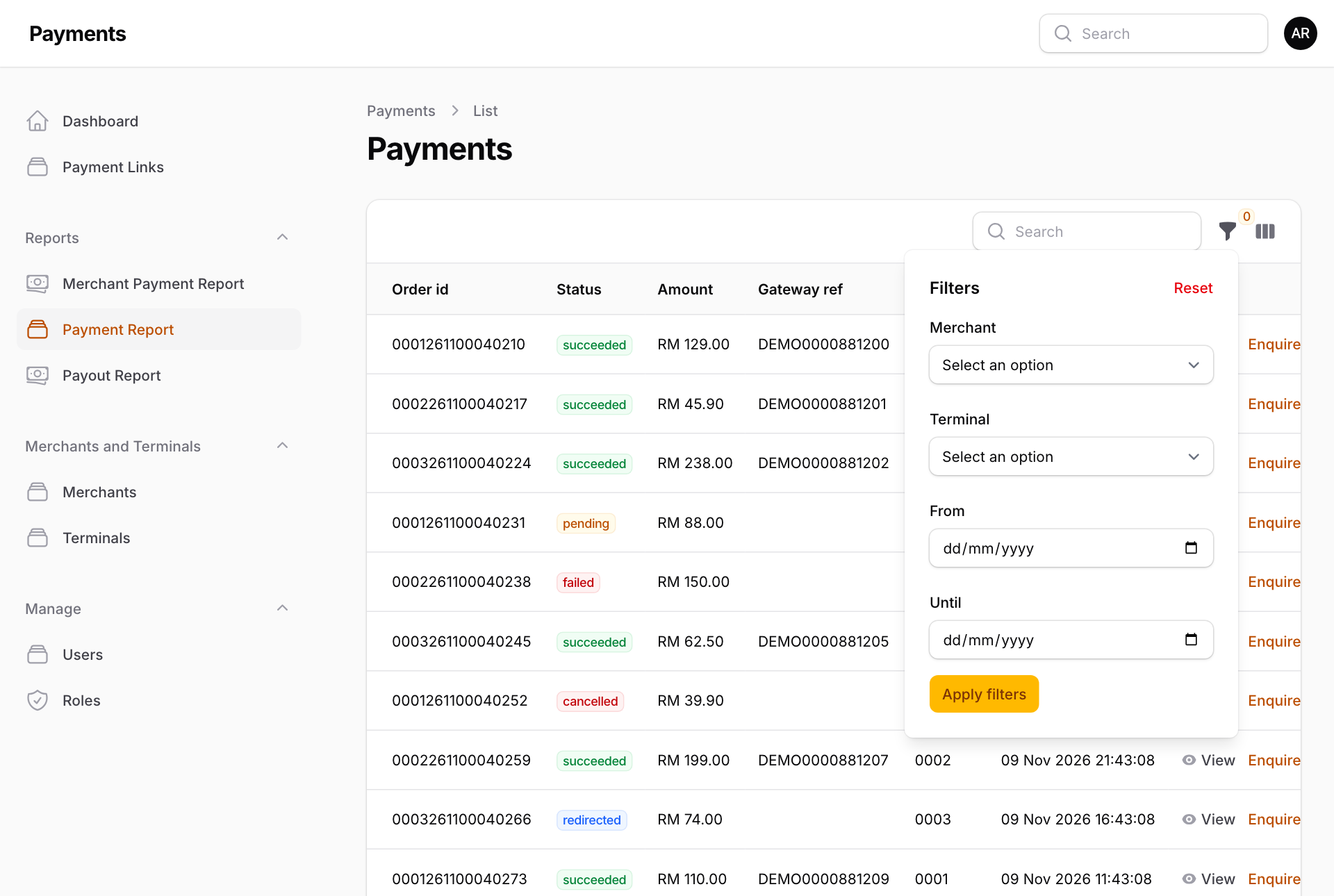
- To narrow the list, press the funnel button next to Search. Pick a Merchant, a Terminal, or a date range in From and Until, then press Apply filters. Reset clears them.
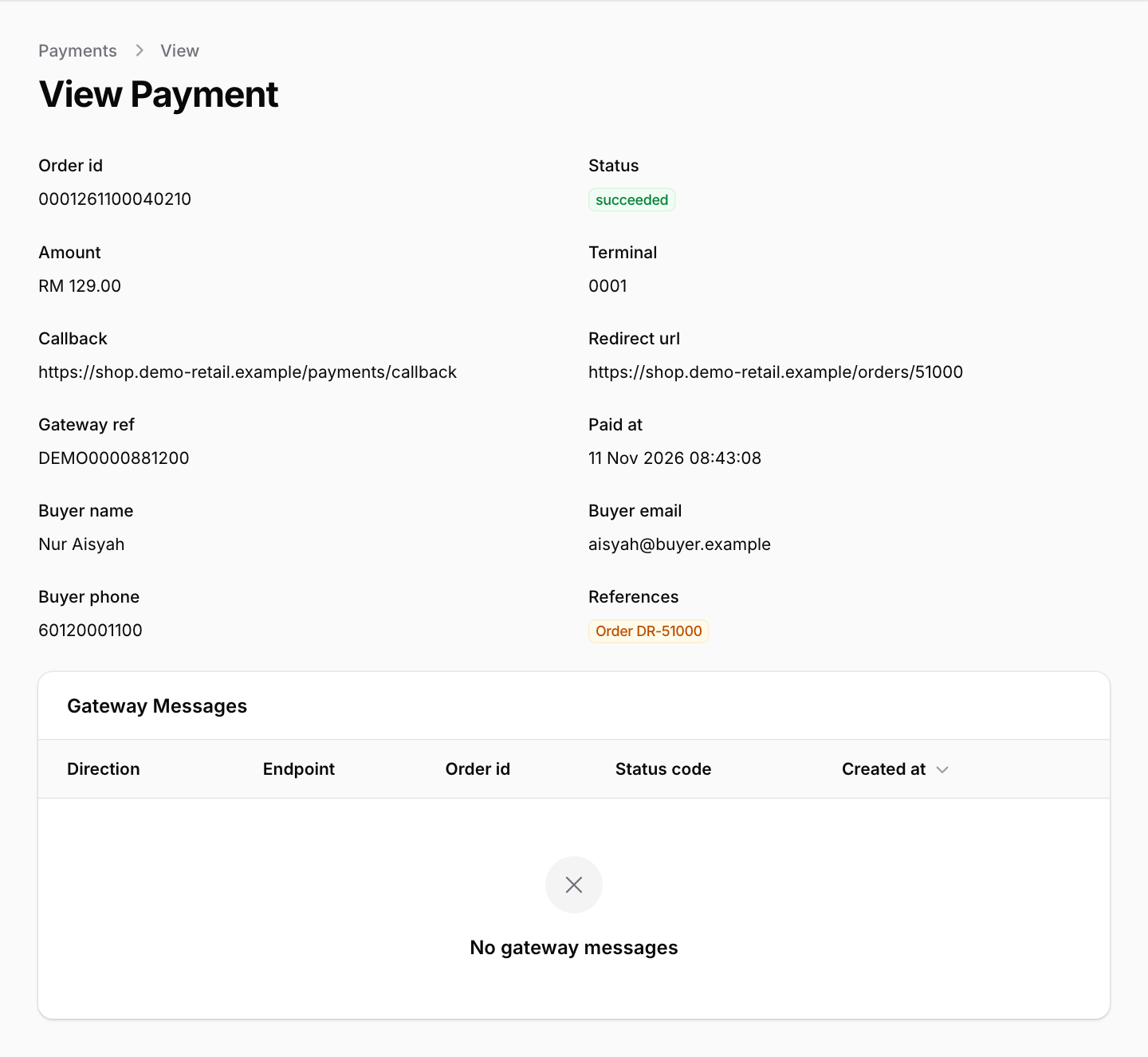
- Press View on a row to see everything about that payment: the amount, who paid, when, the bank's reference (Gateway ref), and the references the ordering system sent.
What the status means
| Status | Meaning |
|---|---|
| initiated | The order was made, but the customer has not gone to pay yet. |
| redirected | The customer was sent to the bank's payment page. |
| pending | The bank has not given a final answer yet. |
| succeeded | The money was received. |
| failed | The payment did not go through. |
| cancelled | The customer or the bank stopped the payment. |
The Payment system checks unfinished payments with the bank every five minutes on its own.
Two buttons on each row
- Enquire now asks the bank for the latest result straight away. Use it when a customer has proof of payment but the status has not changed. It needs the live bank account.
- Re-send Callback sends the result to the system that made the order again, for example when the web shop missed it and still shows the order as unpaid.
Only Super Admin sees these two buttons today.