Add a product
For: Inventory managers
Whole guide as PDF (2 MB)- Open Products in the menu on the left. Use the search box to find a product by name, code, SKU or barcode, or pick a status to narrow the list.
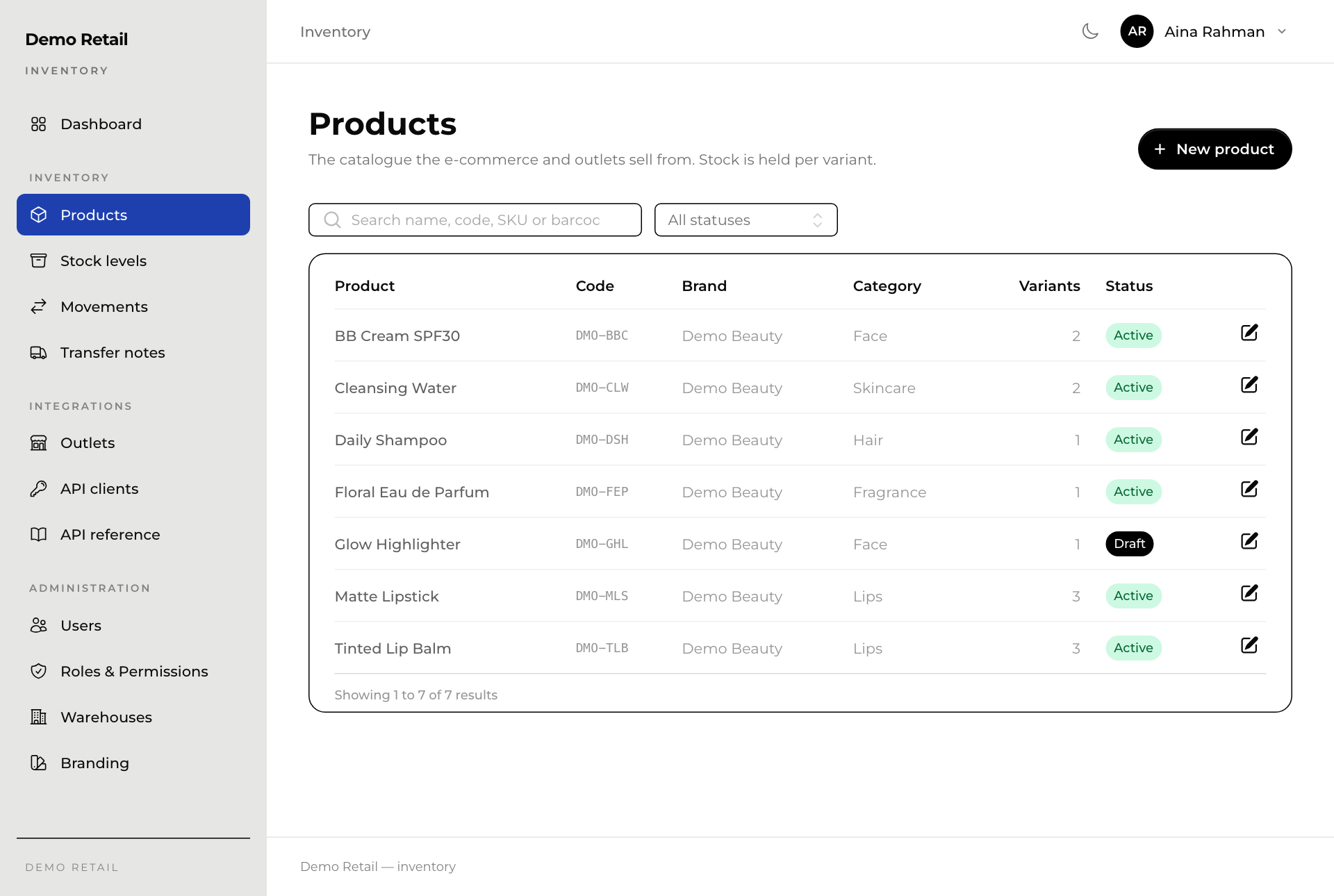
- Press New product.
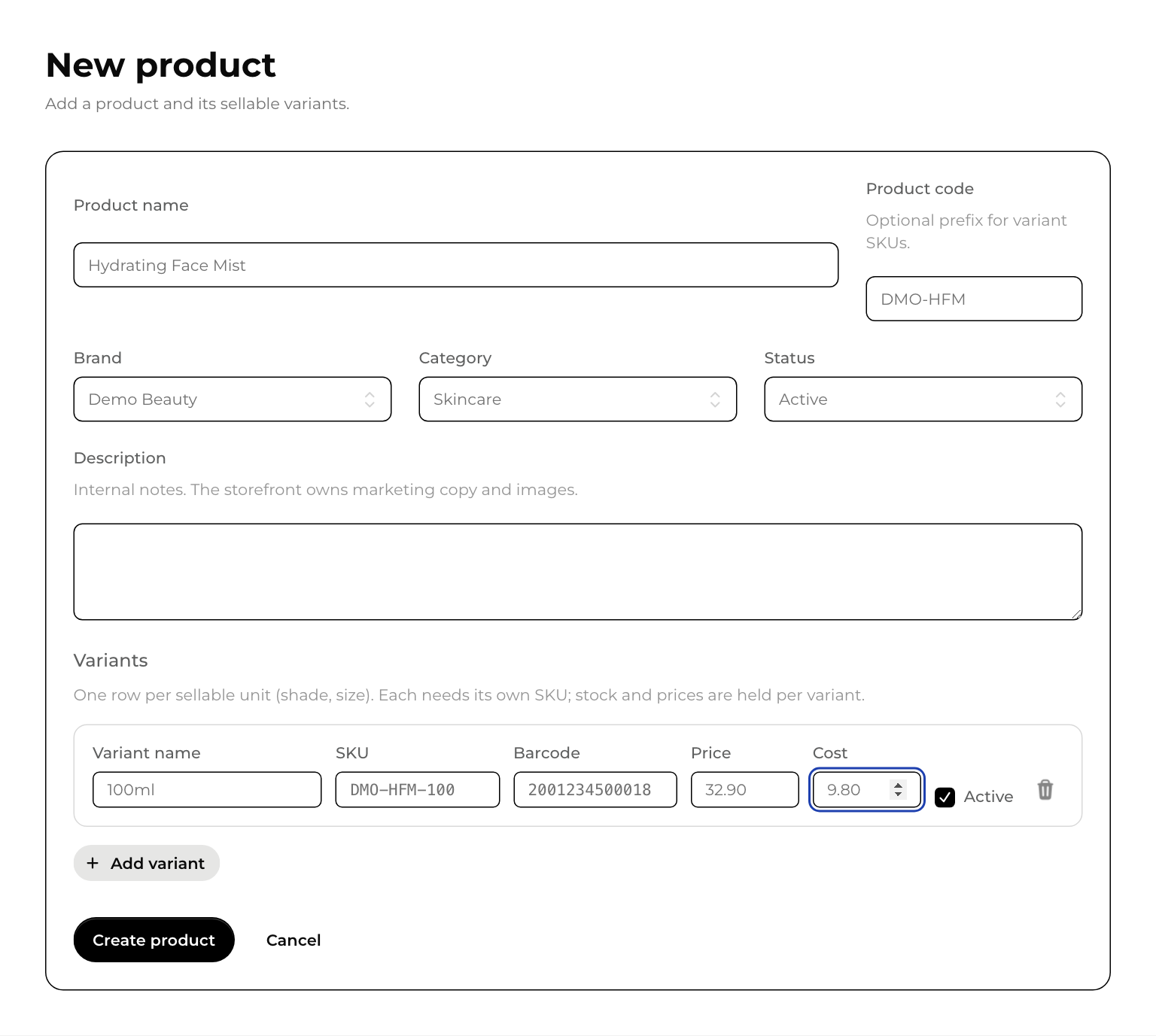
- Type the Product name. The Product code is optional; it is a short code you can start every SKU with.
- Pick the Brand, Category and Status:
- Active: on sale. The online store's product list shows only active products.
- Draft: not ready to sell yet.
- Discontinued: no longer sold.
- Under Variants, add one row for each shade or size. Each needs its own SKU. Fill in the Barcode, the selling Price and the Cost if you have them. Press Add variant for another row.
- Press Create product.
Change a product, add pictures, see its stock
Press the pencil button at the end of the product's row. The same form opens with Save changes. Below it:
- Images: press Choose files, then Upload. The first picture is the main one. You can tag a picture to one shade or size so the online store shows it for that variant.
- Stock by warehouse: how many of each variant every warehouse holds.
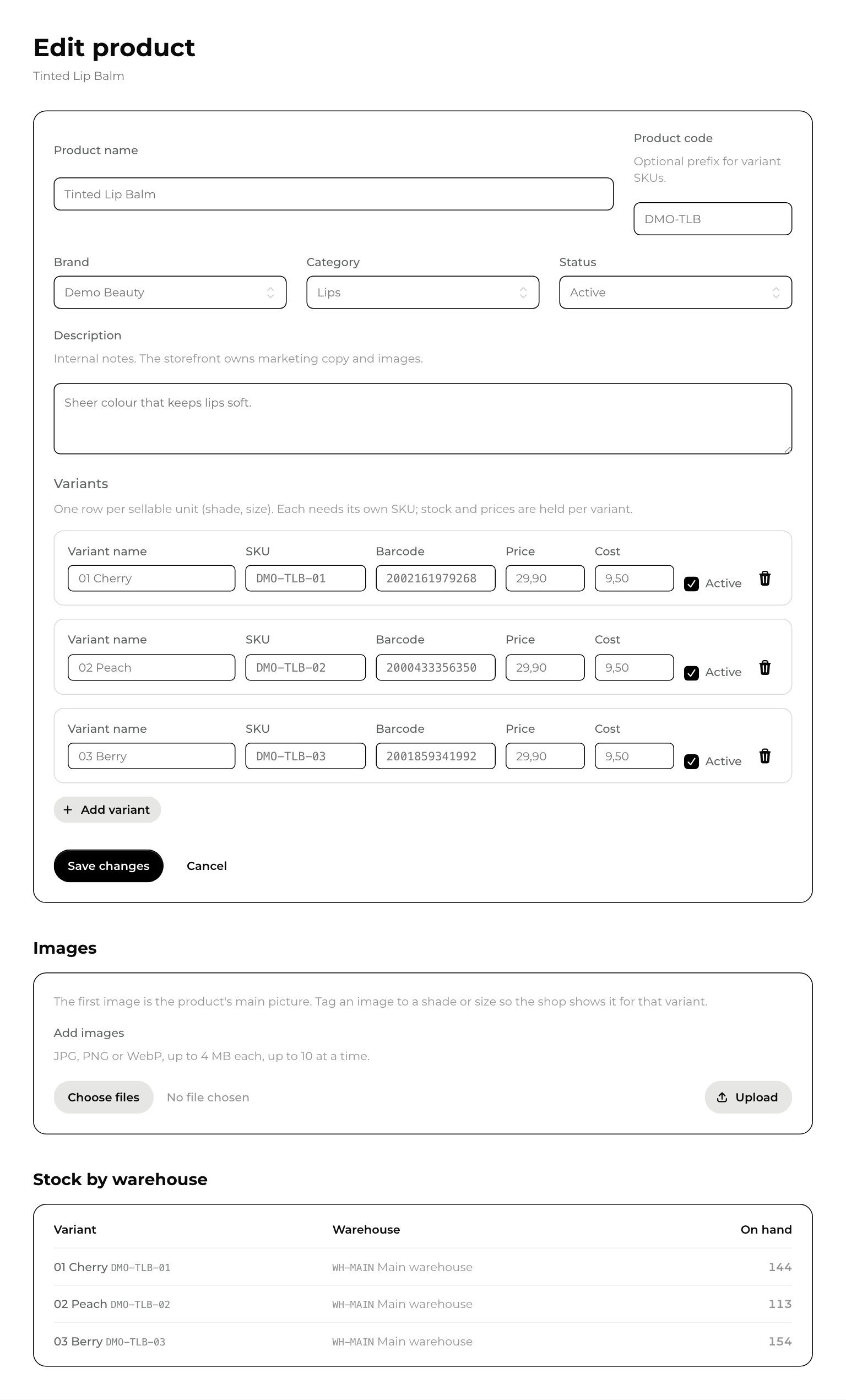
The Description is for staff only. The online store keeps its own product text.