Give someone access
For: Administrators
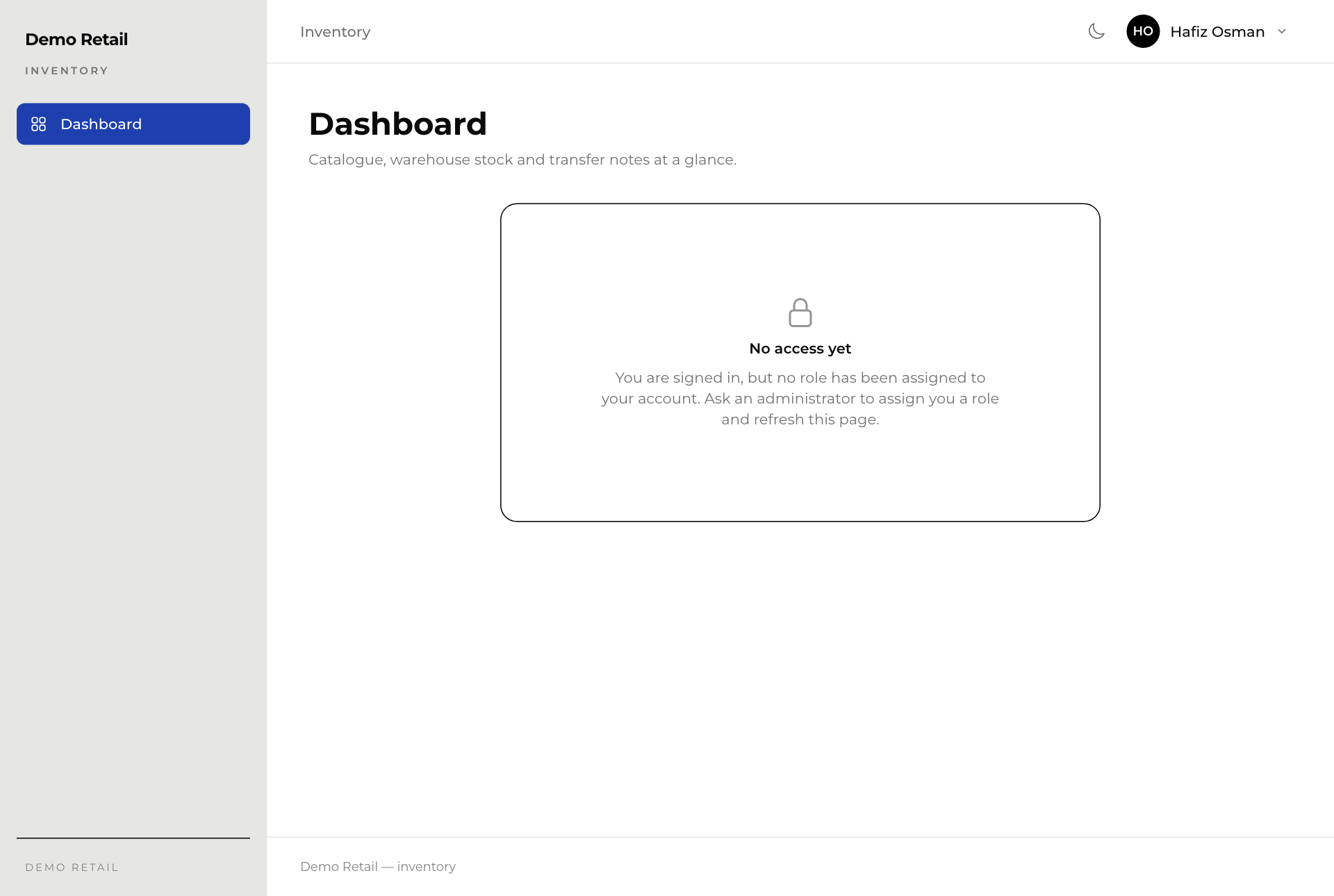
Whole guide as PDF (2 MB)Staff sign in with the company's shared sign-in. The first time, they see "No access yet" until you give them a role.
- Open Users under Administration in the menu.
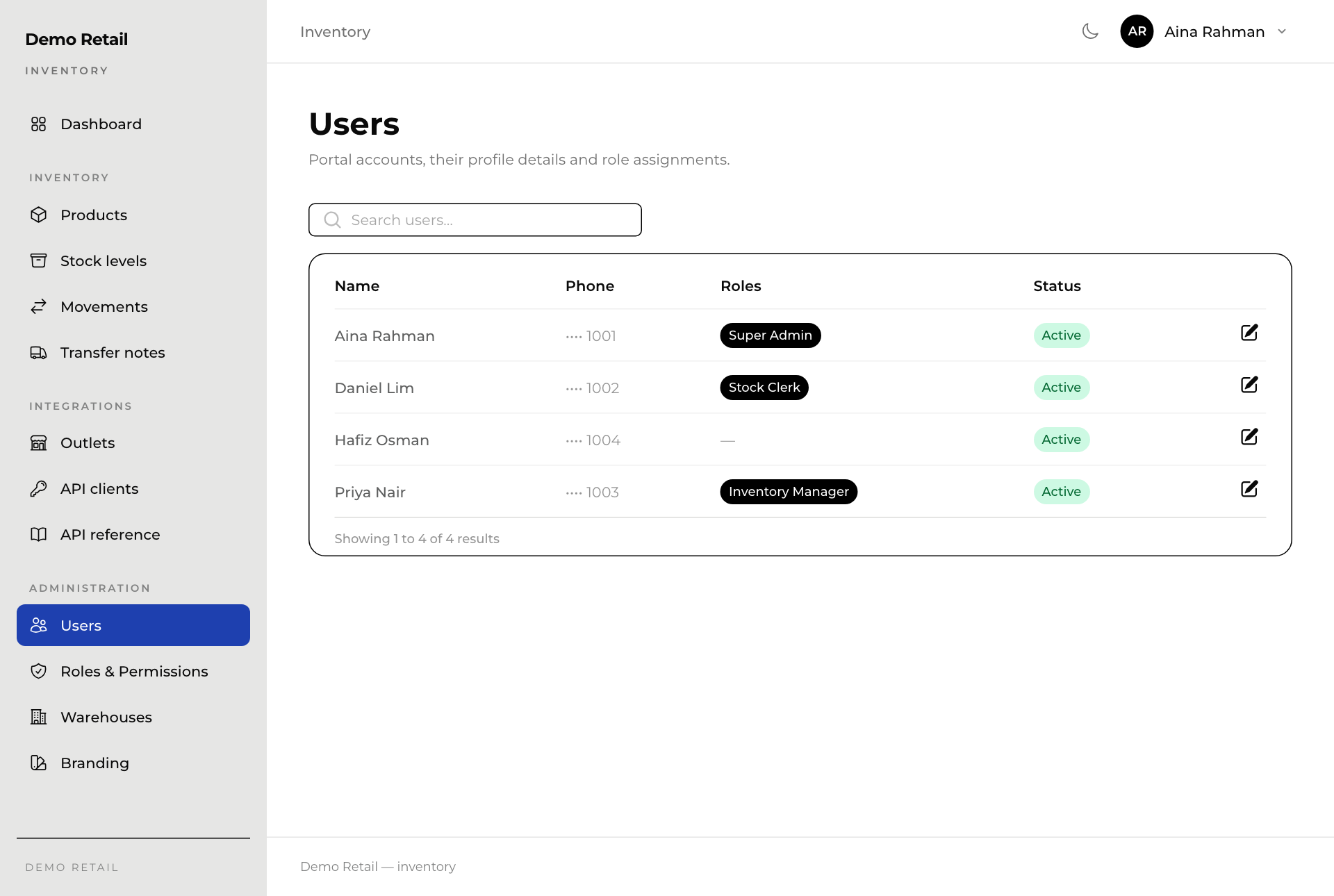
- Press the pencil button at the end of the person's row.
- Under Roles, tick one or more roles.
- Press Save changes. The person refreshes the page and the menu appears.
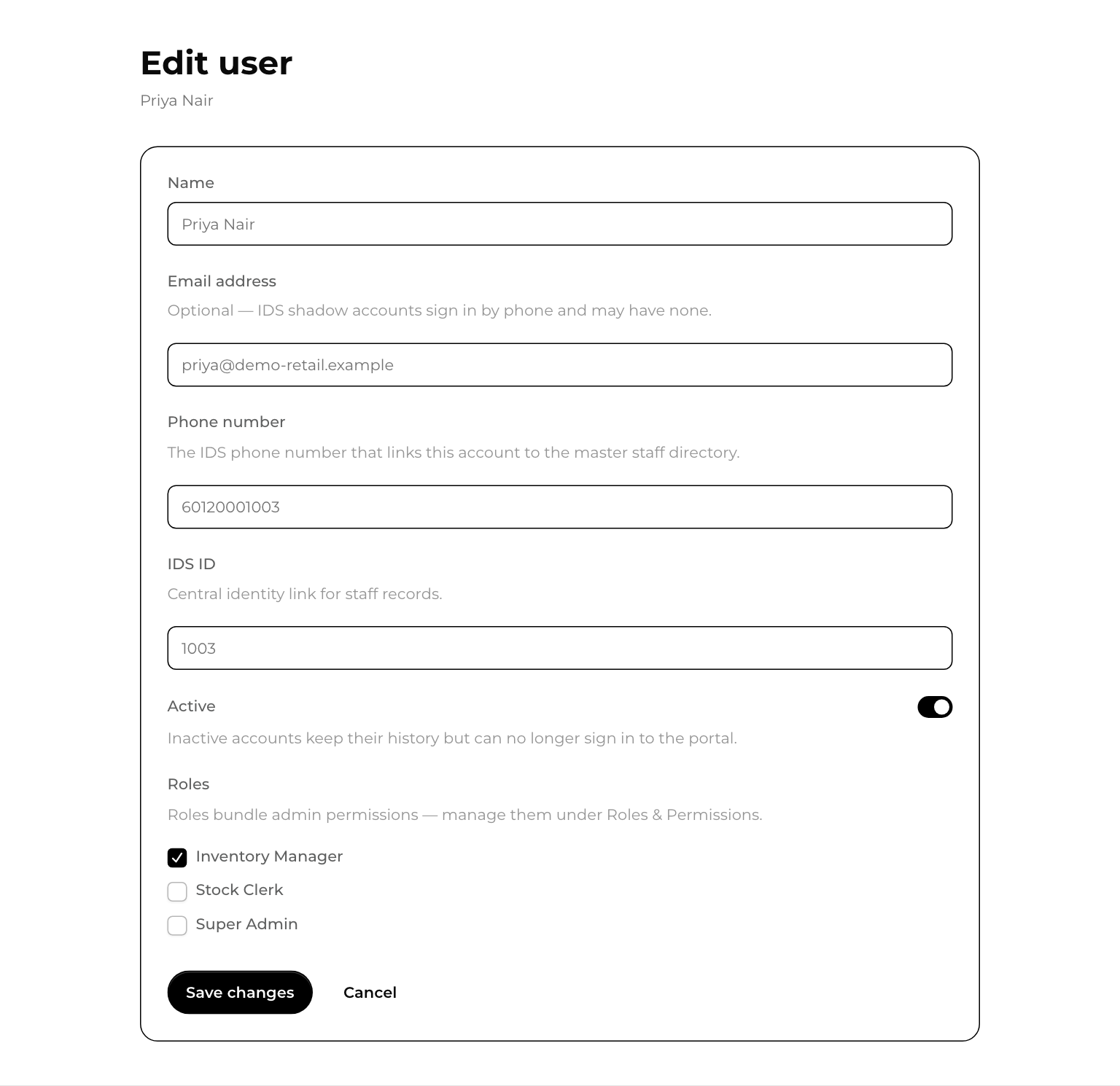
To stop someone using Inventory, switch off Active. Their history stays.
Change what a role can do
- Open Roles & Permissions under Administration.
- Press the pencil button next to a role, or New role.
- Tick what the role may do. Each line says it in words, for example Receive & adjust warehouse stock or Create, dispatch & cancel transfer notes.
- Press Save changes.
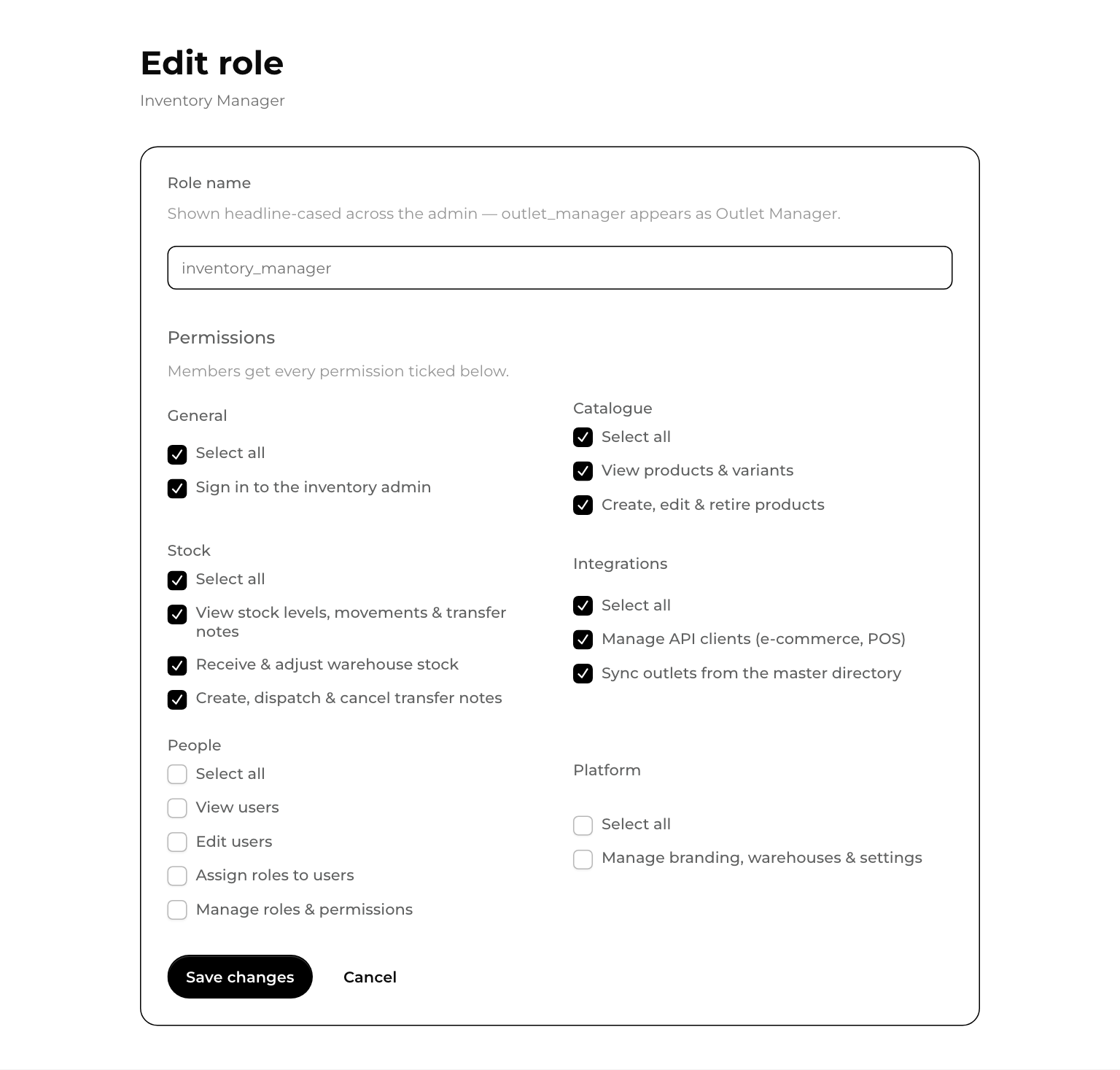
Every role needs Sign in to the inventory admin ticked, or its members still see "No access yet".