Give people access
For: Administrators
Whole guide as PDF (1 MB)See and change a person
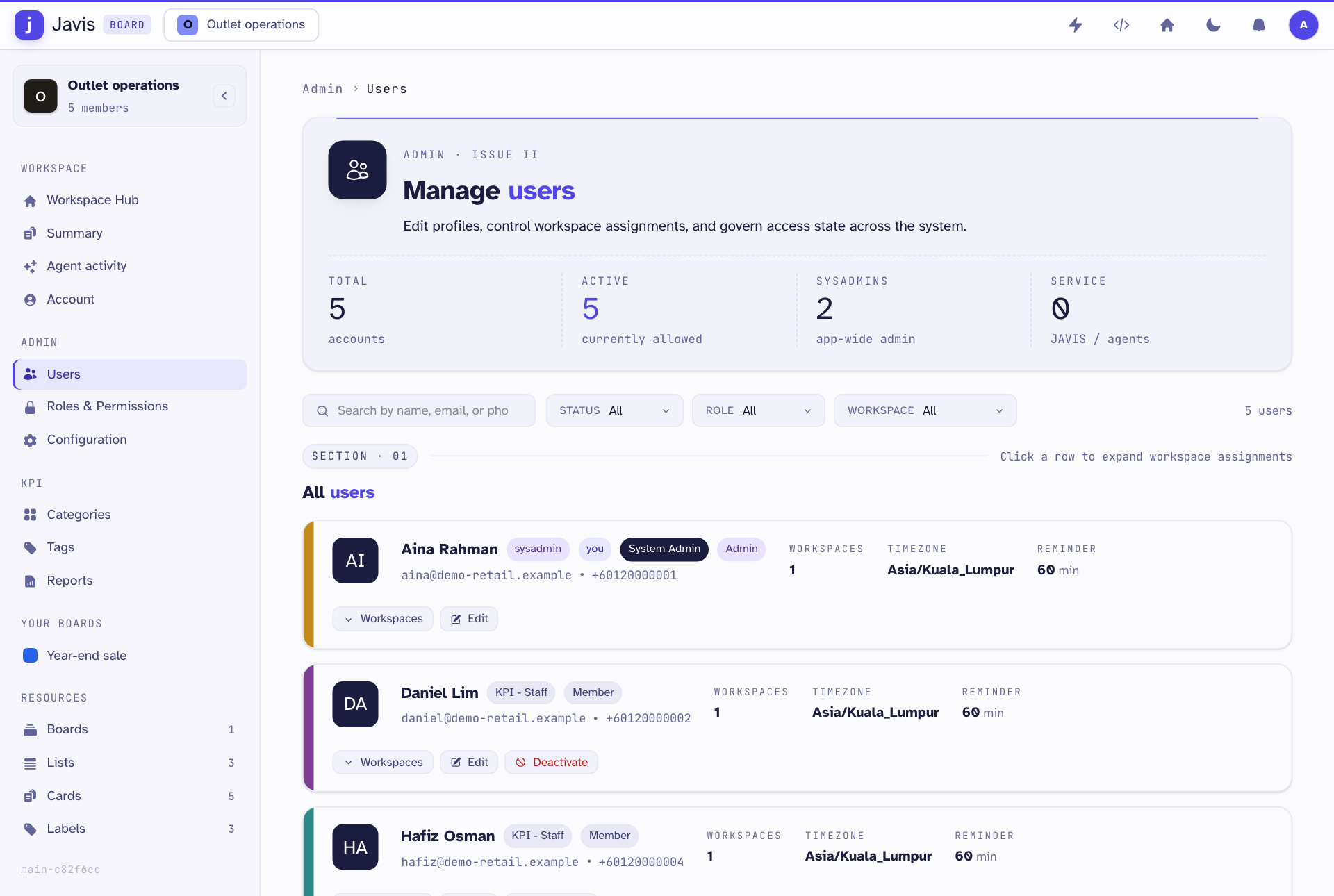
- Open Users in the menu on the left. Each person shows their roles, email, phone number and how many workspaces they are in.
- Use Status, Role and Workspace to narrow the list.
- Press Edit to change the person's name, email, time zone or System roles, then press Submit. Press Workspaces to choose which workspaces they are in.
- Press Deactivate to stop someone signing in. Their history is kept.
Change what a role can do
Open Roles & Permissions in the menu. The top part lists the task board roles (Owner, Admin, Member, Guest, Agent). The KPI roles part lists System Admin, KPI - Manager and KPI - Staff. Press Edit on a role to tick what it may do, or Create Role to add one.
Things a role does not decide
- Which outlets a person sees comes from your company's staff records: the outlets they manage, or the outlet they work in. A role only decides what they may do with them.
- Seeing Reports is a separate permission. An administrator adds it to a role on purpose, because the report shows every outlet a person covers side by side.