Work on a task board
For: Everyone
Whole guide as PDF (1 MB)- Open the board under Your boards in the menu on the left, or press it on the workspace home page.
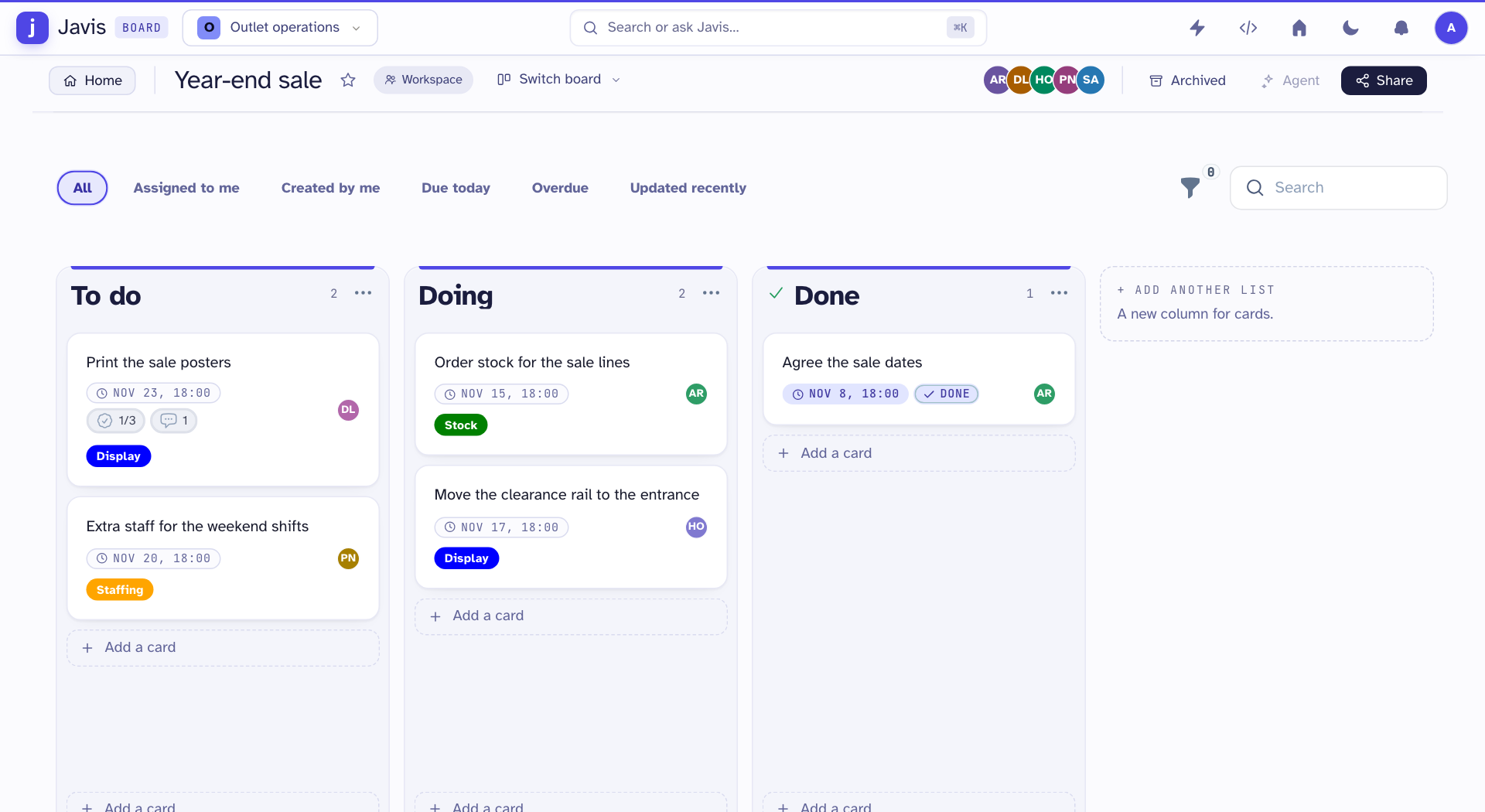
- Each list is a column, for example To do, Doing and Done. Each card is one task. A card shows its due date, its checklist progress, the people on it and its labels.
Add and move cards
- Press Add a card under a list. A new card opens. Type the task as its title.
- Drag a card to another list to move it, for example from Doing to Done.
- Use All, Assigned to me, Due today or Overdue at the top to show only some cards.
Work on a card
Press a card to open it.
- Write the details under Description.
- Set Due and a Reminder in minutes before it is due.
- Under Assignees, press the people who are doing it.
- Under Labels, press a label to add it, or New label to make one.
- Tick checklist items as they are done.
- Press Mark complete when the task is finished.
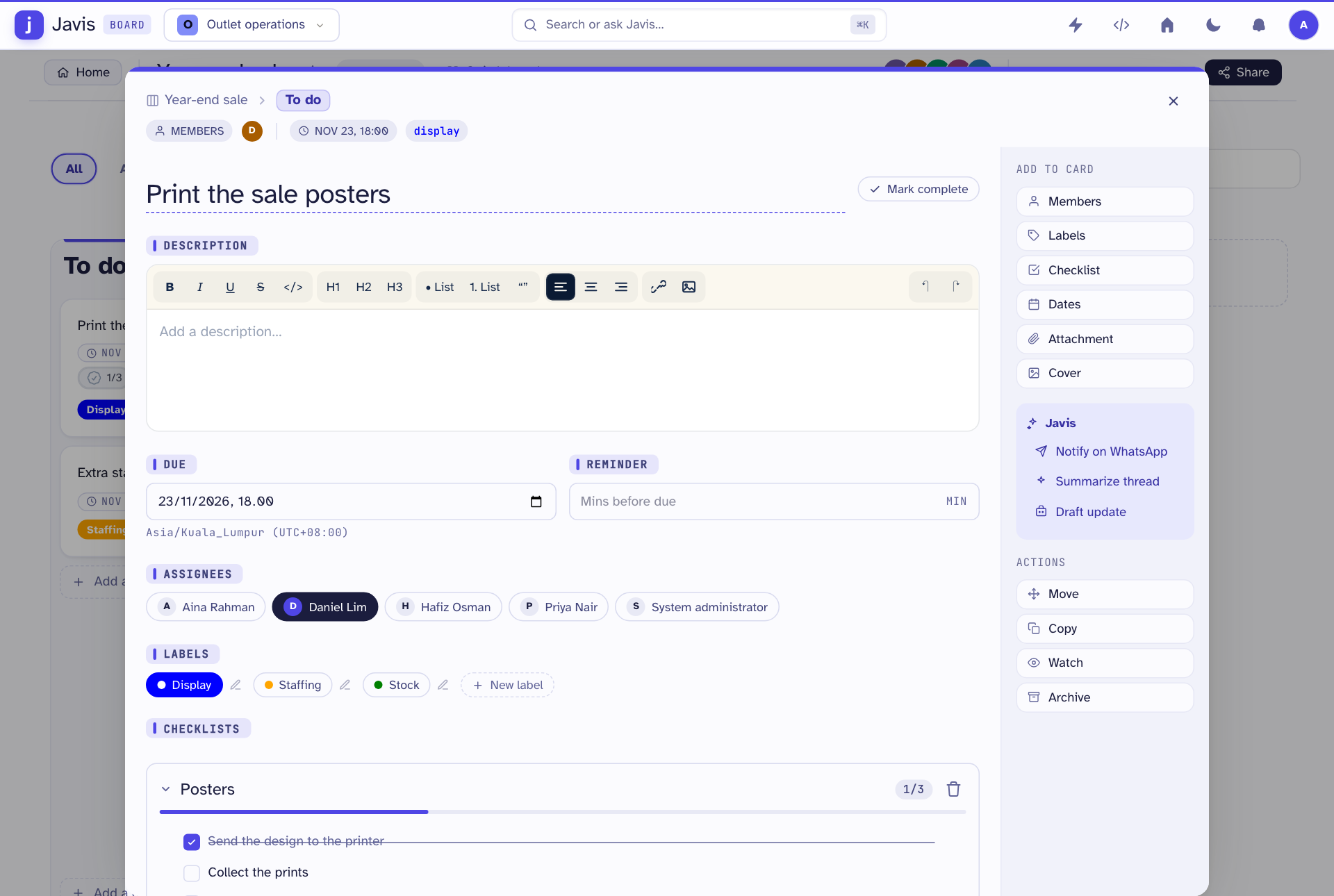
On the right, Add to card adds members, labels, a checklist, dates, a file or a cover. Actions lets you Move, Copy, Watch or Archive the card.
The Javis buttons (Notify on WhatsApp, Summarize thread, Draft update) only work if your company has connected the Javis WhatsApp assistant.