Add your company details
For: Account Owner, Account Admin, Account User
Whole guide as PDF (1 MB)Every card must belong to a company. The company gives the card its address, website and logo, so you type them once and every card under that company shows them. Check here first: your company may already be set up.
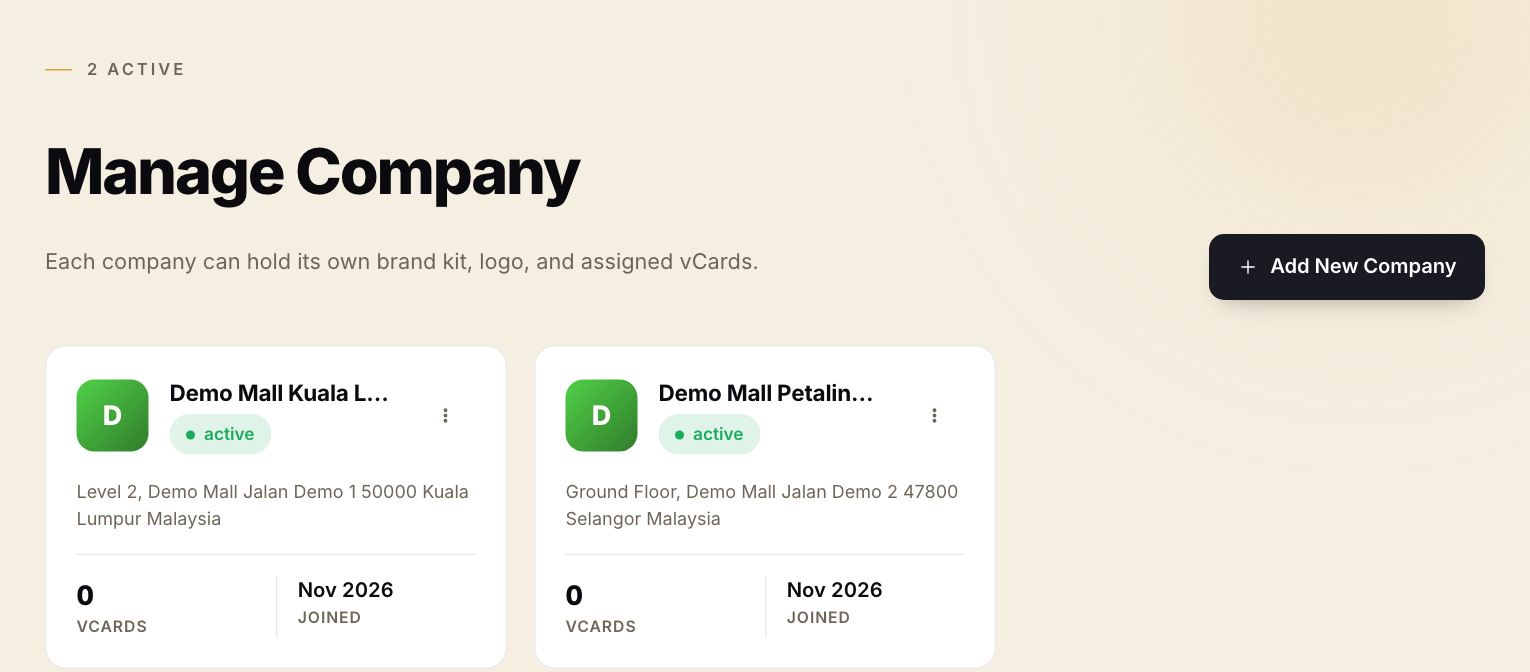
- Open Companies in the menu on the left. You see one tile per company.
- If your outlet or company is missing, press Add New Company.
- Fill in Company Name. It is the only field you must fill.
- Add the rest if you have it: Company Logo (press Choose file), Phone Number, Email, Website, and the address under Address.
- Press Create Company at the bottom.
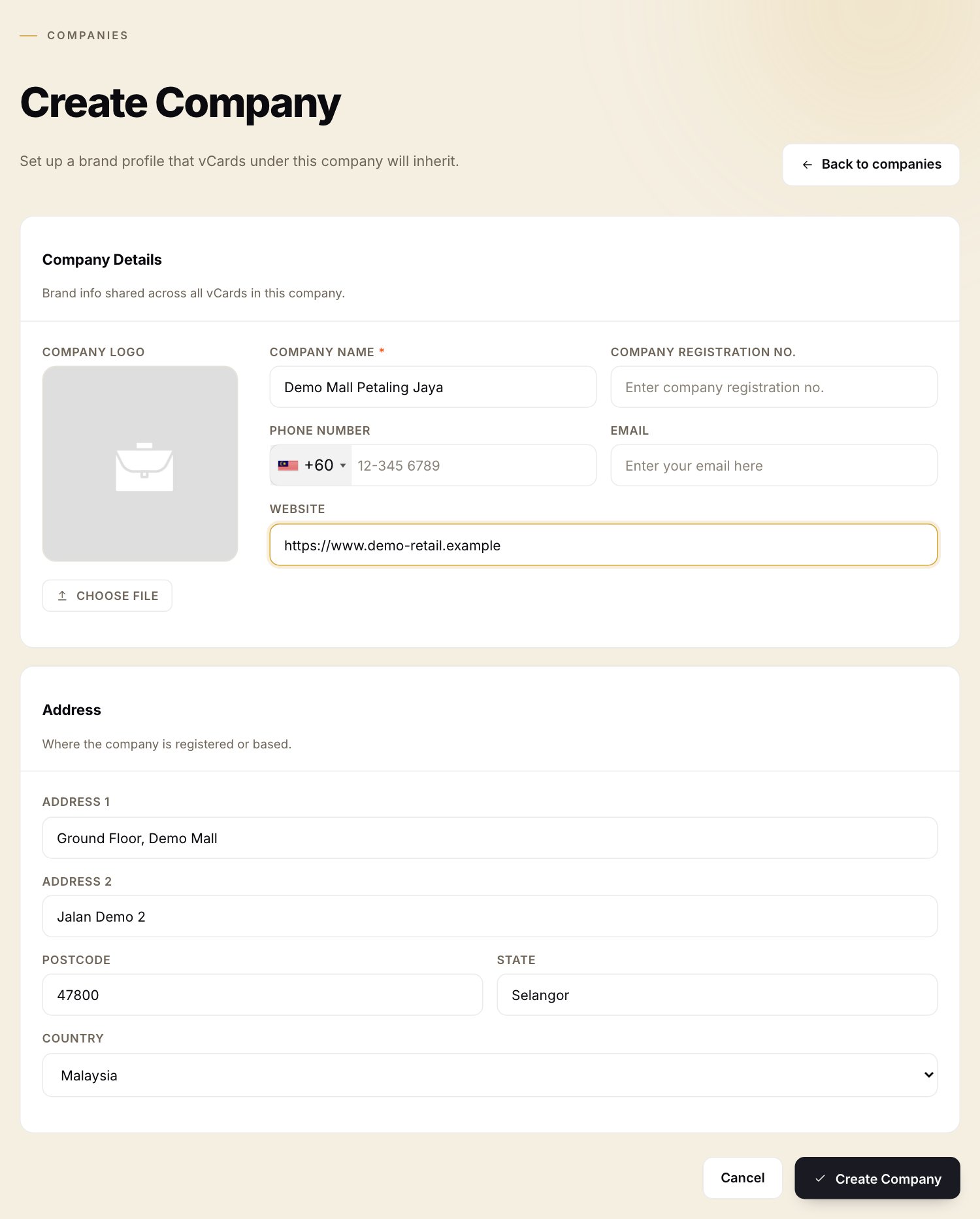
The address and website you enter here show on every card that uses this company. To change them later, press the three dots on the company's tile and choose Edit.