Make cards for many staff at once
For: Administrators
Whole guide as PDF (1 MB)This page is for Account Owner and Account Admin. Use it to make cards for a whole team from one spreadsheet.
- Make a spreadsheet with exactly these four column headings in the first row: Name, Designation, Tel, Email. Fill one row per person. Put the phone number with the country code and no plus sign, for example 60120000003. Every row needs a name, a designation and an email.
- Save it as a CSV file (in Excel: File, Save As, CSV).
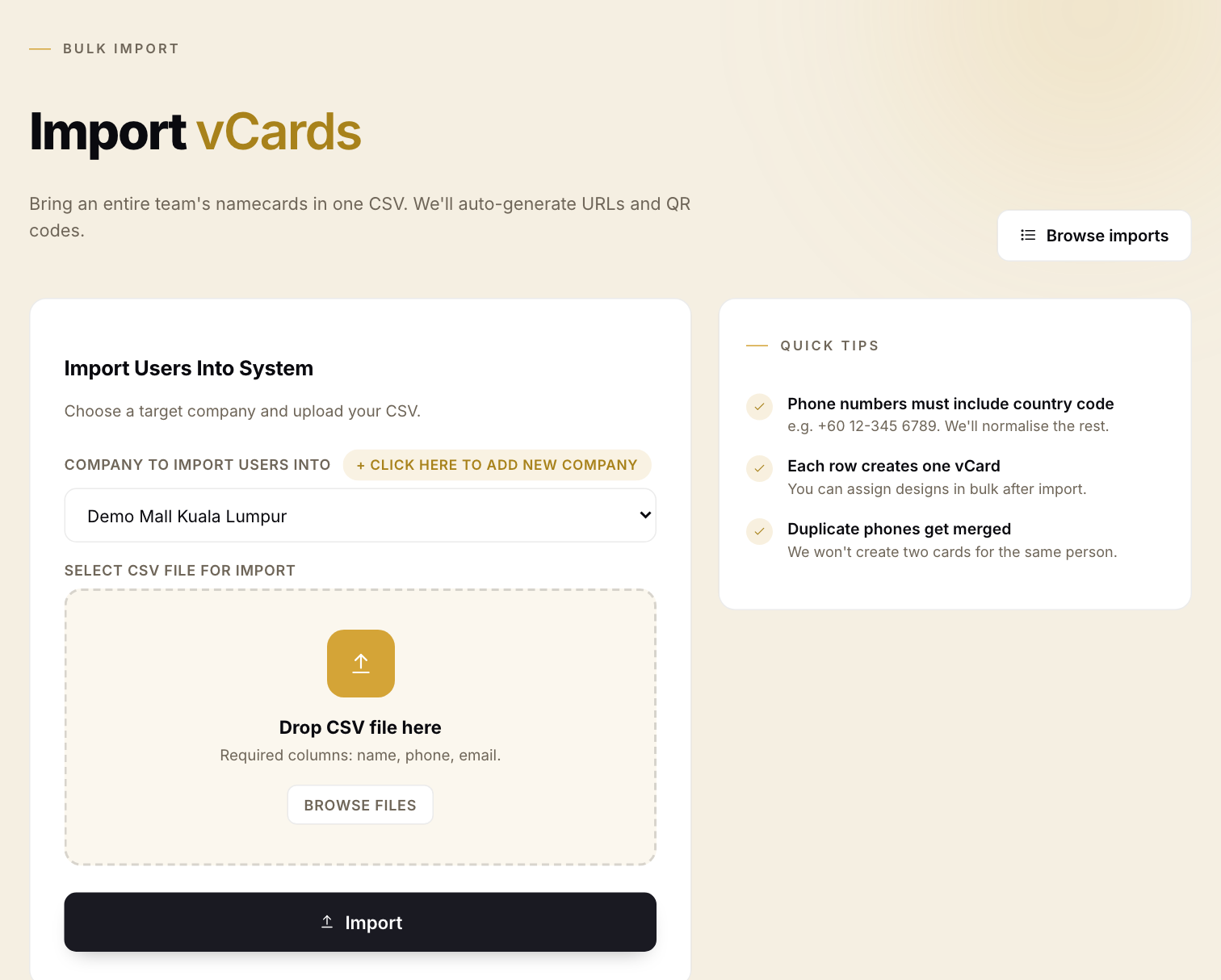
- Open Import vCards in the menu on the left.
- Choose the company under Company to import users into.
- Press Browse files and pick your CSV file.
- Press Import.
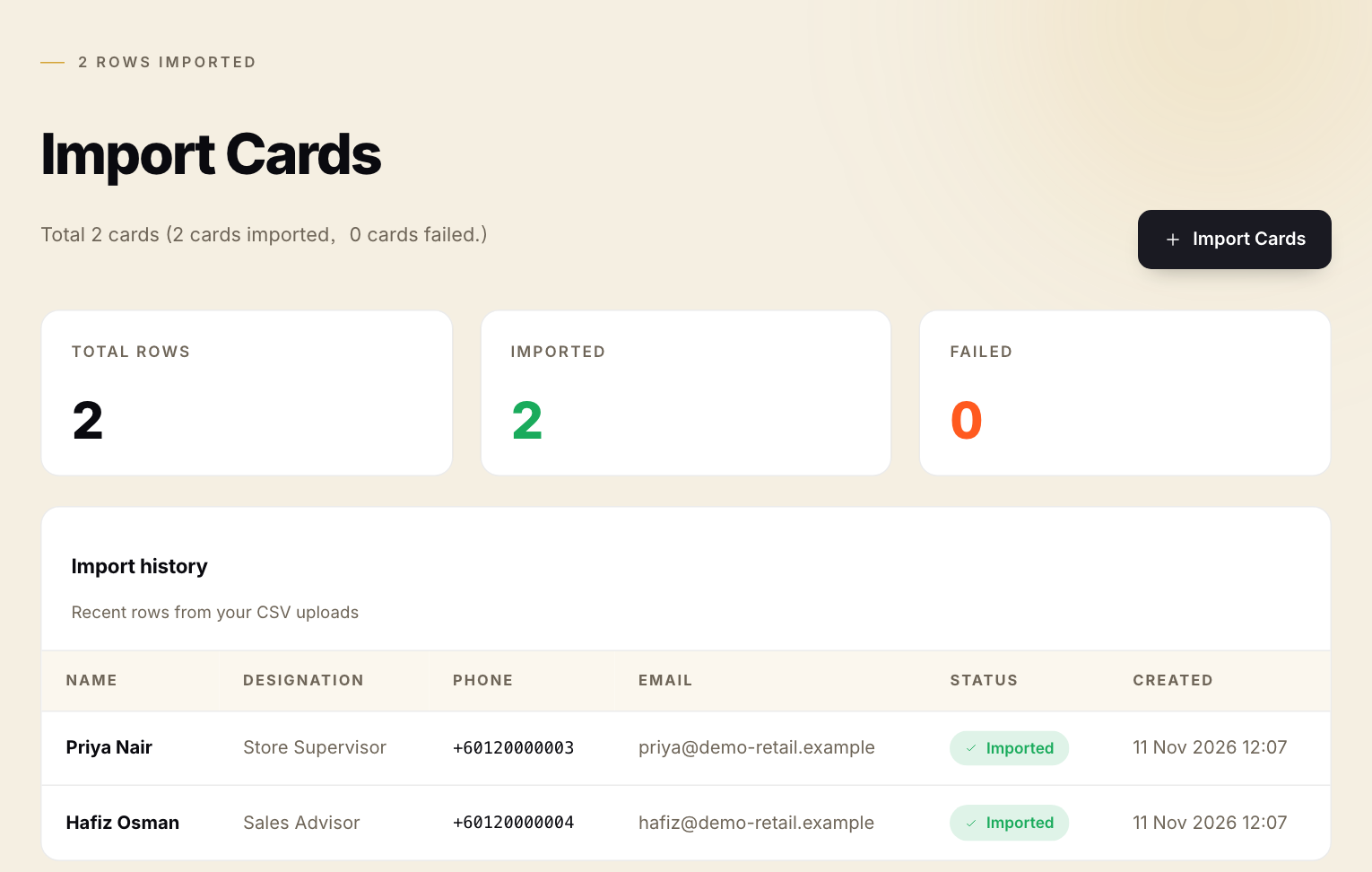
vKad shows the result: how many rows were imported and how many failed, with one line per person.
Things to know:
- The upload box says "Required columns: name, phone, email". That is not quite right: the file only works with the four headings in step 1, spelled the same way.
- A row whose name, email and phone match a card that already exists is skipped as a duplicate.
- Imported cards use the first design, belong to the Account Owner, and are not linked to the company you chose. Open each card's Edit tab to pick the company under Company Name, and set Card Owner to the staff member once they have been added under Users & Roles.