Create your card
For: Account Owner, Account Admin, Account User
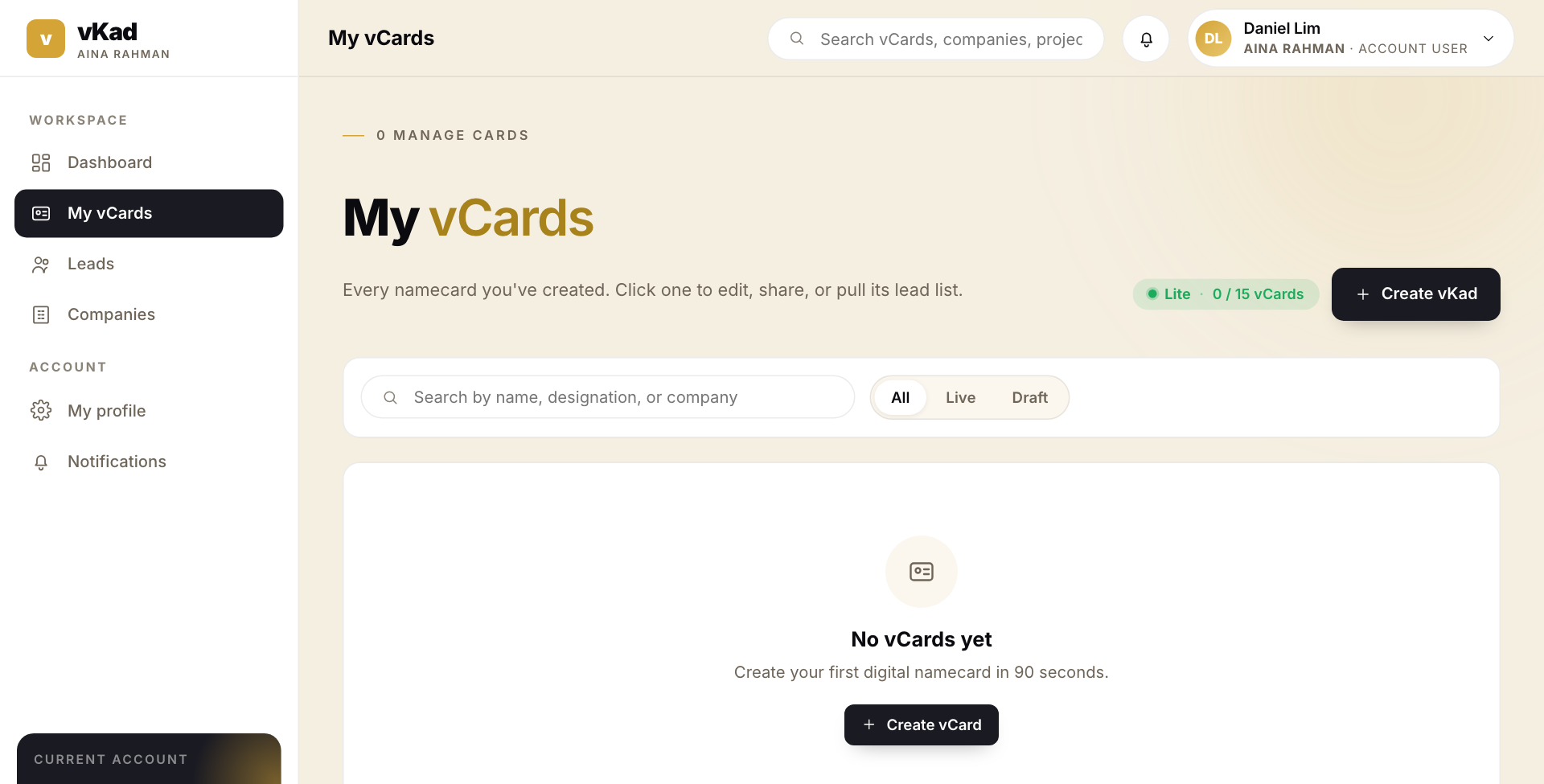
Whole guide as PDF (1 MB)- Open My vCards in the menu on the left.
- Press Create vKad at the top right (or Create vCard in the middle if you have no cards yet).
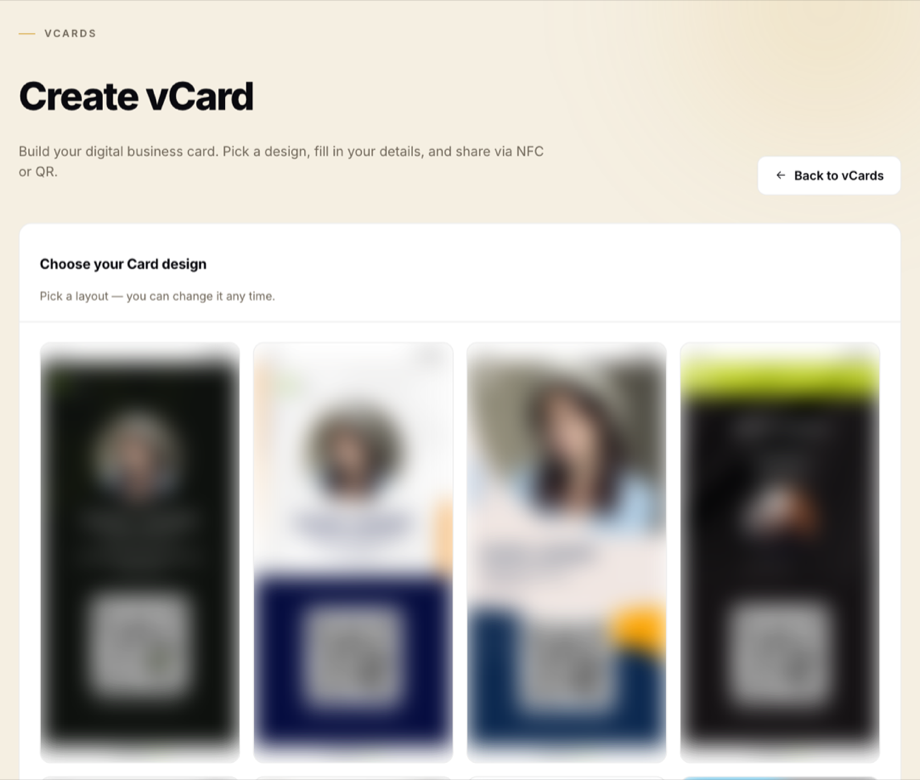
- Pick a design by pressing on it. You can change it later.
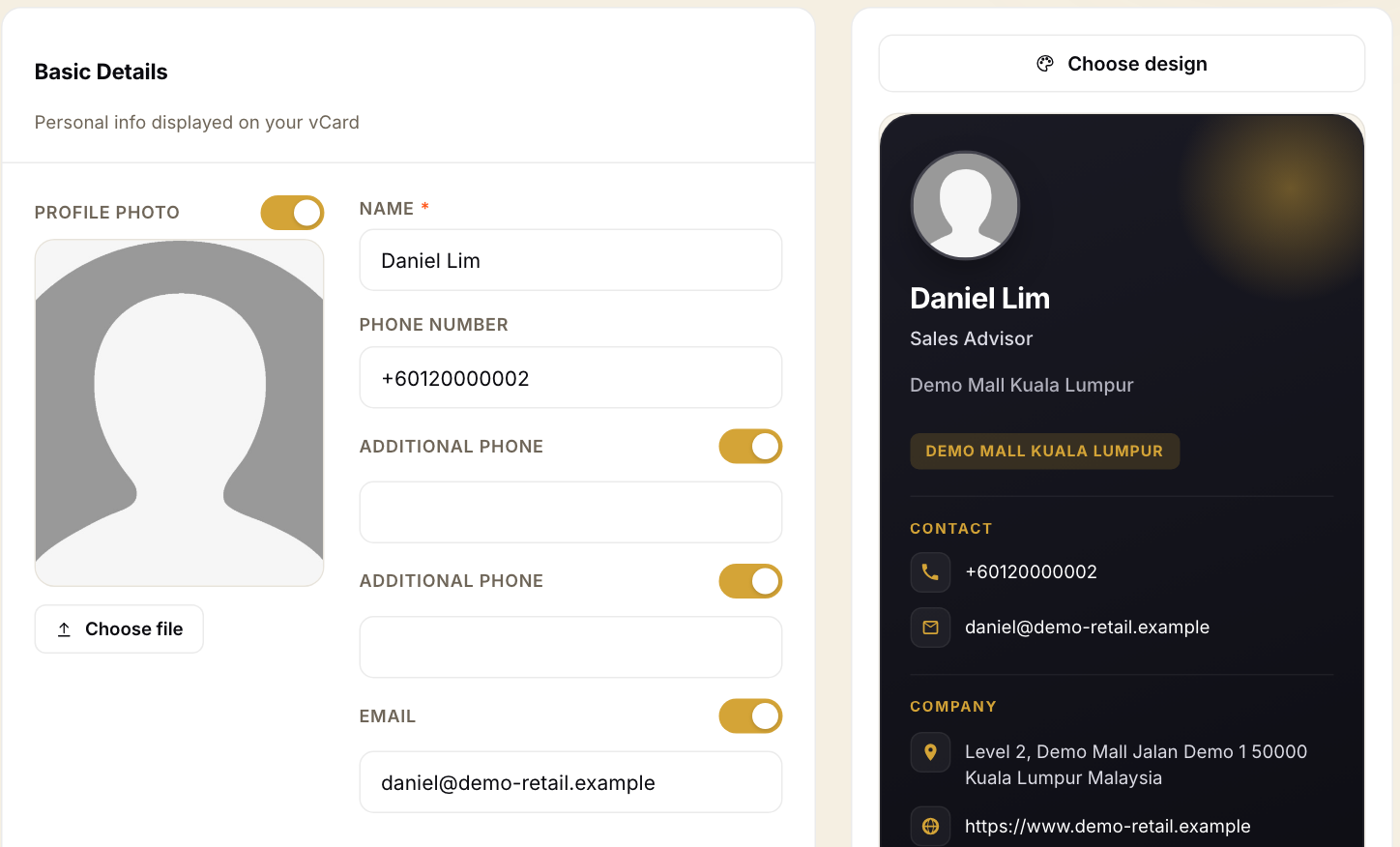
- Under Basic Details, fill in Name and Phone Number. Type the phone number with the country code and digits only, no spaces or dashes: +60120000002.
- Fill in Email if you want it on the card. Use a real address: vKad checks that the part after the @ exists, and refuses the card if it does not.
- To add a photo, press Choose file. The example here has no photo, so the card shows the person's initials.
- Each switch next to a field shows or hides that field on the card. Leave a switch on to show the field.
The card on the right updates as you type, so you can see what customers will see.
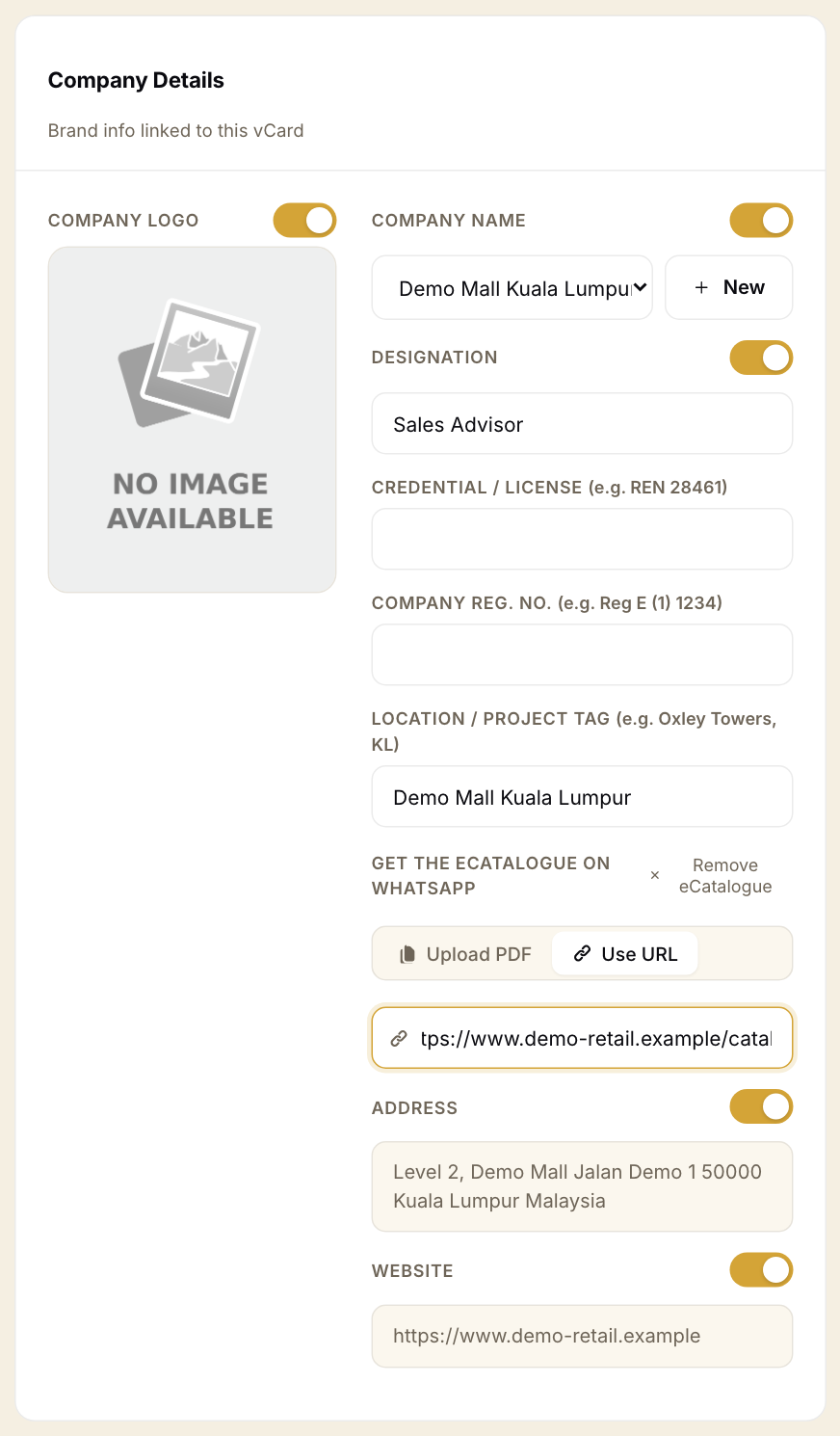
- Under Company Details, choose your company from the Company Name list. If it is not there, press New to add it on the spot. The address and website fill in from the company.
- Fill in Designation (your job title). Credential / License, Company Reg. No. and Location / Project Tag are optional; the tag shows as a small label on the card.
- To let customers ask for your catalogue on WhatsApp, go to Get the eCatalogue on WhatsApp. Press Upload PDF to add a PDF file, or Use URL to paste a link to one. A link must end in .pdf.
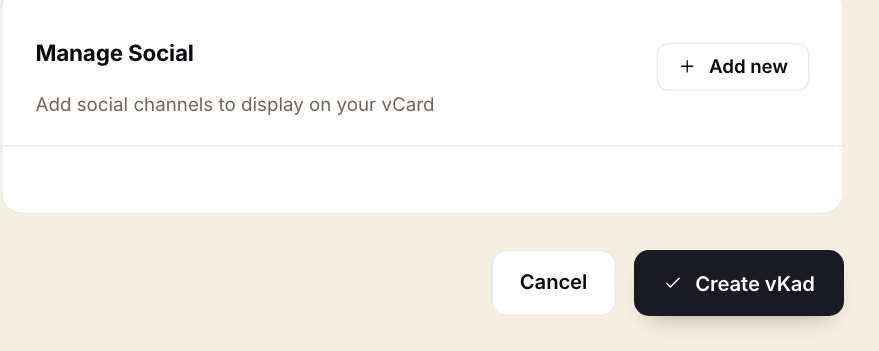
- Under Manage Social you can press Add new to put social media links on the card.
- Press Create vKad at the bottom.
vKad opens the new card's Manage Card page, where you can share it straight away.
If your account has used up its card limit, vKad says "You have reached the maximum number of vKad cards for your plan." Ask your Account Owner to raise the plan.