Share your card
For: Account Owner, Account Admin, Account User
Whole guide as PDF (1 MB)- Open My vCards and press your card. The Manage Card page opens on the Share tab.
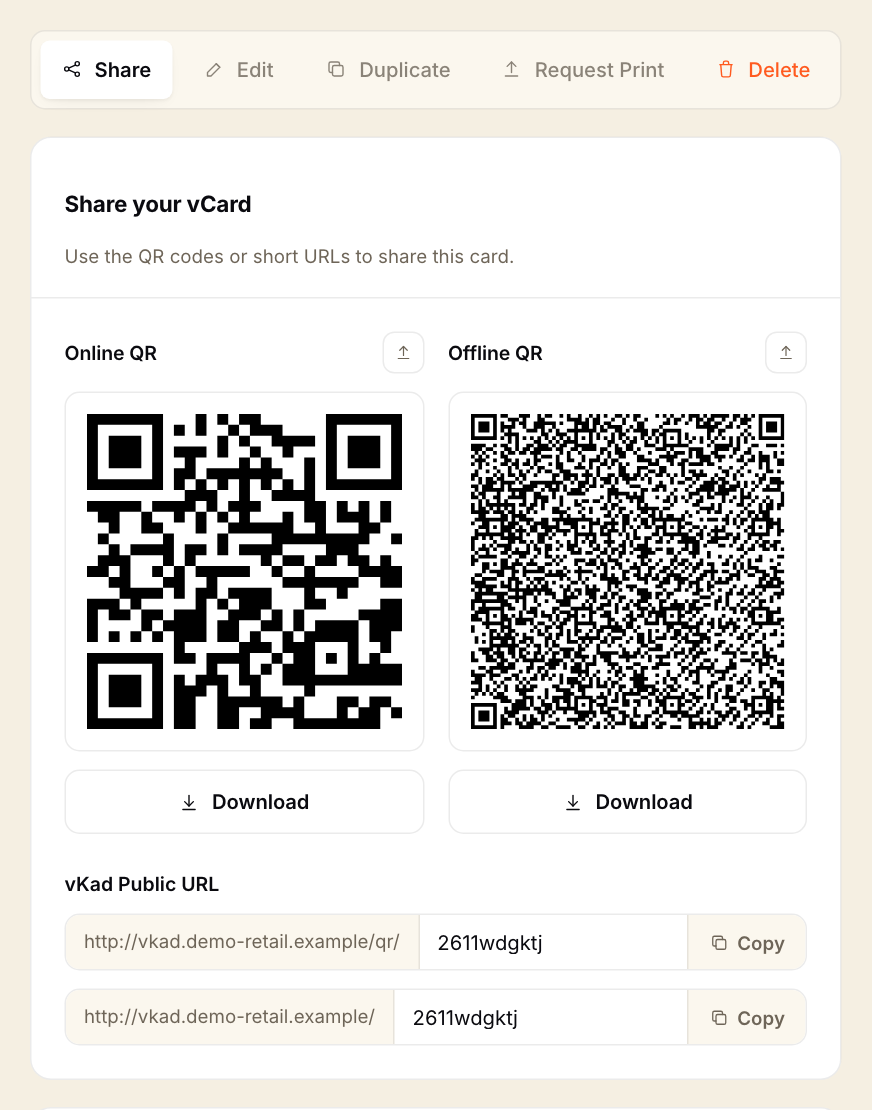
- Choose how to share:
- Online QR: a QR code that opens your card's web page. The page always shows your latest details.
- Offline QR: a QR code that holds your contact details inside the code itself. A phone can save the contact from it without internet. A copy you already downloaded or printed keeps the old details, so download it again after you change the card.
- Press Download under a QR code to save it as a picture for a poster, counter stand or email signature.
- Under vKad Public URL, press Copy next to a link to copy it, then paste it into a WhatsApp chat or email.
The second link (without /qr/) opens the card itself. This is what a customer sees on their phone:
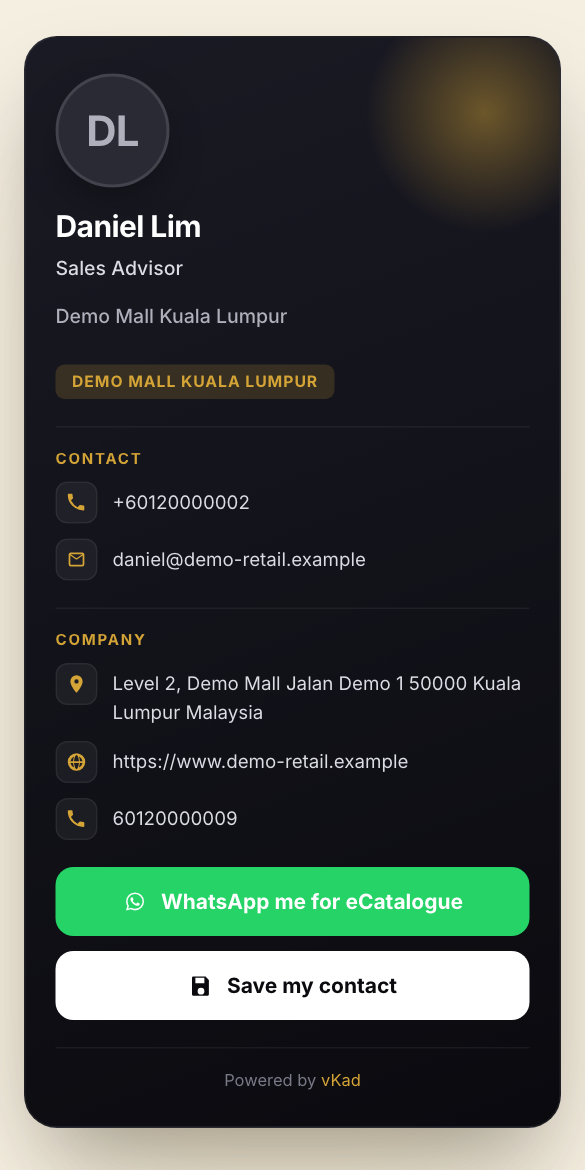
- Save my contact downloads your details as a contact file the phone can save.
- WhatsApp me for eCatalogue shows only if you added a catalogue. See "See who asked for your catalogue".
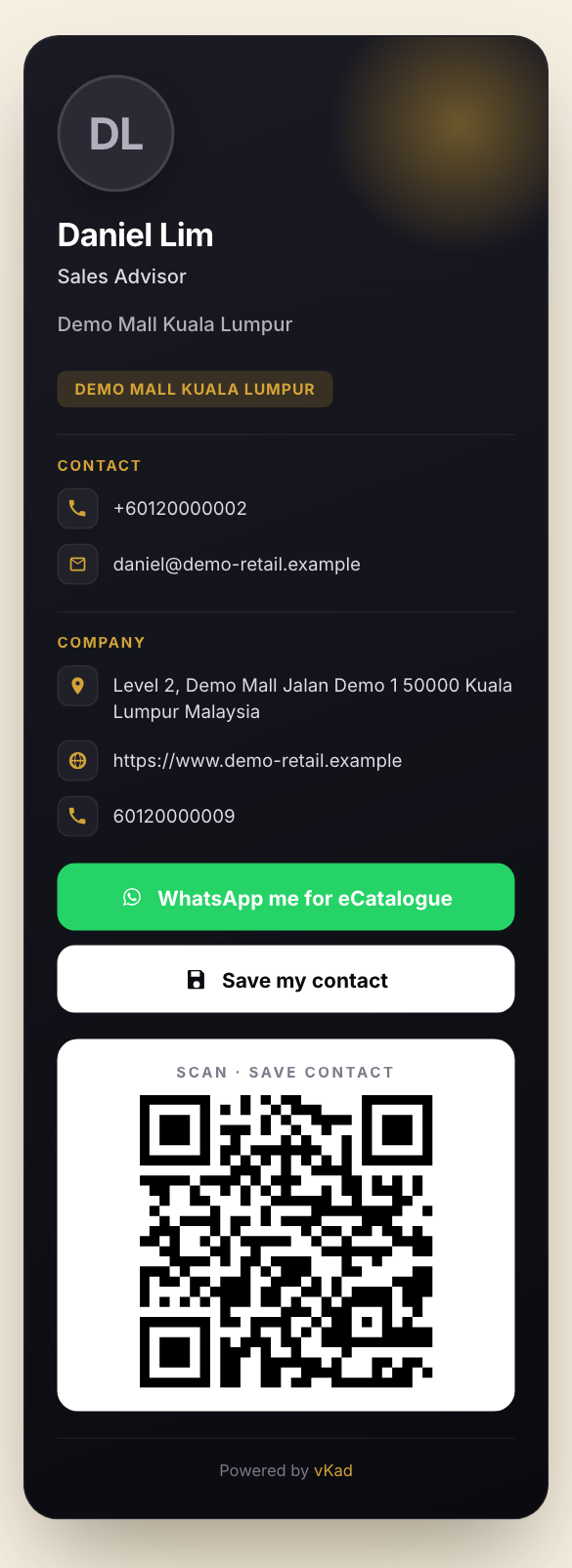
The first link (with /qr/) opens the same card with a QR code at the bottom. Open it on your own phone and hold it up for a customer to scan.
Choose what the /qr/ page shows
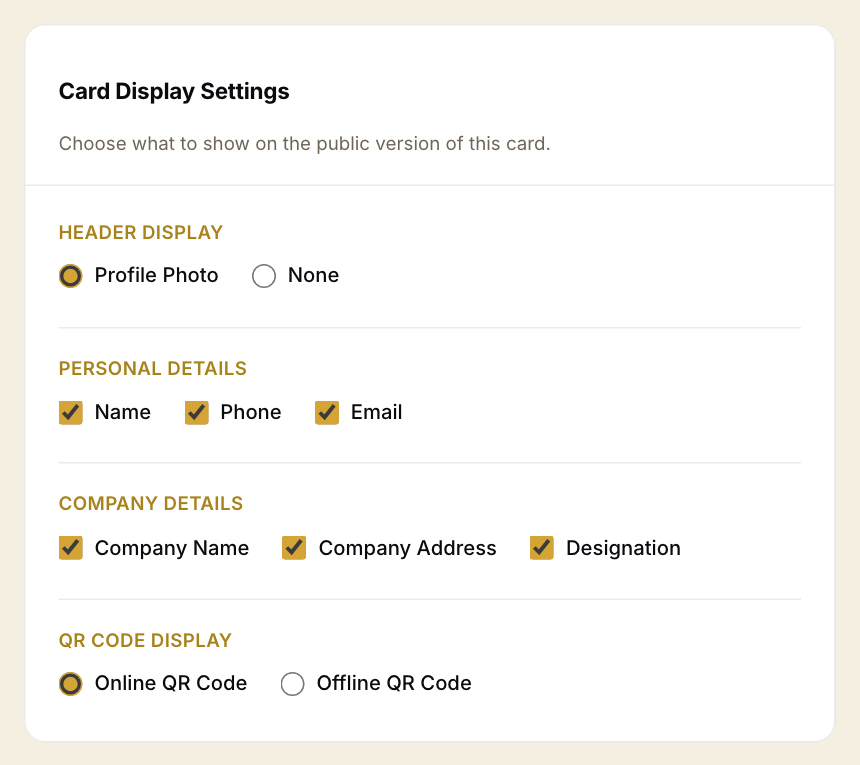
Further down the Share tab, Card Display Settings controls the /qr/ page: show your photo or not, which personal and company details to show, and whether its code is the Online QR Code or the Offline QR Code. Changes save as soon as you tick or untick. These settings do not change the normal card link.