Find a customer's vouchers
For: Finance team and administrators
Whole guide as PDF (1 MB)Use this when a customer asks about a voucher: whether they have it, whether it is still valid, or whether it was used.
- Open Vouchers in the menu, under Vouchers.
- Type the voucher code into Search. You can type it with or without the dashes. Search also finds the voucher name, the package name and the reference typed when the vouchers were given out, but not the customer's name.
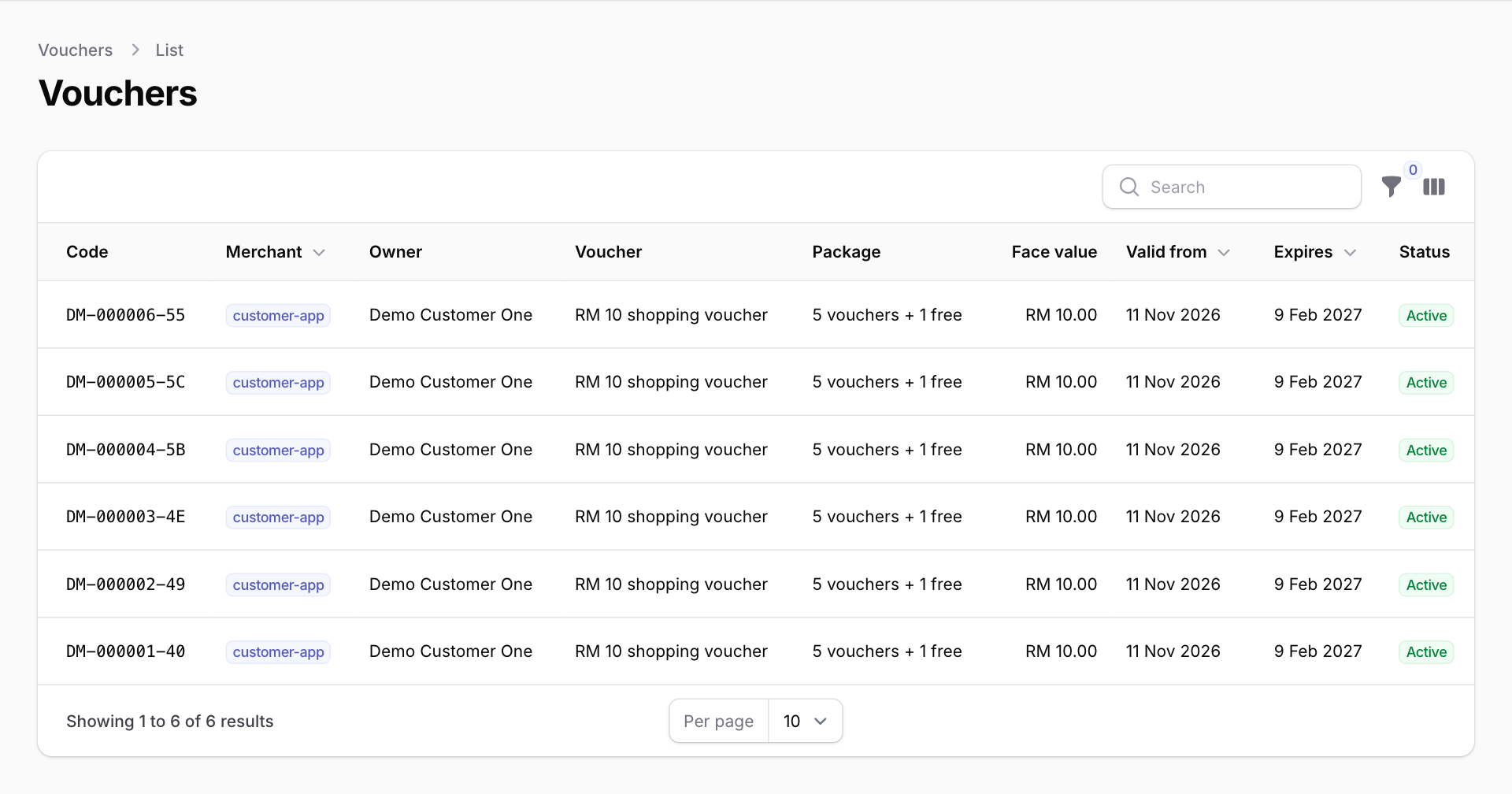
- Check the row:
- Face value: what the voucher is worth.
- Valid from and Expires: the dates it can be used between.
- Status: Active can still be used, Redeemed has been used, Cancelled has been cancelled.
- Package: the bundle it came in. If Owner has "from" under it, someone else gave the voucher to this customer.
Press the columns button at the top right of the list to show more, such as Paid (what the customer paid for that voucher), Free and Issued.
Customers use their vouchers in the customer app or at the till. You cannot mark a voucher as used or cancelled from this screen.
You need a role with permission to see vouchers. If Vouchers is missing from your menu, ask an administrator.