Choose how customers can top up
For: Administrators
Whole guide as PDF (1 MB)These two screens decide what the customer app offers when a customer tops up.
Payment modes
- Open Payment modes in the menu, under Top-ups. The page is headed Top-up Modes.
- Press Edit on a mode to change it, or New top-up mode to add one.
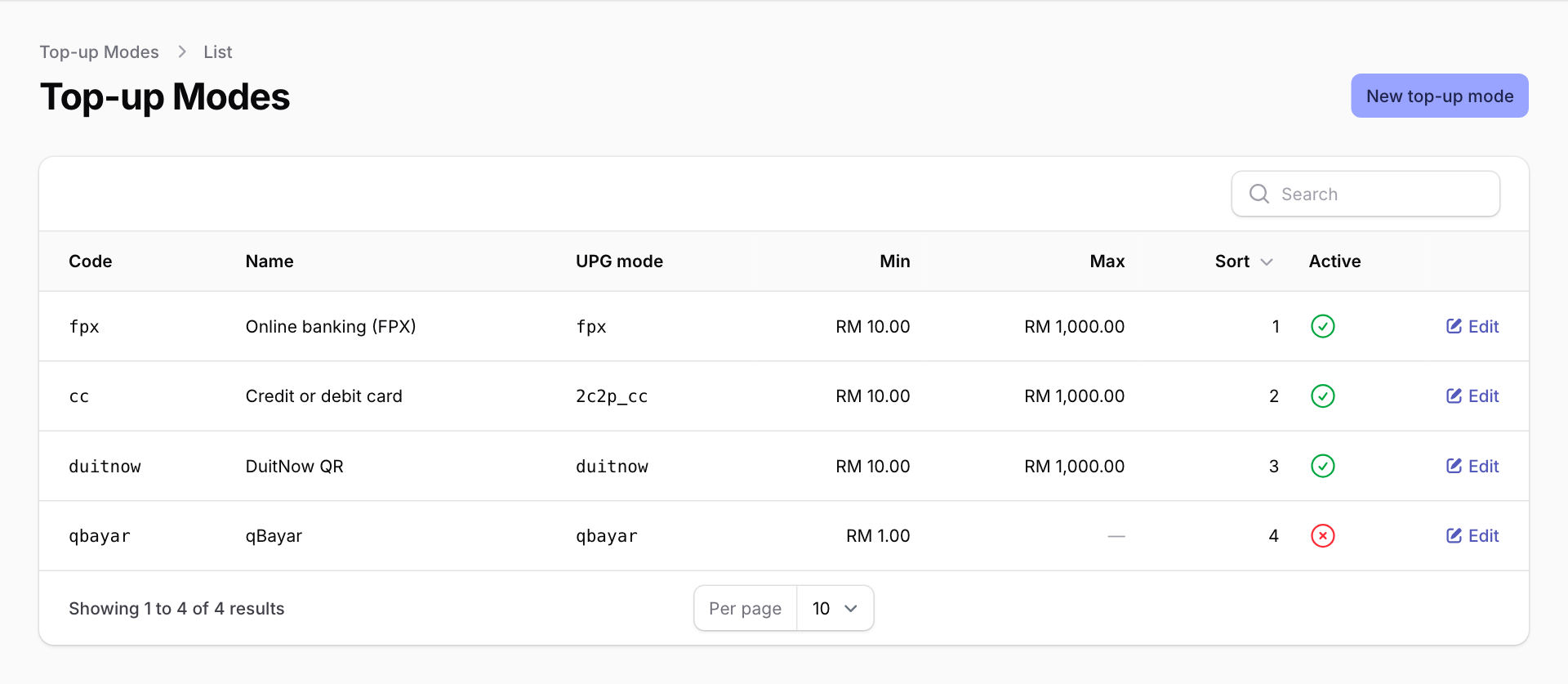
- Name is what customers see, for example "Online banking (FPX)".
- Minimum and Maximum are the smallest and largest top-up allowed with that mode. Leave Maximum empty for no limit.
- Sort sets the order in the app, lowest first.
- Switch off Active to hide a mode without deleting it.
- Code and UPG payment mode must match what the customer app and the payment provider expect. Ask your IT team before changing them; a wrong value stops that payment mode working.
Preset amounts
- Open Preset amounts in the menu. The page is headed Top-up Amounts.
- Press New top-up amount to add a quick-pick amount, or Edit or Delete on an existing one.
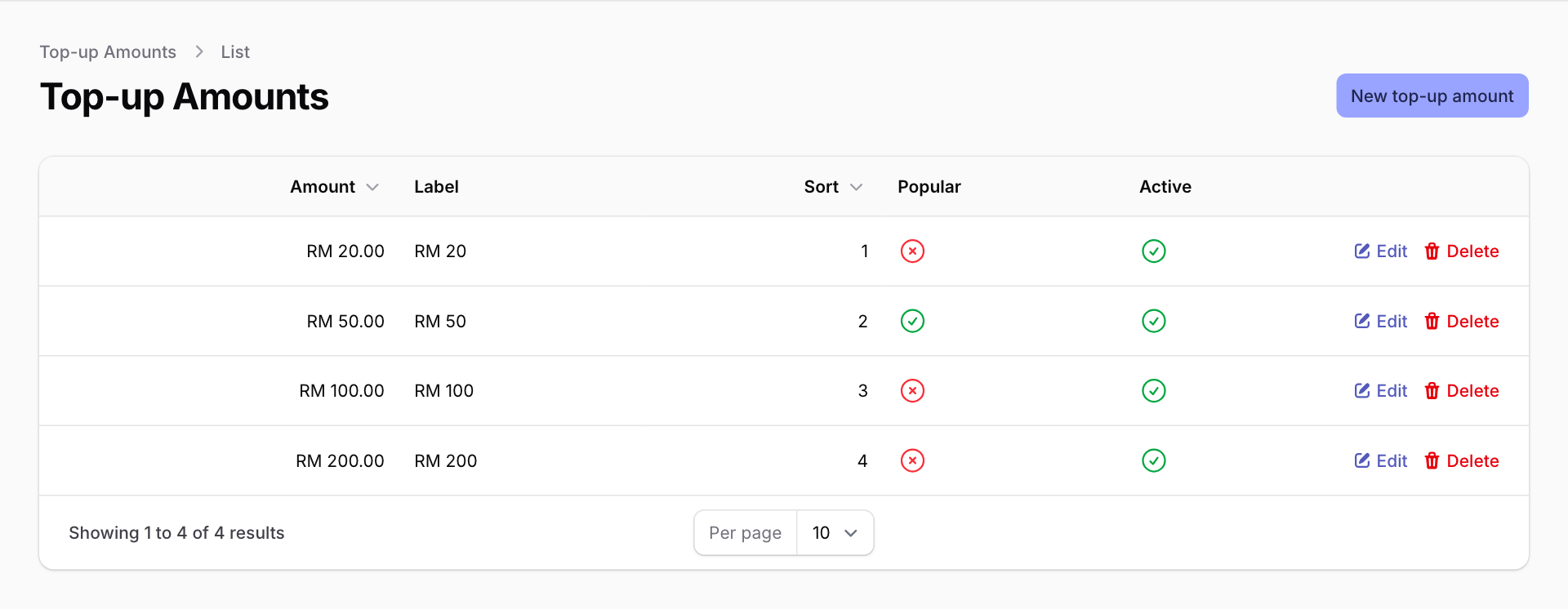
- Label is shown instead of the amount if you fill it in, for example "RM 50".
- Popular highlights the amount in the app.
- Switch off Active to hide an amount for now.
Customers can still type their own amount between the payment mode's minimum and maximum.