Set up vouchers and give them to customers
For: Administrators
Whole guide as PDF (1 MB)Vouchers are built in three layers:
- A voucher type is the kind of voucher, such as Cash Voucher or Percentage Discount. Five types come built in.
- A voucher setup is one voucher design: its name, value and how long it lasts.
- A voucher package is what a customer buys or is given, for example "5 vouchers + 1 free" of one setup, at a price.
Make a voucher setup
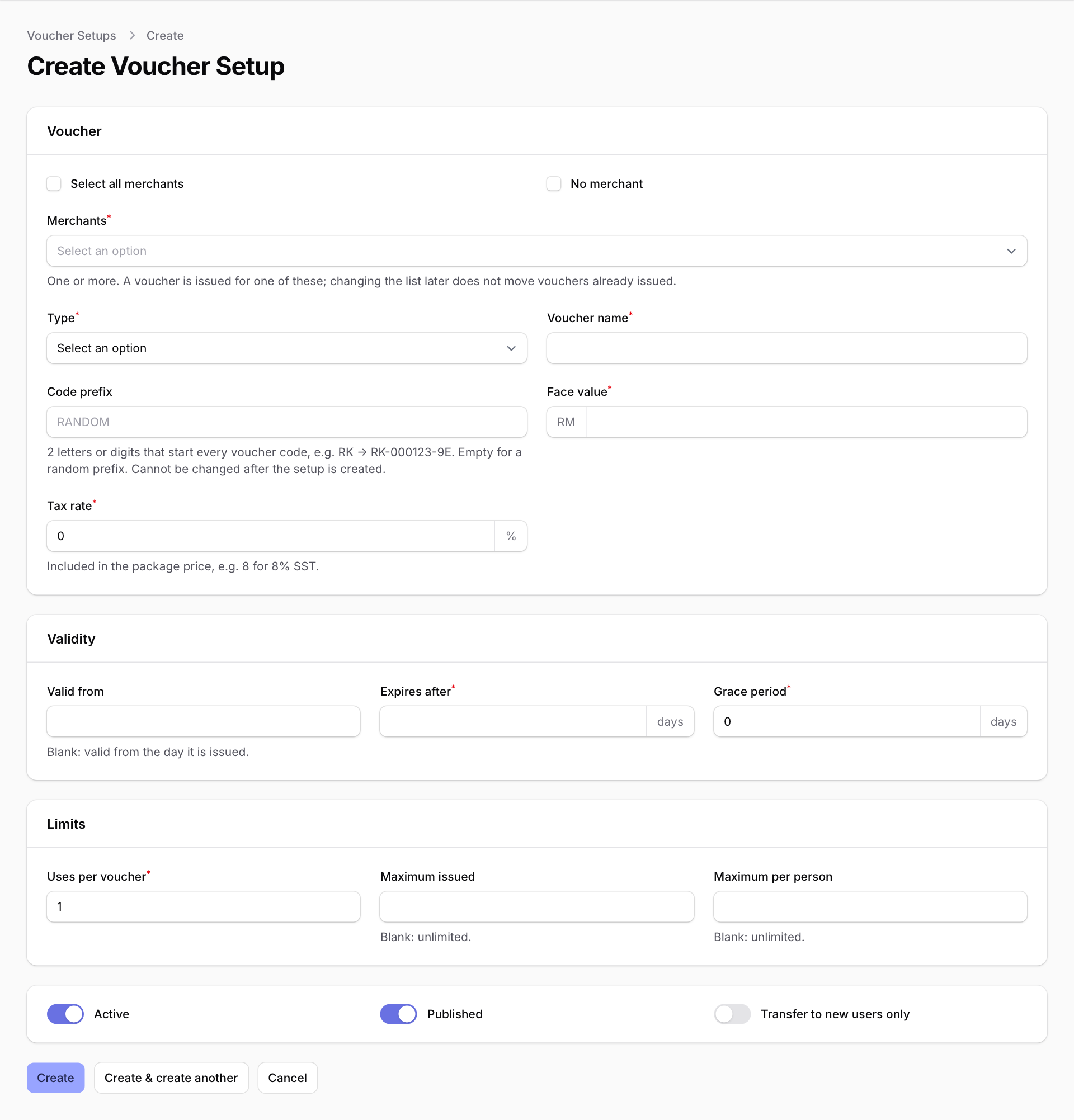
- Open Voucher Setups in the menu and press New voucher setup.
- Under Voucher, pick the Merchants (apps) it can be used through, or tick Select all merchants. Pick a Type and type a Voucher name.
- Fill in Face value (what one voucher is worth) and Tax rate (0 if none). Code prefix is optional: two letters or digits that start every code, for example DM gives codes like DM-000001-40. You cannot change the prefix or the type later.
- Under Validity, fill in Expires after (days). Leave Valid from empty to start on the day each voucher is given out.
- Under Limits, set Uses per voucher, and if you want a cap, Maximum issued and Maximum per person. Empty means no limit.
- Leave Active and Published on, then press Create.
Make a package
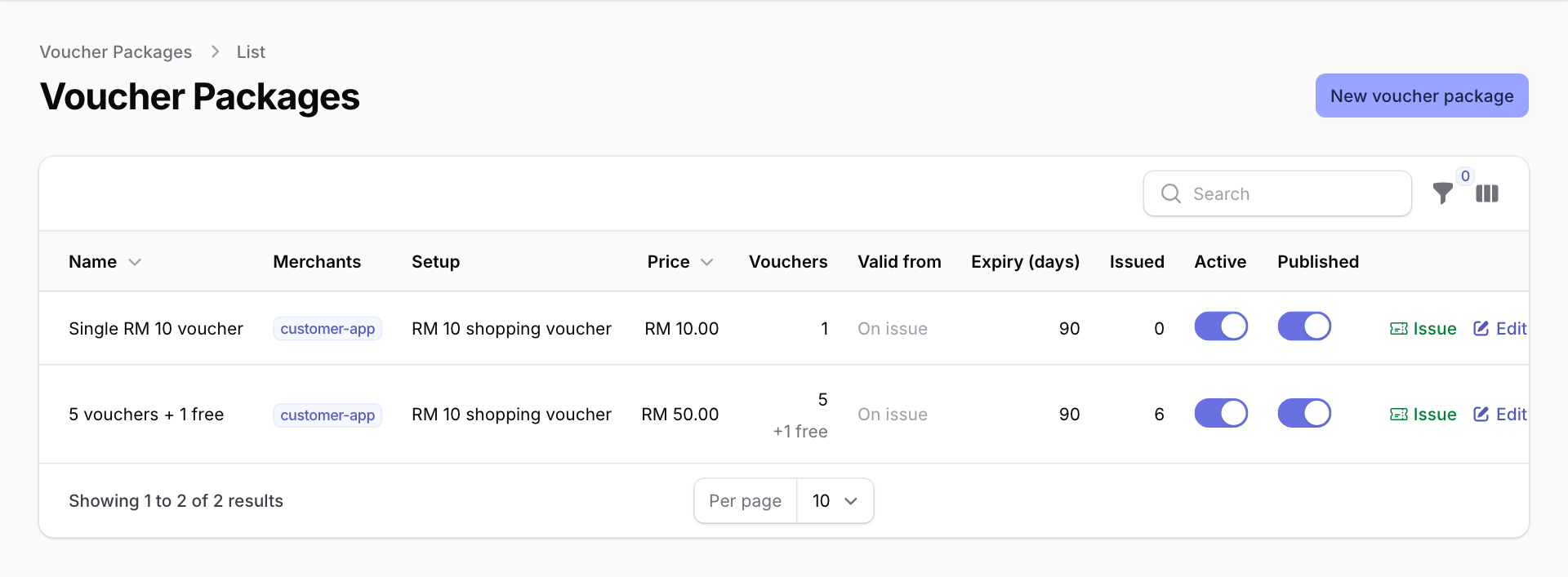
- Open Voucher Packages and press New voucher package.
- Pick the Voucher setup, type a Package name, the number of Vouchers, any Free vouchers, and the Price (including tax). The validity is copied from the setup; change it here if this package is different. Press Create.
Give a package to a customer
Use this for goodwill, a campaign, or to fix a problem, when the customer is not paying.
- On Voucher Packages, press Issue on the package. You need a role that is allowed to issue vouchers.
- Check the Merchant, then in Owner search for the customer by name, email or phone. Optionally type a Reference such as a campaign name, so you can find these vouchers later.
- Press Issue vouchers. The customer gets every voucher in the package, free ones included, and can use them as soon as they are valid.
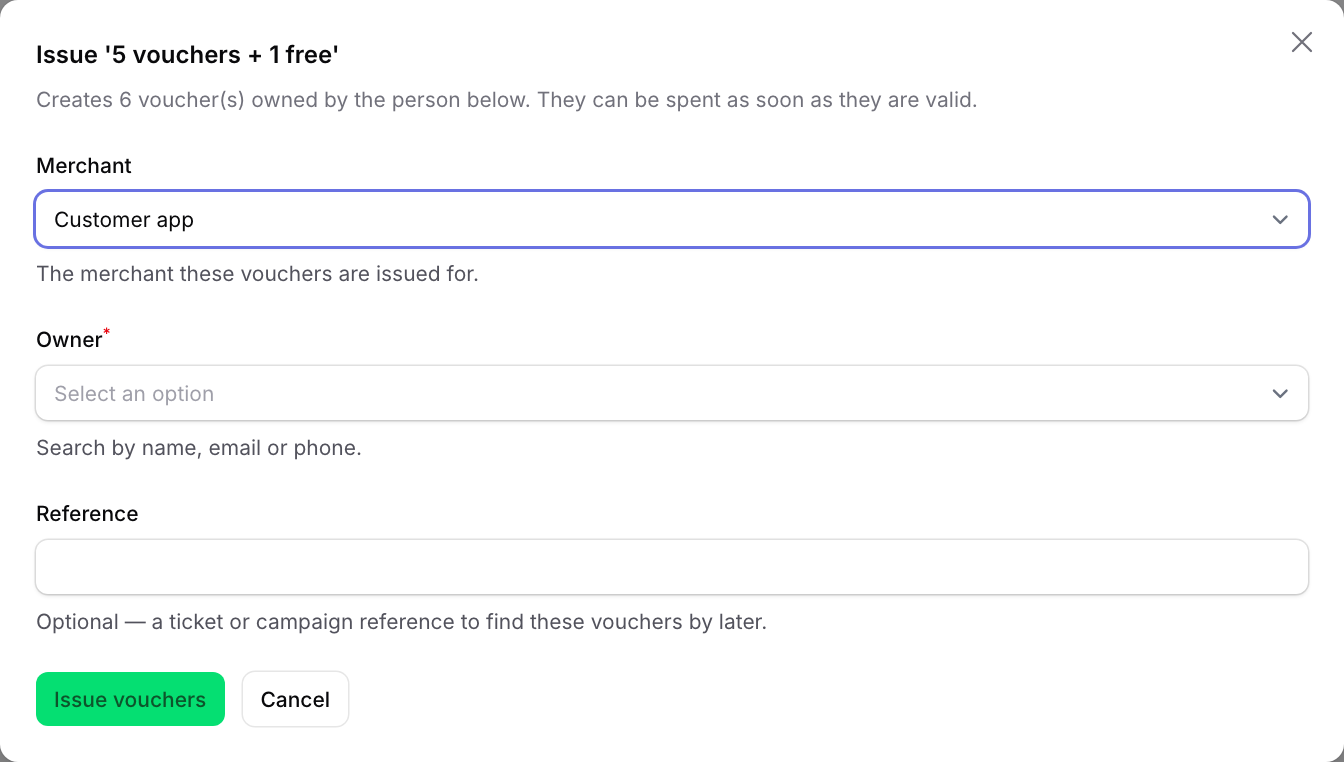
Only customers who have already signed in to the customer app at least once can be found in Owner.
To stop a package being sold or given, open it with Edit and switch off Active. Published controls whether the customer app shows it.