Add outlets and print their QR codes
For: Super Admins
Whole guide as PDF (1 MB)Every outlet has its own survey address and QR code, so every survey is tied to the right outlet.
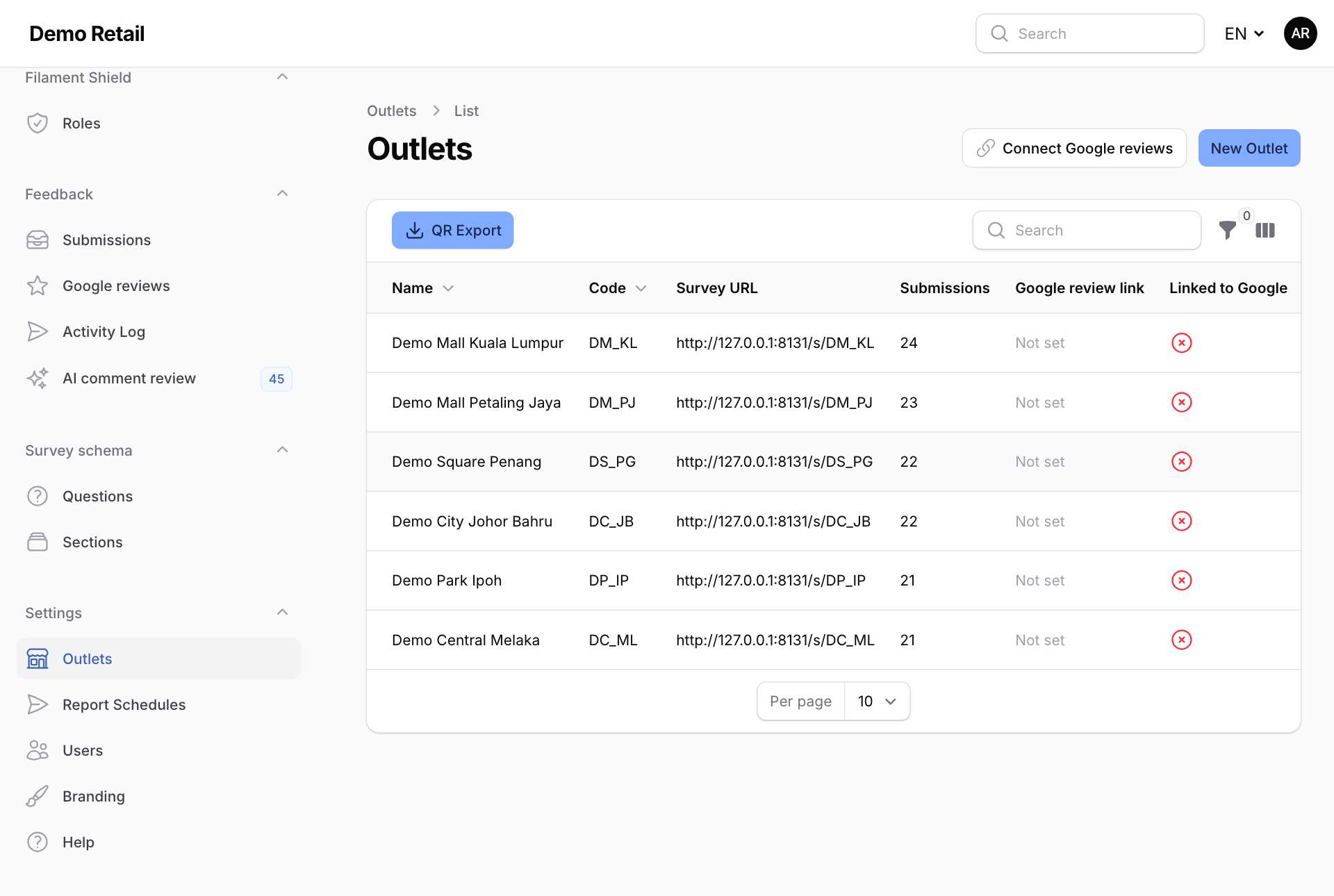
Add an outlet
- Open Outlets under Settings.
- Press New Outlet.
- Fill in the Name and a short Code. The code becomes part of the survey address, so pick one that will not change.
- To invite happy customers to review you on Google, paste the outlet's Google review link. Leave it empty to hide that invitation.
- Press Create.
Print a QR code
- On the outlet's row, press Show QR.
- Press Download QR and print it on a counter stand or a receipt.
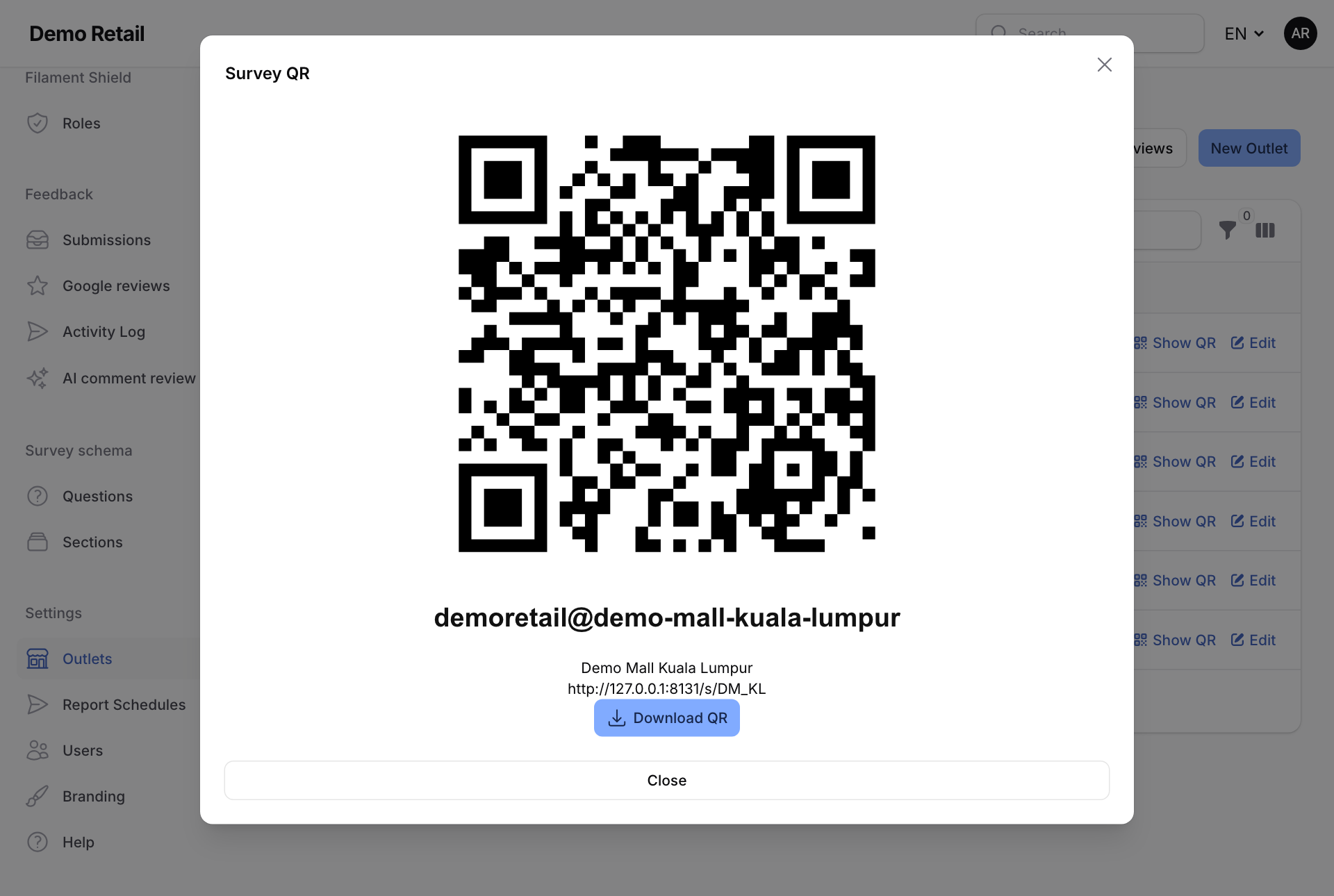
To get every outlet's code at once, press QR Export at the top of the list. It downloads a spreadsheet of all outlets and their QR codes.
To stop an outlet collecting surveys, open it with Edit and switch Active off.
Google reviews
If your company has connected its Google Business Profile with Connect Google reviews, reviews for each outlet that has a Google location ID are pulled in and shown under Google reviews. Each new review is also sent to Customer service as a ticket. Your technical team can limit this to low-star reviews only. Google reviews are switched off until your technical team turns them on.