Set commission rules
For: Commercial
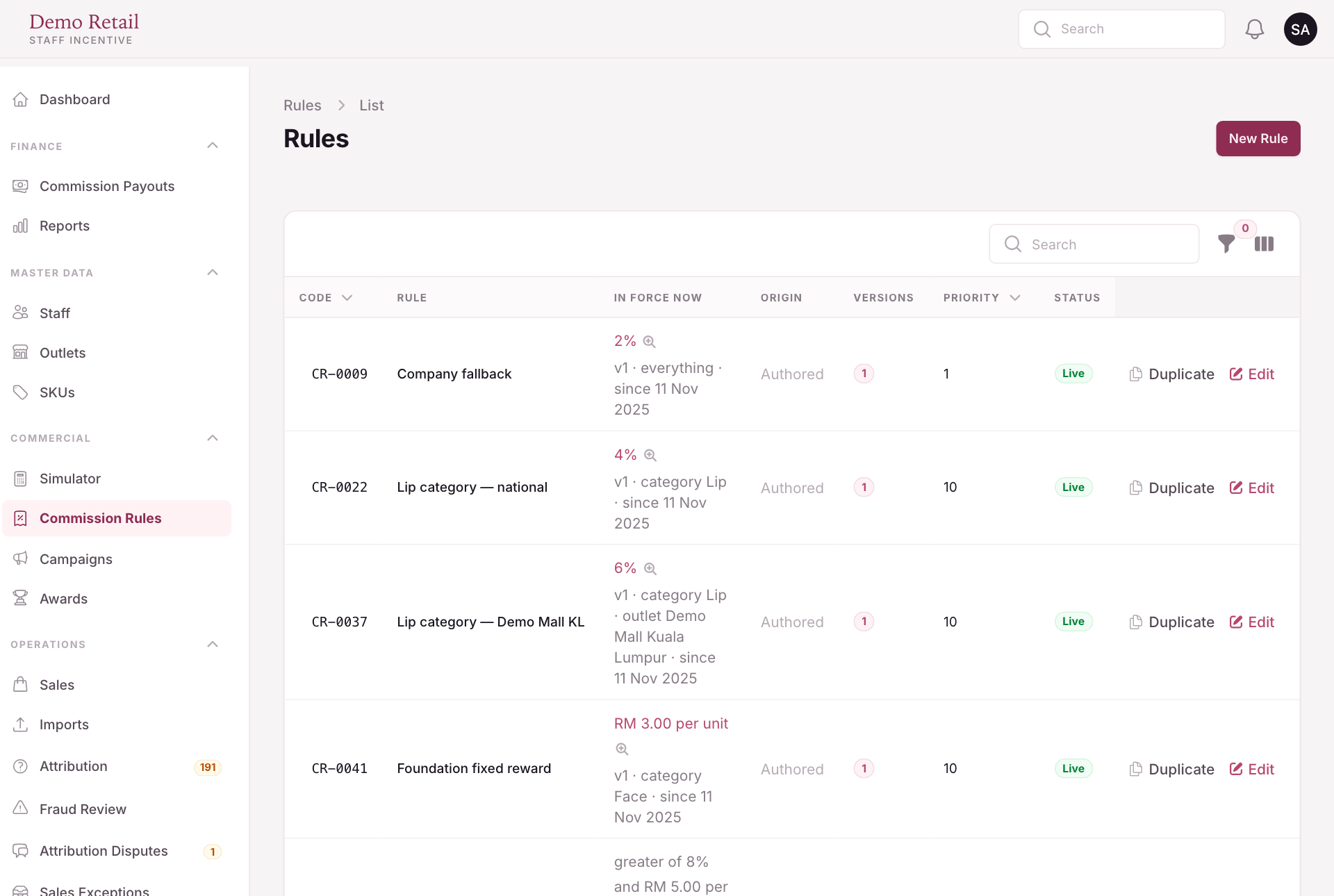
Whole guide as PDF (2 MB)Every ringgit of commission comes from a rule. A rule has a code, a scope (which products, outlets, categories or grades it covers), a rate and a priority. A scope left empty covers everything.
When several rules match the same sale line, the one with the highest Priority number pays. How narrow a rule is does not matter. Two live rules that overlap at the same priority are flagged so someone can settle it.
- Open Commission Rules. In force now shows the rate, scope and start date each rule is paying today. The magnifier opens that version.
- Press New Rule to write one, Edit to change one, or Duplicate to start from a copy.
- A change is saved as a new version and goes to Approvals. It pays nothing until a second person approves it.
Campaigns add a temporary boost on top of the rules, for example 1.5 times the commission on lip products for two months.
Try a sale before it happens
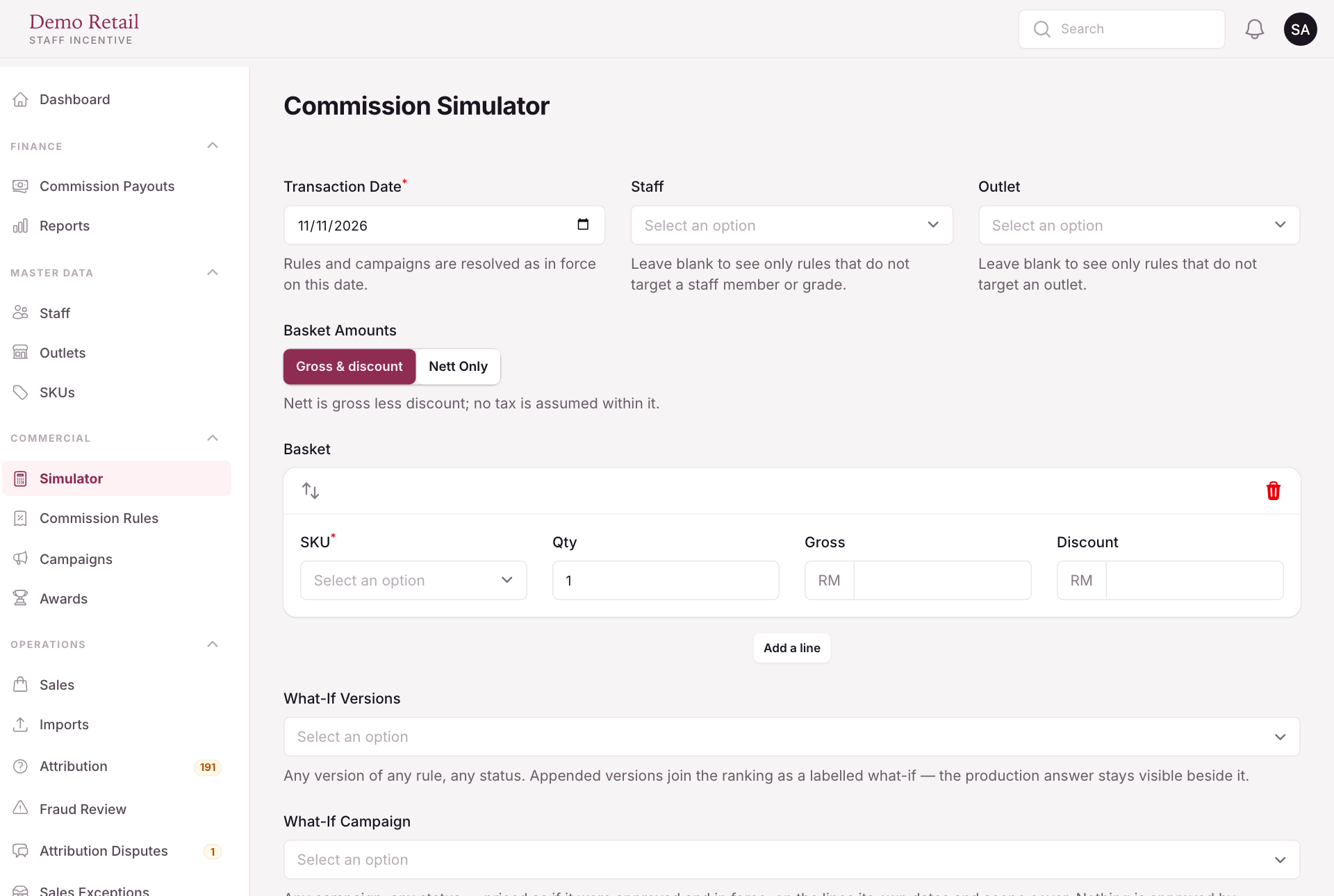
Simulator shows what a sale would pay, without recording anything.
- Pick the Transaction Date, and the Staff and Outlet if the rules you are testing are for them.
- Under Basket, pick a SKU (product code) and type the quantity and amounts. Press Add a line for more products.
- Choose Gross & discount or Nett Only for how you type amounts.
- To compare a proposed change with today's rules, pick it under What-If Versions or What-If Campaign.
- Press Run simulation. Every matching rule is listed by priority, with the full sum behind its amount.
On the SKUs page, the Rules column shows what each product pays today. Press it to see every rule that matches the product, side by side.