The Scan button
For: Customers
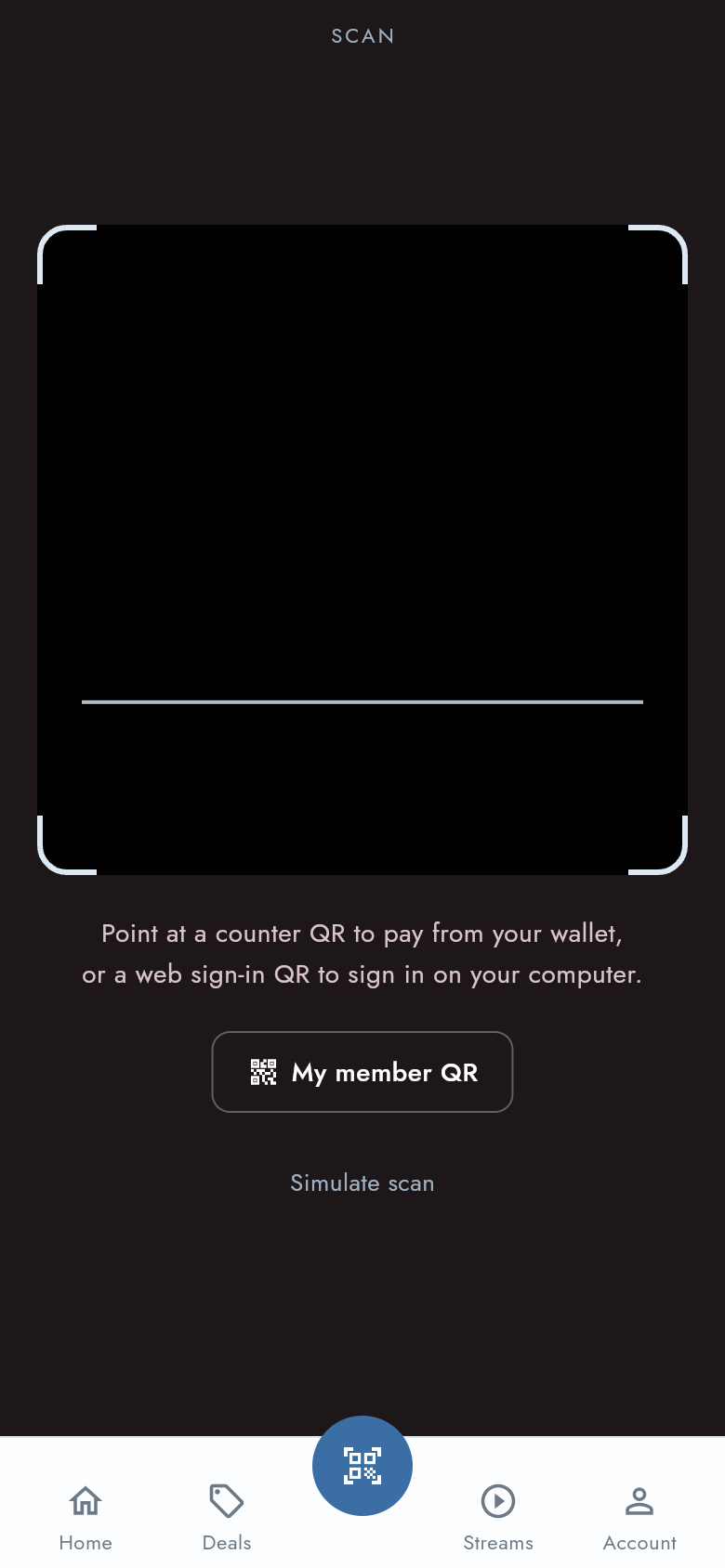
Whole guide as PDF (2 MB)The round button in the middle of the bottom bar opens Scan, the camera. The first time, the phone asks to allow the camera. If you said no, the screen says Camera access is off; press Open Settings and allow it.
Sign in on a computer
When a website of your company shows a QR code for signing in:
- Open Scan and point the camera at the code on the computer screen.
- The app asks Sign in on the web?. Approve only a code you scanned from your own screen.
- Press Sign in. The computer is now signed in to your account.
Show your member QR
Press My member QR to open your member card and its QR code.
Paying at the counter does not work yet
The screen says you can point it at a counter QR to pay from your wallet. In this version that does not take any money: the app shows a sample payment with a fixed amount that is never sent to your company, and your real wallet balance does not change. The Simulate scan link under the buttons does the same. Pay at the counter the usual way until your company says wallet payments are open.