Your account
For: Customers
Whole guide as PDF (2 MB)The Account tab shows your name, tier and member number at the top, a wallet card with Manage, and these rows:
- My account: your details and security.
- Member card: your member QR and points (see "Your membership and points").
- Vouchers: see "Use your vouchers".
- Help: your company's help pages.
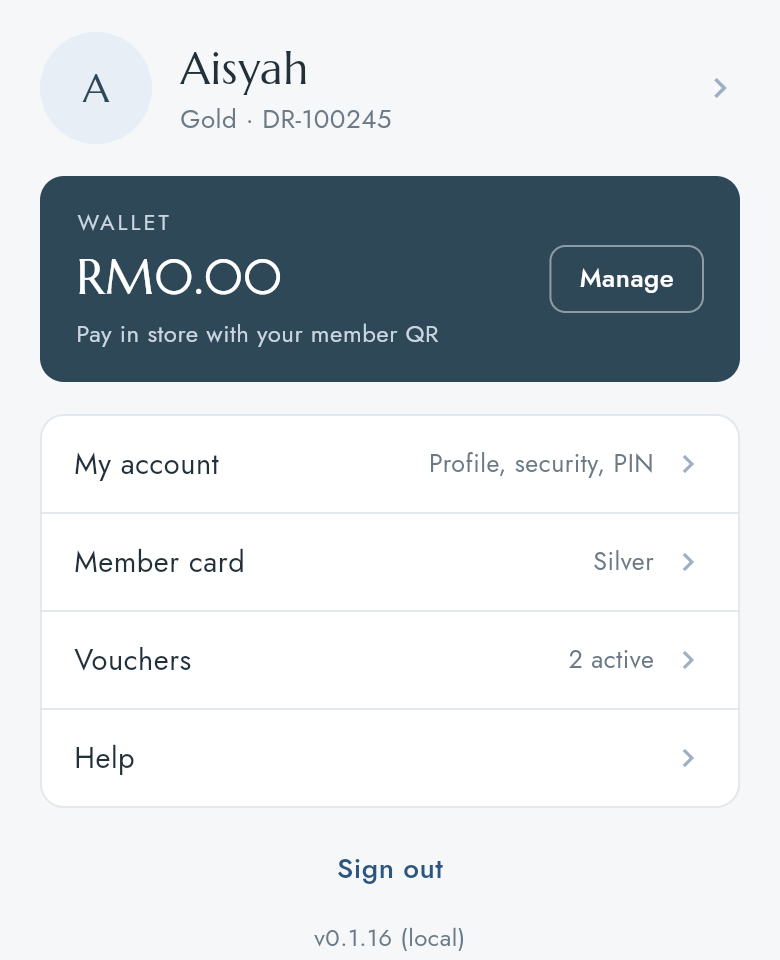
The wallet amount and the tier shown on this tab are not read from your company yet (see the last page). Open the wallet and the member card for the right figures.
Change your details
Press My account. Press a row to change it.
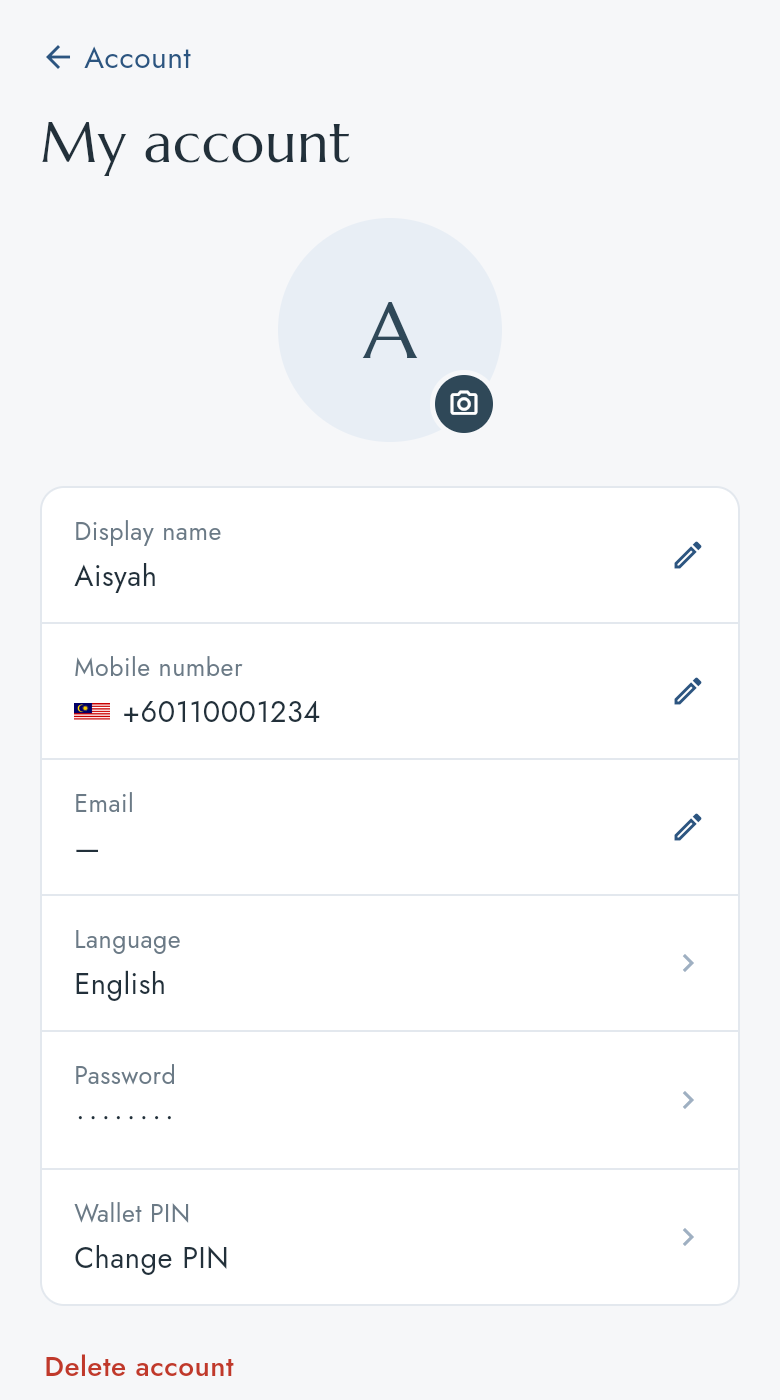
| Row | What happens |
|---|---|
| The photo | Profile photos: add photos from the Gallery or Camera. The first one is your profile picture; hold and drag a photo to change the order. Photos over 2 MB are shrunk to fit. |
| Display name | Type the new name and press Save. |
| Mobile number | Type the New mobile number and your Current password, press Send code, then type the code sent to the new number. |
| Type the New email and your Current password, press Send code, then type the code sent to the new address. | |
| Language | Choose English, 中文, Bahasa Melayu or Tagalog. This is saved to your account, but the app's own screens stay in English. |
| Password | Type the Current password, the New password twice, and press Save. |
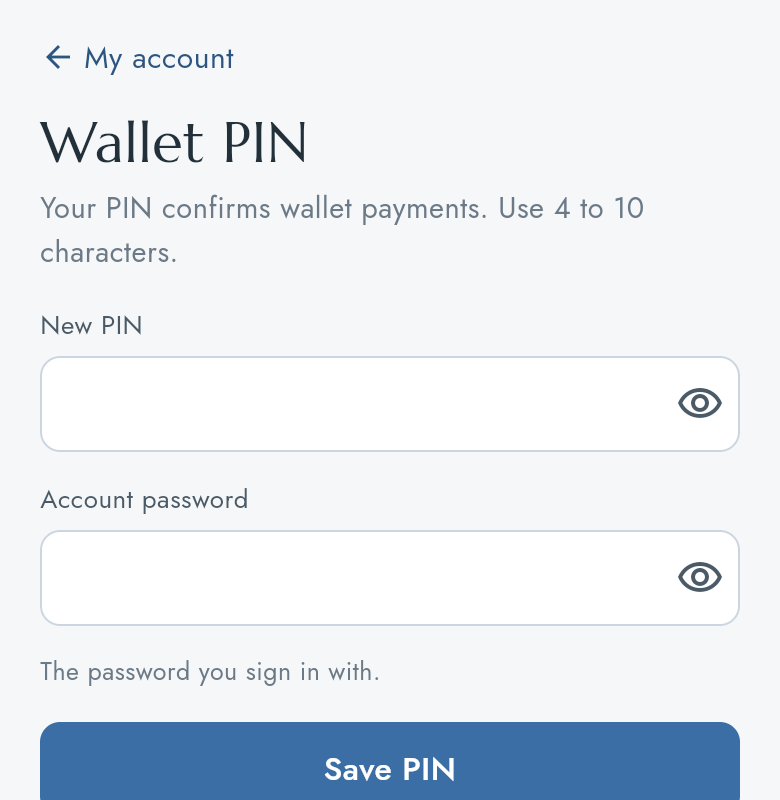
| Wallet PIN | Type a New PIN of 4 to 10 characters and your Account password, then press Save PIN. |
Get help
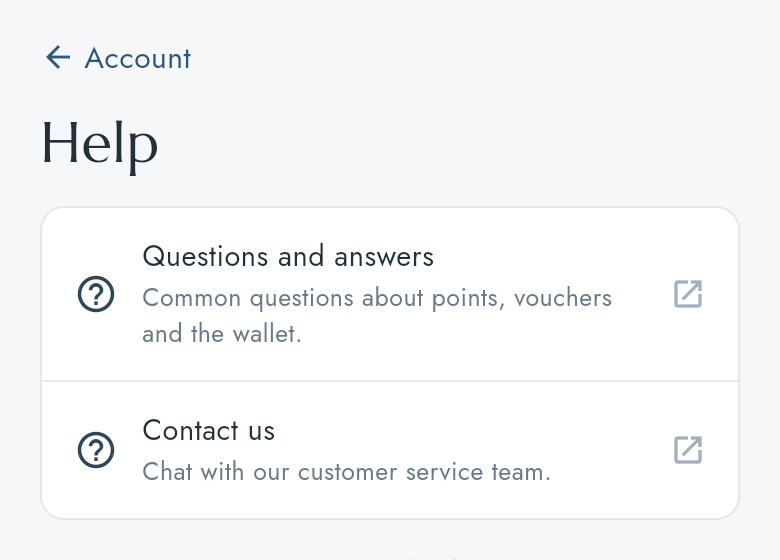
Press Help on the Account tab. Each row opens one of your company's help pages in the browser.
Delete your account
- In My account press Delete account.
- Type your password, tick I understand this cannot be undone and press Delete my account.
Your account, points, vouchers and wallet balance are removed for good. Spend the wallet balance and vouchers first.
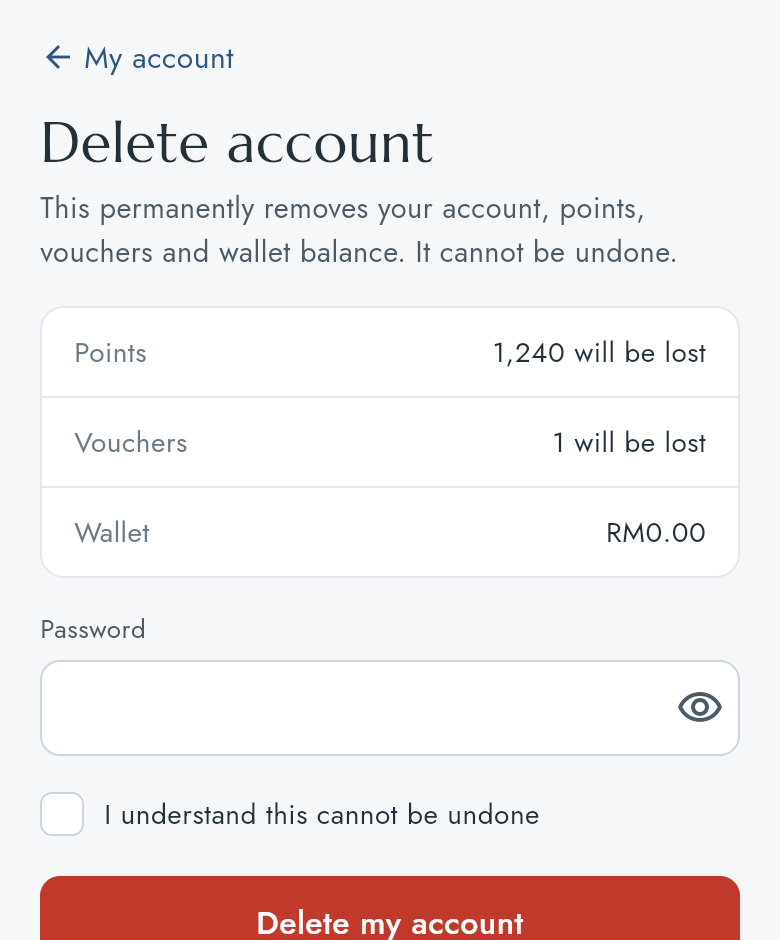
The amounts listed under Points and Wallet on this screen are not your real ones yet (see the last page).