Give people access
For: Administrators
Whole guide as PDF (3 MB)A person appears in WITS the first time they sign in, with the Staff Submitter role. Anything more is given here.
Change someone's roles
- Open Roles & access in the menu. The Users tab lists everyone with their roles.
- Press Change roles on the person's row, tick the roles, and press Save.
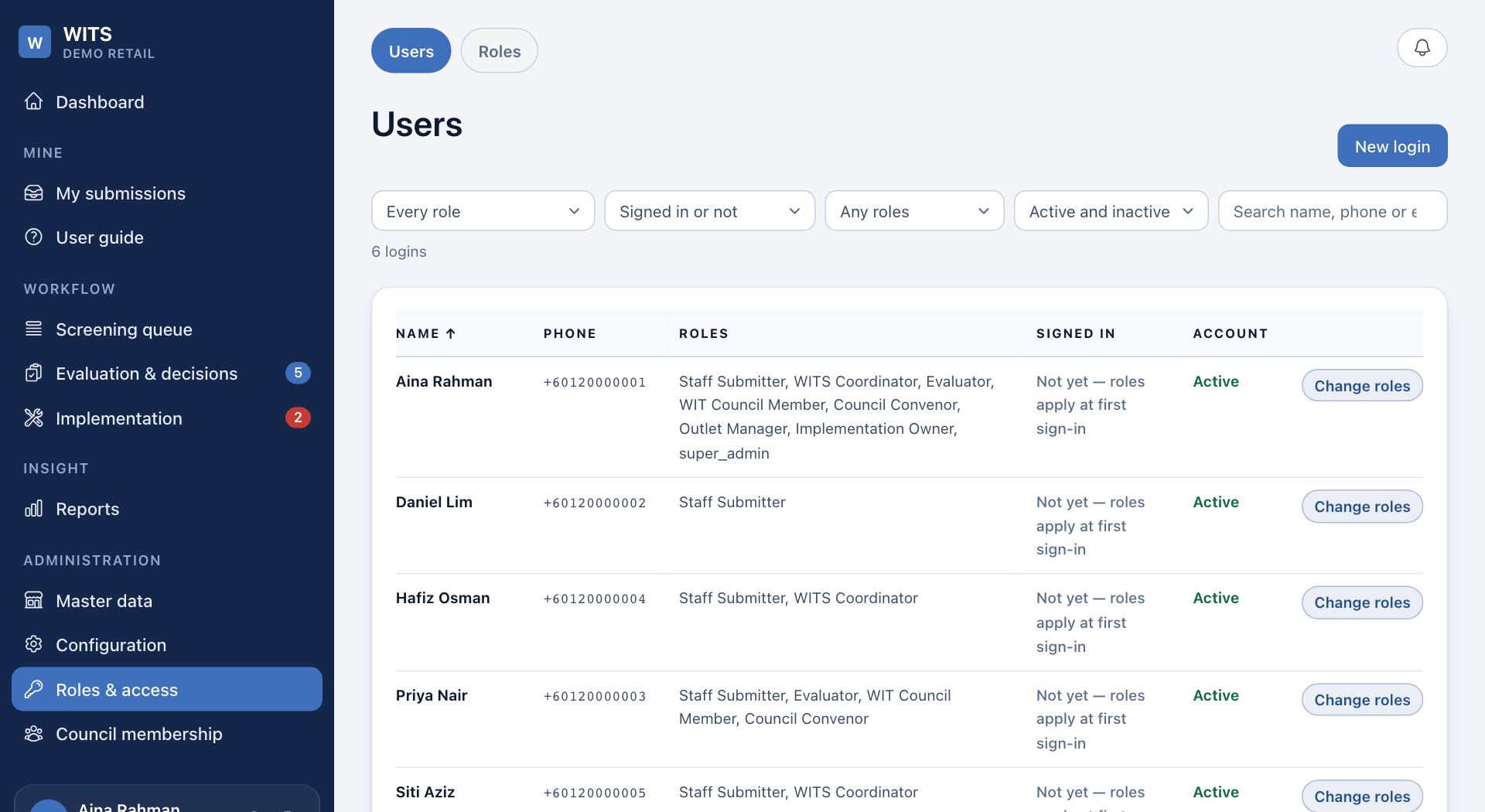
To give someone a role before their first sign-in, press New login. It does nothing until that person signs in.
Change what a role can do
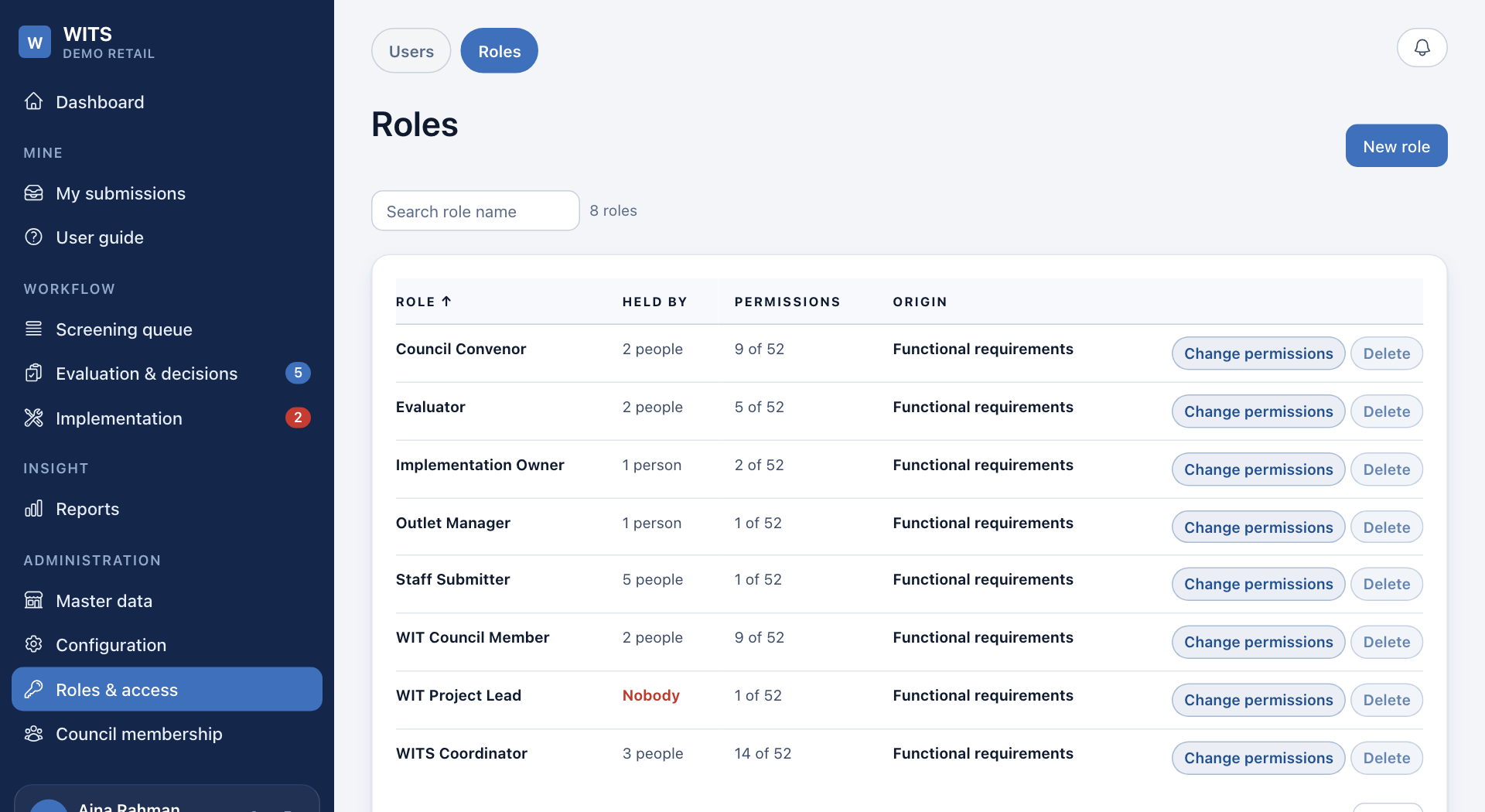
- Open the Roles tab.
- Press Change permissions on a role, tick what it may do, and press Save. Press New role to make one.
Seat someone on the Council
Scoring needs a place on the Council as well as a role.
- Open Council membership in the menu.
- Press Appoint a member.
- Choose the Staff member, the Council role (Member or Convenor), and the date under Appointed from.
- Press Appoint. This also gives the matching Council role.
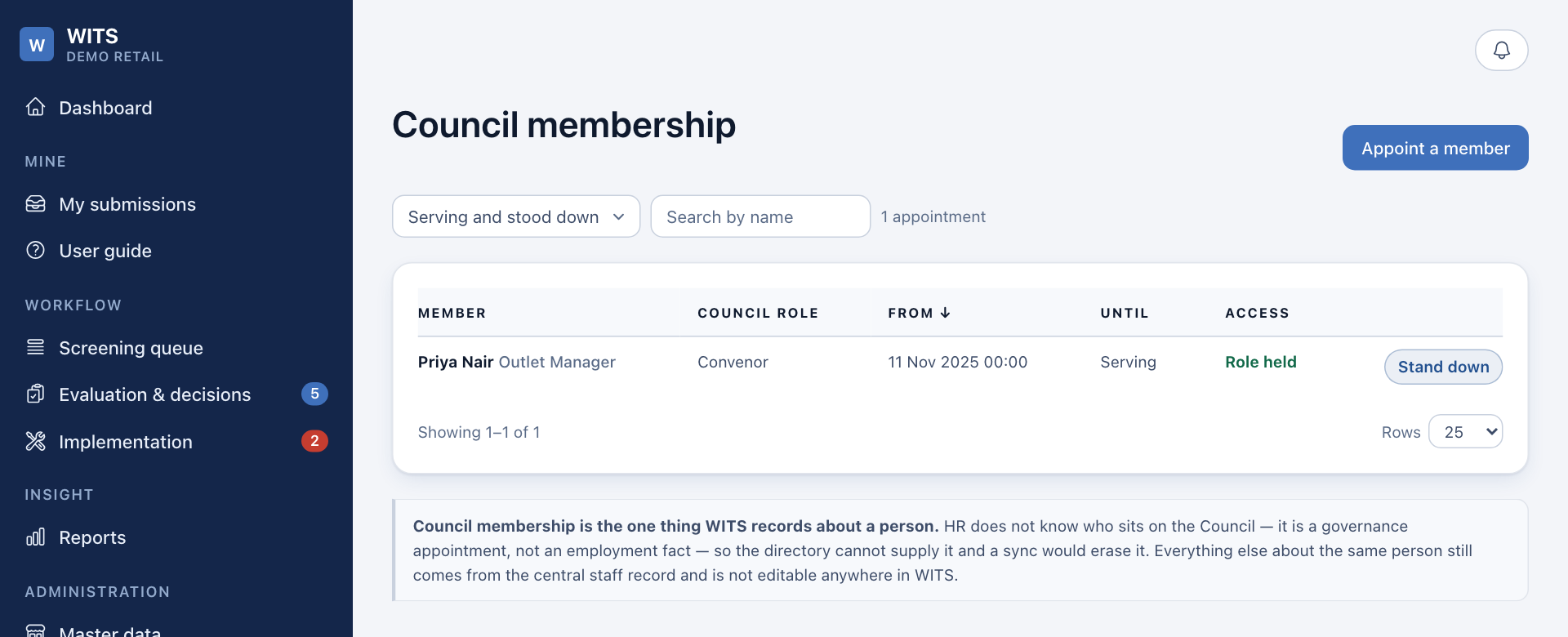
To end a place, press Stand down. Past places are kept, because past decisions are counted against them.
Things a role cannot change
- Which outlets a coordinator looks after comes from the staff records, not from a role.
- Nobody can screen or score their own idea, or confirm their own work. No role or administrator can turn this off.
- Someone HR has marked as left cannot sign in, even if their login still exists. They stay in the Users list so you can see what access they had.