Apply for a job
For: Applicants
Whole guide as PDF (5 MB)You apply on your phone. You do not need an account or a password. Have your identity card number, your school and work history, and a copy of your resume ready. It takes about 20 minutes.
-
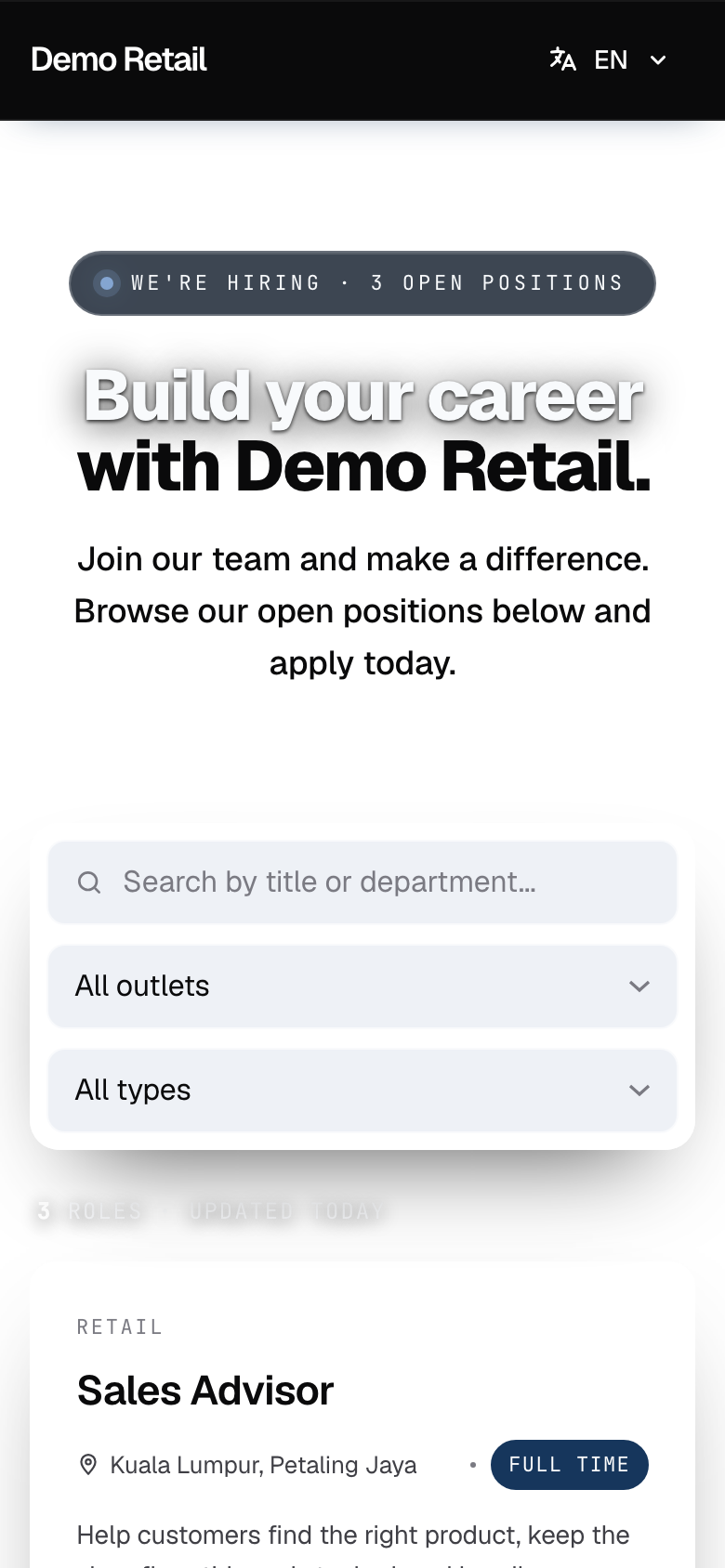
Open the careers page your company shared. Each open job has an Apply Now button. Use Search, All outlets and All types to narrow the list.
-
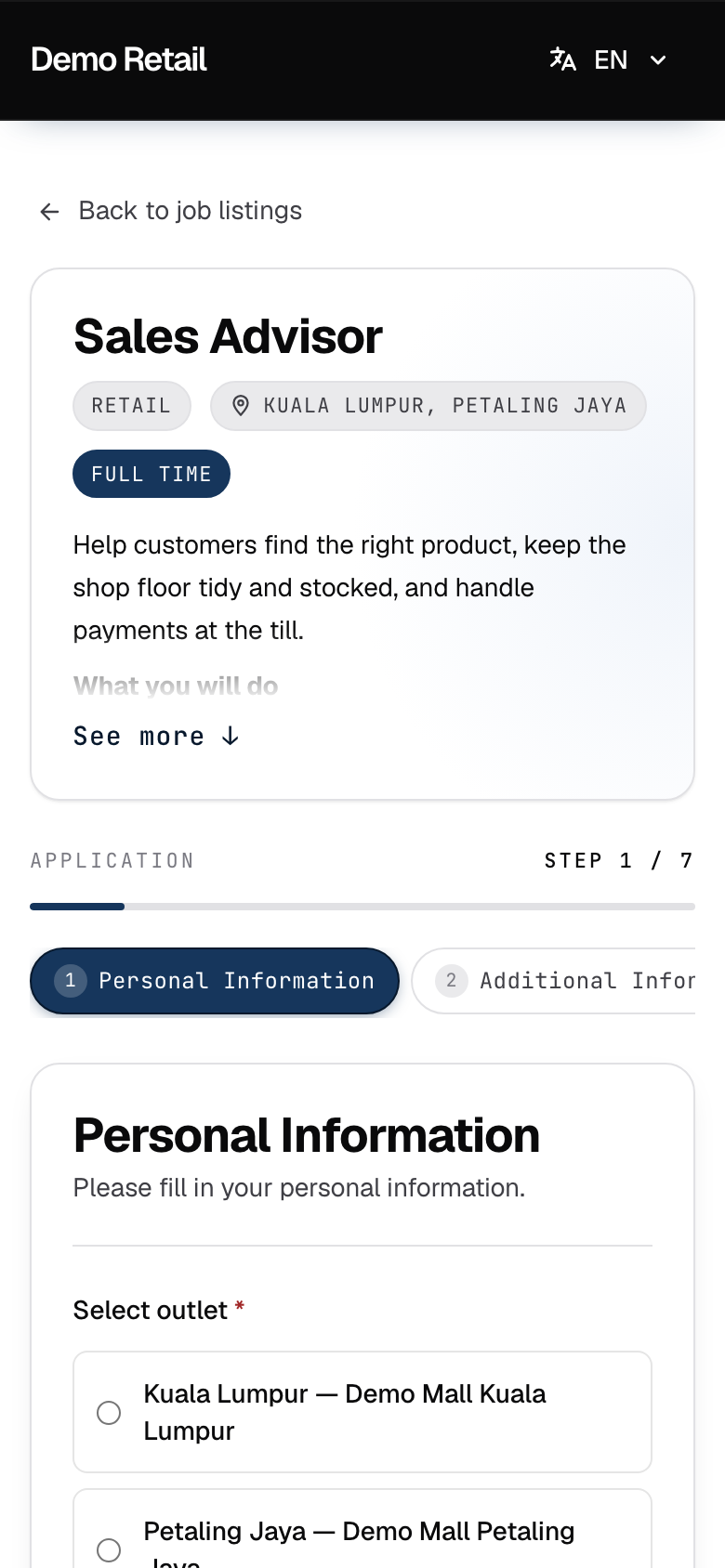
Press Apply Now on the job you want. Read the job description; press See more to read all of it.
-
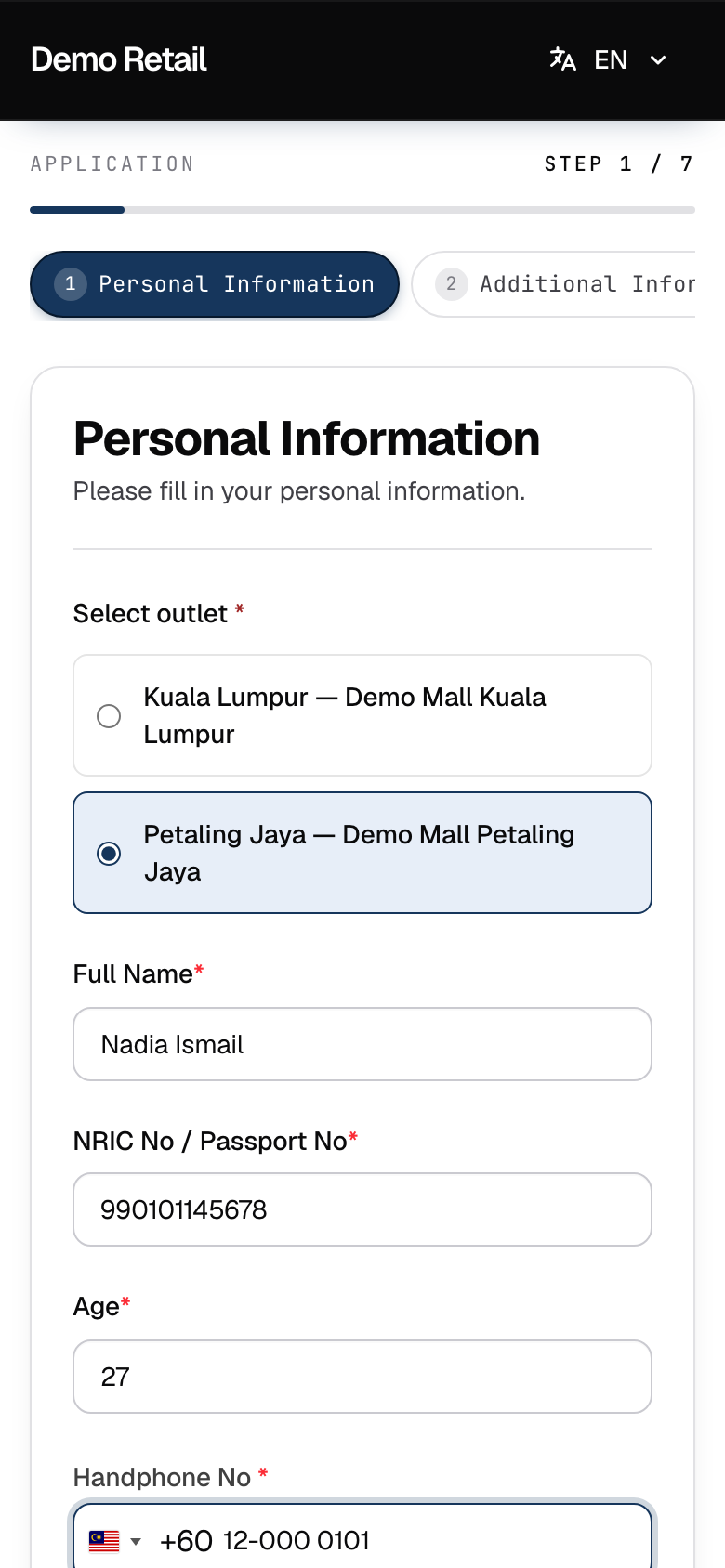
The form has 7 parts, shown at the top as Step 1 / 7 and so on: Personal Information, Additional Information, Education and Training, Language Proficiency, Employment Details, Document Uploads and Authorization. A red star means the answer is required.
In Personal Information, first choose the outlet you want to work at under Select outlet, then fill in your details. Age fills in by itself from your identity card number.
-
Press Continue at the bottom of each part. If something is missing, the part stays open and the empty field is marked.
-
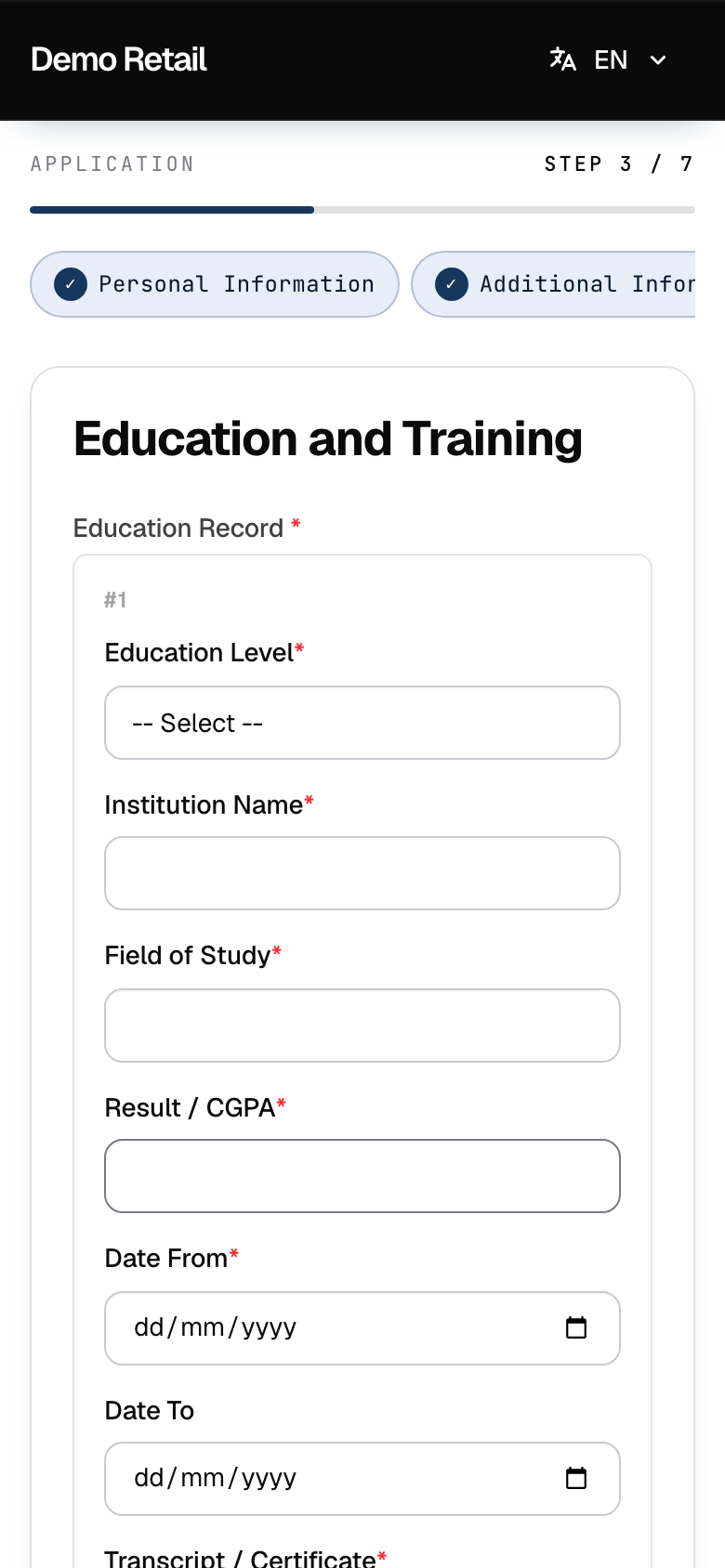
Where you can list more than one school or job, press Add another for each extra one.
-
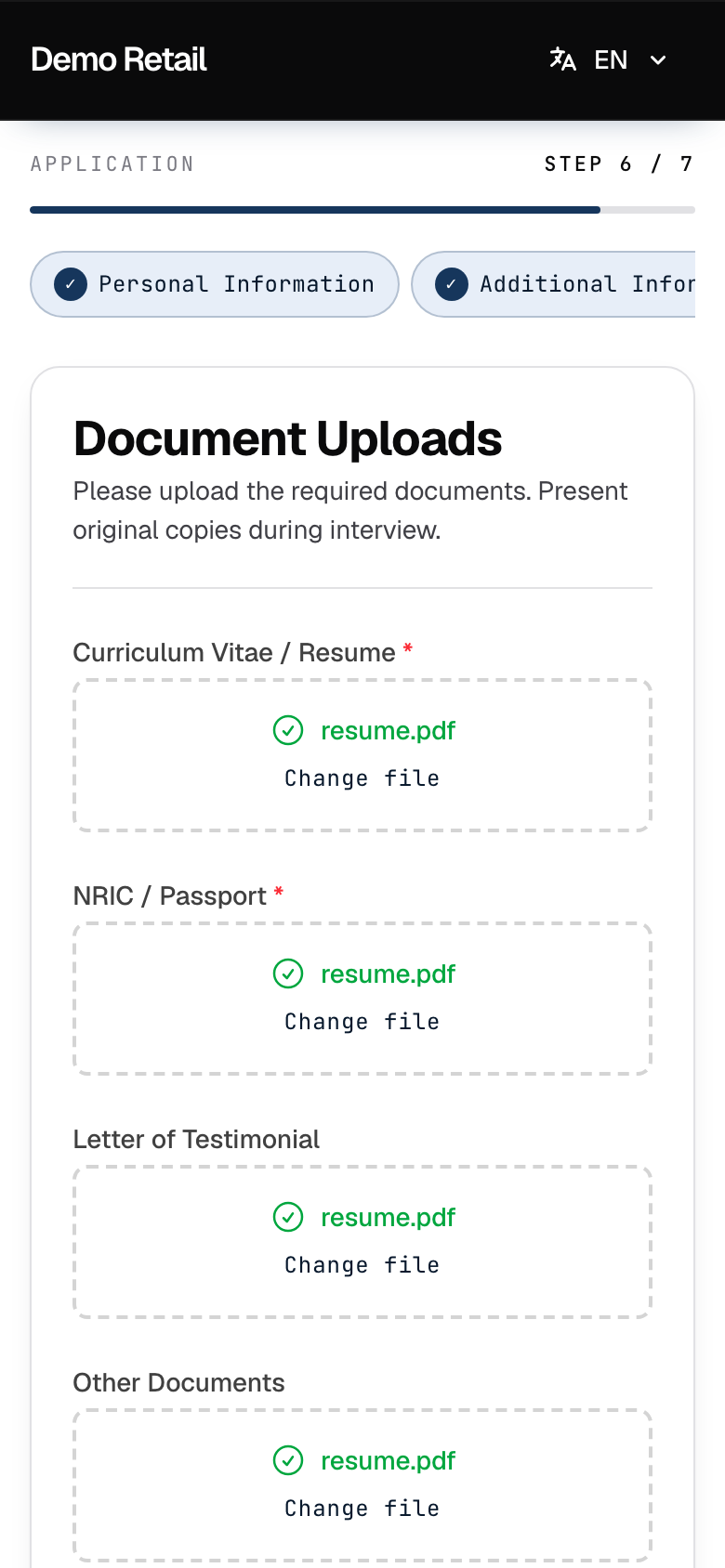
In Document Uploads, press Click to upload under each item and choose a photo or file from your phone. A green tick and the file name show when it is in. Press Change file to replace it.
-
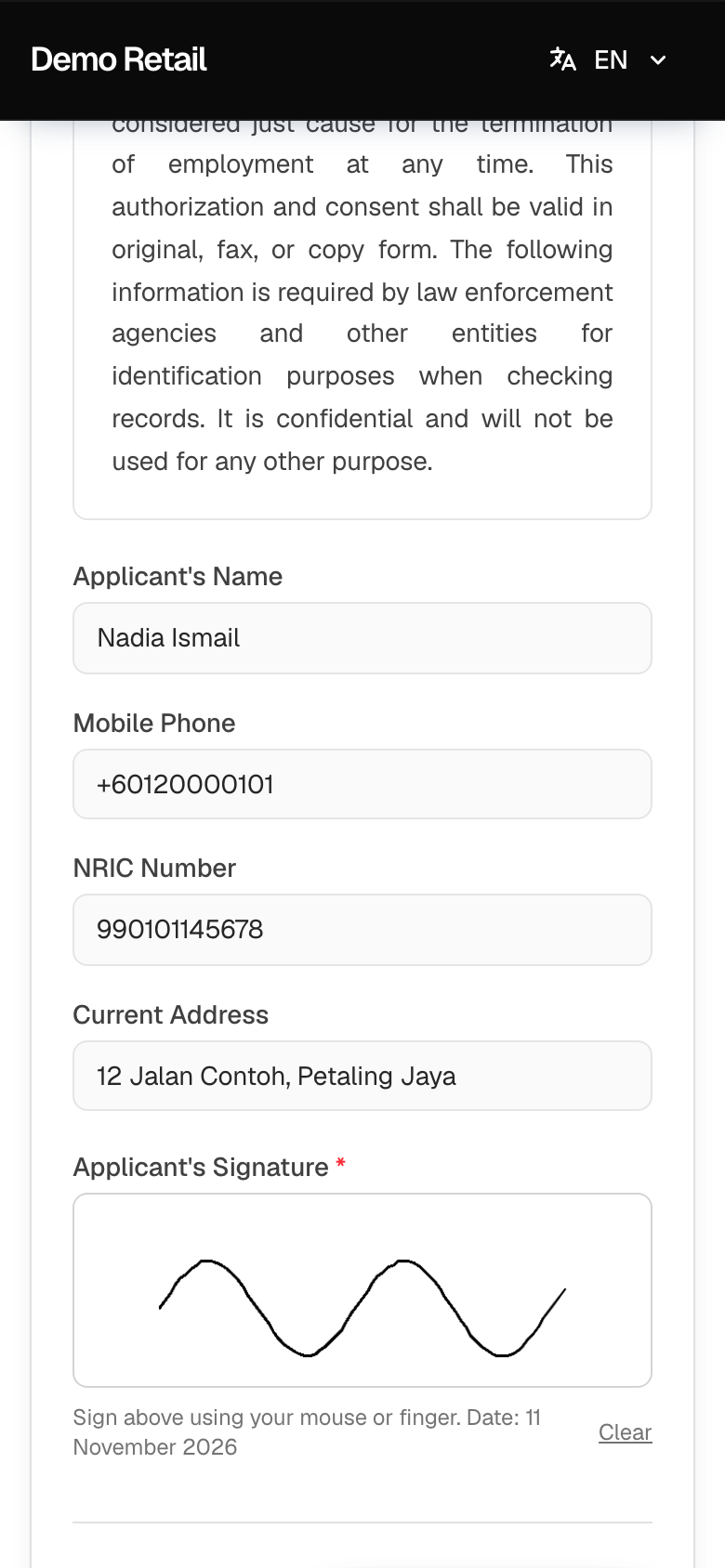
In Authorization, read the text, check your name, phone, identity card number and address, and sign in the box with your finger. Press Clear to sign again. Then press Review Application.
-
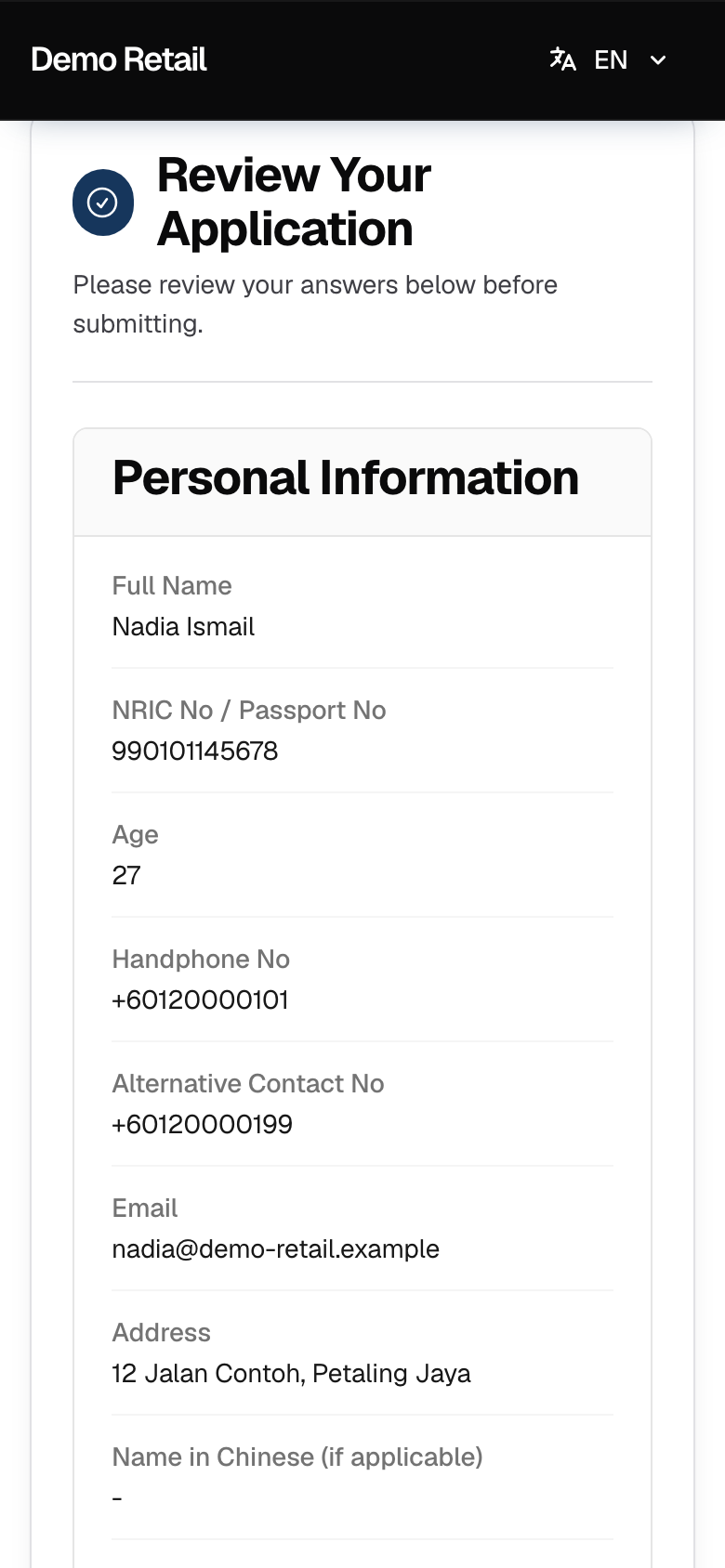
On Review Your Application, check every answer. Press Back to Edit to change something.
-
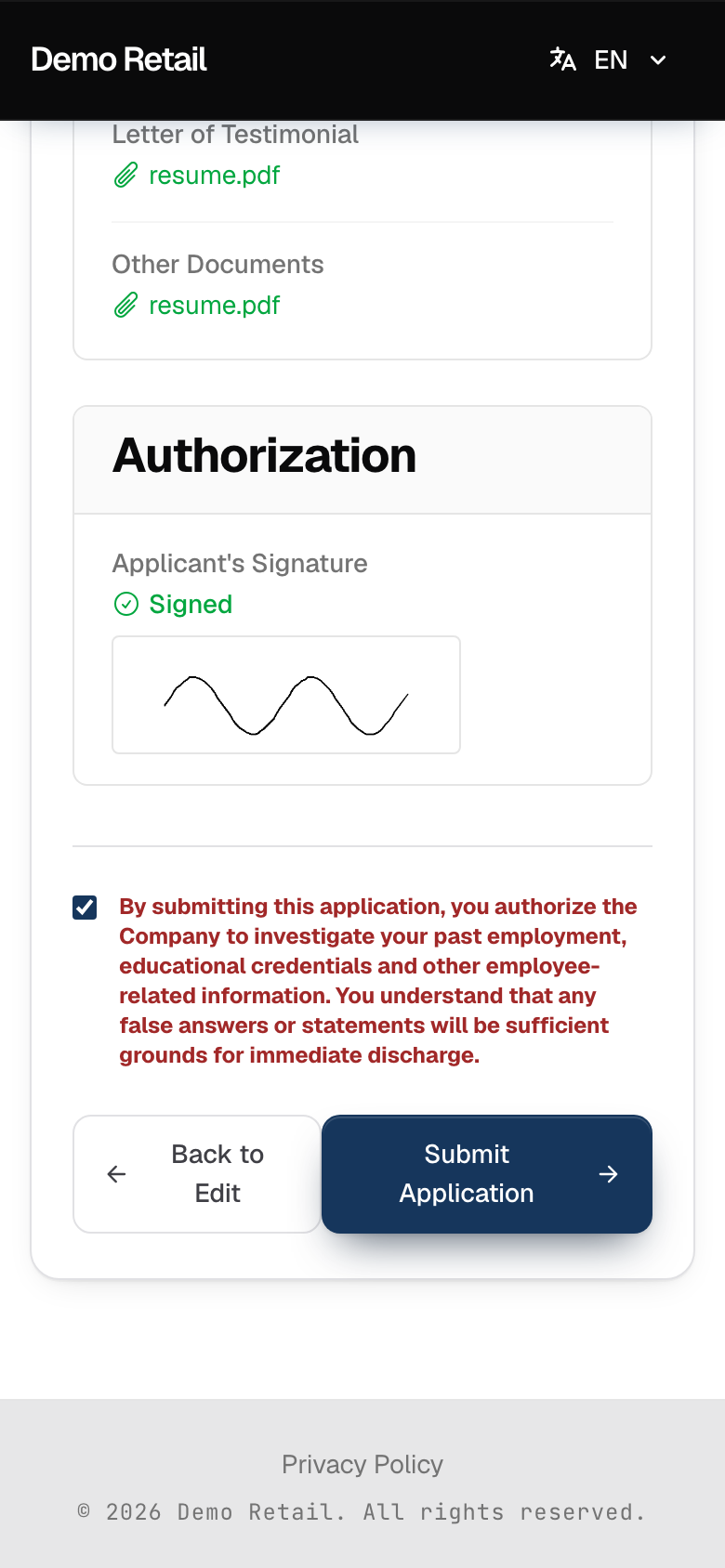
At the bottom, tick the box that lets the company check your past jobs and education, then press Submit Application.
What happens next
-
If your application scores high enough for that job, the screen goes straight on to the next step: see "Take the test and book your interview". Stay on the page.
-
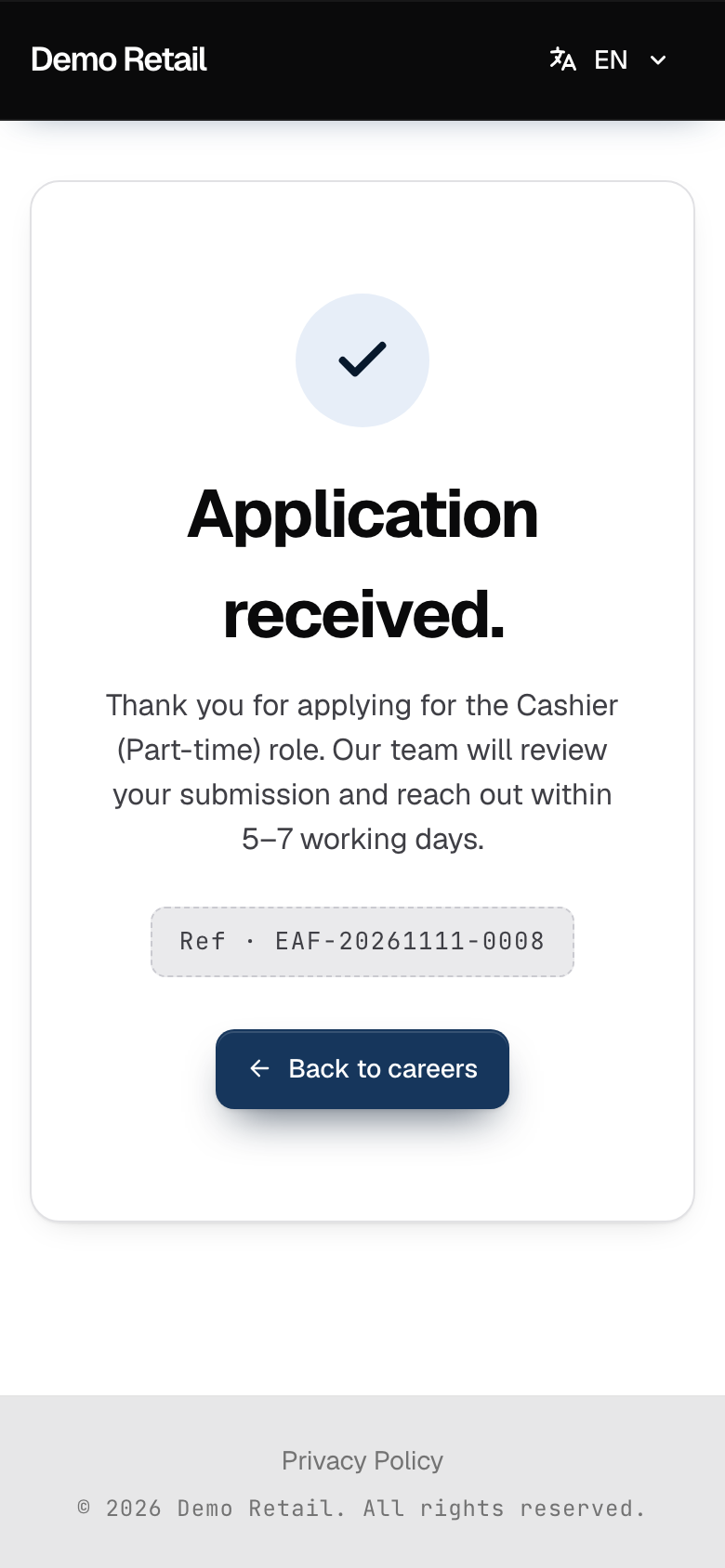
Otherwise you see Application received. with a reference number (it starts with EAF-). Keep it. HR reviews the application and contacts you.
-
If your company has set a minimum score for the job and your application is below it, you get a WhatsApp message saying you were not selected, 2 days later by default.