Manage interviews from the admin screens
For: HR
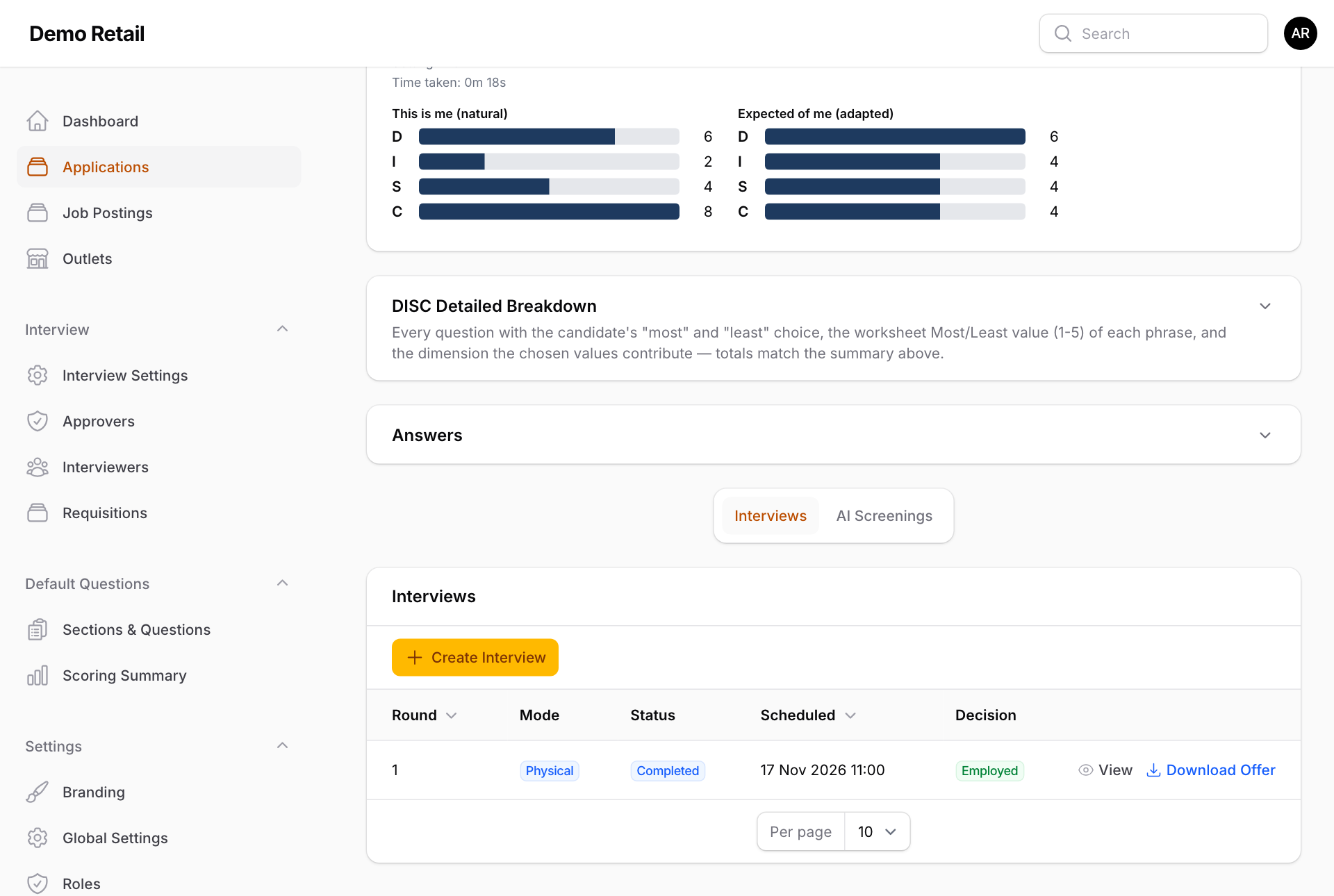
Whole guide as PDF (5 MB)Each application has an Interviews part at the bottom of its page. It lists every round with its Mode (Physical or Online), Status, time and Decision.
Book an interview yourself
Use this when you agree a time with the applicant by phone.
-
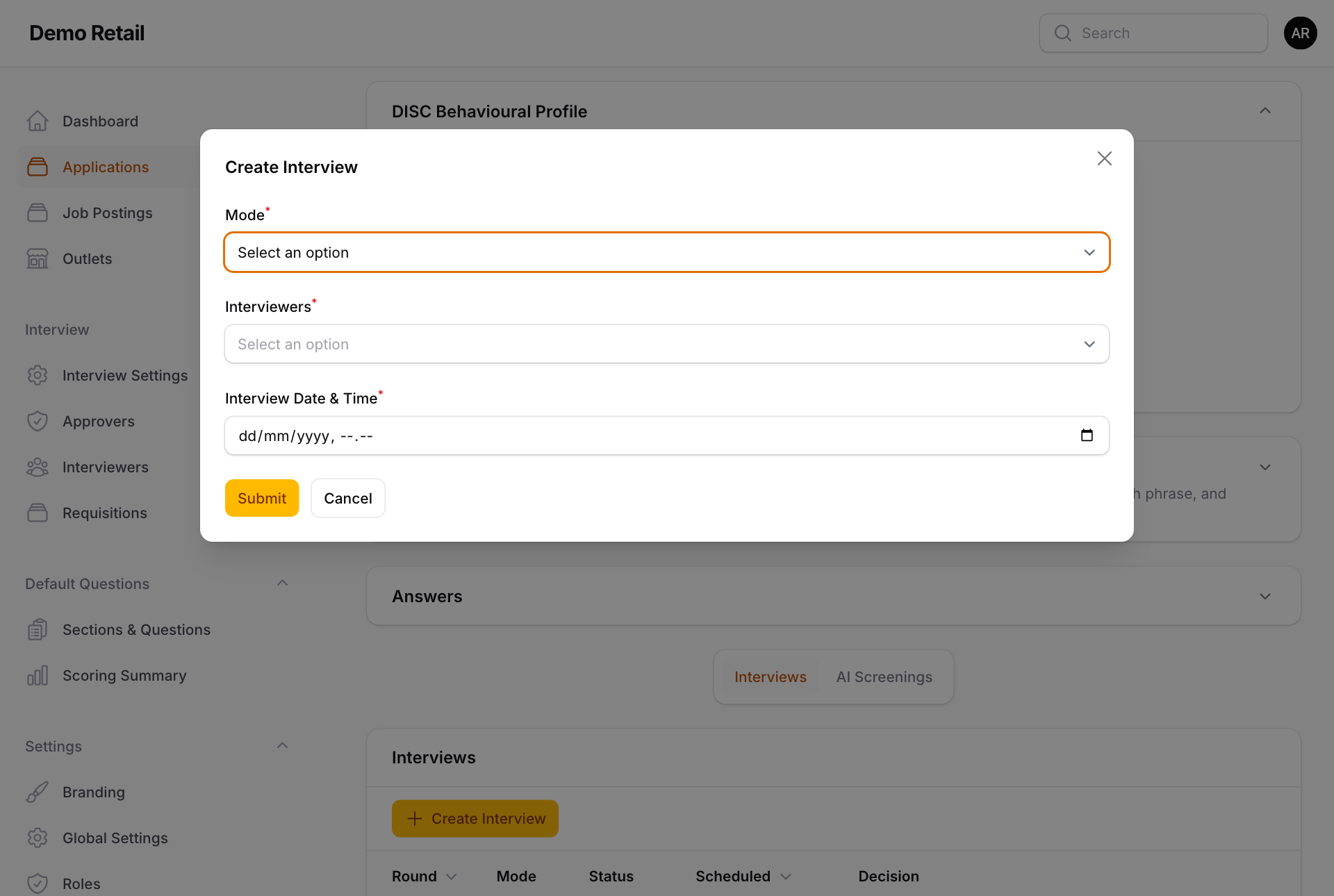
Press Create Interview.
-
Choose the Mode, the Interviewers and the Interview Date & Time, then press Submit.
The applicant is not messaged. Tell them the time and place yourself.
Change an interview
-
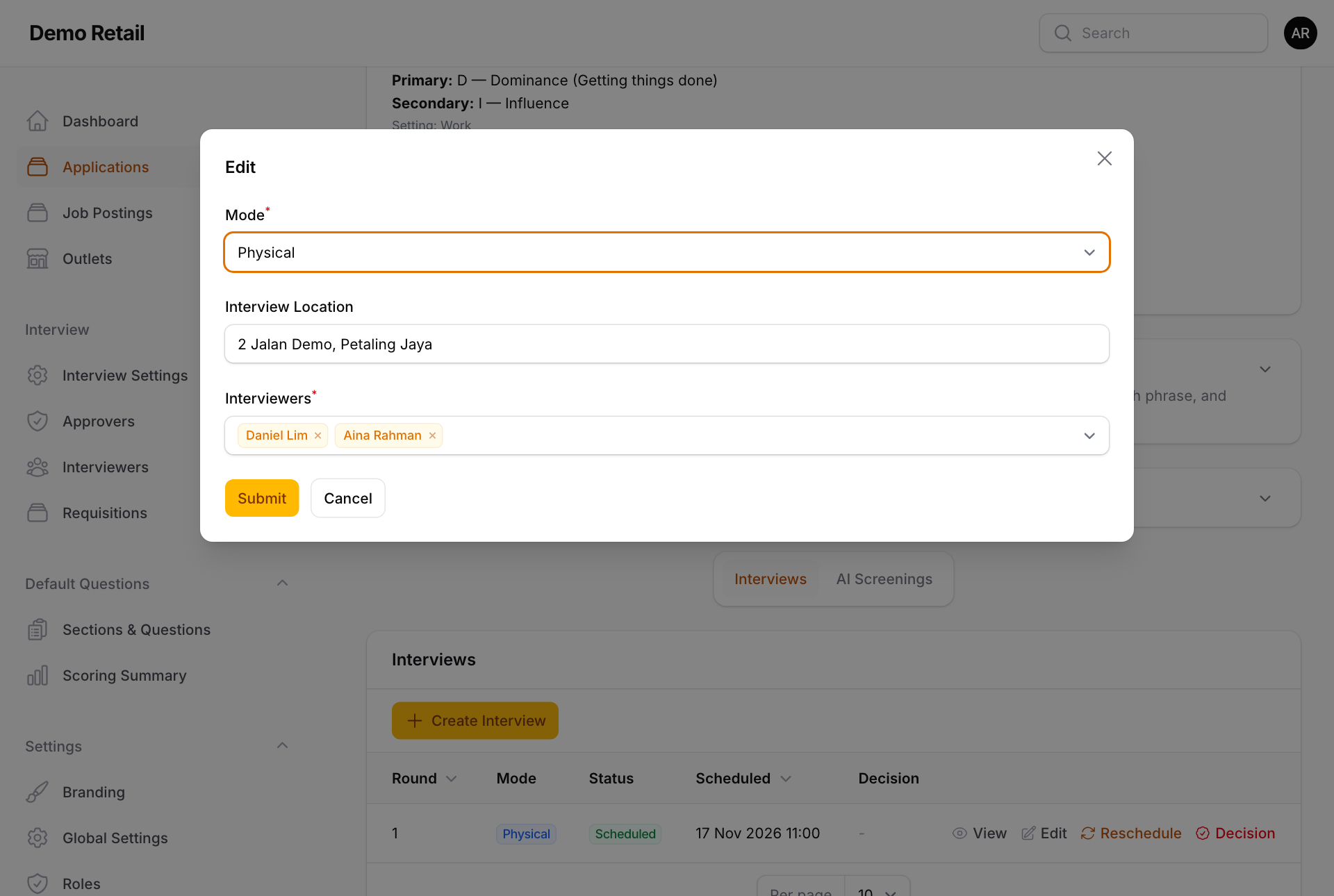
Edit: change the Mode, the Interview Location (or the meeting link for an online interview) and the Interviewers.
-
Reschedule: cancels the booked time and sends the applicant a new WhatsApp link to pick another one.
-
Resend Invitation (above the list): sends the booking link again with a new expiry date. Choose the phone number under Send to phone number and press Submit.
Record a decision without the approver link
-
Press Decision on the interview.
-
Choose a decision and add Notes, then press Submit. The list shows the choices as Employed, KeepInReview, NextRound and Rejected.
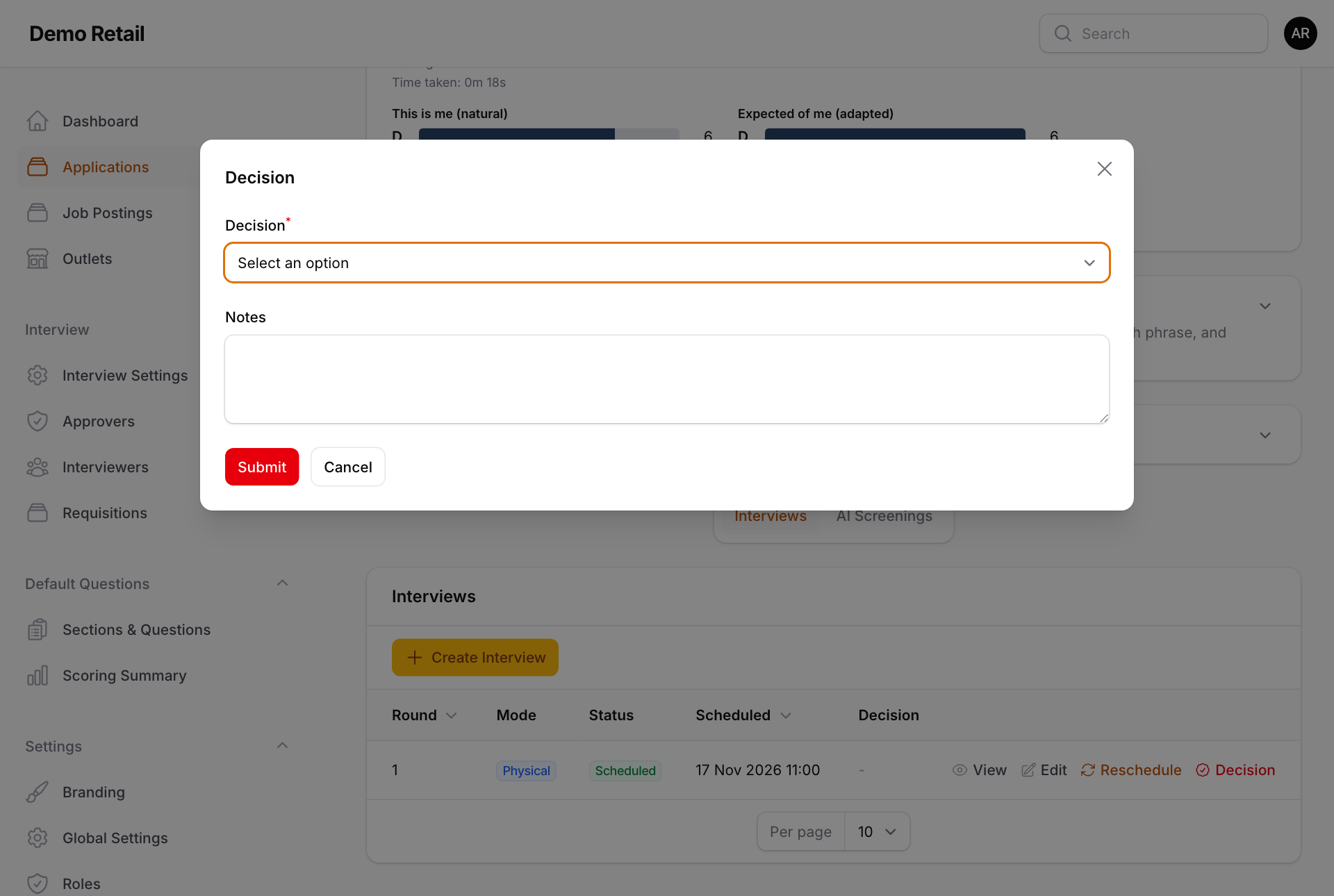
- Employed marks the application Offered. Rejected marks it Rejected. Neither sends the applicant a message.
- NextRound asks for the Next Round Interviewers and sends the applicant a new booking link.
- After Employed, an Offer button appears. Do not use it today: after Submit the box stays open with no message, because an offer needs an approver's signature, and a half-made offer is left behind. Offers work from the approver's decision page (see "Make the hiring decision and approve the offer").
Once an offer is approved, press Download Offer here, or Download Offer Letter at the top of the application, to get the PDF.
AI Screenings
The AI Screenings tab next to Interviews starts a WhatsApp chat between an AI and the applicant, which ends in a score out of 100. It needs an AI service and a connected WhatsApp Session (see "Settings, roles and the application form"). Without them it shows "WhatsApp Not Connected".