Open a job posting
For: HR
Whole guide as PDF (5 MB)A job posting is one open job on the careers page. You open it from an approved position request. Sign in to the admin screens: the Recruitment web address with /admin at the end.
-
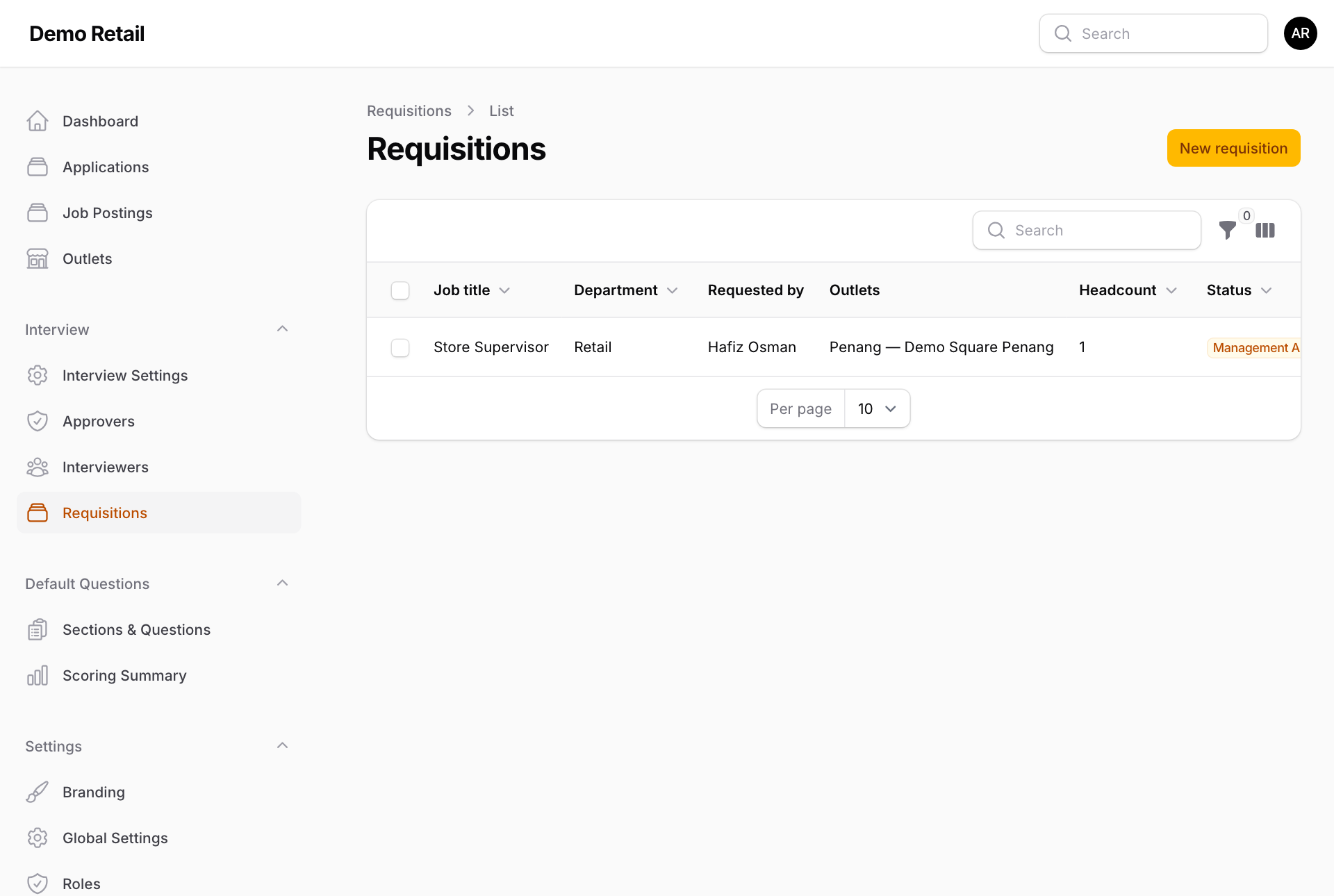
Check the request is approved: in the menu on the left, under Interview, press Requisitions. The Status column must say Management Approved.
-
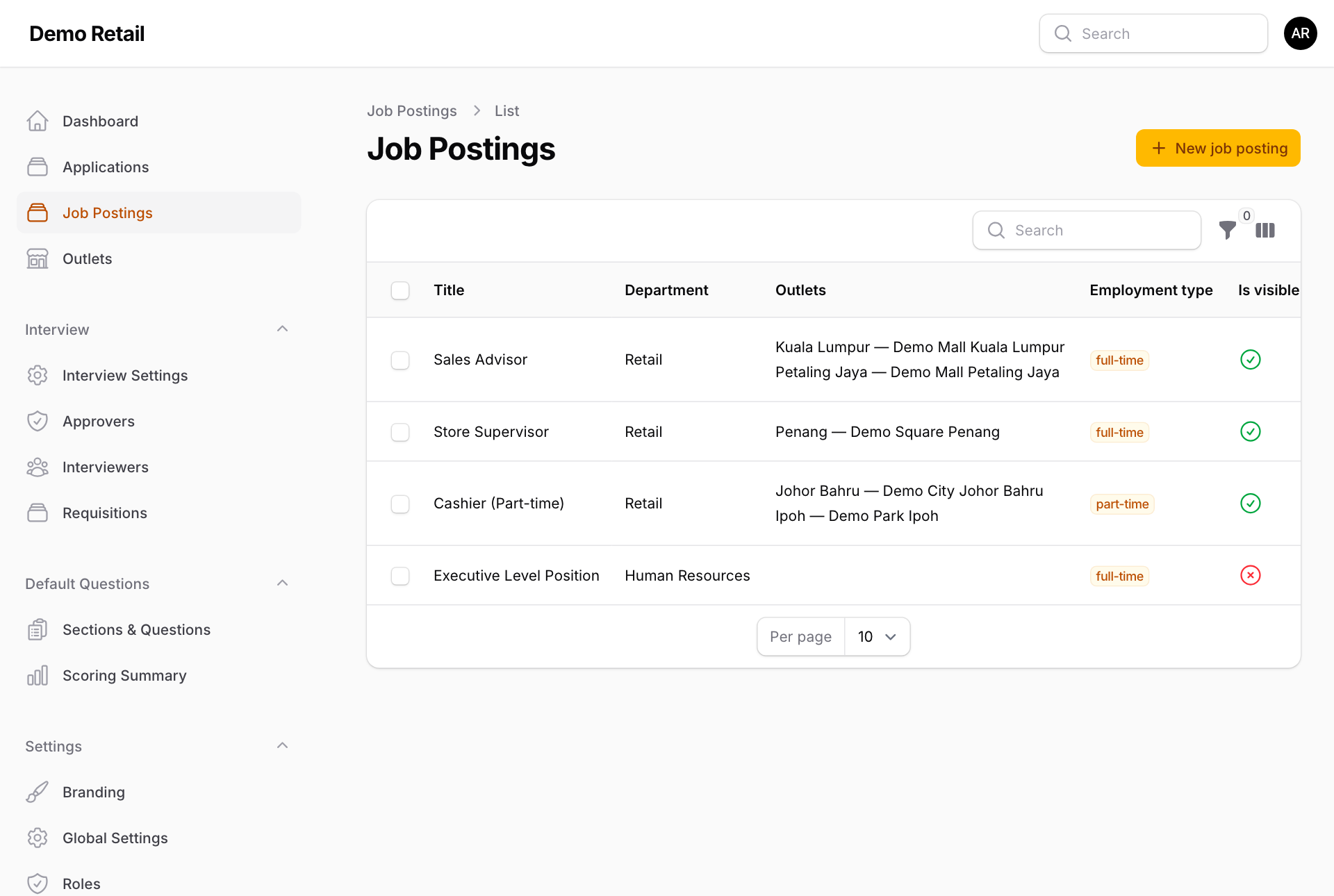
Press Job Postings, then New job posting at the top right.
-
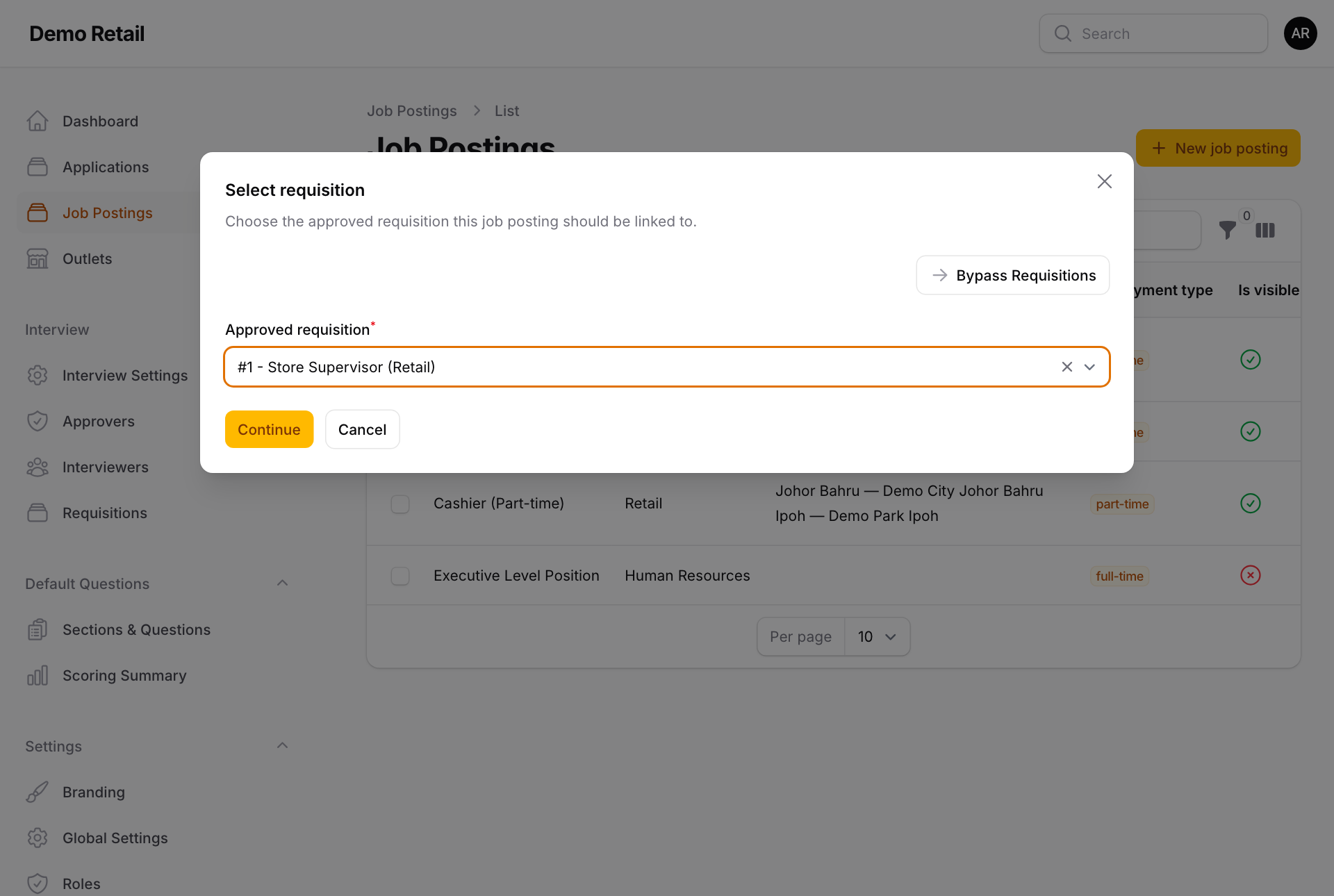
In Select requisition, pick the request under Approved requisition and press Continue. With the Hr Admin role you can also press Bypass Requisitions to start an empty posting without a request.
-
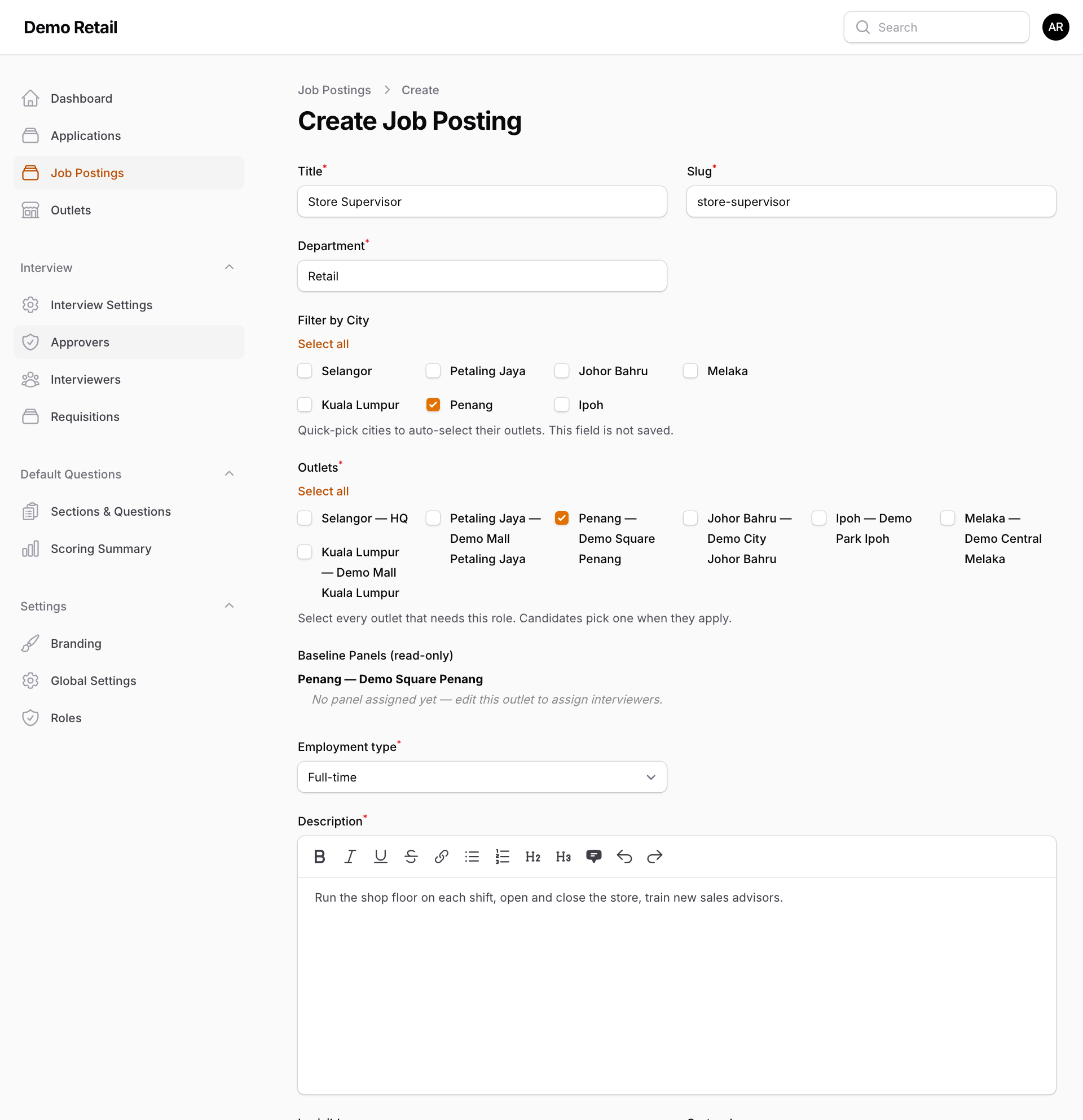
Create Job Posting opens with the title, department, outlet, employment type, description and salary budget copied from the request. Check them:
- Slug: the end of the job's web address. It must be different from every other posting.
- Outlets: every outlet hiring for this job. Applicants pick one. Filter by City ticks all outlets in a city for you.
- Baseline Panels (read-only): the interviewers of each ticked outlet. "No panel assigned yet" means nobody can interview for that outlet. Set it up first (see "Set up outlets, panels and approvers").
- Description: the job advert applicants read.
- Is visible: on means the job shows on the careers page.
-
Set the scores and tests:
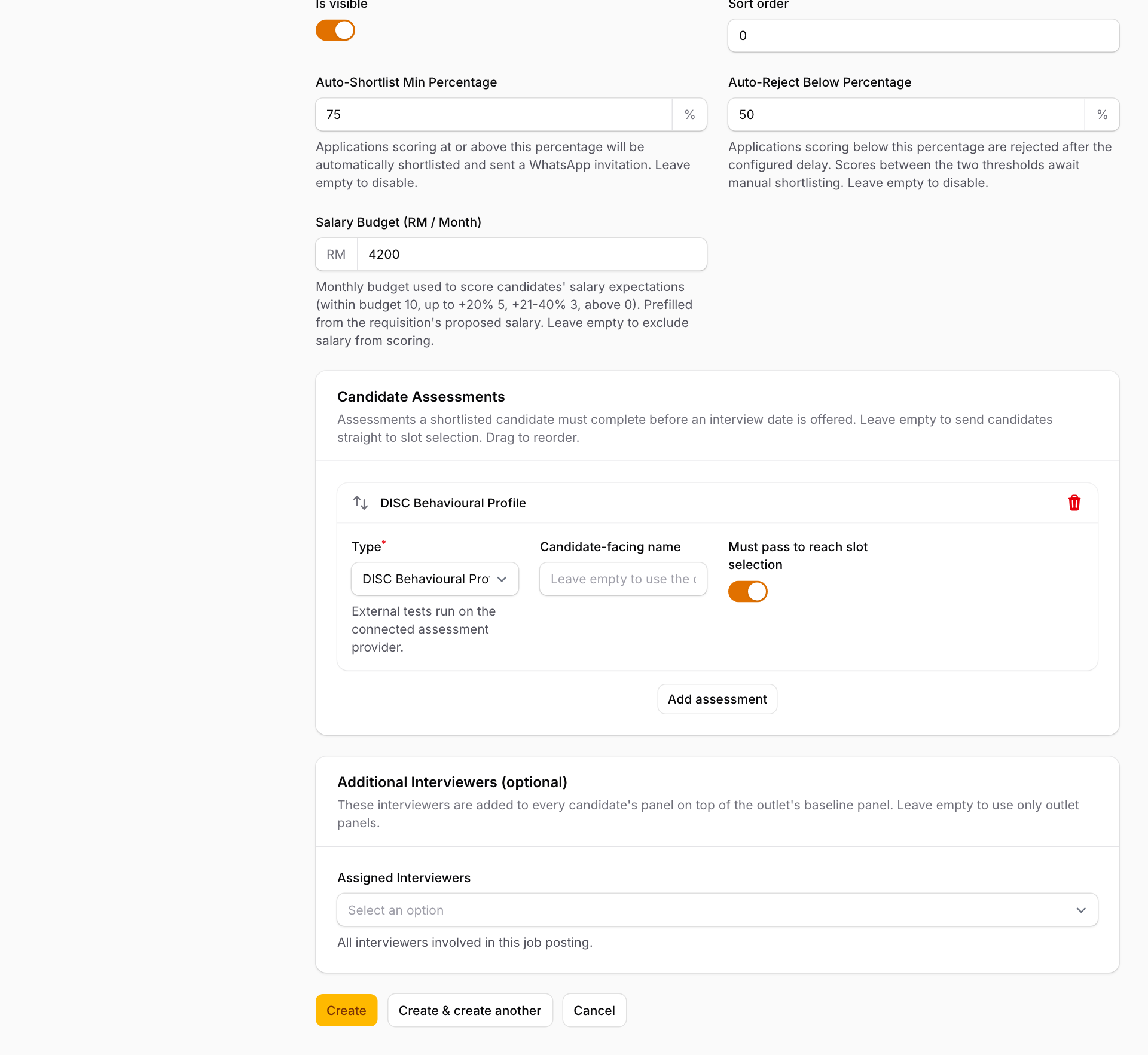
- Auto-Shortlist Min Percentage (75% unless you change it): applications at or above this score are shortlisted at once and go on to the test and interview booking. Leave it empty to shortlist everyone by hand.
- Auto-Reject Below Percentage (50%): applications below this score get a WhatsApp rejection after a wait (2 days by default). Applications in between wait for you.
- Salary Budget (RM / Month): applicants asking for more than this lose points. Leave it empty to leave salary out of the score.
- Candidate Assessments: tests a shortlisted applicant takes before picking an interview time. DISC Behavioural Profile is the built-in personality test and is added for you; remove it with the red bin. External Test needs your company's online test service. Must pass to reach slot selection blocks applicants who fail.
- Additional Interviewers (optional): people added to every interview for this job, on top of the outlet's panel. Under Required Interviewers, tick those whose free time must match.
-
Press Create. The job is now on the careers page. There is no button to copy its link; its address is the careers page address followed by /apply/ and the slug.
Opening a posting does not change the request's status, and one request can be used for more than one posting.
Add questions for this job only
Every job uses your company's standard form (see "Settings, roles and the application form"). To add questions for one job:
-
In Job Postings, press Edit on the job, then the Sections & Questions step at the top.
-
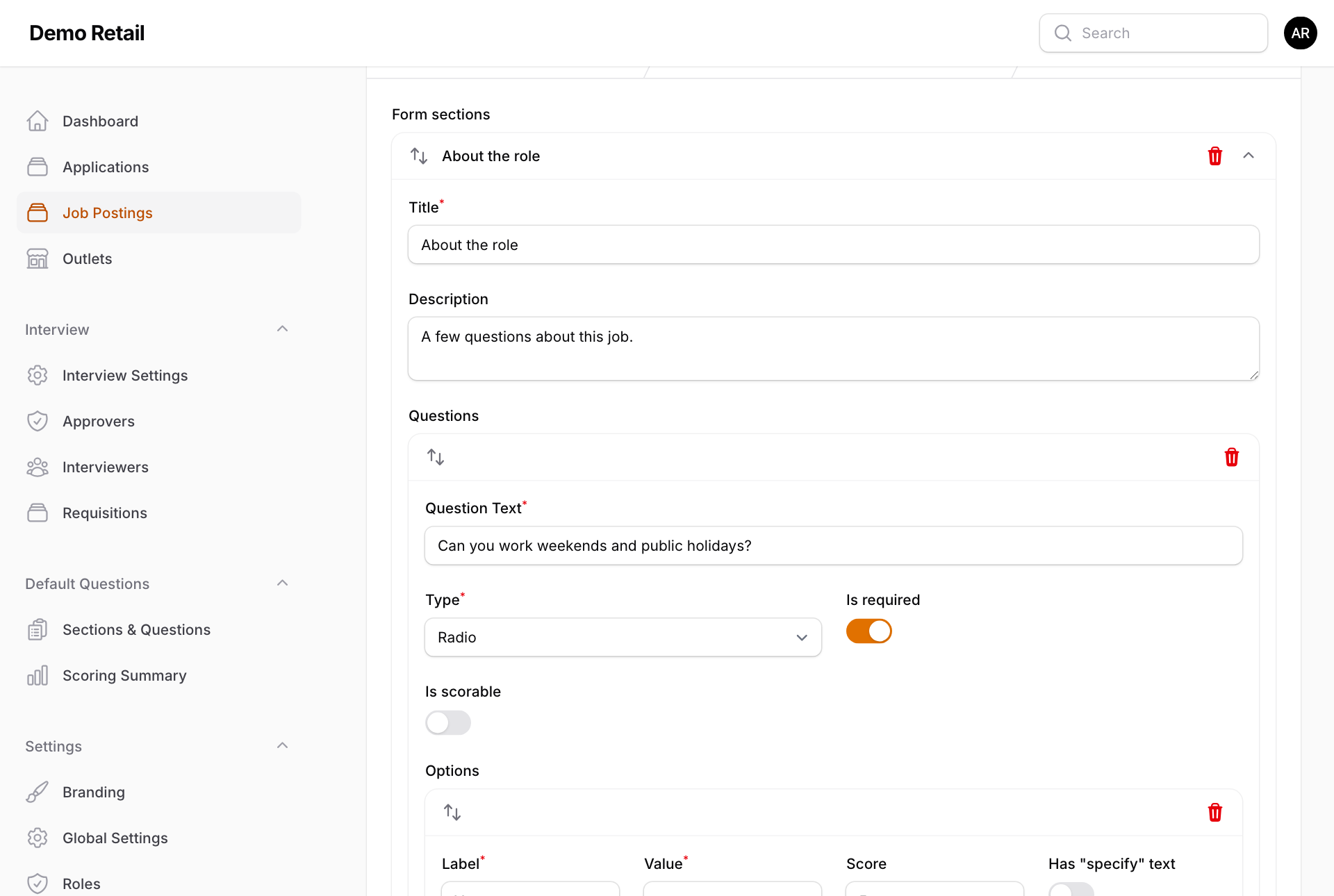
Press Add Section. Type a Title and Description.
-
Press Add Question. Type the Question Text and choose a Type (for example Radio for one choice from a list). Switch on Is required if it must be answered, and Is scorable if the answer should count towards the score.
-
For a list of choices, press Add Option for each one: Label (what the applicant sees), Value (a short code) and Score (points for that choice).
-
Press Save changes. Press Save changes before you look at the Review step: until you do, Review shows "No sections yet".
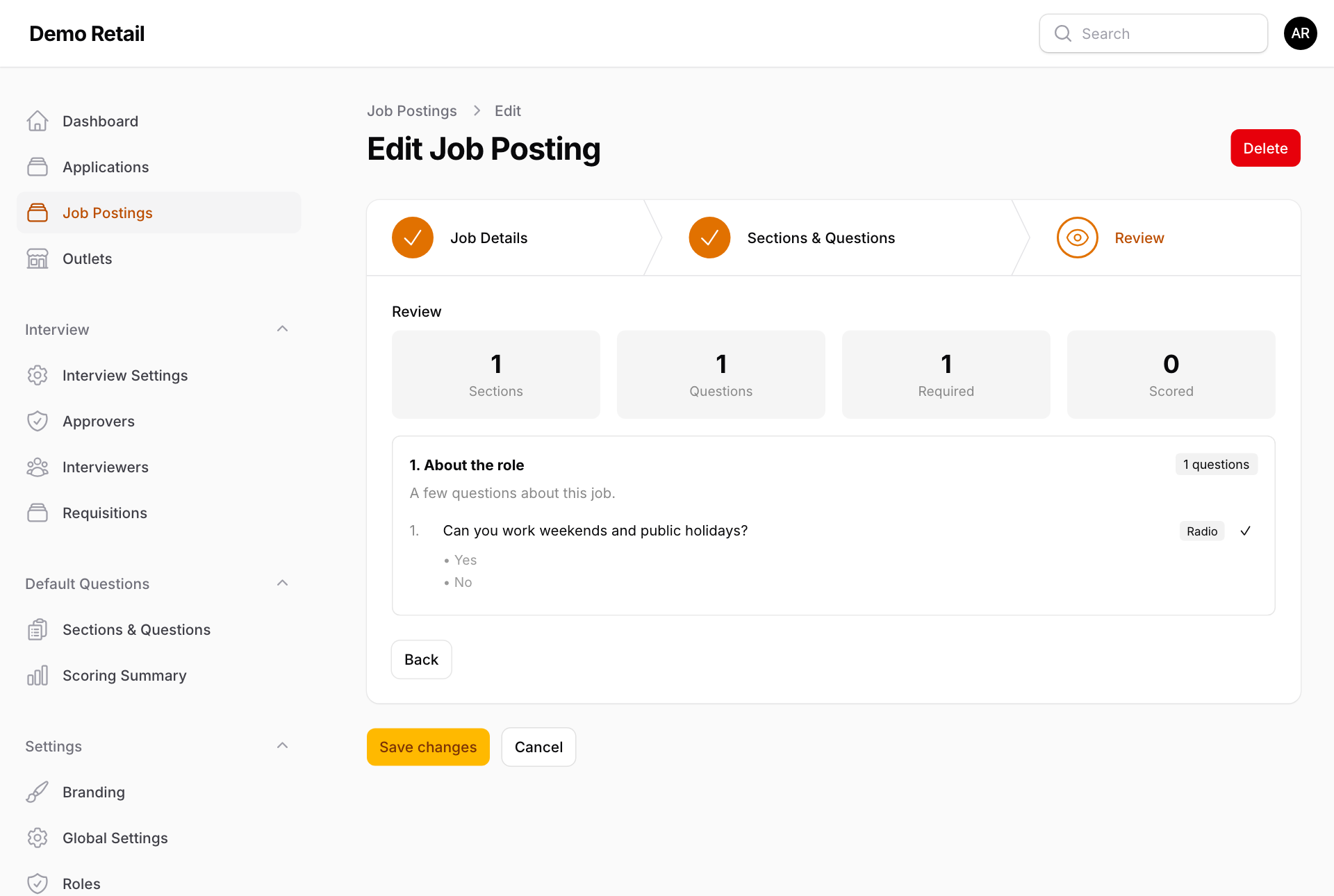
To take a job off the careers page, edit it, switch off Is visible and press Save changes.