Set up outlets, panels and approvers
For: Administrators
Whole guide as PDF (5 MB)Each outlet decides who interviews its applicants and who approves its hires. Applicants pick an outlet when they apply, and the interview takes place at its address.
-
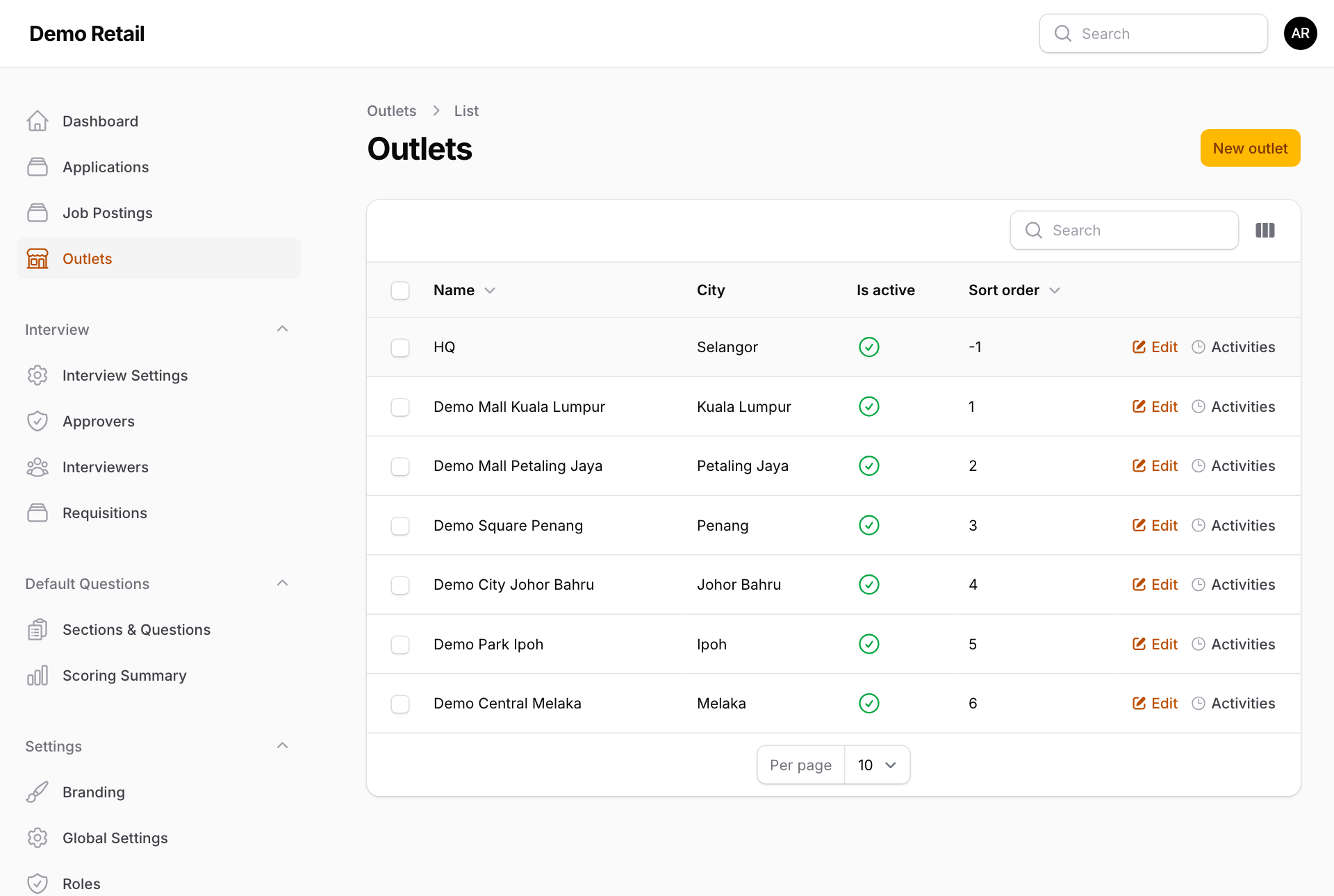
Press Outlets in the menu. Press New outlet, or Edit on an existing one.
-
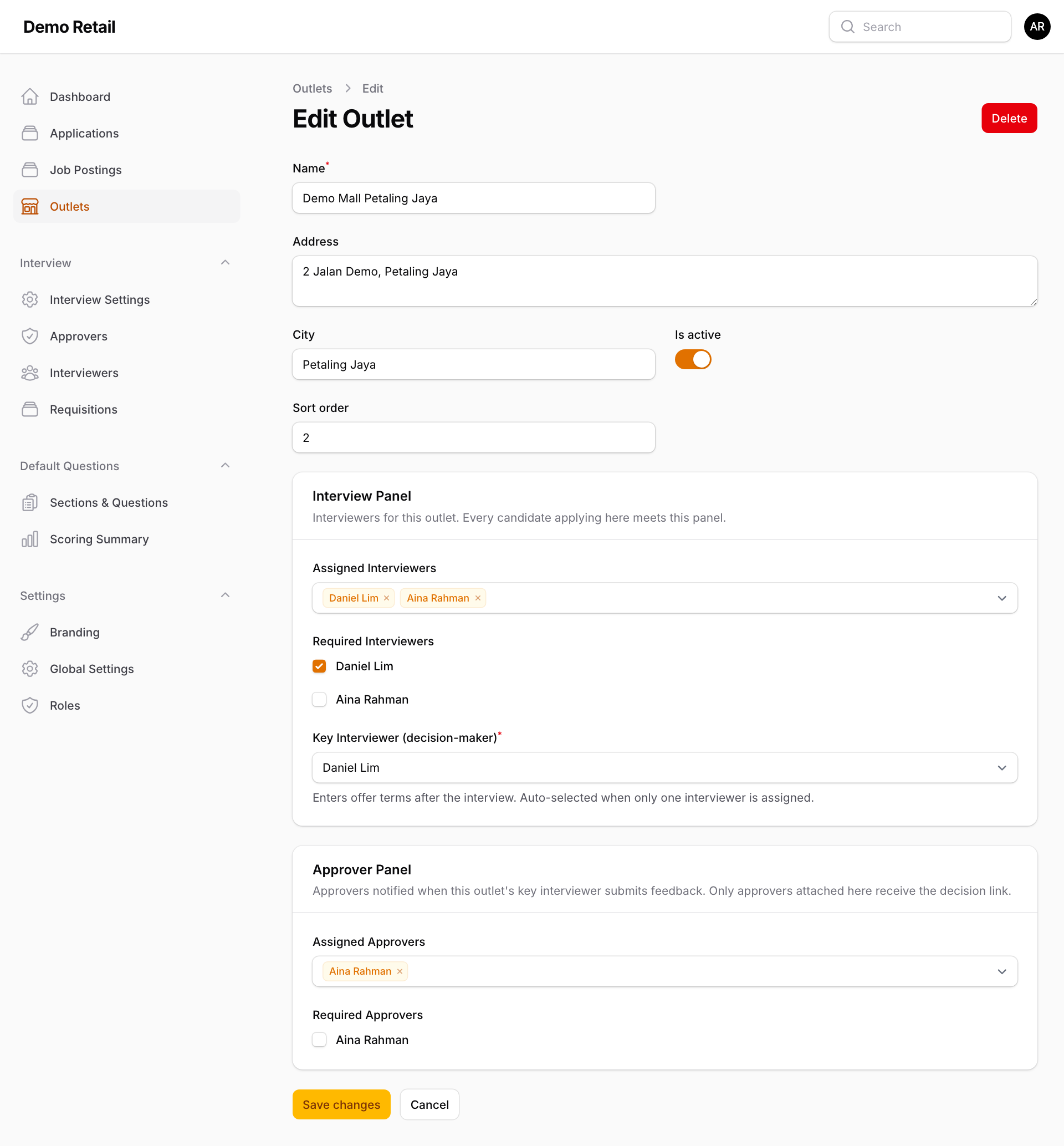
Fill in Name, Address (shown to applicants as the interview location), City, Is active and Sort order.
-
Under Interview Panel:
- Assigned Interviewers: everyone who interviews for this outlet. They must be on the Interviewers page first.
- Required Interviewers: tick those whose free time must match. The others are invited but their calendar is not checked.
- Key Interviewer (decision-maker): the person who recommends the outcome and types the offer terms. Chosen for you when there is only one interviewer.
-
Under Approver Panel, pick the Assigned Approvers: the people who get the hiring decision link. Required Approvers has no effect today.
-
Press Save changes.
An outlet with no interviewers cannot hold interviews: shortlisting its applicants shows "Cannot schedule interview". An outlet with no approvers gets no hiring decision link; HR has to record the decision in the admin screens.
Approvers
A person must be on the Approvers page before you can add them to an outlet.
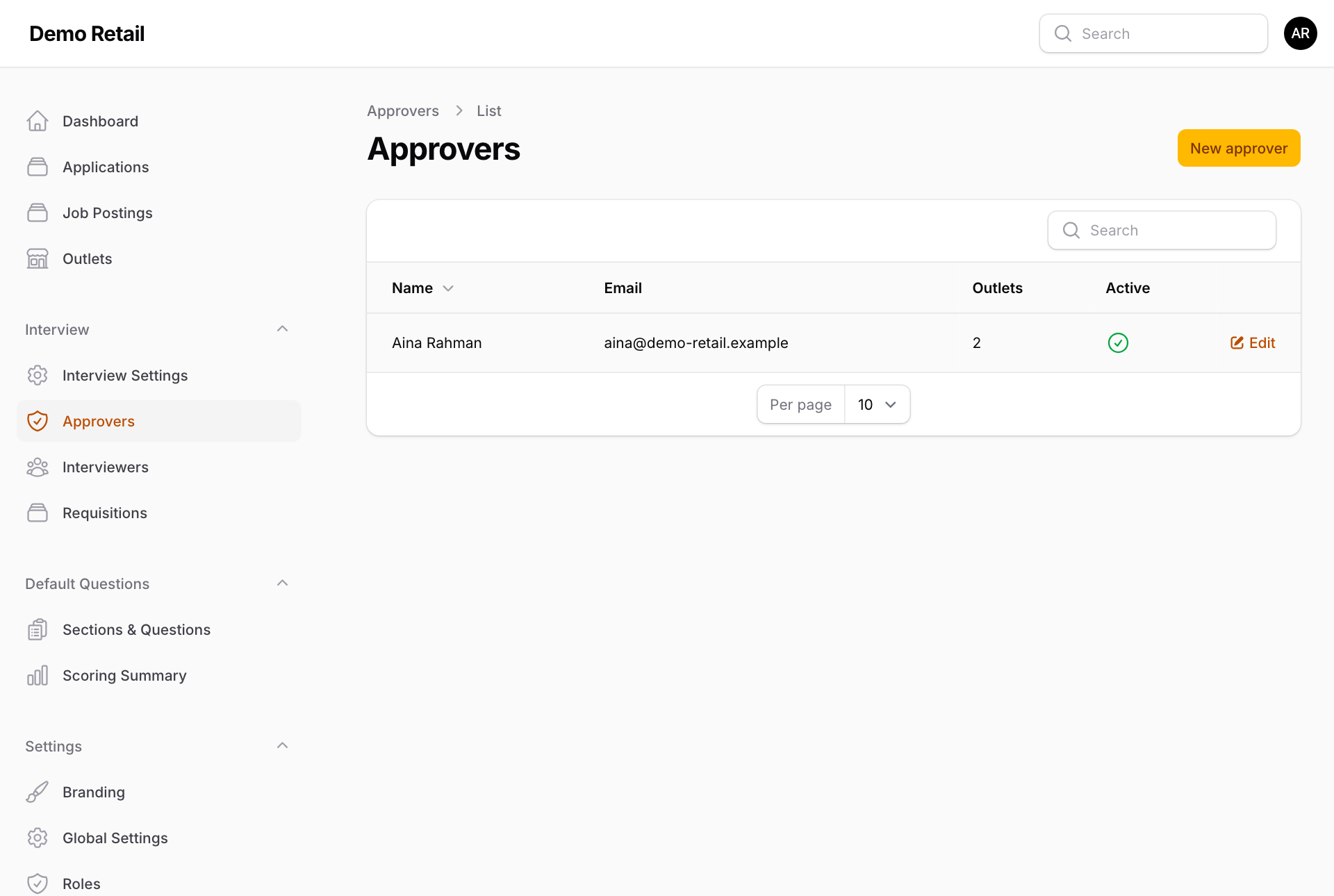
- Under Interview, press Approvers, then New approver.
- Pick the User and press Create. The Outlets column shows how many outlets they approve for.
Approvers here are for hiring decisions only. Position requests go to everyone with the Management Approver role instead (see "Settings, roles and the application form").