Change products and categories
For: Merchandiser
Whole guide as PDF (2 MB)Find a product
- Open Catalog in the menu. The Products tab opens.
- Choose the Market at the top. Each market has its own price list.
- Search by name, SKU (the product code), slug or brand, or narrow the list with the filters. The pills split Live, Listed, not sellable and Not listed products.
- Press Edit on a row, or New product to add one.
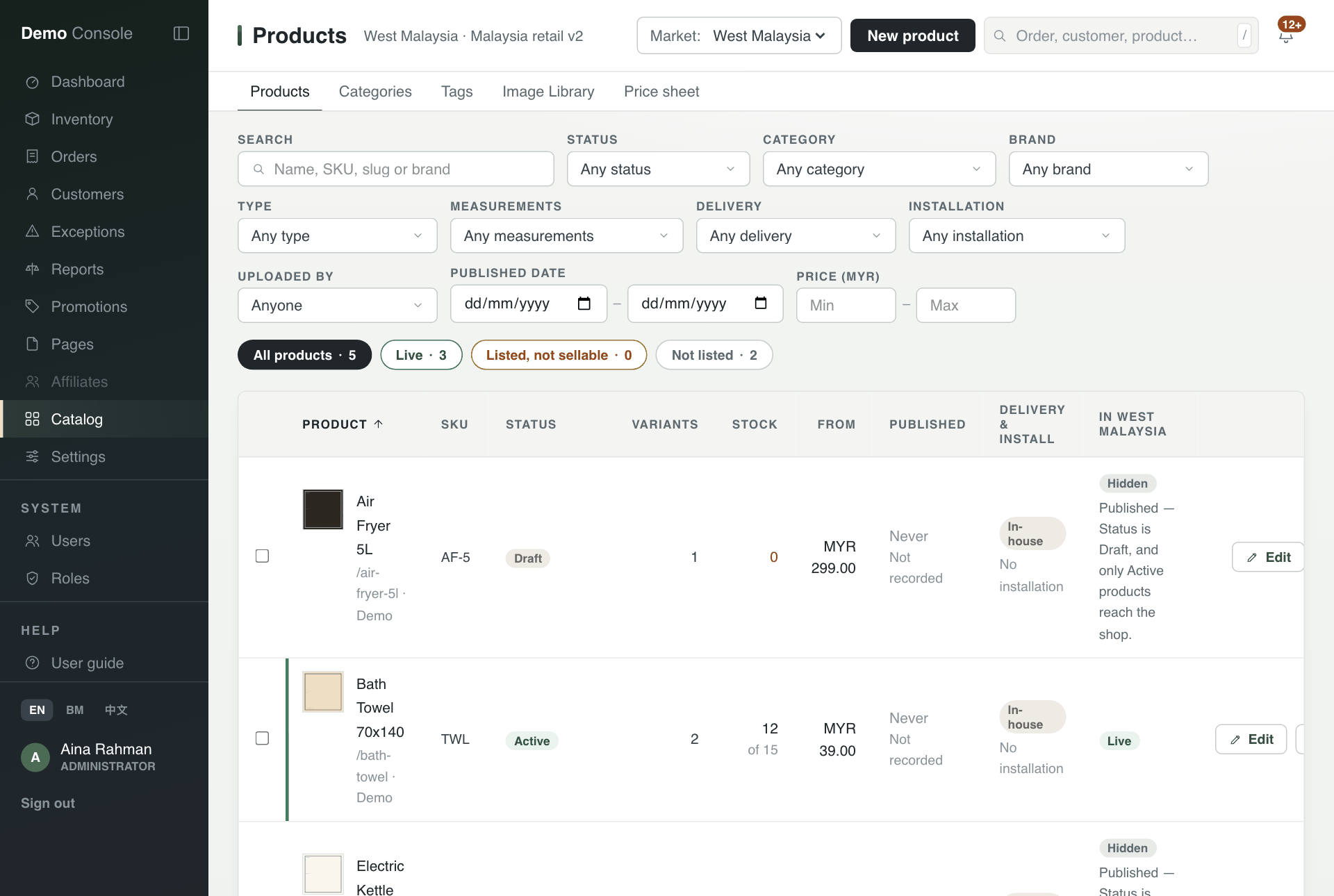
The last column shows whether the product is really on sale in that market. A product is live only when it is published, registered for that market, has an active option, and has a price on the market's current price list.
Change a product
- The tabs across the top are Identity, Specifications, Publication, Markets, Weight & size, Pricing, Images, Recommended and Merchandising.
- Make your change, then press Save changes. All tabs are saved together.
- The box on the right says, per market, why the product is not on sale yet and what to fix.
- View in shop opens the product page customers see.
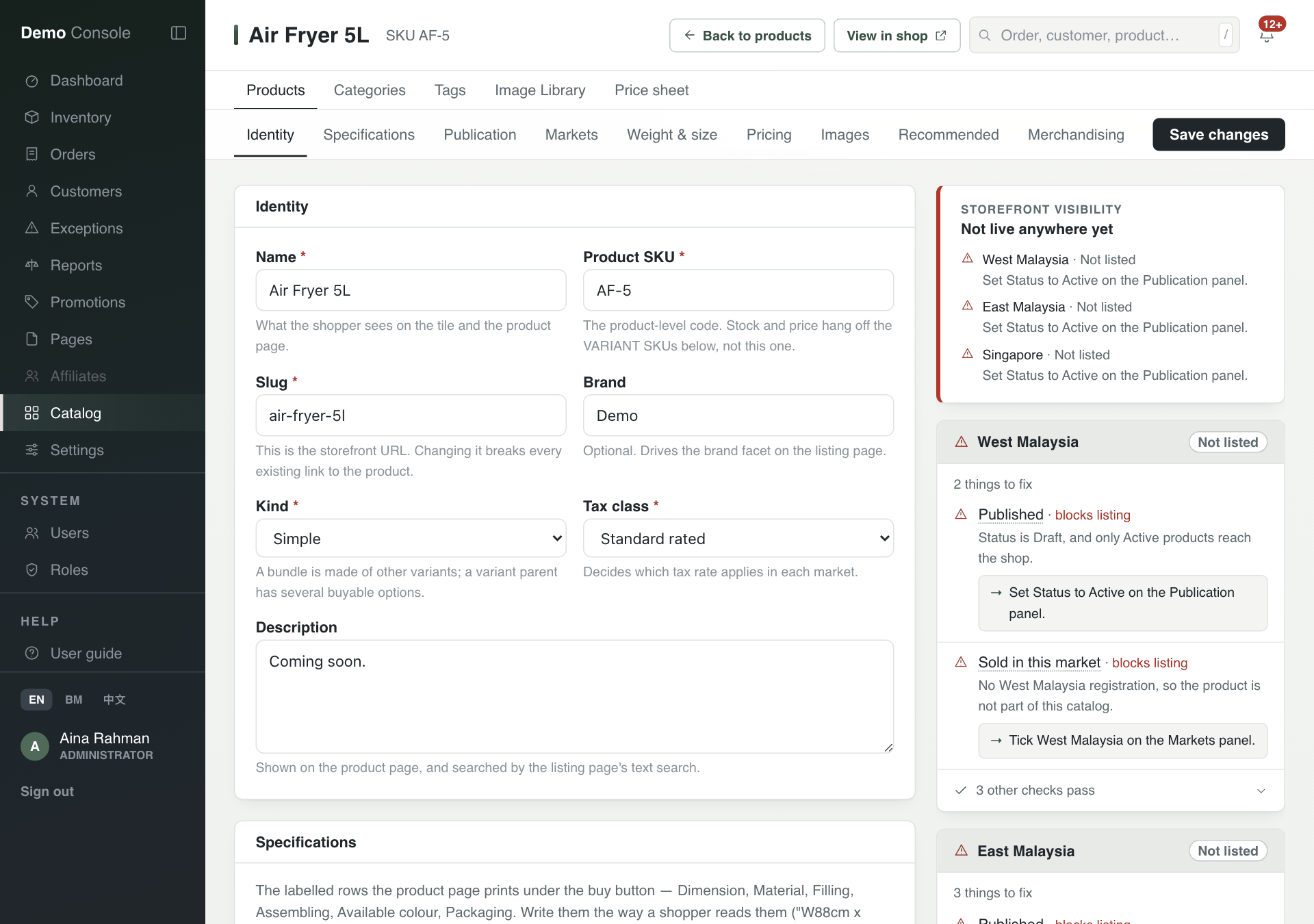
Changing a product's slug (its web address) breaks every existing link to it.
Stock is not changed here. A Merchandiser can shape products but never correct stock; that is done on the Inventory screens.
Categories
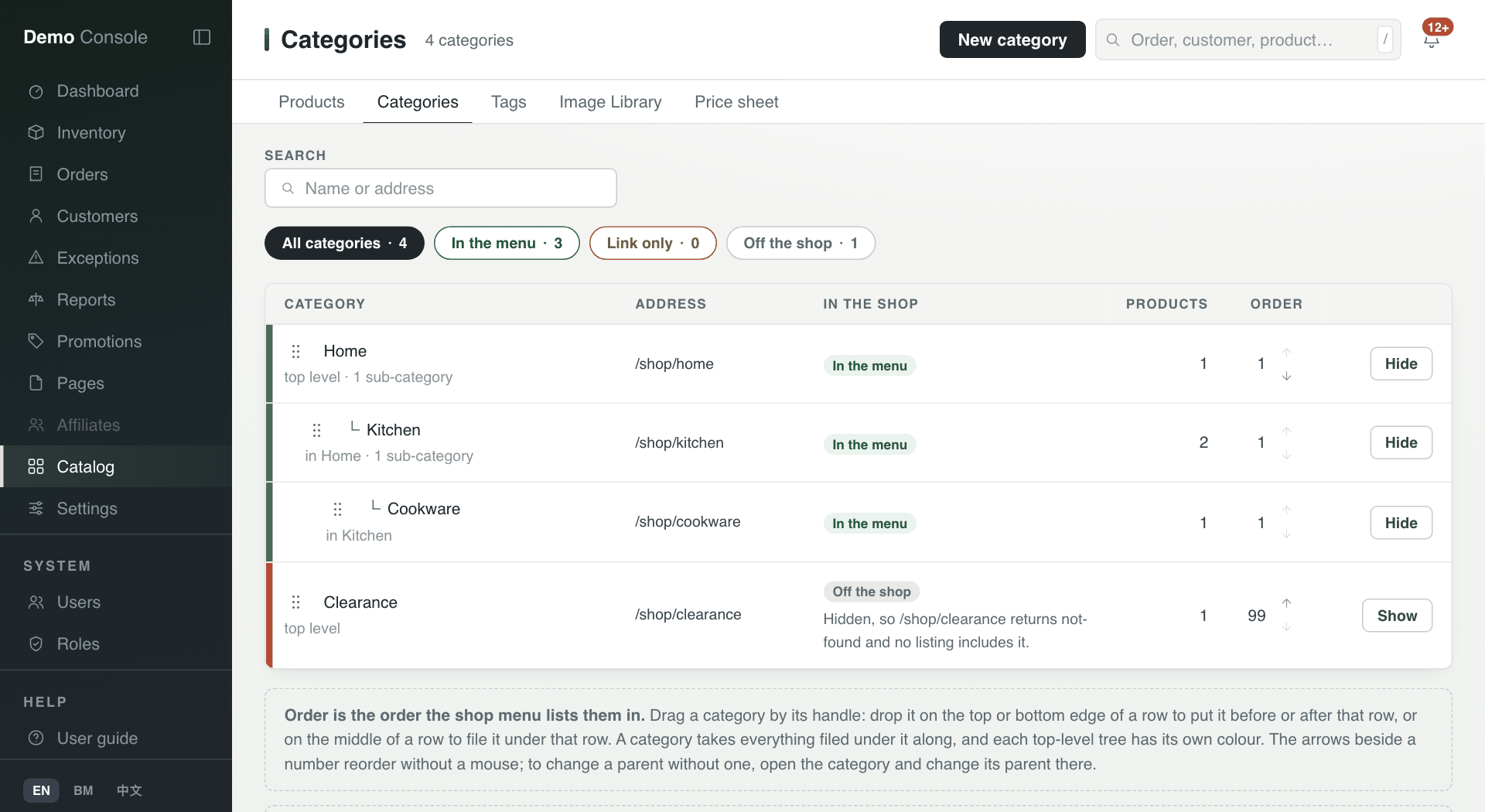
The Categories tab shows the shop's menu, in the order customers see it. Drag a category by its handle to move it. Hide takes a category off the shop without deleting it; Show puts it back. Press New category to add one.