Run a promotion
For: Marketing
Whole guide as PDF (2 MB)New campaigns are saved as drafts. Nothing comes off a customer's basket until someone switches the campaign on.
- Open Promotions in the menu and press New campaign.
- Under What kind of campaign is this?, pick Discount code (the customer types a code), Automatic sale (money comes off by itself), Free delivery, or Quantity deal (buy two get one free, or a discount once the basket holds several). You cannot change the kind later.
- Fill in The campaign, What the customer gets, What it applies to and When it runs. Each field explains itself underneath. The What this will do box on the right says in plain words what will come off a basket.
- Press Save as draft (or Save changes on a campaign you are editing). The campaign stays a draft.
- When it should start, press Switch this campaign on.
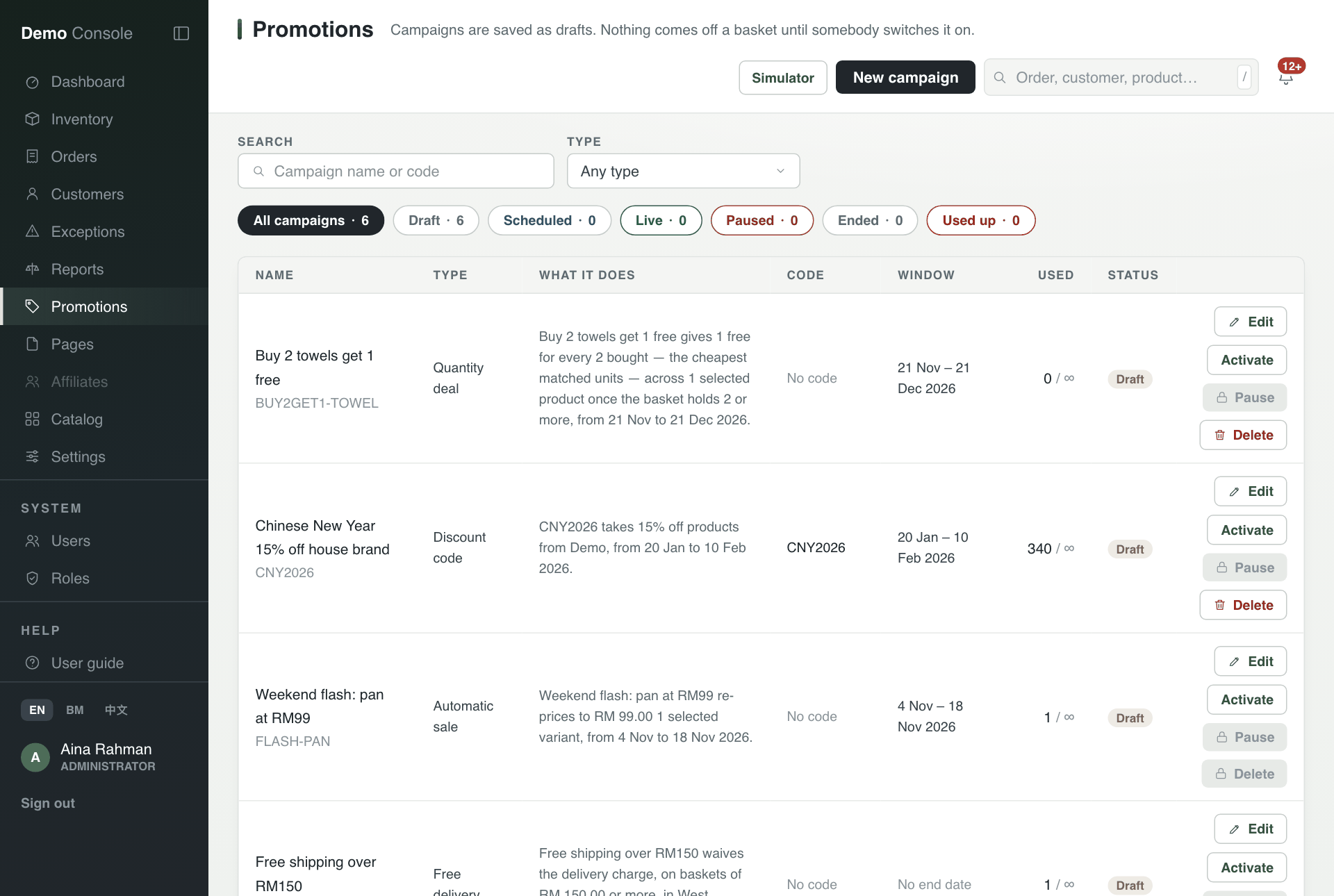
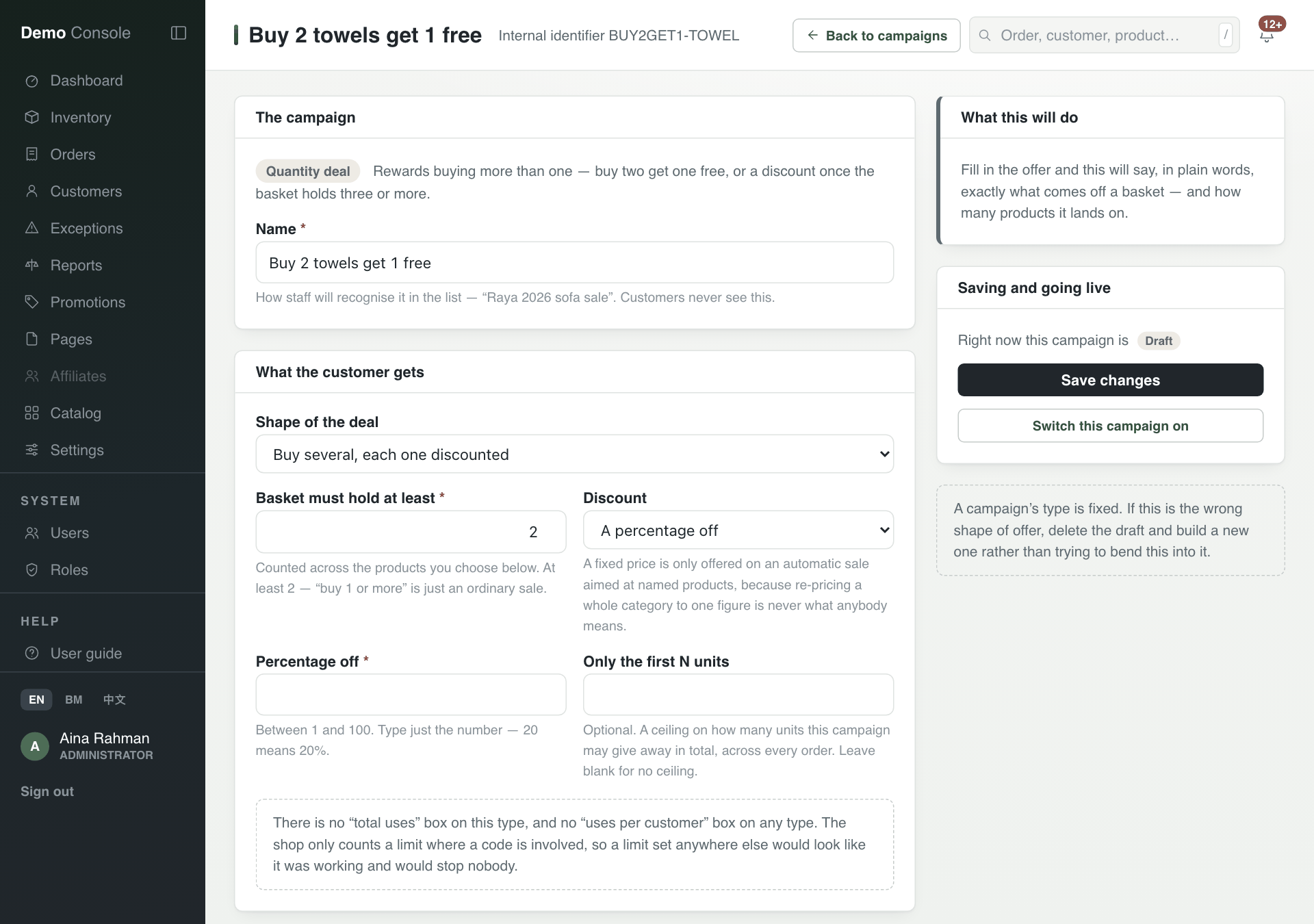
Status
A campaign is Draft until switched on, Scheduled until its start date, Live after that, Ended after its end date, and Used up once a code reaches its limit. Pause and Delete are locked while a campaign is a draft or once it has been used.
Only a discount code has a "total uses" limit. No campaign has a "uses per customer" limit.
Try it before customers do
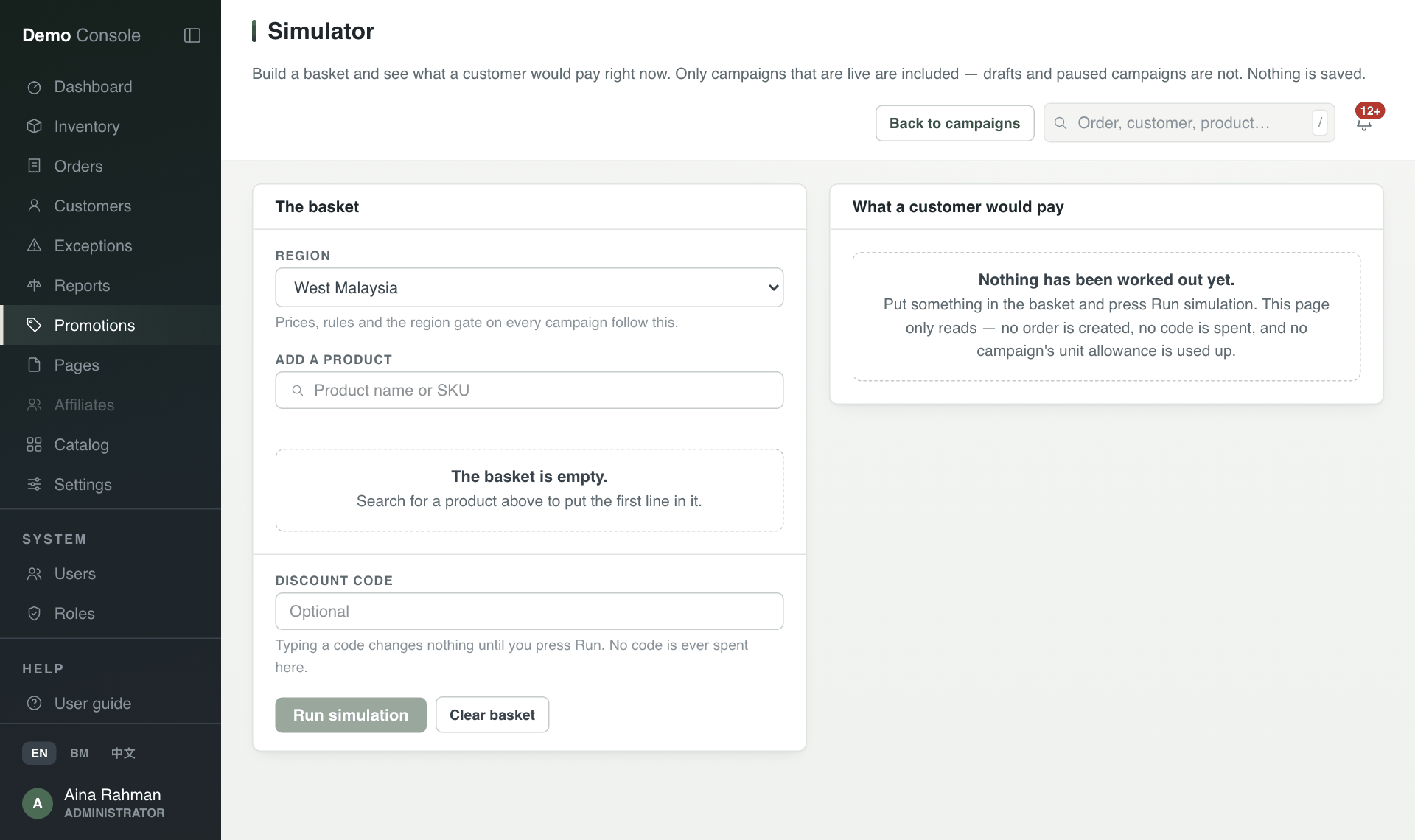
Press Simulator. Choose a region, add products, type a discount code if you want, and press Run simulation. It shows what a customer would pay right now under the live campaigns. Drafts and paused campaigns are not included. Nothing is saved and no code is spent.
Finance staff are never allowed to create promotions.