Pack and send an order
For: Order Ops, Customer Service
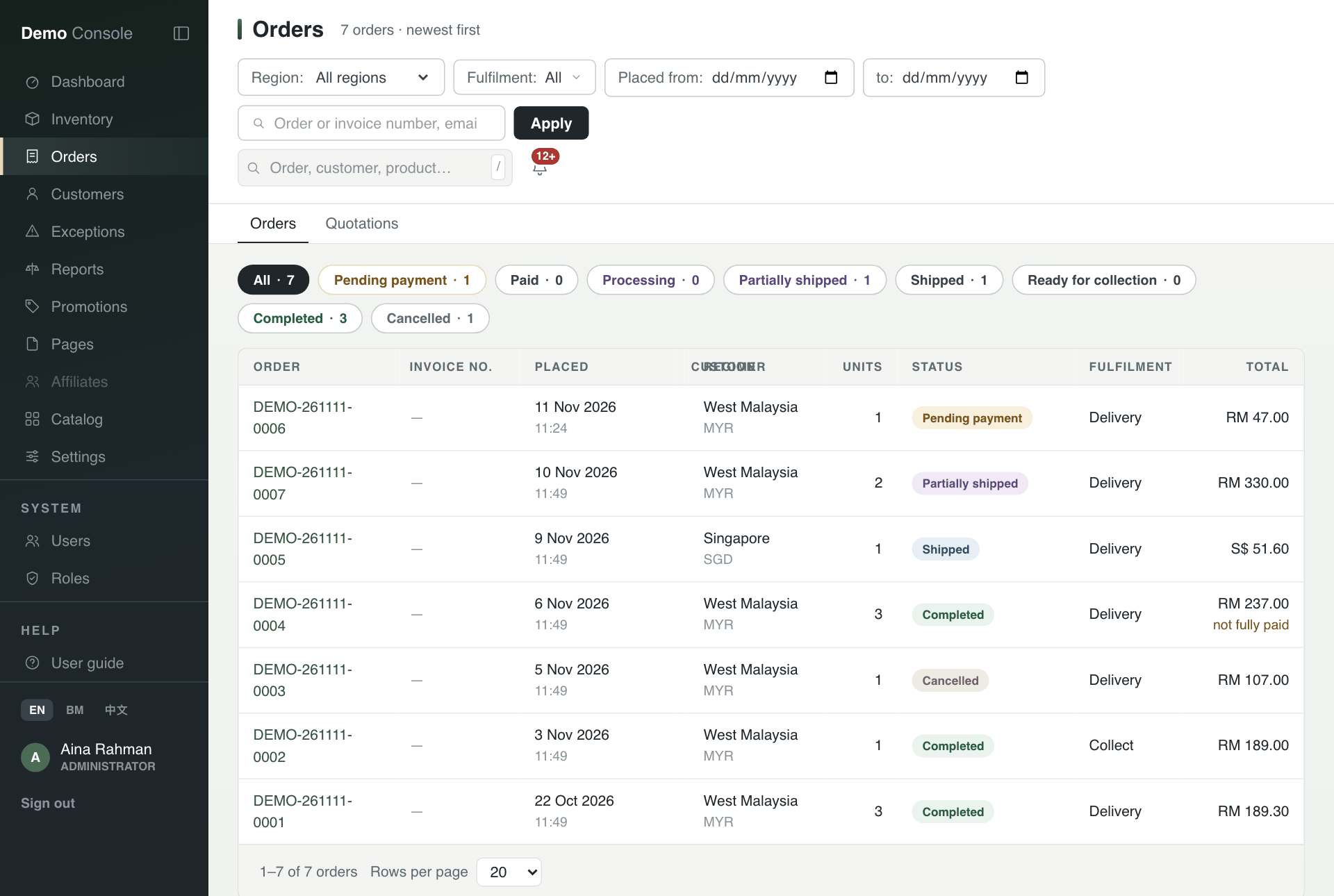
Whole guide as PDF (2 MB)- Open Orders in the menu. The pills at the top count orders in each status: Pending payment, Paid, Processing, Partially shipped, Shipped, Ready for collection, Completed and Cancelled.
- To narrow the list, pick a Region, a Fulfilment type or dates, or type the start of an order number, invoice number, email address or phone number, then press Apply. Searching by customer name does not work.
- Click an order number to open it.
The bar across the top of an order shows where it is: Pending payment, Paid, In fulfilment, Shipped, Completed.
Send it
- You do not press anything to move an order out of Pending payment. Packing starts by itself once the payment comes through.
- Press Print packing slip for the picker. It lists what to pick and where it goes, with no prices.
- Press Start preparing once the items are being picked.
- For a delivery, choose Going out by (Courier or Own fleet), type the Carrier and the Tracking number, then press Mark shipped. Leave the tracking number empty for an own-fleet run with no consignment note.
- For click-and-collect, press Mark ready for collection instead. When the customer picks it up, fill in Who collected it and press Mark collected.
- When a delivery arrives, press Mark delivered. The order is then Completed, and anything after that is a return.
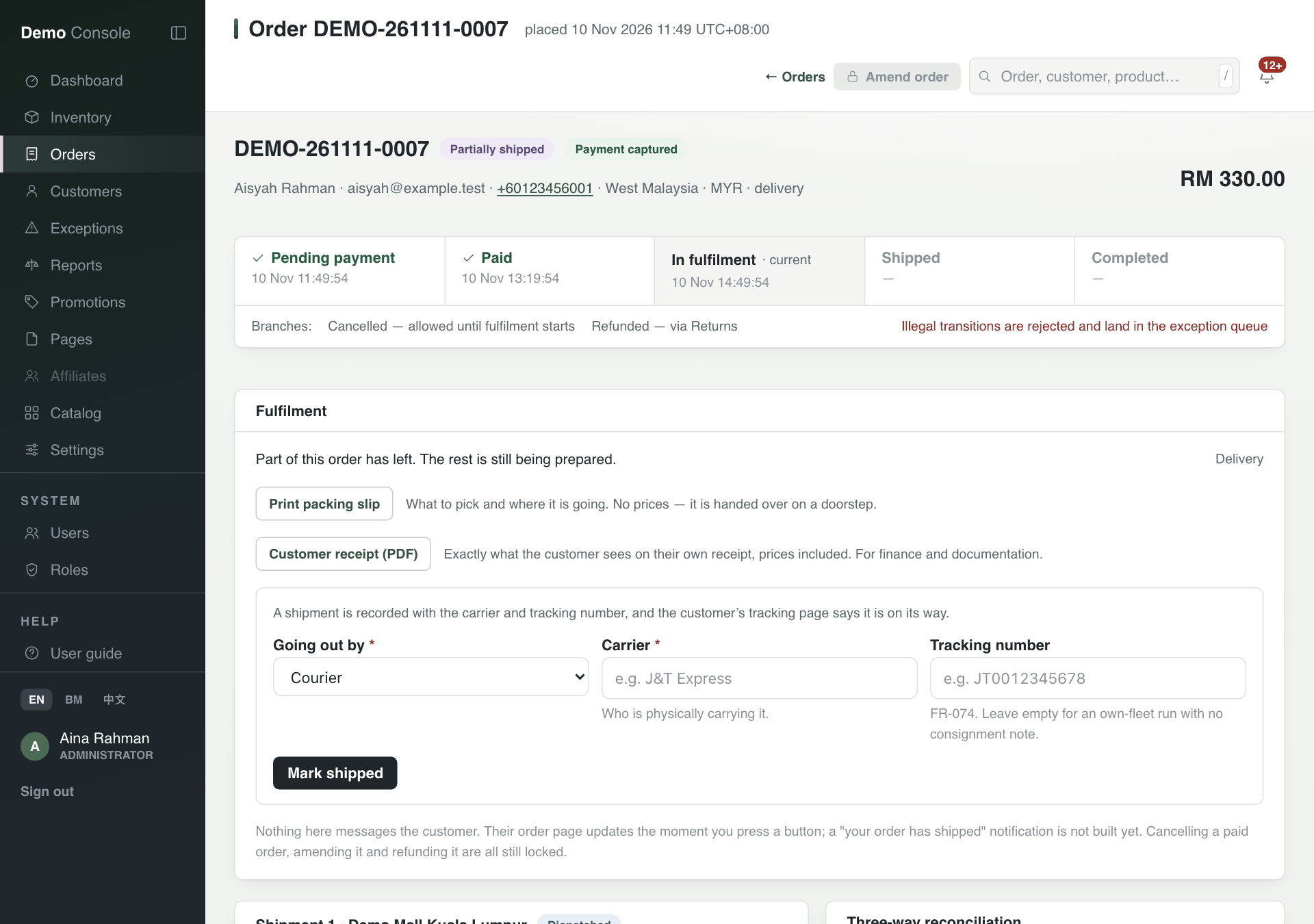
An order sent from two places shows one shipment per place, each with its own status.
Good to know
- Nothing on this page messages the customer. Their own order page updates the moment you press a button, but a "your order has shipped" message is not built yet.
- Amend order is locked: changing what is on a placed order is not built yet. Cancelling a paid order is also locked.
- Customer receipt (PDF) is the same receipt the customer sees, with prices.
Quotation requests
The Quotations tab next to Orders lists customers who asked for a price from a product page. Reply to the customer yourself, then mark the request answered. Marking it answered sends nothing.