Handle a return or a refund
For: Customer Service, Finance
Whole guide as PDF (2 MB)Raise a return
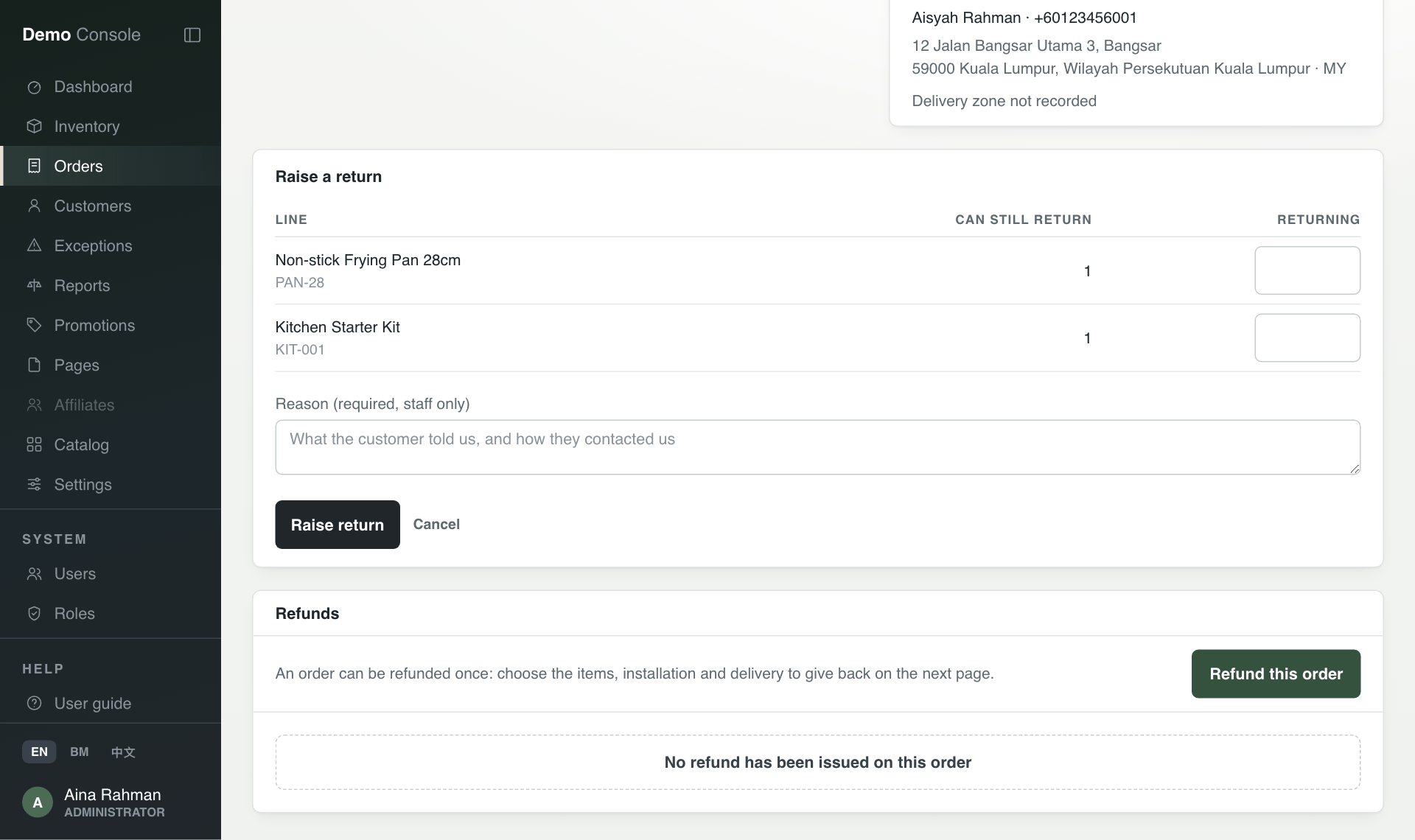
When a customer wants to send something back:
- Open the order and scroll down to the return section. Press Raise a return.
- Under Returning, type how many of each item is coming back. Can still return shows the most you can enter.
- In Reason (required, staff only), write what the customer told you and how they contacted you.
- Press Raise return.
Move the return along
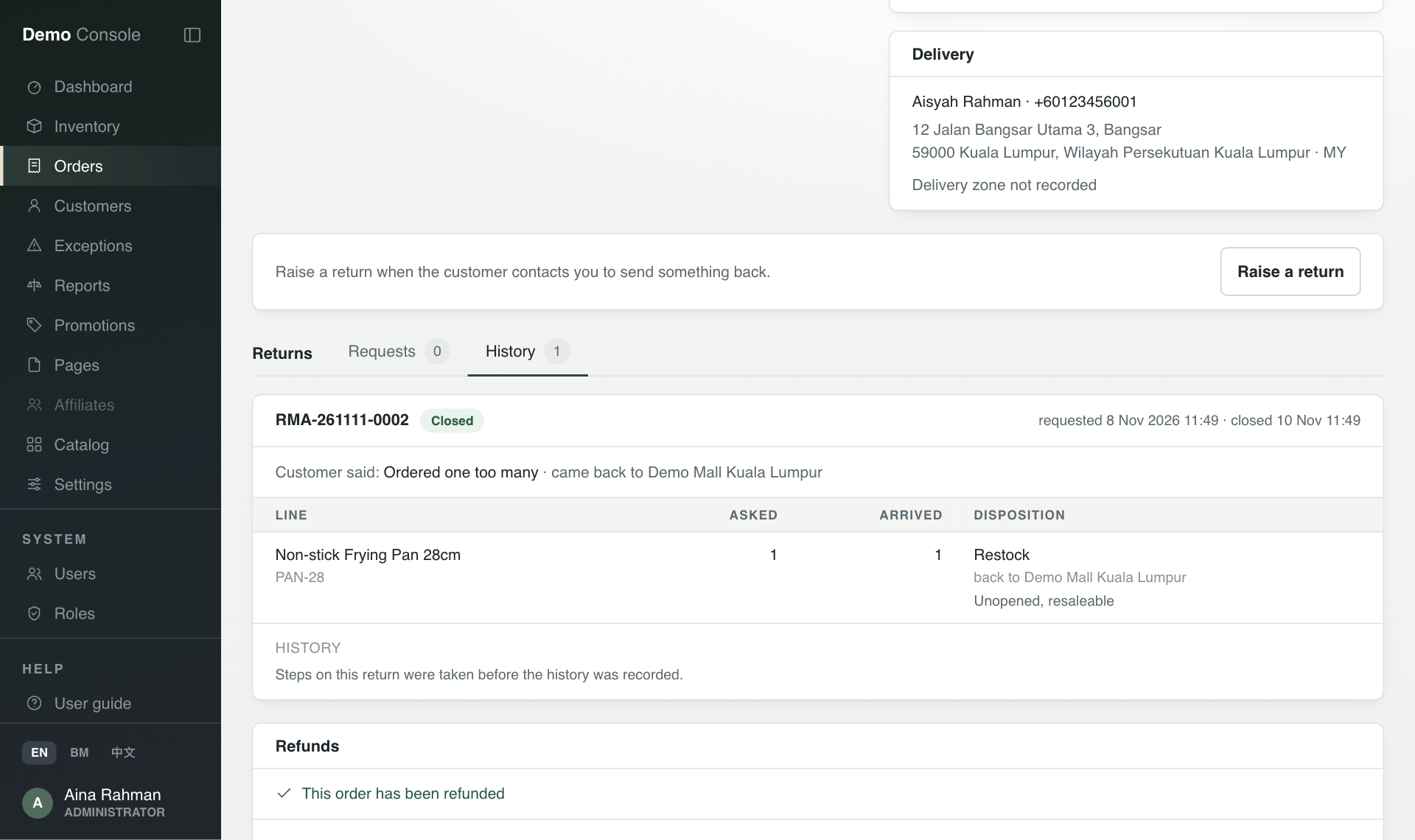
The return appears under Returns on the order. Each step has its own button:
- Approve or Reject the request.
- When the parcel arrives, choose the outlet or warehouse it arrived at and press Mark received.
- Record what condition each item is in and where it goes (back on the shelf, or nowhere), then press Record inspection.
- Press Refund this return to prepare the refund, or Close return if no money goes back.
A closed return moves to the History tab, with what was asked for, what arrived and what happened to it.
Refund an order
An order can be refunded once. Use this for a cancellation, a price adjustment, goodwill or a delivery that failed.
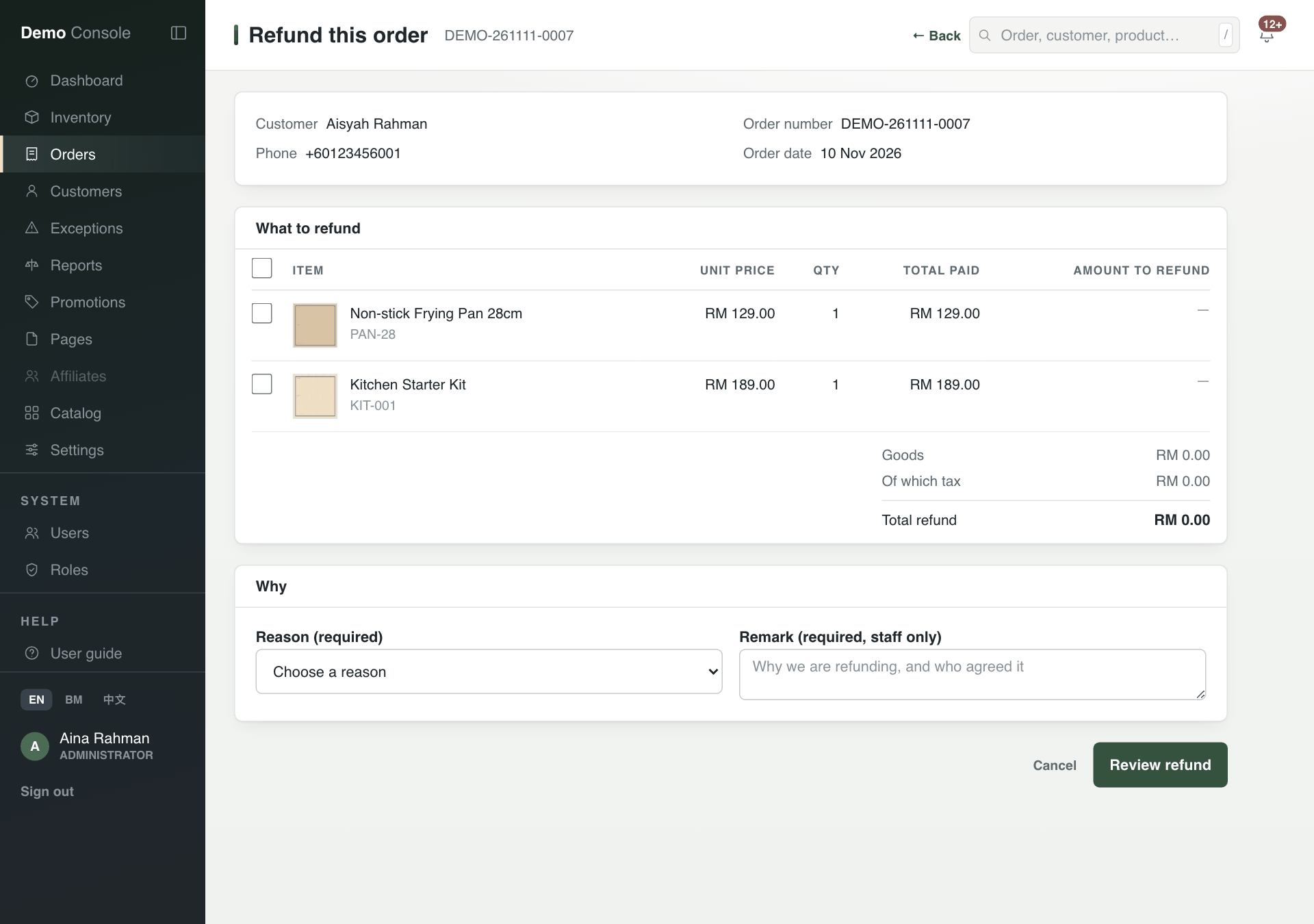
- On the order, press Refund this order.
- Tick the items to refund. The total updates as you tick.
- Choose a Reason (required) and write a Remark (required, staff only): why you are refunding and who agreed to it.
- Press Review refund, check the figures, then press Submit for approval.
Who approves and pays
A prepared refund pays nothing yet.
- Finance opens the order and presses Review and approve, then Approve refund (or Reject refund). The refund then shows Approved, payout not sent.
- Someone allowed to send payouts (Customer Service, Finance or an Administrator) presses Send payout. This pays through the payment provider or records a bank transfer made by hand.
Nobody can approve a refund they prepared themselves.