Give staff access
For: Administrators
Whole guide as PDF (2 MB)People sign in with your company's shared sign-in account (IDS). This screen only decides what each person can do in the console.
Give someone a role
- Open Users in the menu. Use the pills to see who holds each role.
- Press Roles → on a person's row. To add someone not on the list, press Add user and type their mobile number; the console looks the number up first.
- Tick their roles and press Save roles.
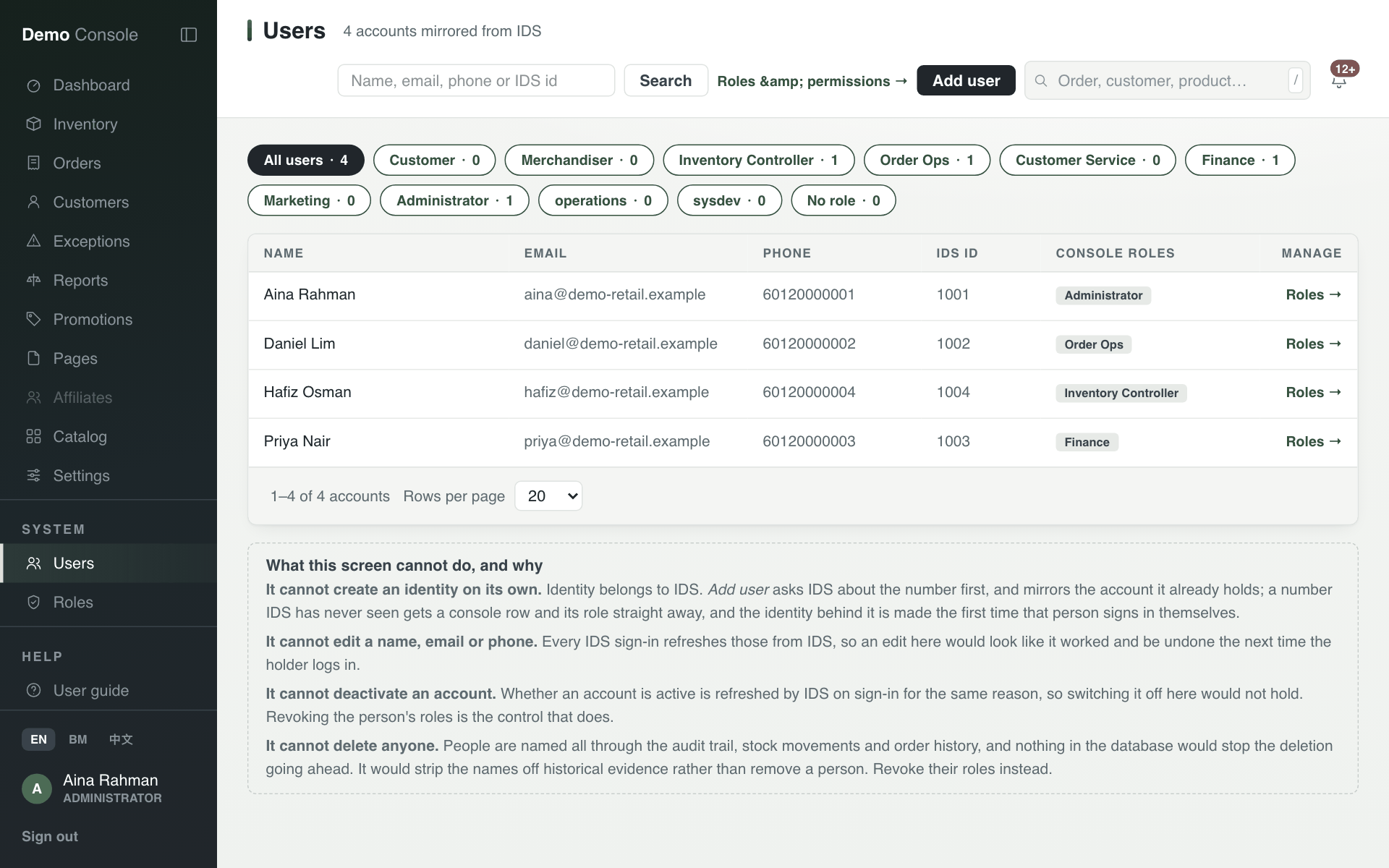
A person's name, email and phone cannot be edited here. They come from the sign-in account and are refreshed every time the person signs in. To remove someone's access, untick all their roles. People cannot be deleted, because their name stays on orders and stock records.
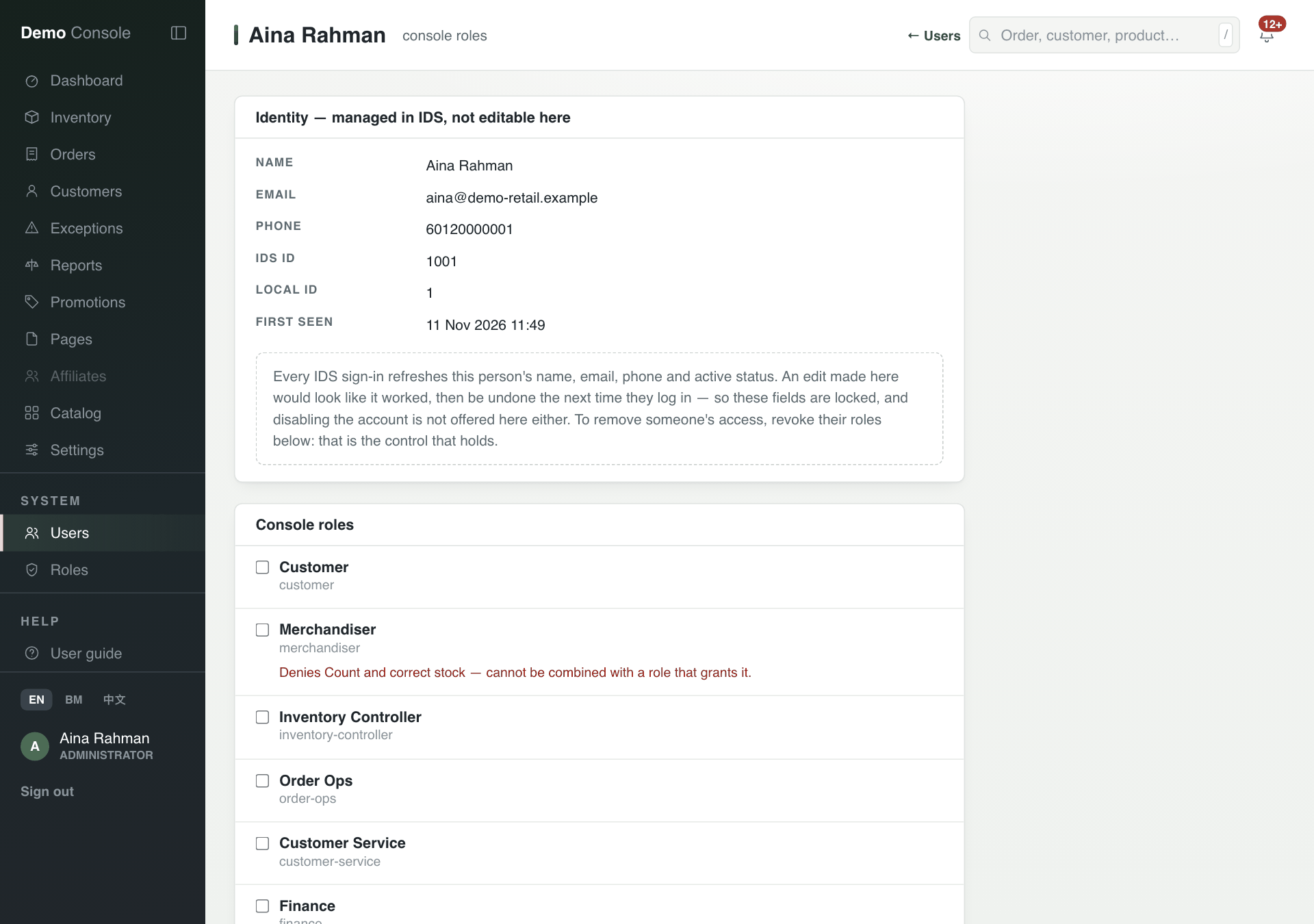
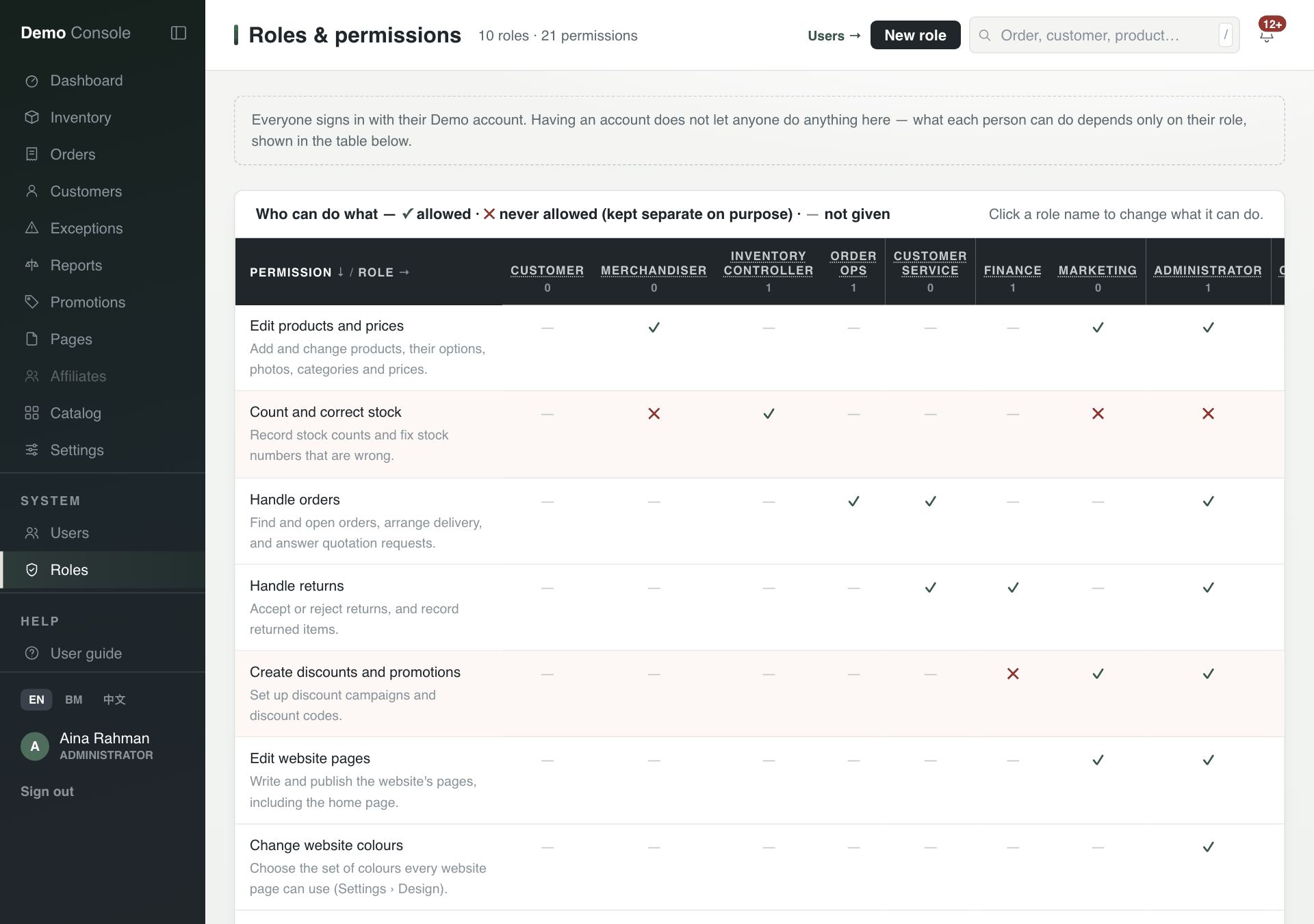
Some roles cannot be combined. For example, a person cannot hold Administrator and Inventory Controller together, because an Administrator is never allowed to correct stock. The page says so under the role before you save.
See what each role can do
Open Roles. The table shows every permission down the side and every role across the top: ✓ allowed, ✕ never allowed (kept separate on purpose), — not given. Click a role name to change it, or press New role.