Look after stock
For: Store managers
Whole guide as PDF (2 MB)Stock pages always work on the outlet chosen at the top left.
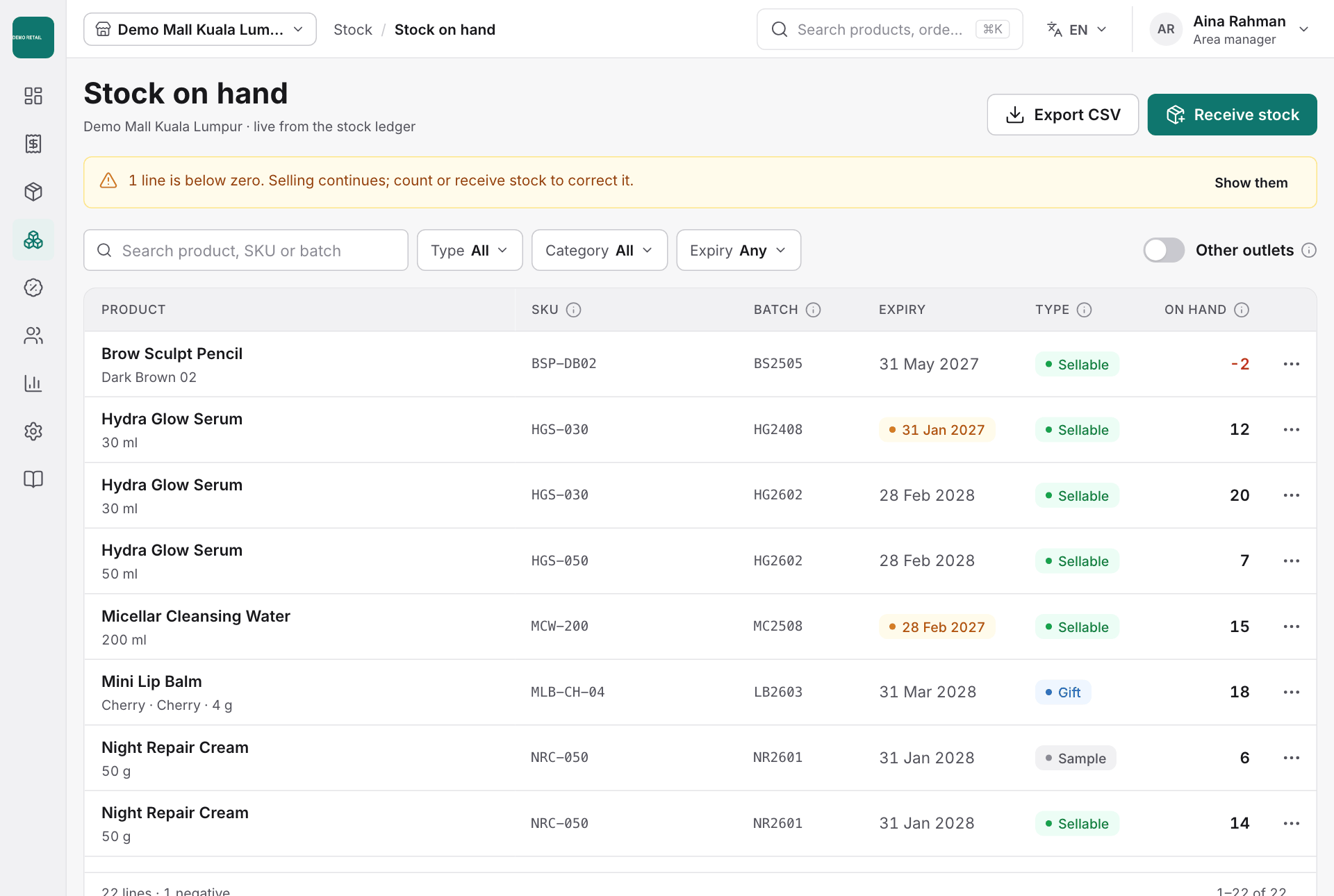
See what is in stock
Open Stock, then Stock on hand. Filter by Type (sellable, tester, sample, gift), Category or Expiry, and press Export CSV to download. A yellow banner warns when a line is below zero; selling continues, and counting or receiving stock corrects it.
Receive a delivery
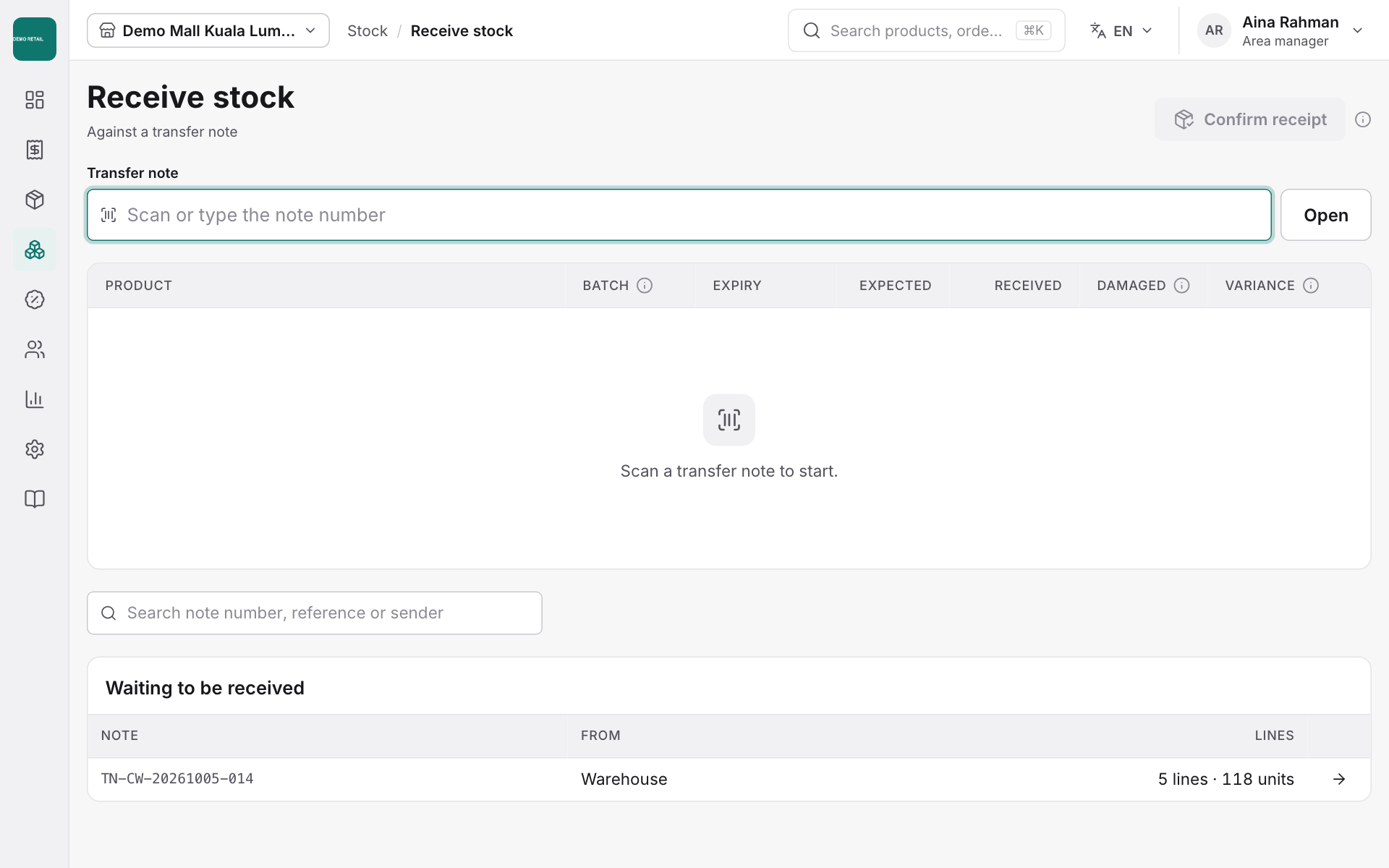
- Open Stock, then Receive stock.
- Scan or type the transfer note number and press Open. Deliveries on their way are listed under Waiting to be received.
- For each line, type the quantity you received and any damaged units. Variance shows anything missing, extra or damaged.
- When a line does not add up, pick the reason and add a note if it helps. Confirm receipt stays off until every short or extra line has a reason.
- Press Confirm receipt.
Send stock to another outlet
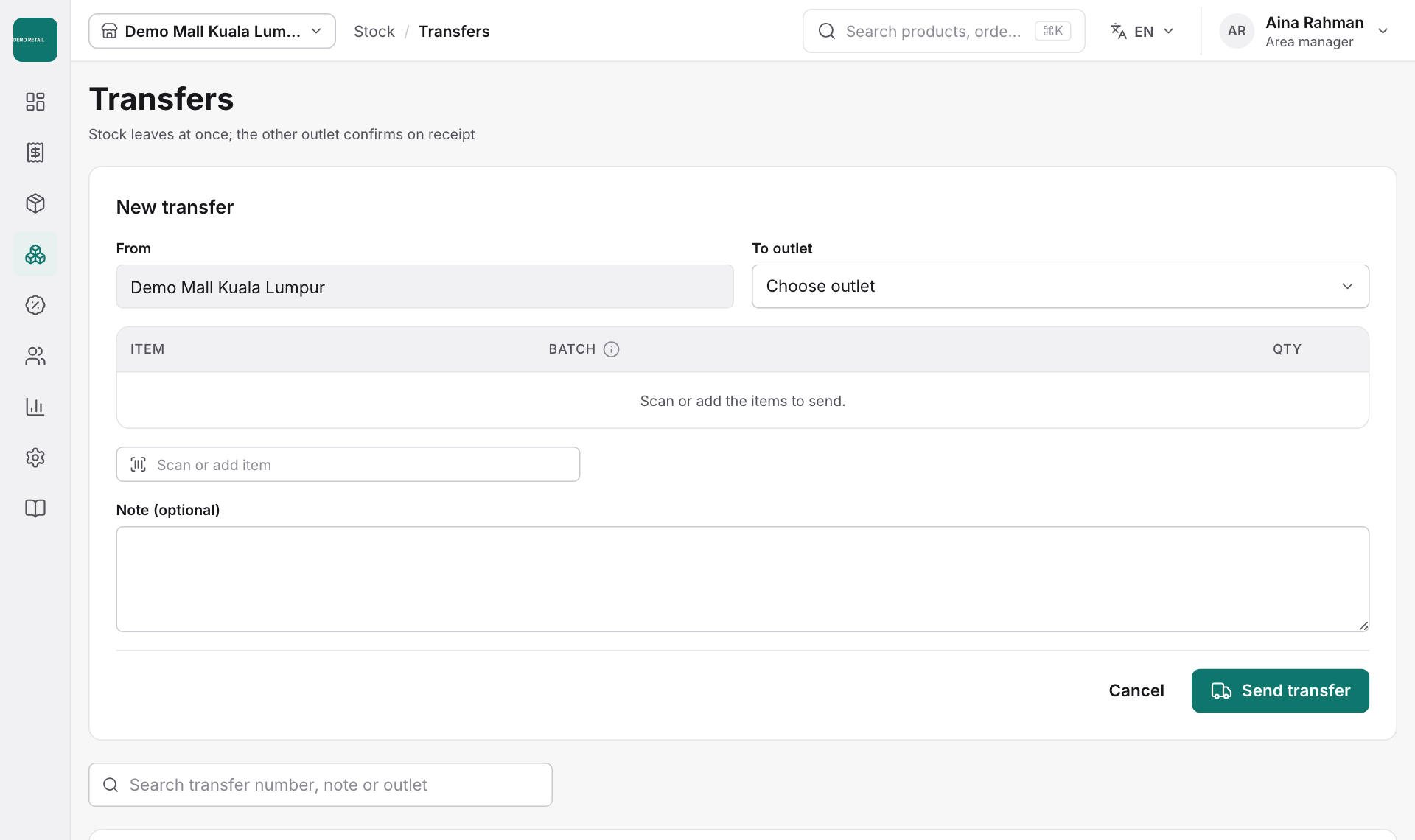
- Open Stock, then Transfers.
- Under New transfer, choose the outlet it goes To, scan or add the items and quantities, then press Send transfer.
- The stock leaves your outlet straight away. The other outlet confirms it when it arrives.
Count stock
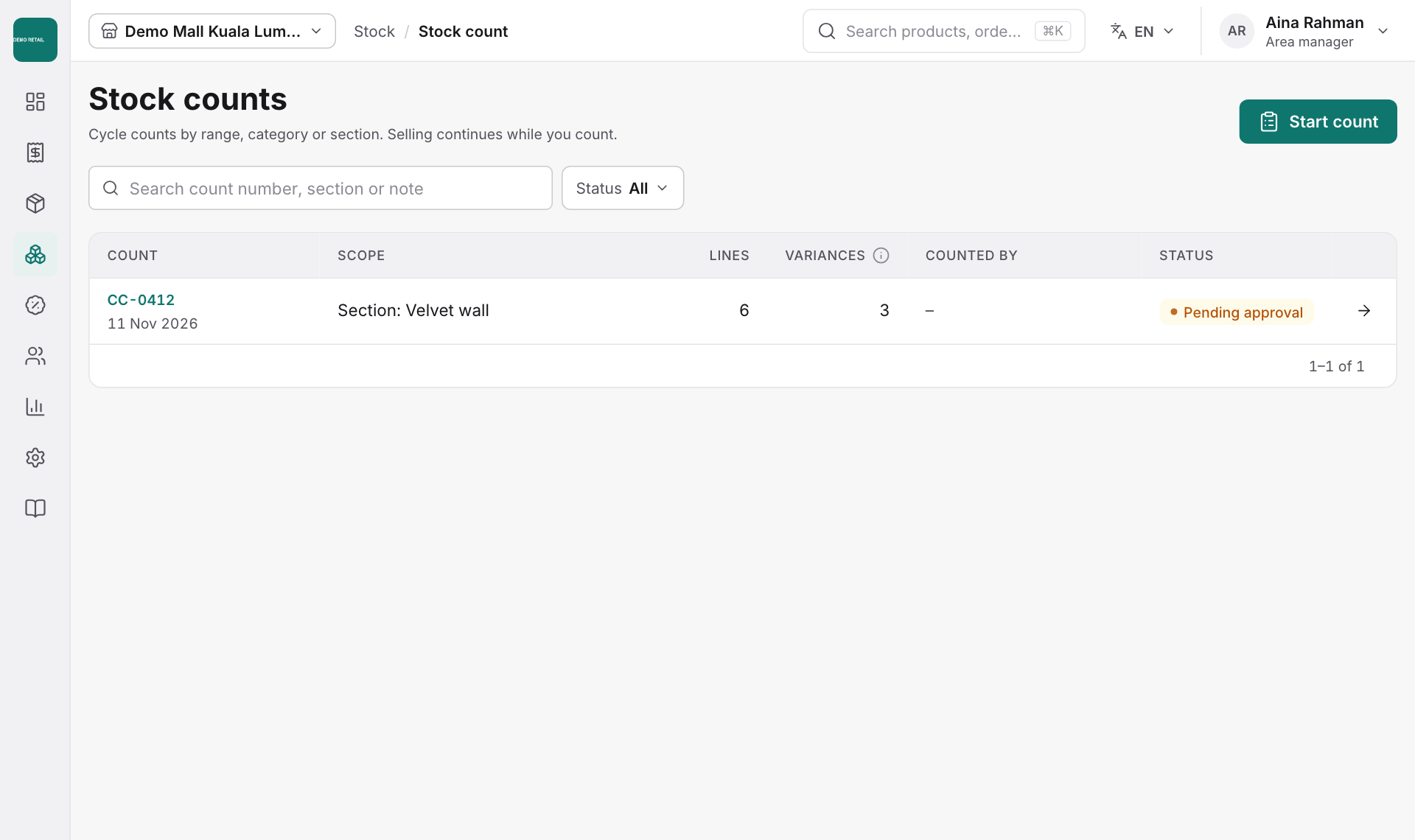
- Open Stock, then Stock count, and press Start count.
- Count by range, category or shelf section. You can keep selling while you count.
- When you finish, a manager approves the count and the stock figures are updated.
Write off damaged or expired stock
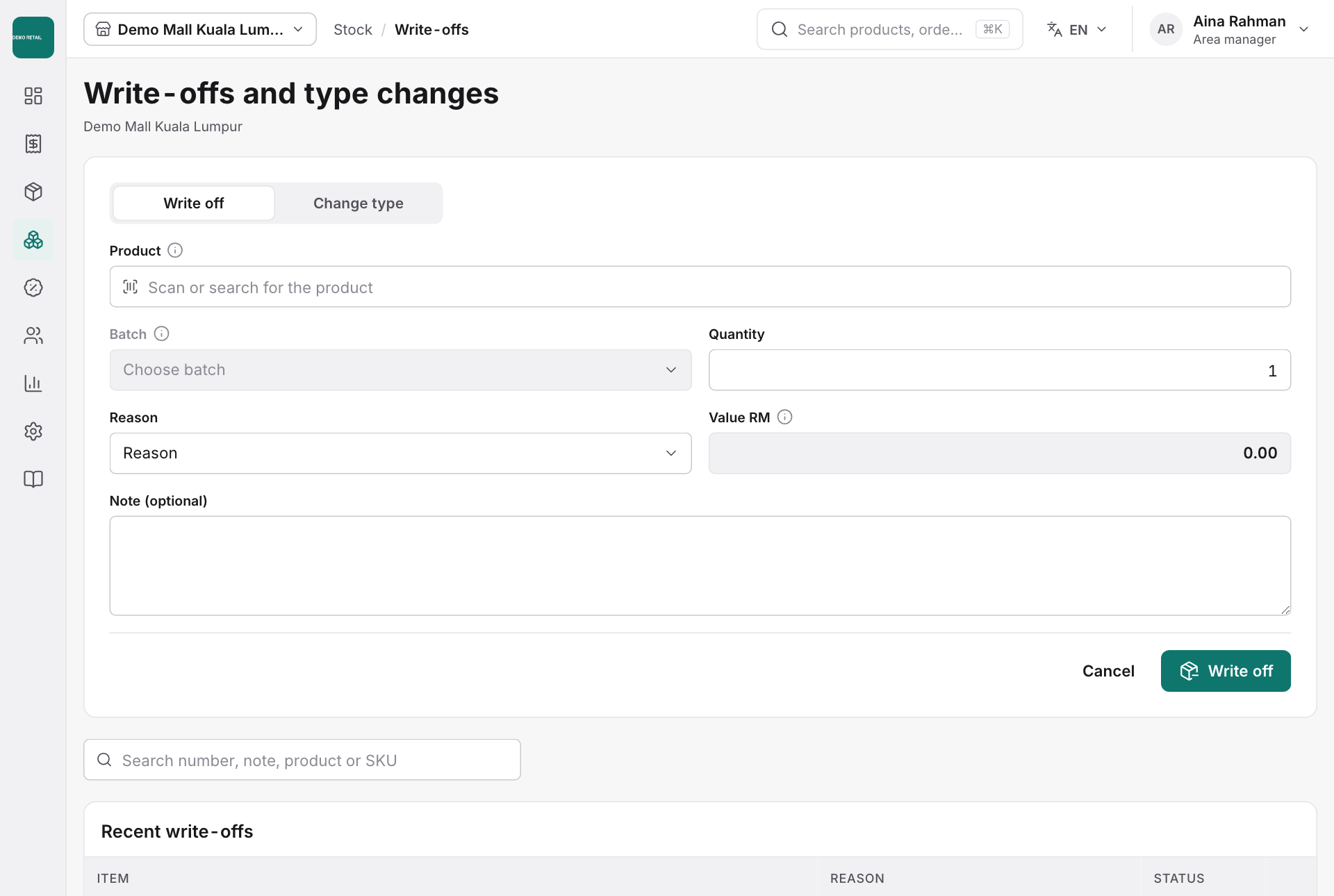
- Open Stock, then Write-offs.
- Choose the product, batch and quantity, and the reason: damaged, expired, used as a tester, used for samples, theft or loss, or other.
- Add a note if needed and press Write off.
- Use Change type to move stock between sellable, tester, sample and gift.
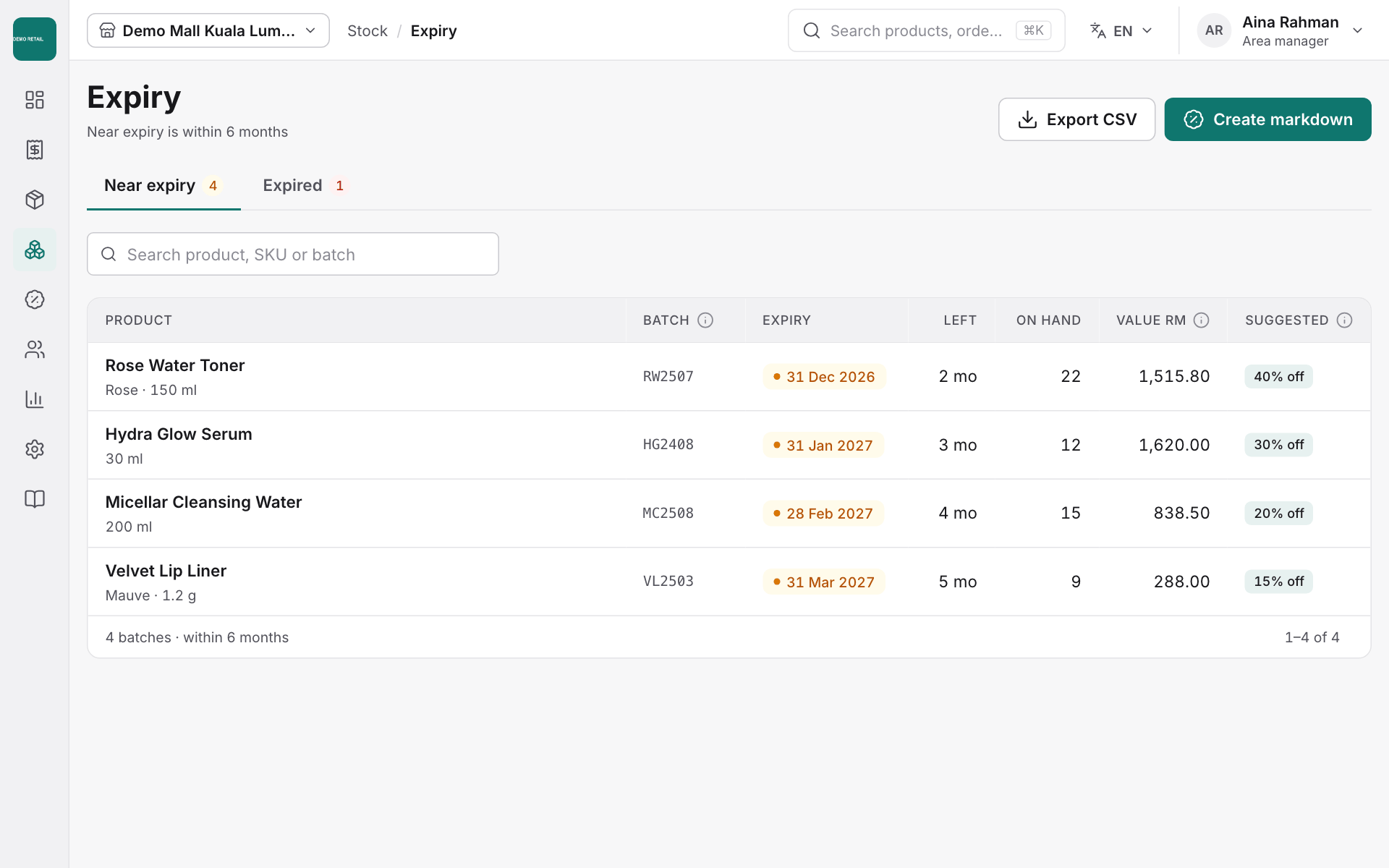
Check expiry dates
Open Stock, then Expiry, to see stock that expires within 6 months (Near expiry) and stock already Expired. Press Create markdown to put a discount on items close to expiry.