Add a procedure
For: Administrators
Whole guide as PDF (2 MB)A procedure is added in two steps: first its details, then its content as a draft version.
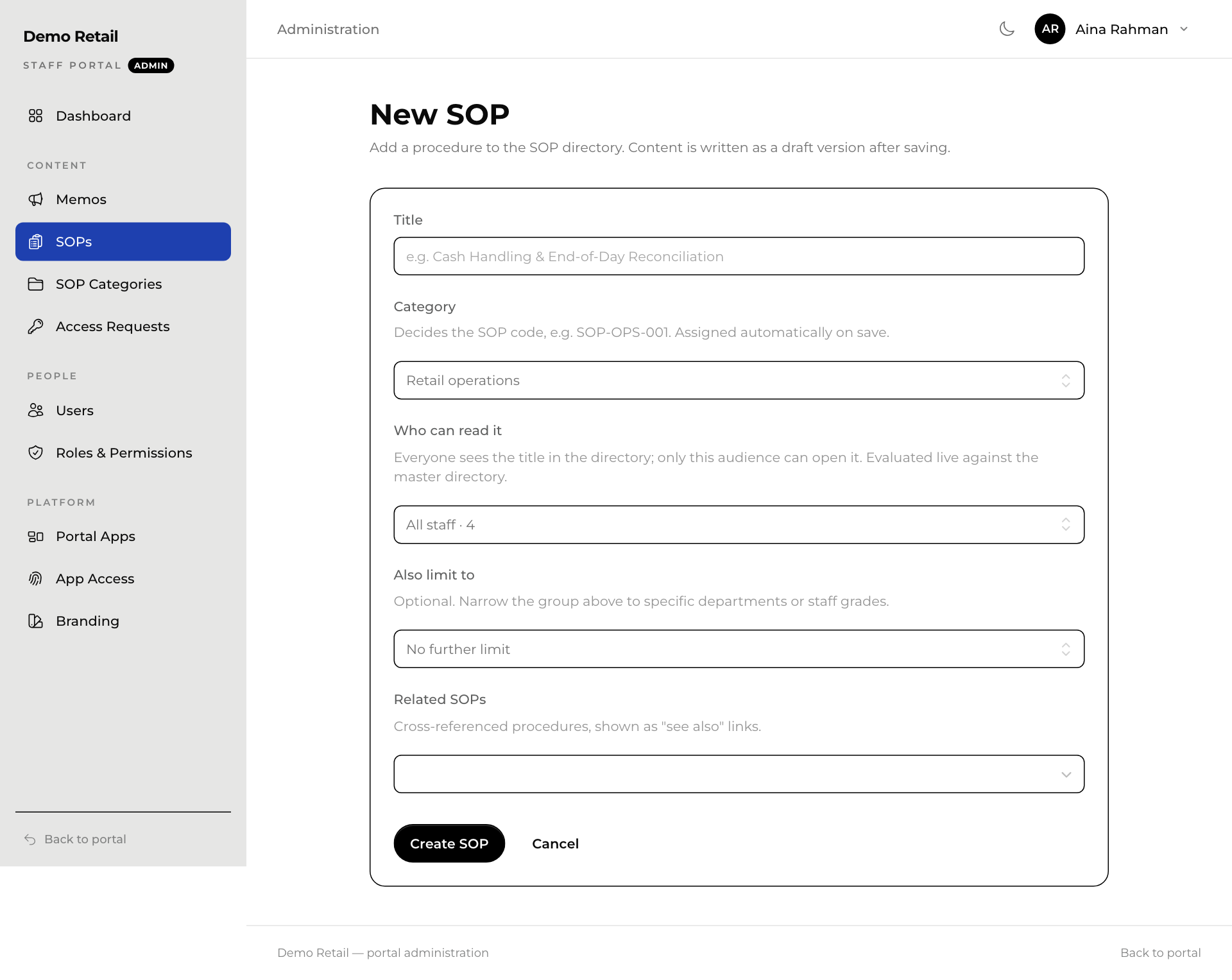
Step 1: the details
- In the admin area, press SOPs, then New SOP.
- Fill in Title.
- Pick a Category. It decides the code, which is given automatically when you save.
- Under Who can read it, pick the group that can open it. Everyone else sees the title with a lock.
- Use Also limit to to narrow it to some departments or staff grades.
- Under Related SOPs, pick other procedures to show as links.
- Press Create SOP. The procedure's own page opens.
Step 2: the content
- On the procedure's page, open the Versions tab and press New draft version, then Start draft.
- Press ⋯ on the draft's row and choose Edit.
- Type the steps into Content, or attach a scan of the paper copy under Scanned document (PDF, JPG or PNG, up to 20 MB).
- Fill in What changed? and, if needed, the Effective date. Switch on Major revision for a big change.
- Press Save version.
- Press ⋯ again and choose Submit for review.
The draft now waits for someone who can approve procedures. See Approve and publish a procedure.
If Extract text with AI appears in the menu for a scanned draft, it types the scan's text into the content for you. Check every line before you submit it. The option only shows when your company has switched it on.
Categories
Add or rename categories under SOP Categories. Code prefix is the short code at the start of each procedure code. Sort order decides the order in the directory.