Connect an app to Home
For: Administrators
Whole guide as PDF (2 MB)Each tile on staff Home screens is set up here.
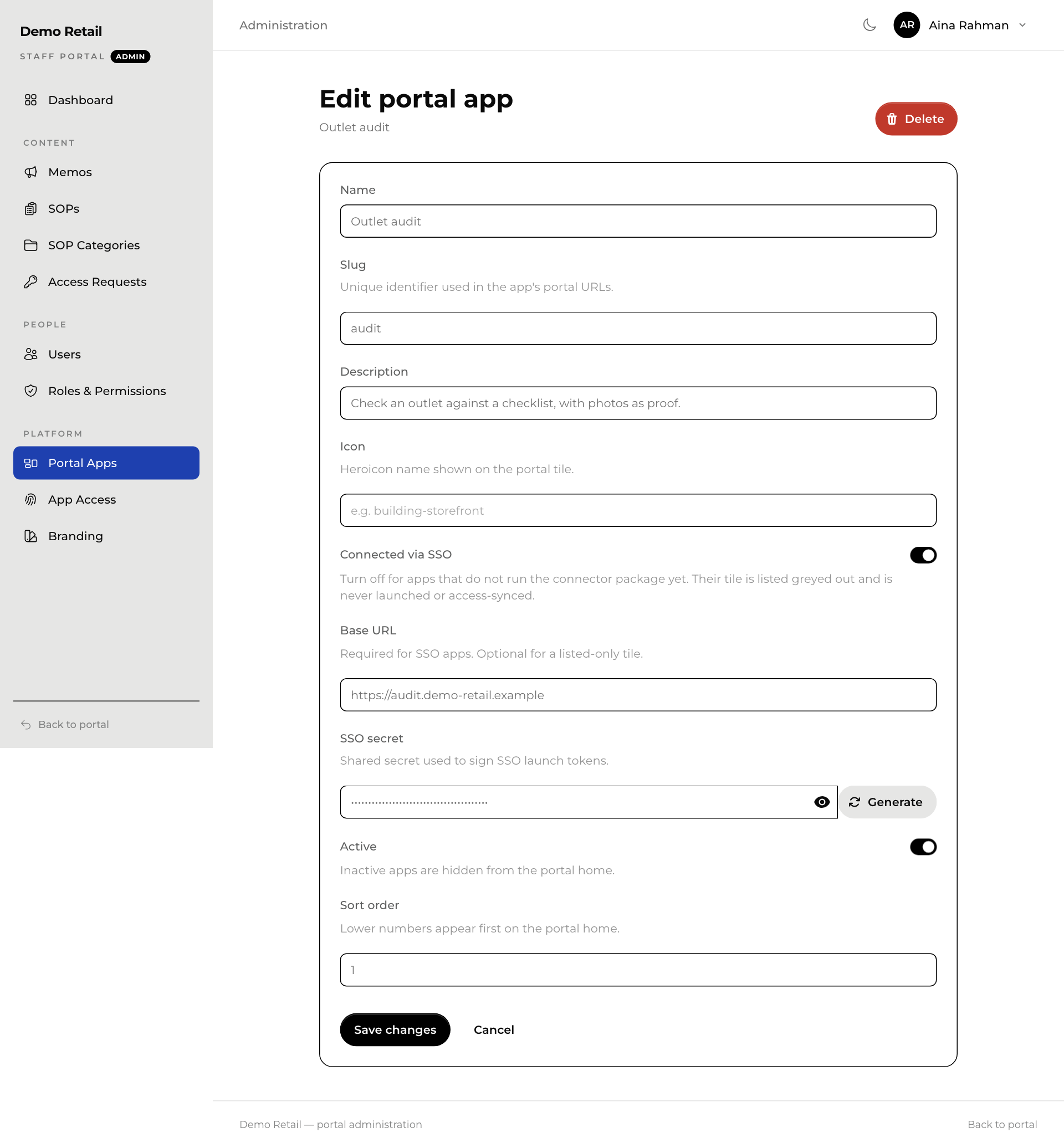
- In the admin area, press Portal Apps.
- Press New app, or press an app to change it.
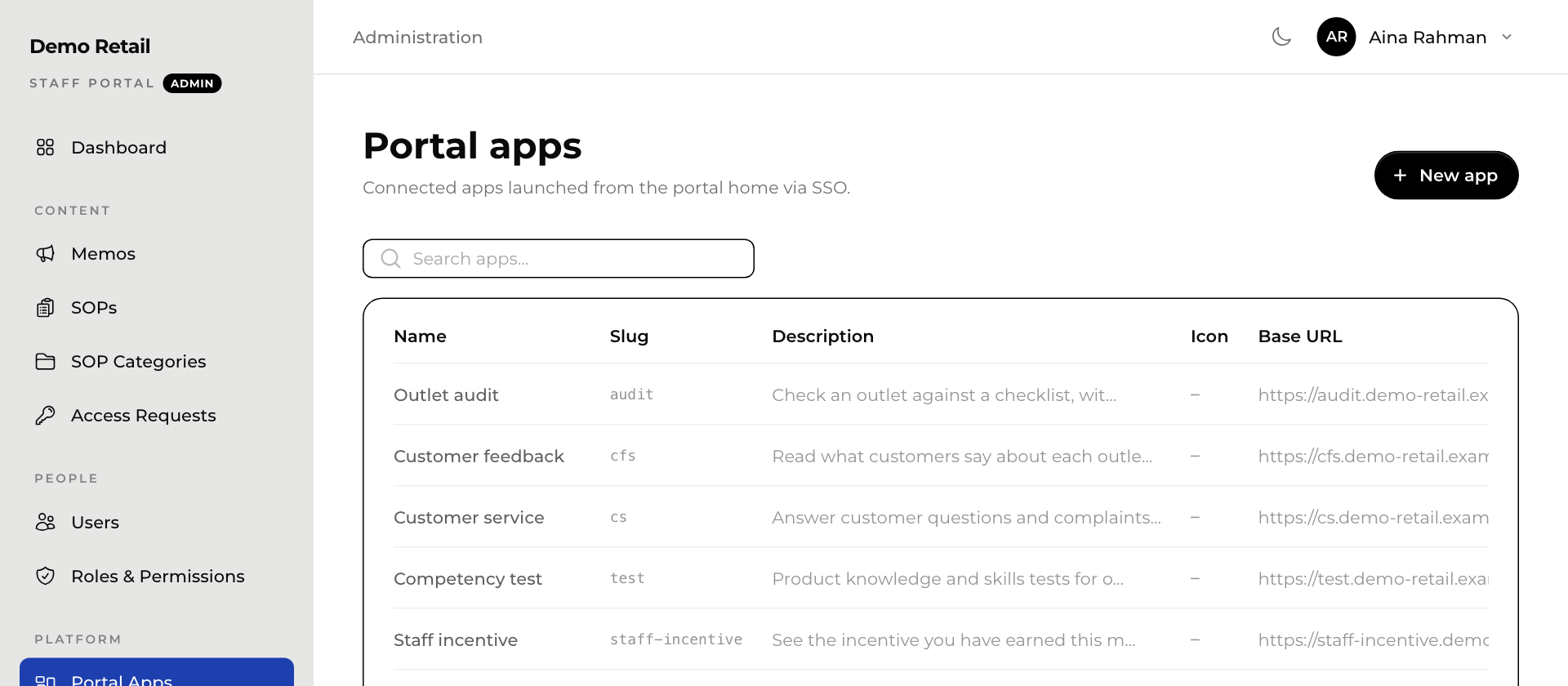
- Fill in the settings and press Save changes.
| Setting | What it changes |
|---|---|
| Name, Description | What staff see on the tile. |
| Slug | The app's short name. It must match the short name set inside the app. Do not change it once staff use the app. |
| Connected via SSO | Switch it on when the app is ready to open straight from Home without a second sign-in. While it is off, the tile shows Not connected yet and cannot be opened. |
| Base URL | The app's web address. Needed when Connected via SSO is on. |
| SSO secret | A shared key that proves the portal sent the person. Press Generate, then enter the same key in the app's own setup. If the two differ, staff cannot open the app. |
| Active | Switch it off to hide the tile from everyone. |
| Sort order | Lower numbers come first on Home. |