Give someone admin rights
For: Administrators
Whole guide as PDF (2 MB)Staff appear under Users after they sign in for the first time.
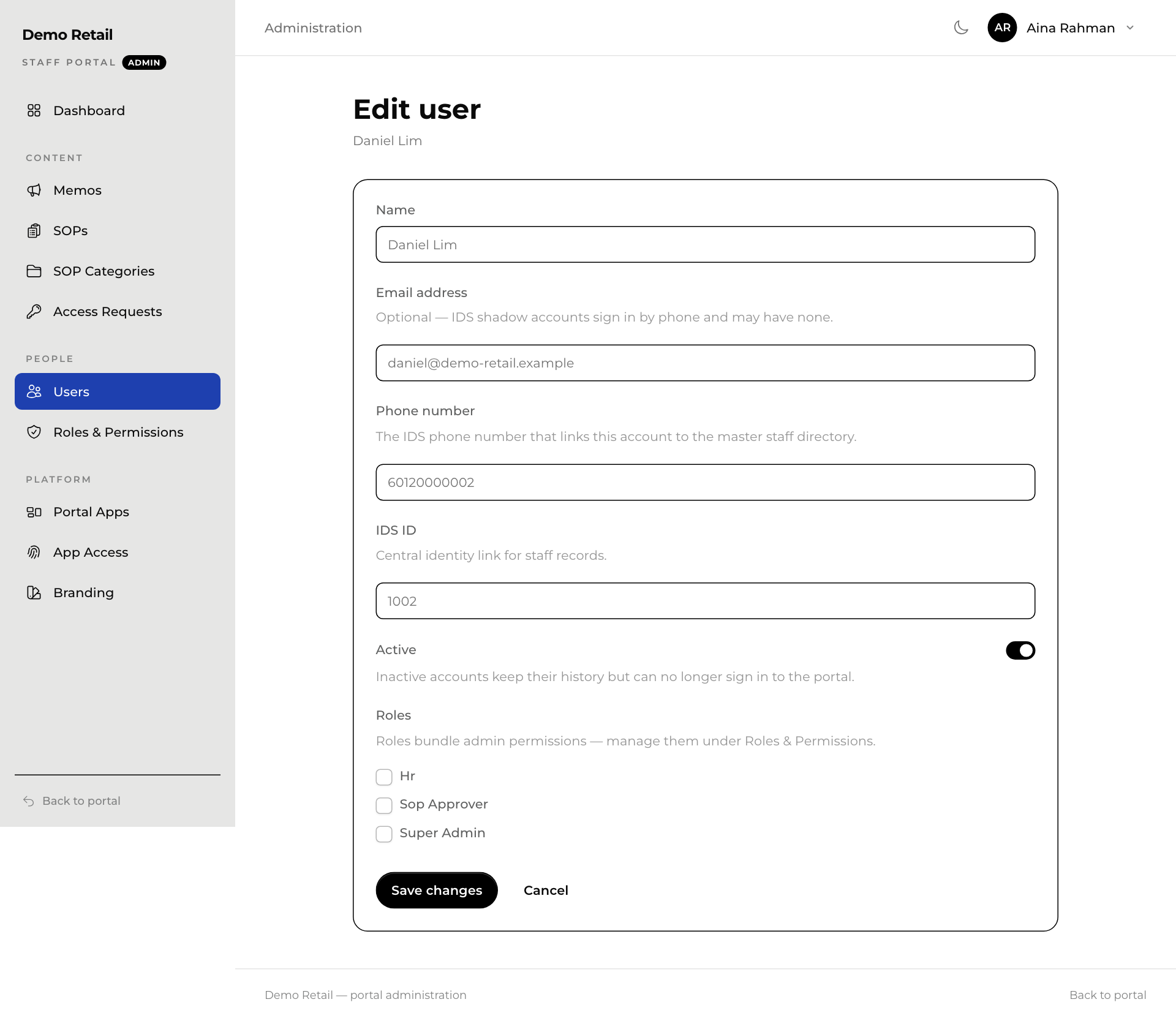
- In the admin area, press Users.
- Press the person's name.
- Under Roles, tick the roles they need.
- Press Save changes.
The roles that come with it:
| Role | What the person can do |
|---|---|
| Hr | Write and send memos, add and edit procedures, answer access requests and manage categories. Cannot approve or publish procedures. |
| Sop Approver | See procedures, approve and publish versions. |
| Super Admin | Everything. |
Switch off Active to stop someone signing in to the portal. Their history is kept.
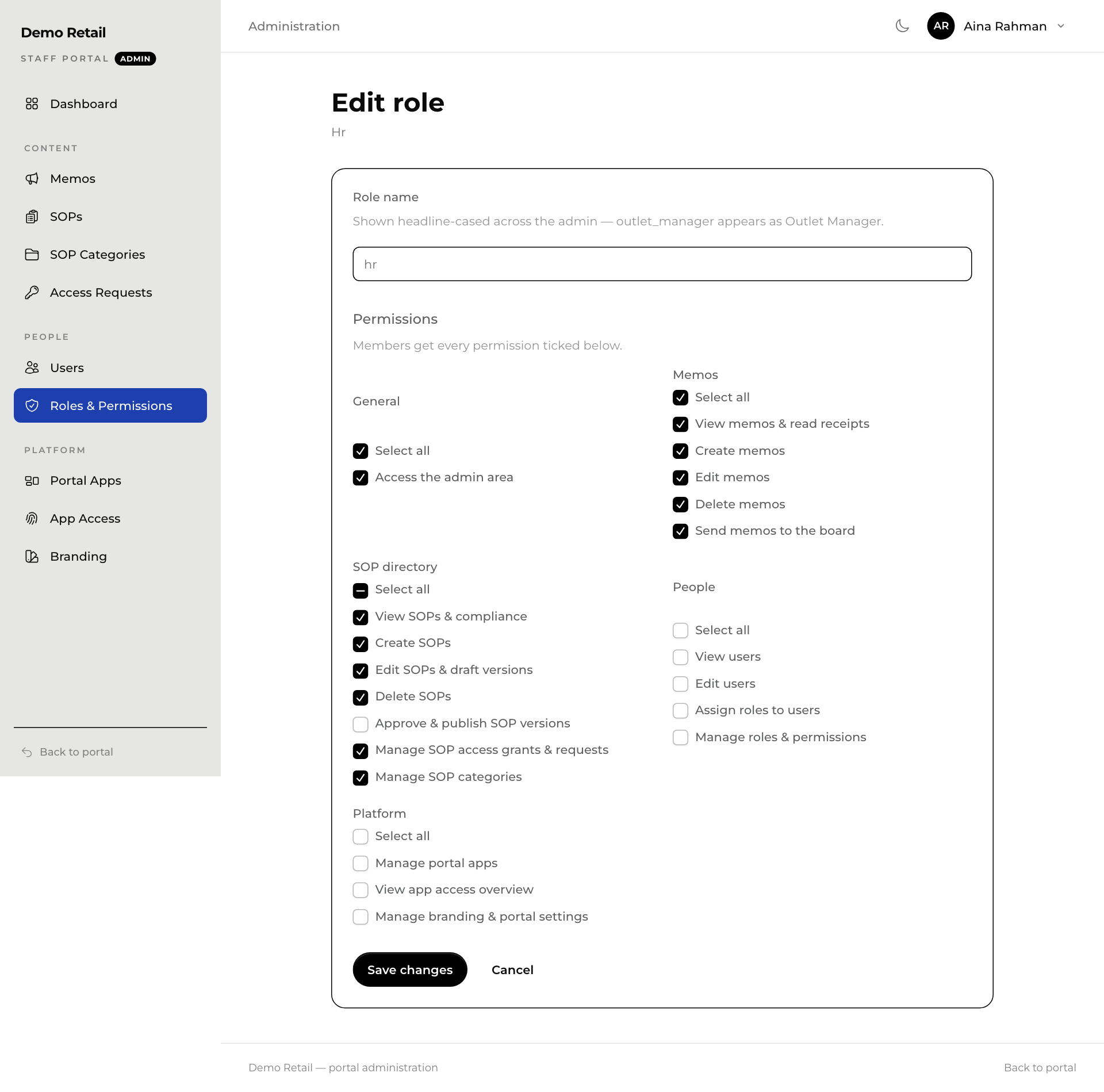
Change what a role can do
- Press Roles & Permissions, then a role, or New role for a new one.
- Tick what the role may do. Each tick is one thing, for example Send memos to the board or Approve & publish SOP versions.
- Press Save changes. Everyone with that role gets the change.