Post a memo
For: Administrators
Whole guide as PDF (2 MB)- In the admin area, press Memos, then New memo.
- Fill in Title and pick a Category: Memo, SOP, Guideline or Notice.
- Write the memo in Content. The toolbar above it adds bold, lists and links.
- Add files under Attachments if needed: up to 10 files (PDF, pictures, Word or Excel), up to 20 MB each.
- Under Send to, pick who sees it: All staff, Outlet staff, HQ staff, Branch managers, Specific departments or Specific staff grades. The number after each choice is how many people that is today.
- To narrow it further, use Also limit to, for example outlet staff in one department only.
- Switch on Require read acknowledgement if staff must confirm they have read it.
- Switch on Also send a WhatsApp alert to send each person a short WhatsApp message with a link to the memo. This only works once your company's WhatsApp sender has been set up for the portal.
- Press Send memo to put it on the board now, or Save draft to keep it hidden until later.
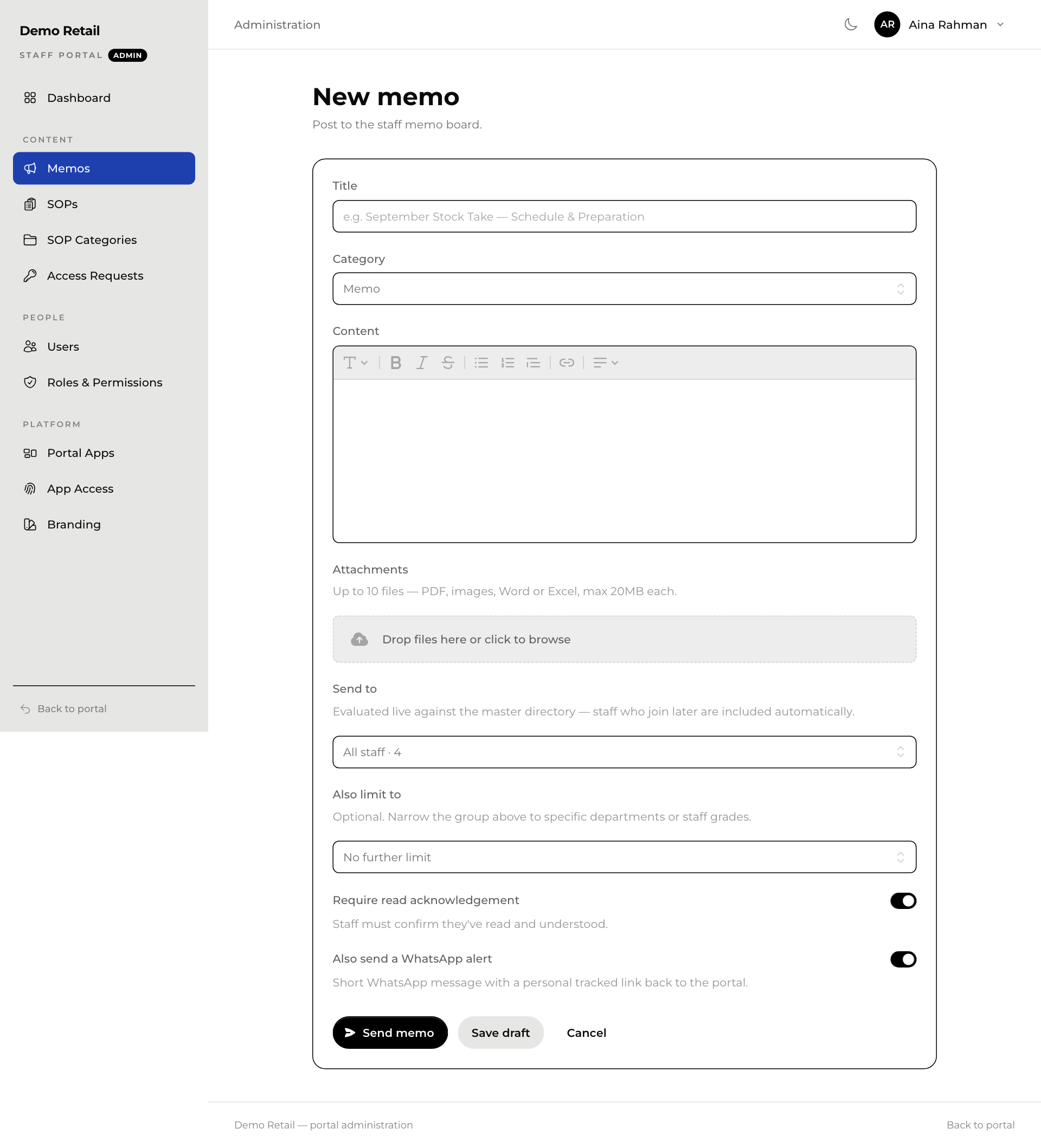
The audience is checked against the staff directory every time someone opens the board, so a person who joins later still sees the memo.
To send a draft later, open Memos, press ⋯ on its row and choose Send memo.