Set up automatic rules, extra fields and links
For: CS Managers and Admins
Whole guide as PDF (2 MB)Automatic rules
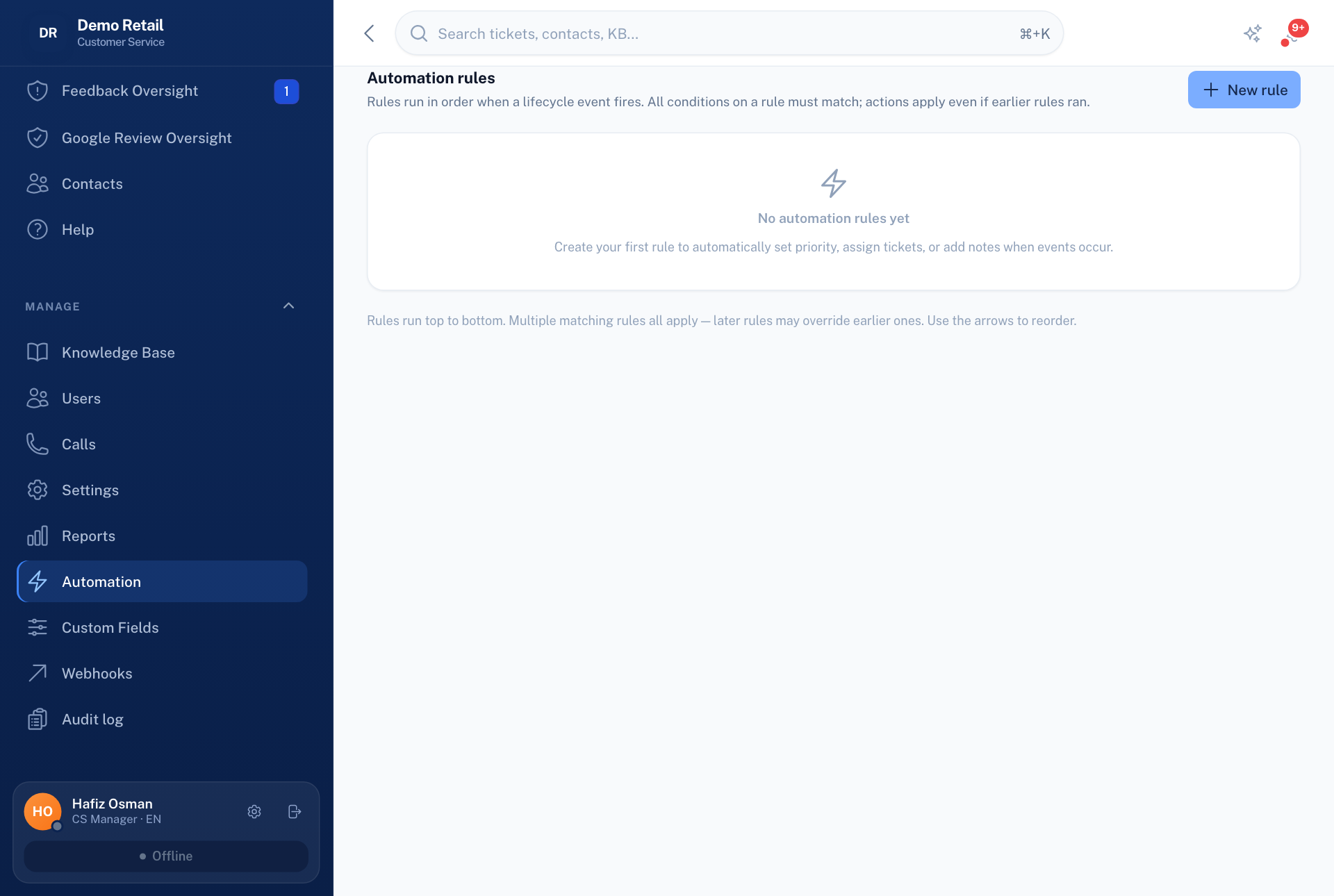
- Open Automation under Manage.
- Press New rule. Choose a condition, such as the ticket type or channel, and an action, such as giving it to someone, adding a tag or setting the priority.
- Rules run from top to bottom, and every matching rule applies. Put the most specific rules first.
Extra fields
Custom Fields under Manage adds your own fields to tickets or contacts: text, number, drop-down, on/off and more. Mark a field Show on web form to ask customers for it on the support form.
Links to other systems
These are for your technical team.
- Webhooks under Manage sends ticket events to another system. Copy the signing secret when it is shown: it is shown only once. If it is lost, delete the endpoint and make a new one.
- Other systems can also read tickets and contacts, and add notes, through an access key your technical team creates. There is no screen for this.