Reply to a customer
For: Agents
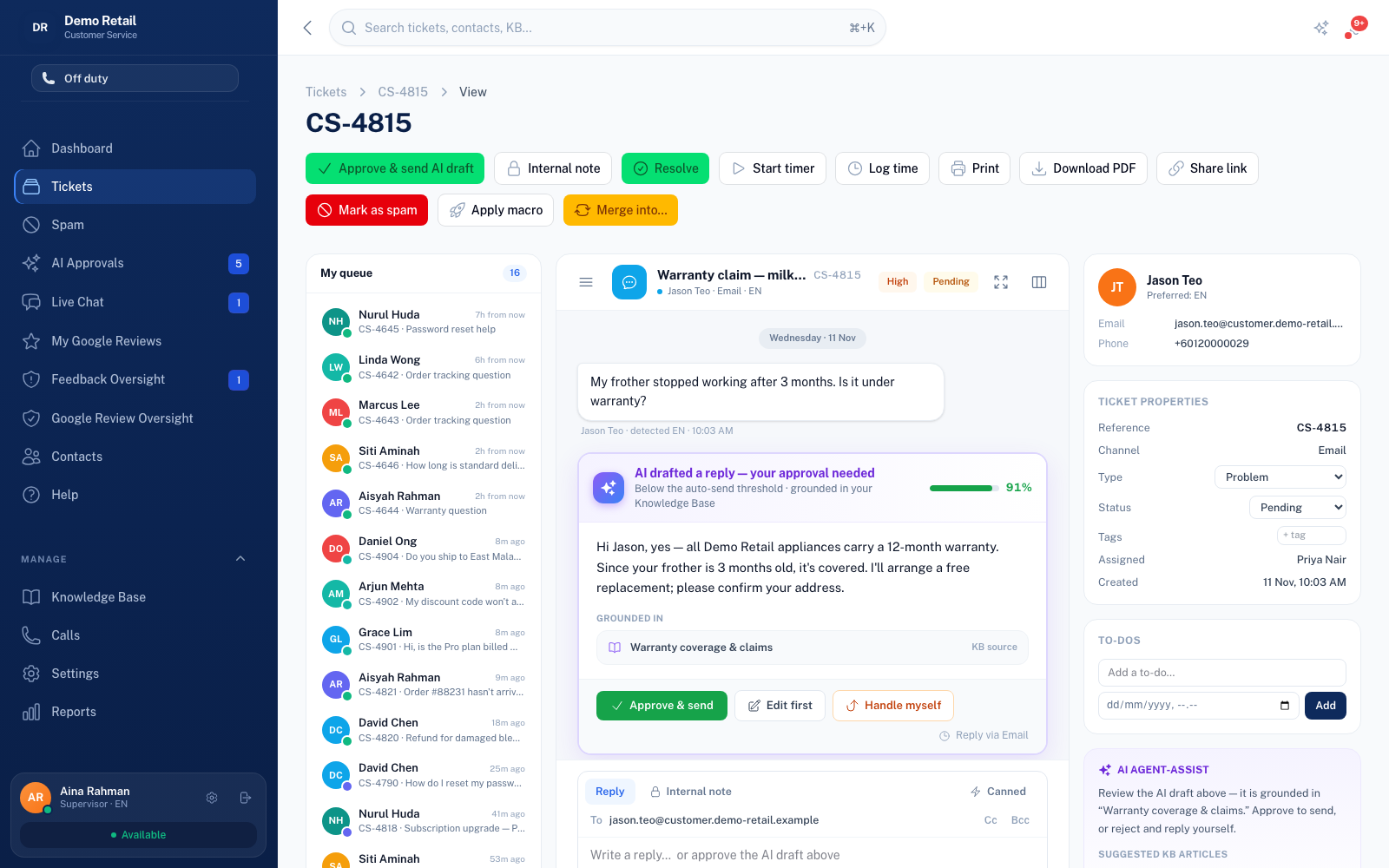
Whole guide as PDF (2 MB)The conversation is in the middle, your queue on the left, and the customer and ticket details on the right.
- Read the conversation. Messages are shown in your working language, with the original underneath.
- If the AI has drafted a reply, it shows how sure it is and which help article it used. Press Approve & send to send it as it is, Edit first to change it, or Handle myself to write your own.
- To write your own, type in the box at the bottom and press Send reply. The customer gets it the same way they wrote to you.
- Change Status on the right as you go. When you are done, press Resolve.
Other buttons on a ticket
- Internal note: a note only your team sees. Type @ and a name to call a colleague in.
- Canned: insert a saved reply. Apply macro: run a saved set of steps in one click.
- Start timer or Log time: record how long the ticket took.
- Merge into…: fold a duplicate ticket from the same customer into another.
- Share link: a read-only link for someone without an account, ending after 1 hour, 1 day or 7 days. Internal notes are never shown.
- Print or Download PDF: a copy of the conversation, without internal notes.
- Mark as spam: for junk. It stops the clock and leaves the reports.
WhatsApp's 24-hour rule
WhatsApp only allows a free reply within 24 hours of the customer's last message. After that, the box changes to Send template: pick one of your approved message templates to open the conversation again. This is WhatsApp's rule, not this module's.