Approve a document
For: Approvers
Whole guide as PDF (3 MB)Budgets, awards, variation orders and claims all go through the same kind of approval. The bar at the top of the document shows the chain:
- Each step is one level, with its name (for example Project Manager), its rule and the people who can approve it.
- Any one approves means one person's yes clears the level. All must approve means everyone listed must say yes.
- A tick appears beside each person who has approved, and the step turns green when the level clears.
Documents waiting for you appear under Outstanding approvals on the dashboard.
Make your decision
- Open the document from Outstanding approvals.
- Read it. On a claim, look at every supporting document first.
- Press one of the buttons on the right of the bar:
- Approve passes it to the next level, or finishes the chain if you are last.
- Return sends it back to the person who prepared it, to fix and send again.
- Reject ends it.
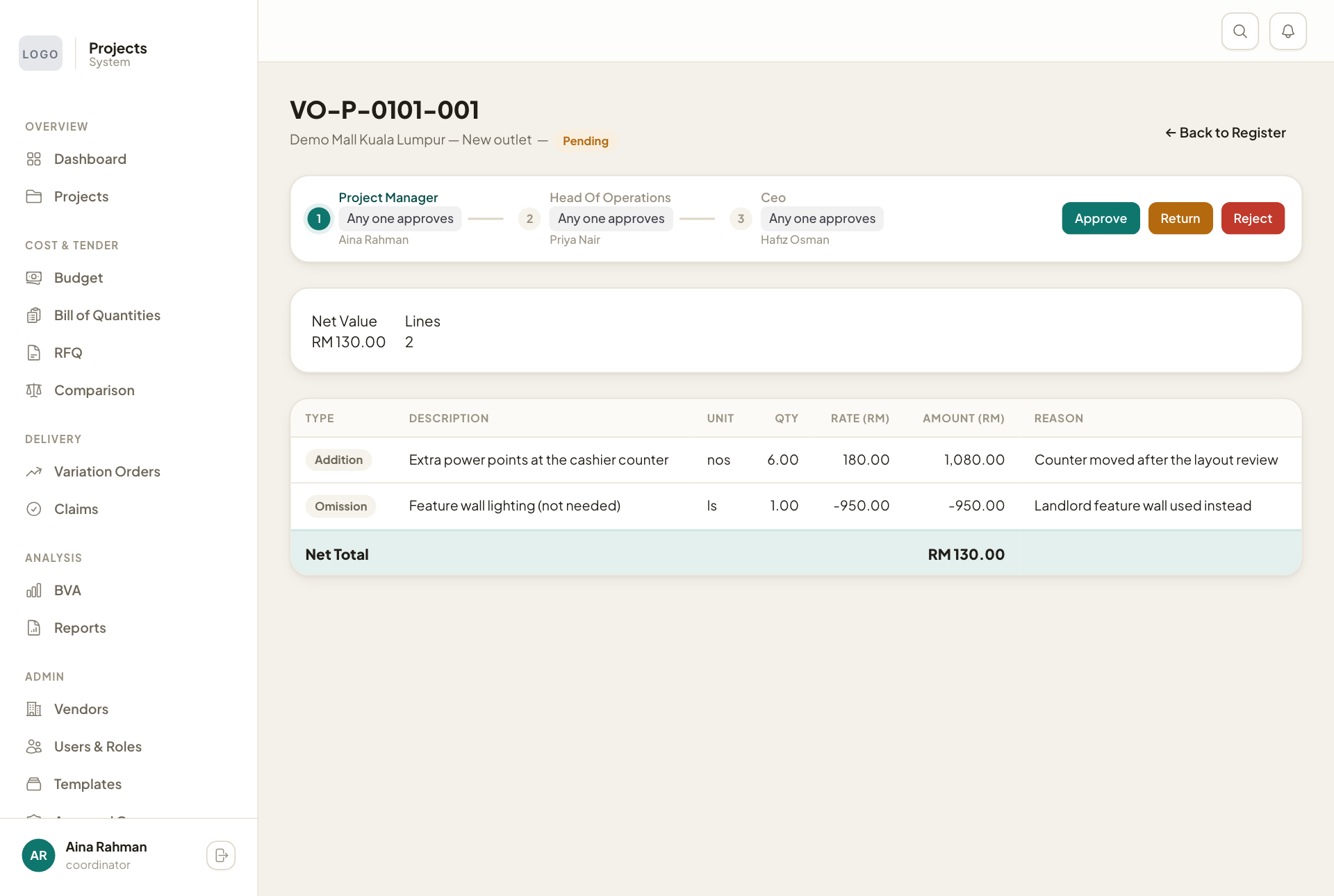
The buttons appear only when it is your turn. If you are waiting on someone else, you see Resend notification instead, which reminds the people at the current level.