Prepare a budget
For: Coordinators
Whole guide as PDF (3 MB)The budget is the approved cost of the project. Once approved, it becomes the figure every later cost is compared with.
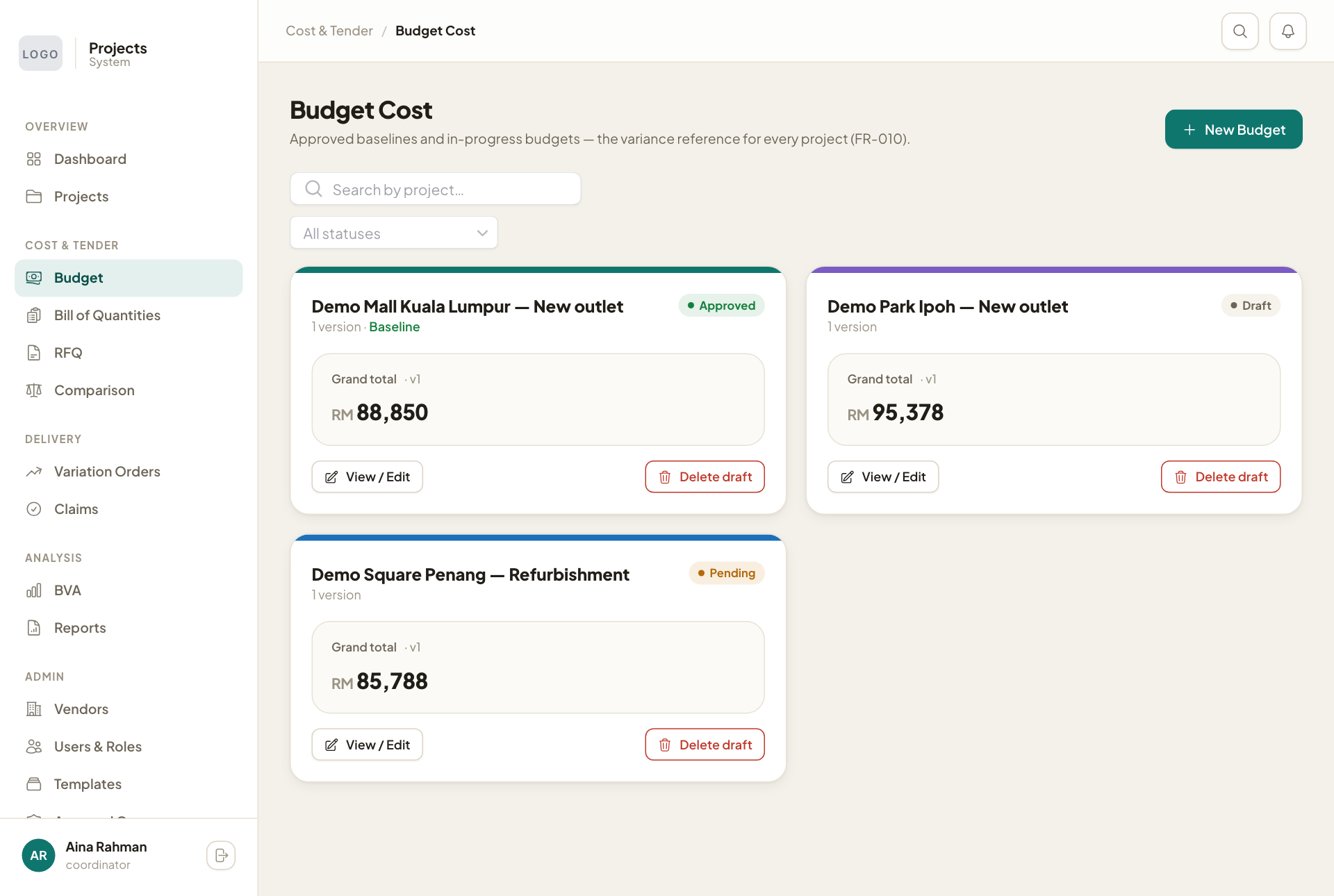
- Open Budget and press New Budget. Pick the Project and the Template to start from, then press Create Budget.
- The budget opens with every item of the template. For each item that applies, type the QTY and UNIT PRICE (RM). The AMOUNT (RM) is worked out for you.
- Leave items that do not apply at zero.
- Use Add line for anything the template does not have.
- Press Submit for Approval. If some items are still at zero, you are warned first.
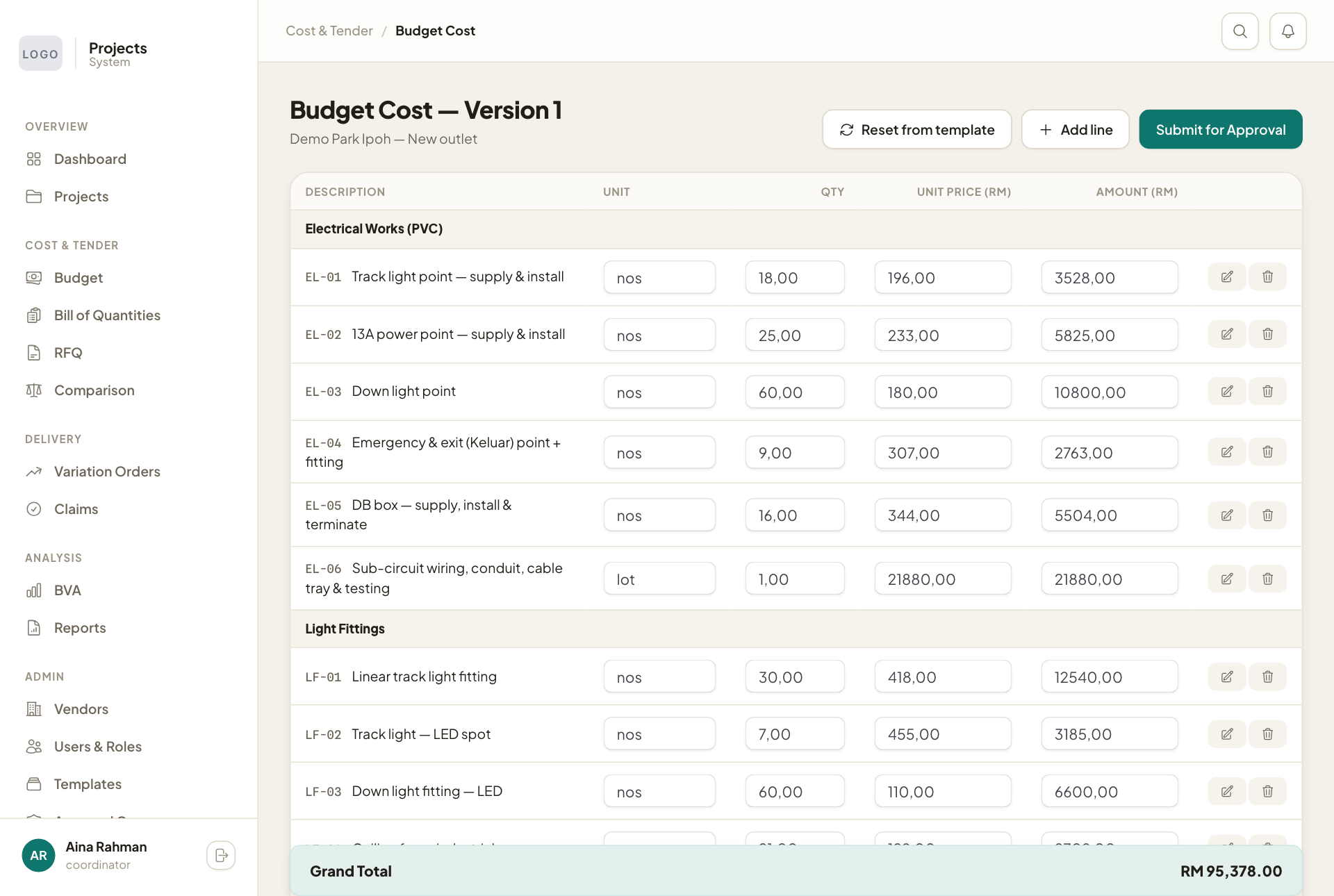
Reset from template puts the budget back to the template. It wipes everything you typed, so use it only to start again.
Percentage items
Some items are a percentage of the rest of the budget (for example "8% of total, maximum 15k"). Their amount fills in by itself from the other items and stops at the maximum. To keep an item out of that base, open the item with its pencil button and switch on Exclude from % base. The item still counts in the grand total.
After you submit
- The budget cannot be edited while it is being approved.
- Items left at zero are hidden from the approvers. Nothing is deleted: if the budget is sent back, every item comes back.
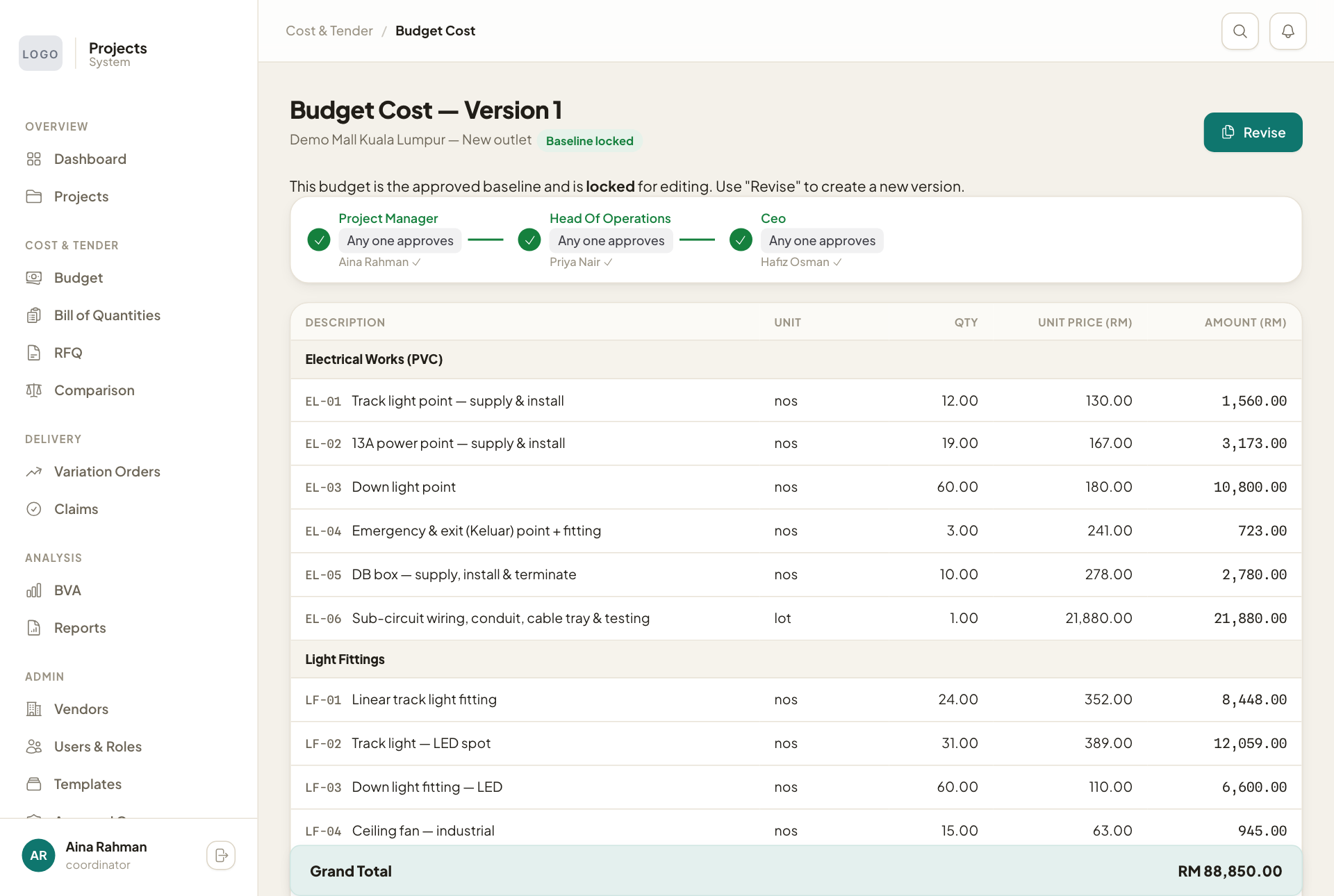
- When the last approver says yes, the budget shows Baseline locked, and a draft bill of quantities is made from the priced items.
To change an approved budget, press Revise. This starts a new version that goes through approval again.
The Budget page lists every project's budget with its status: Draft, Pending or Approved.