Check and certify a claim
For: Coordinators
Whole guide as PDF (3 MB)Vendors are paid in stages, for example a down payment, progress payments, the balance and the retention. The vendor claims each stage on their own screens, with photos and invoices attached. You check the claim and certify it before it goes for approval.
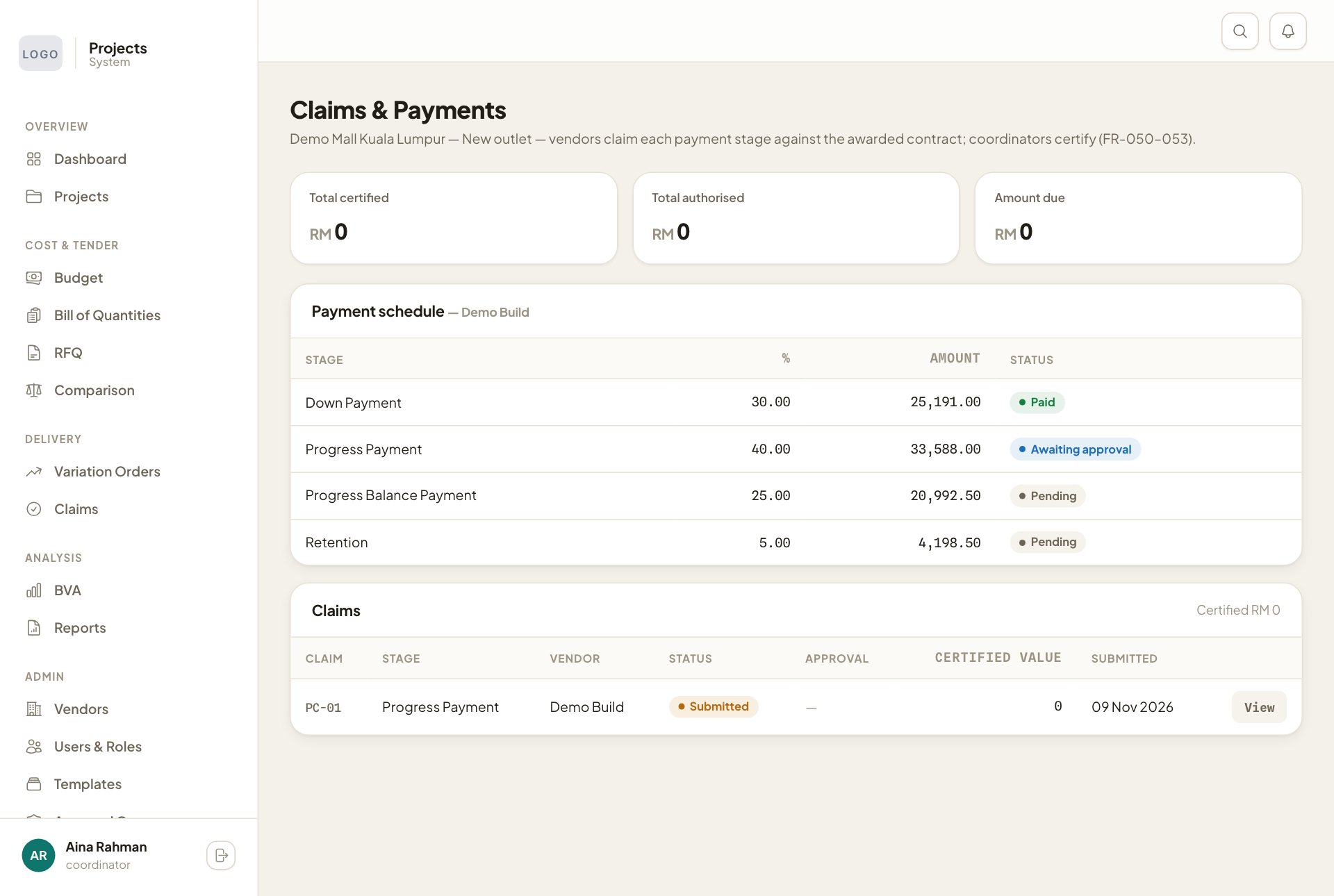
- Open Claims and press Open Register on the project.
- Payment schedule shows every stage with its amount and status. Below it, Claims lists what the vendor has claimed. Press View on a claim.
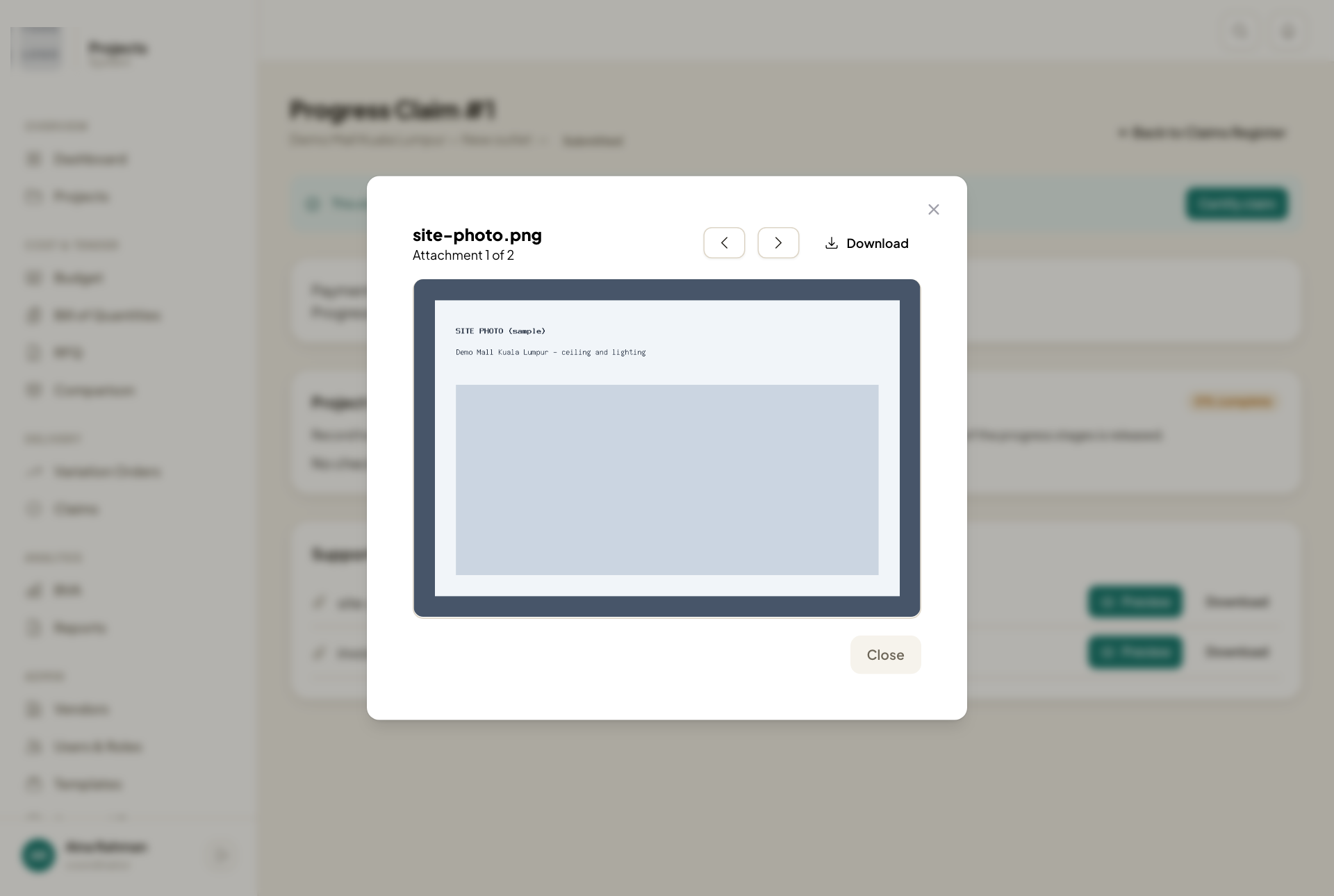
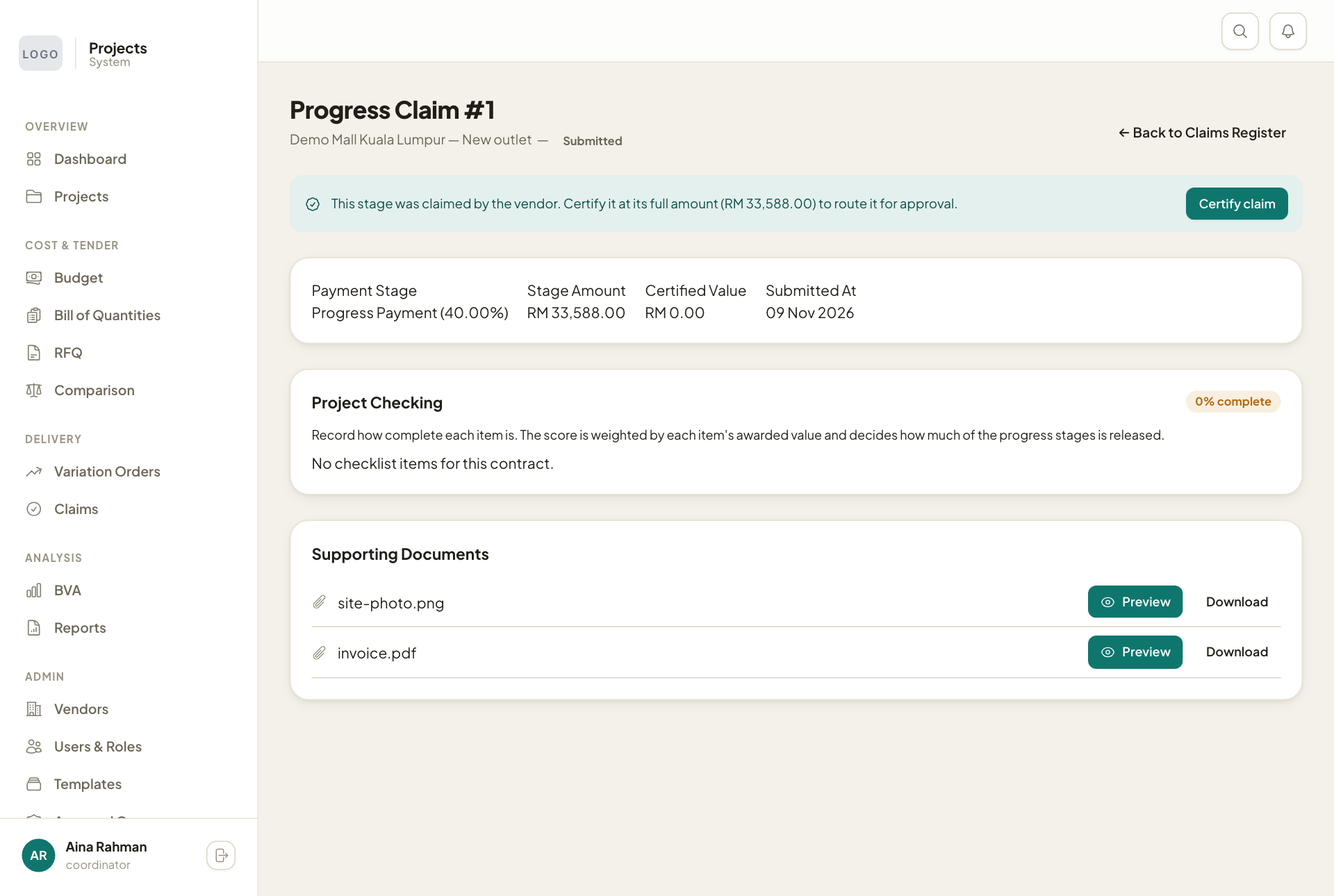
- Under Supporting Documents, press Preview on each file. Pictures and PDFs open on the page; use the arrows to move from one file to the next. Word and Excel files can only be downloaded.
- If the work is done, press Certify claim.
- Then press Submit for approval to send it to the approvers.
Progress stages and project checking
For progress stages, the amount you can certify can depend on Project Checking: a list of the contract's items where you record how complete each one is. The page then says how much of the stage it releases. If no work is recorded yet, it asks you to record progress before certifying. If the contract has no checklist, the stage is certified at its full amount.
Stages are paid in order. The vendor cannot claim a stage until the one before it is certified.